


Exit iOS Setup Assistant
Updated on Mar 18, 2026
Reading time ~2 minutes
When updating iOS or restoring a backup to your iPhone, iPad or iPod Touch, there’s always a chance for something to go wrong. Symptoms may include:
- iPhone frozen on the Restore Completed screen or stuck on Update Completed
- Choose a Wi-Fi network step hangs
- Error at the Sign in to Apple ID stage
- Stuck at any other iPhone Setup Assistant step
In other cases, the iOS device won't even reach the Setup Assistant and will boot in Recovery Mode. The reasons for this happening can be anything, from corrupted files in the backup or the iOS update, to software bugs or leftover jailbreak files.
While not all of these issues can be fixed without a clean install, there is a chance that your data can still be saved. iMazing offers two completely free tools for this:
- Exit Setup Assistant, which we explain in this article
- Exit Recovery Mode, covered in this How to Exit Recovery mode guide
Here's how to bypass the iOS Setup Assistant:
After your iPhone has restarted, it should now go straight to the Home screen.
Before you begin
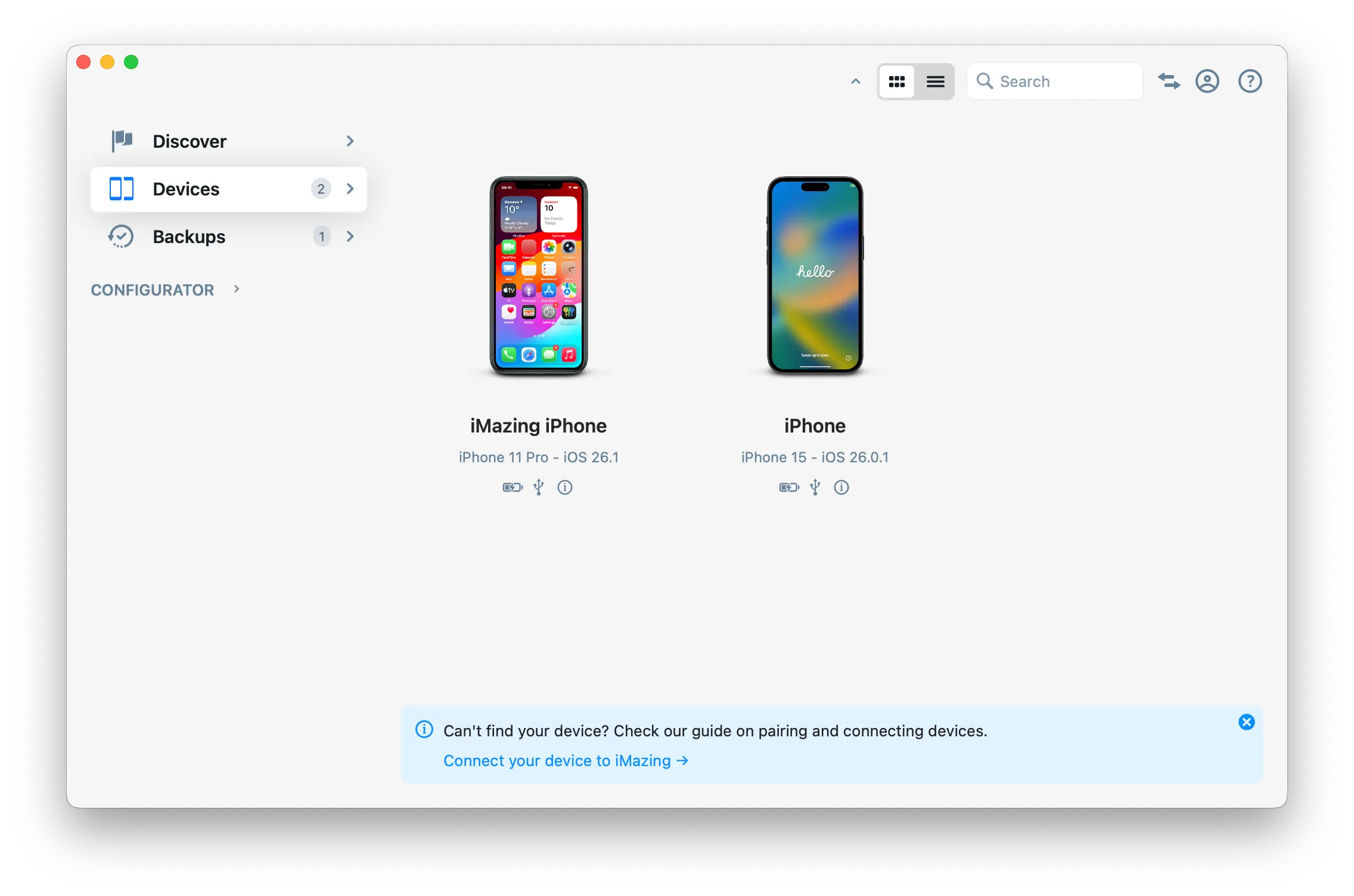
Click on Devices in the left pane
From the devices view you will see all the devices previously connected and paired to your computer. Click to select a device.
Click Exit Setup Assistant in the Quick Actions Panel
From this overview, you can click in the right Quick Actions panel on Exit Setup Assistant.
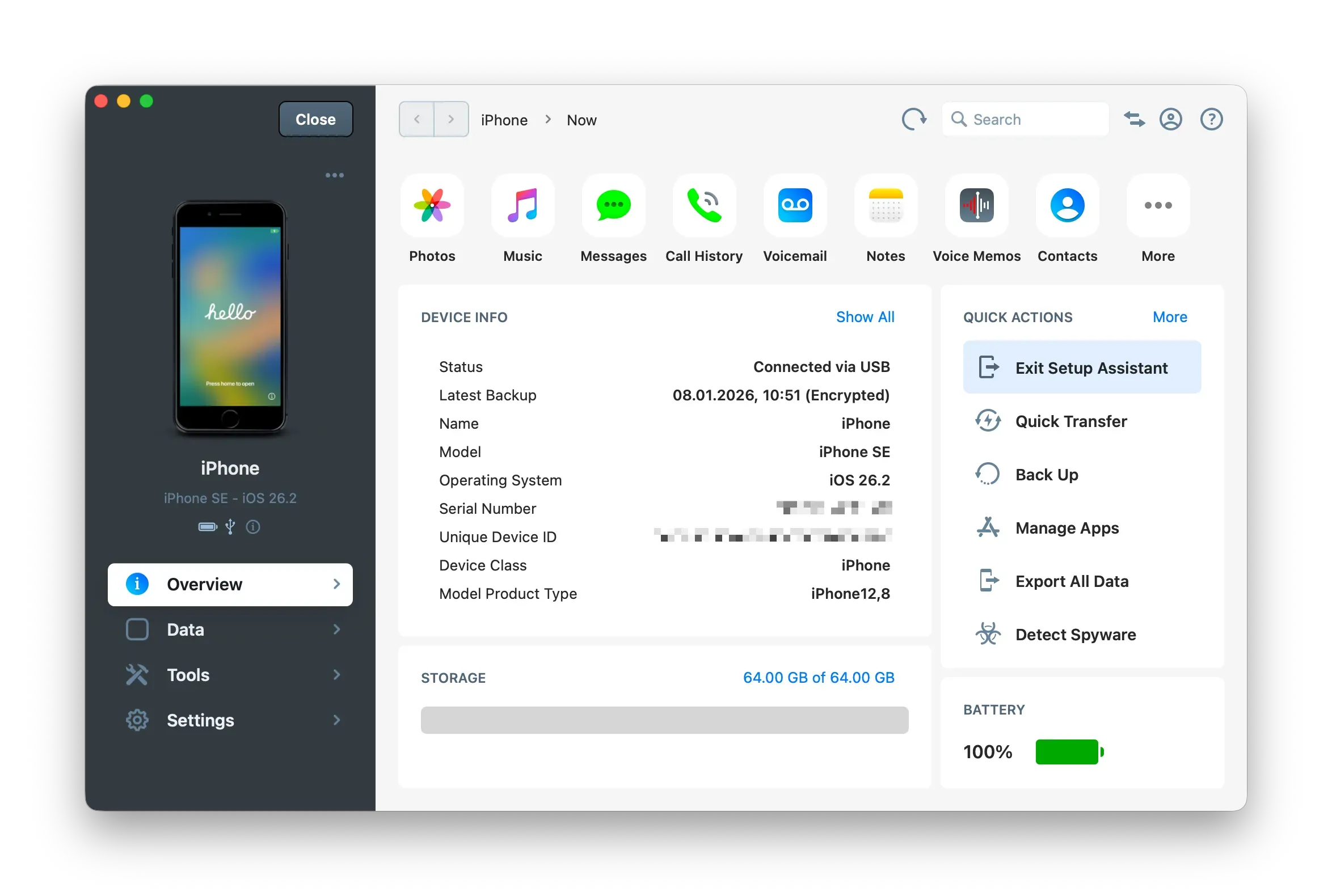
Tip: the Exit Setup Assistant button will only appear if Setup Assistant is currently running on the device.
Confirm to let iMazing restart your device and bypass the Setup Assistant
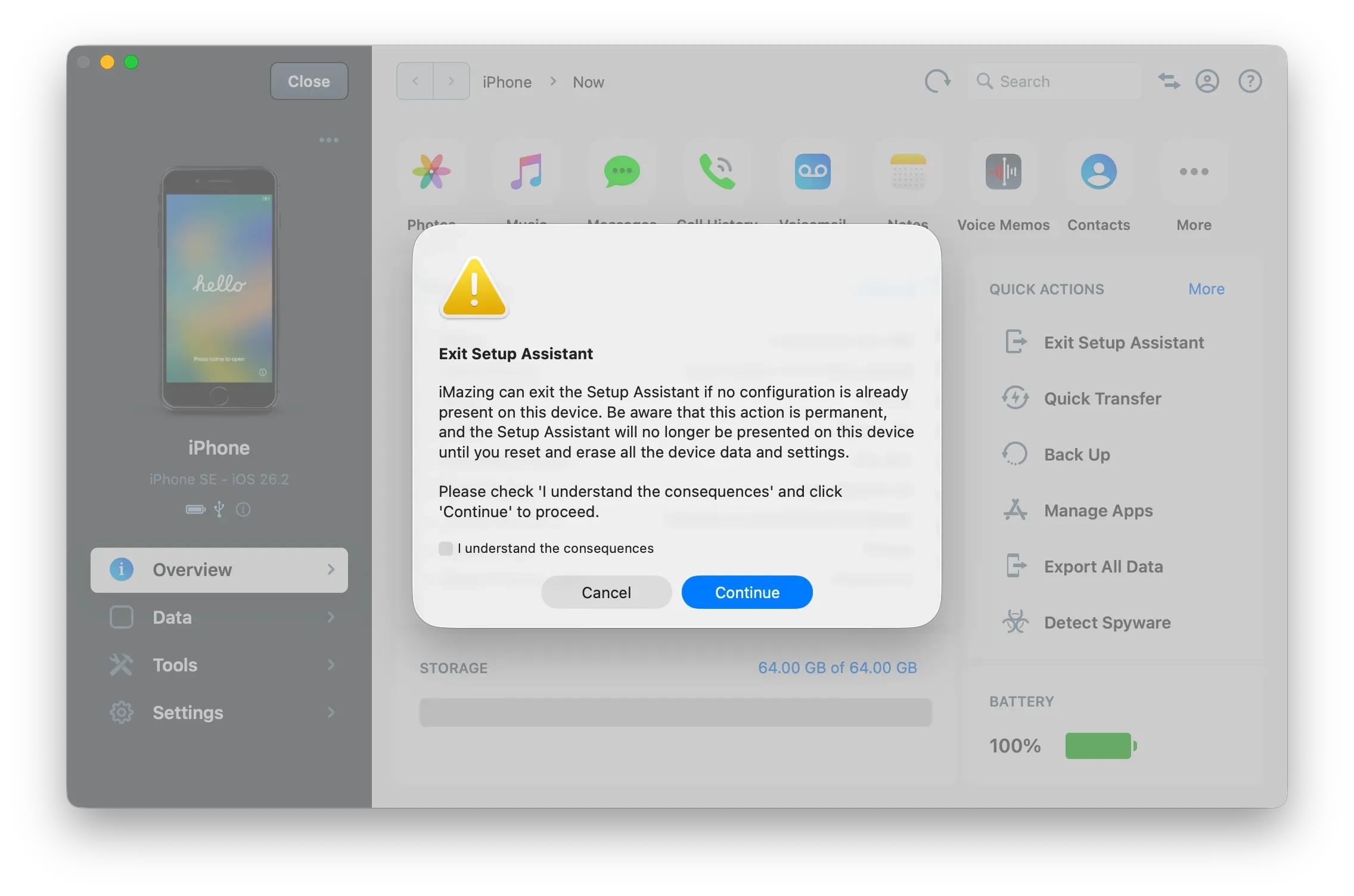
Once you click OK, the device will reboot. After a few seconds, the Apple logo should reappear indicating that the device is restarting.
The process will be complete once the Home screen appears on your device.
Tips: Keep your device connected while it restarts, otherwise iMazing cannot trigger the Setup Assistant bypass. If the procedure does not work the first time, run Exit Setup Assistant again.