


Backup Snapshot List in iMazing
Updated on May 20, 2026
Reading time ~2 minutes
The "Snapshot List" lets you browse contents of previous device backups. This menu makes it easy to switch between viewing your device's current state and any of its saved historical states.
To access the Snapshot List, click the Now element in the upper toolbar.
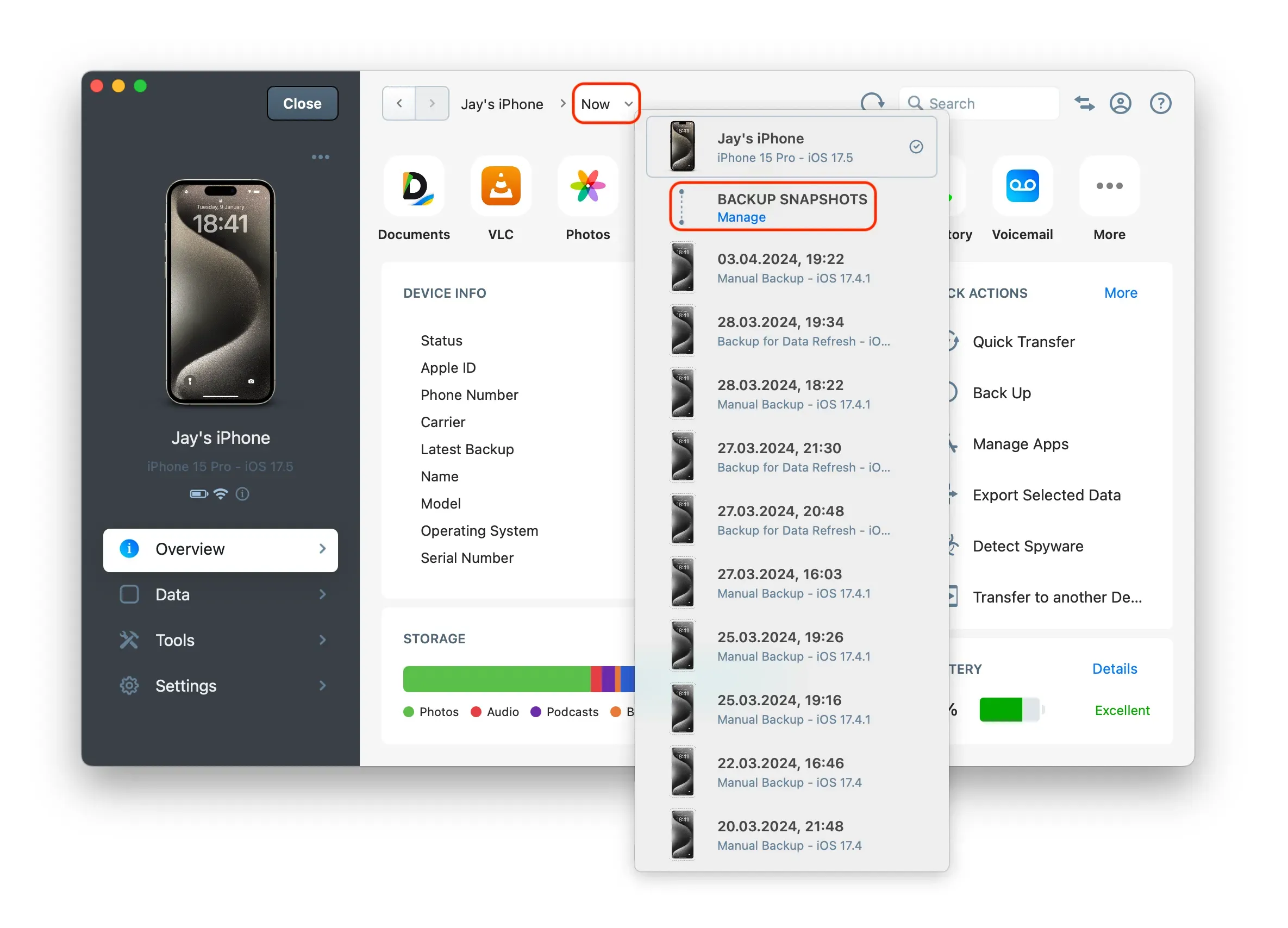
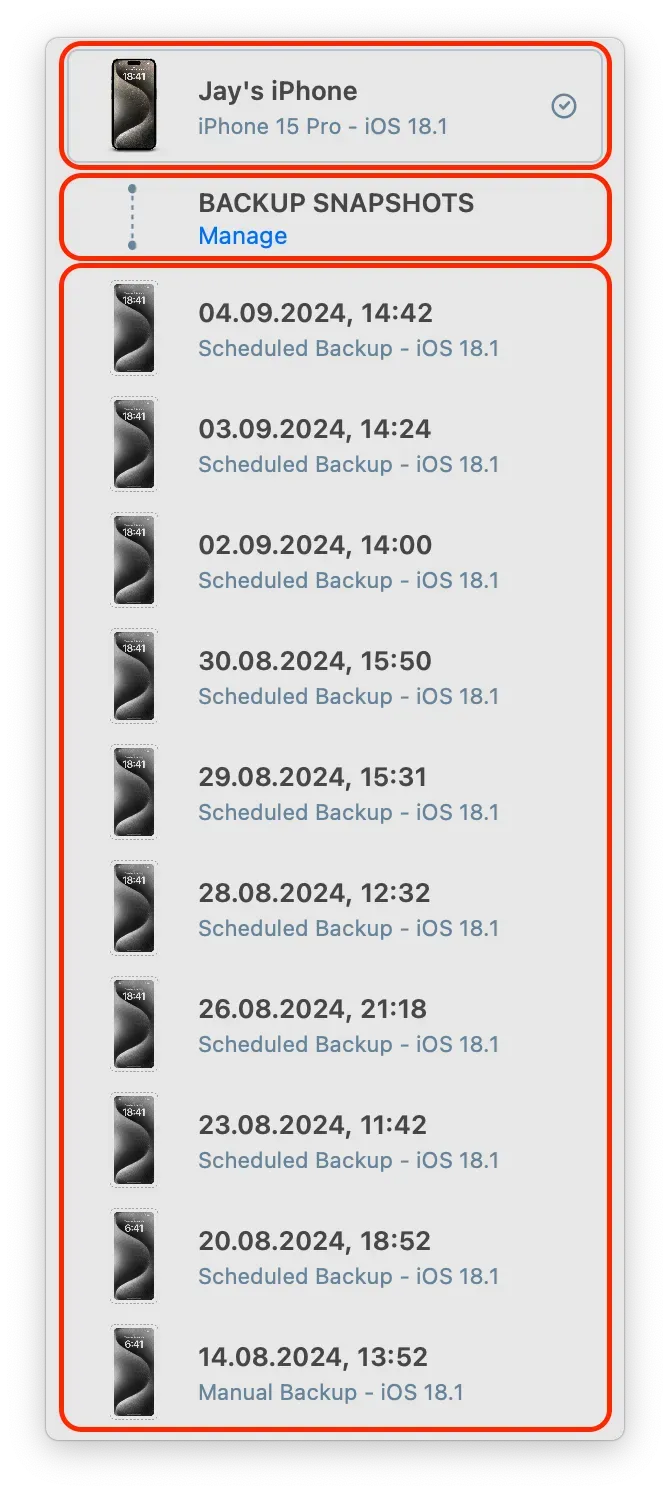
The list is divided in 3 sections:
Good to know
The grey checkmark icon on the right indicates which state you are currently viewing.
Device Current State
The first element points to your device. This is the default selected item, marked by a gray checkmark when active.
Backup Snapshots | Manage
Clicking this element takes you to the "Manage Backup Snapshots" view. Here, you can view device snapshots, lock them for preservation, add custom labels for easier identification, or delete individual or multiple backup snapshots to free up space.
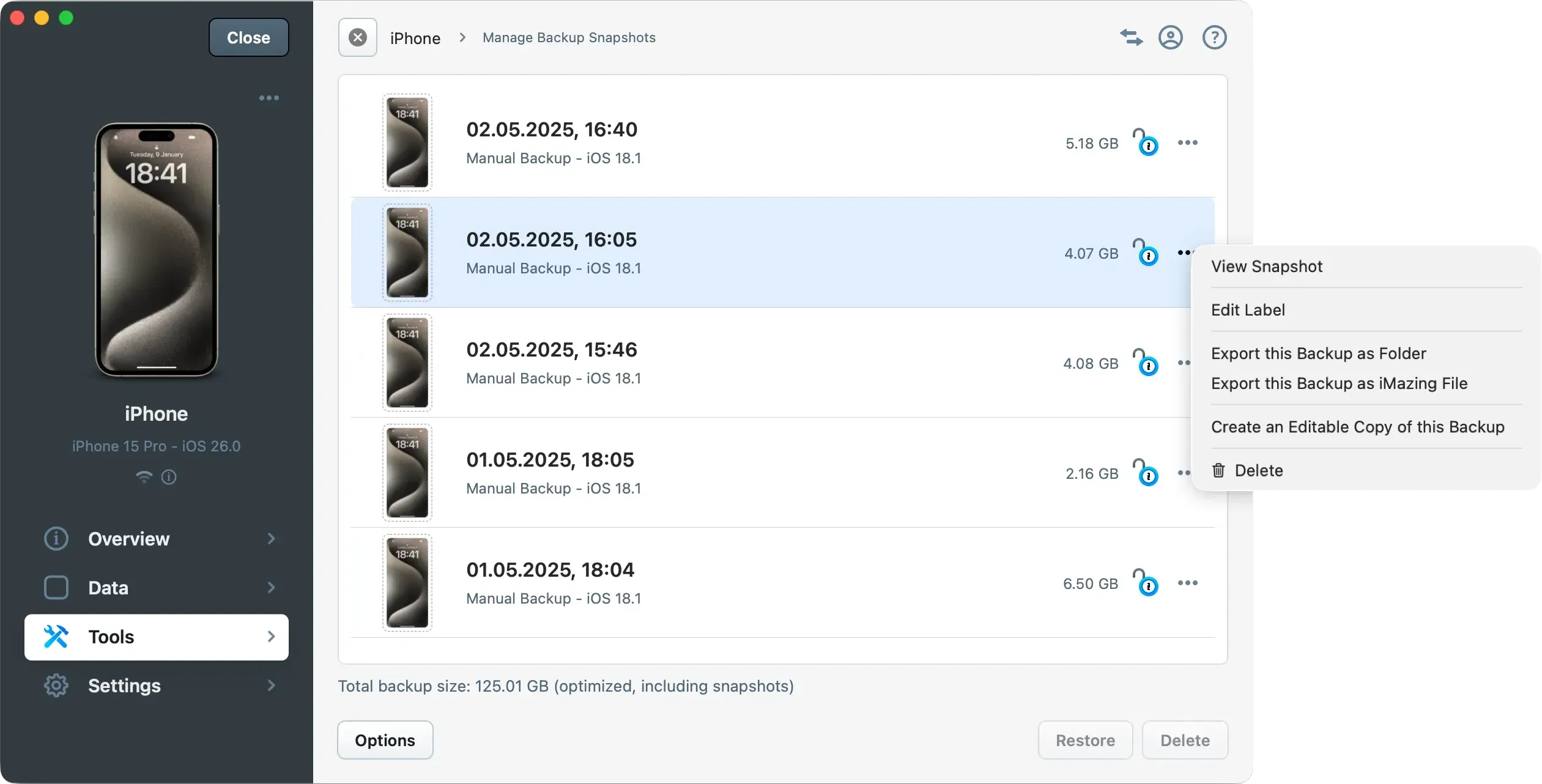
For more info, please refer to: How to manage backup snapshots?
Snapshot List
In this section, iMazing lists all snapshots of the device's backup, from most recent to oldest.
Here are the non-custom labels you may encounter:
Reasons | Description |
|---|---|
Manual Backup | Backup initiated manually by the user. |
Scheduled Backup | Backup initiated by iMazing Mini when Automatic Backups is enabled. |
Backup for Data Refresh | Backup initiated by iMazing to display your latest data. |
Backup for Data Transfer | Backup made when transferring data to a new device.Note: the source device is backed up first. |