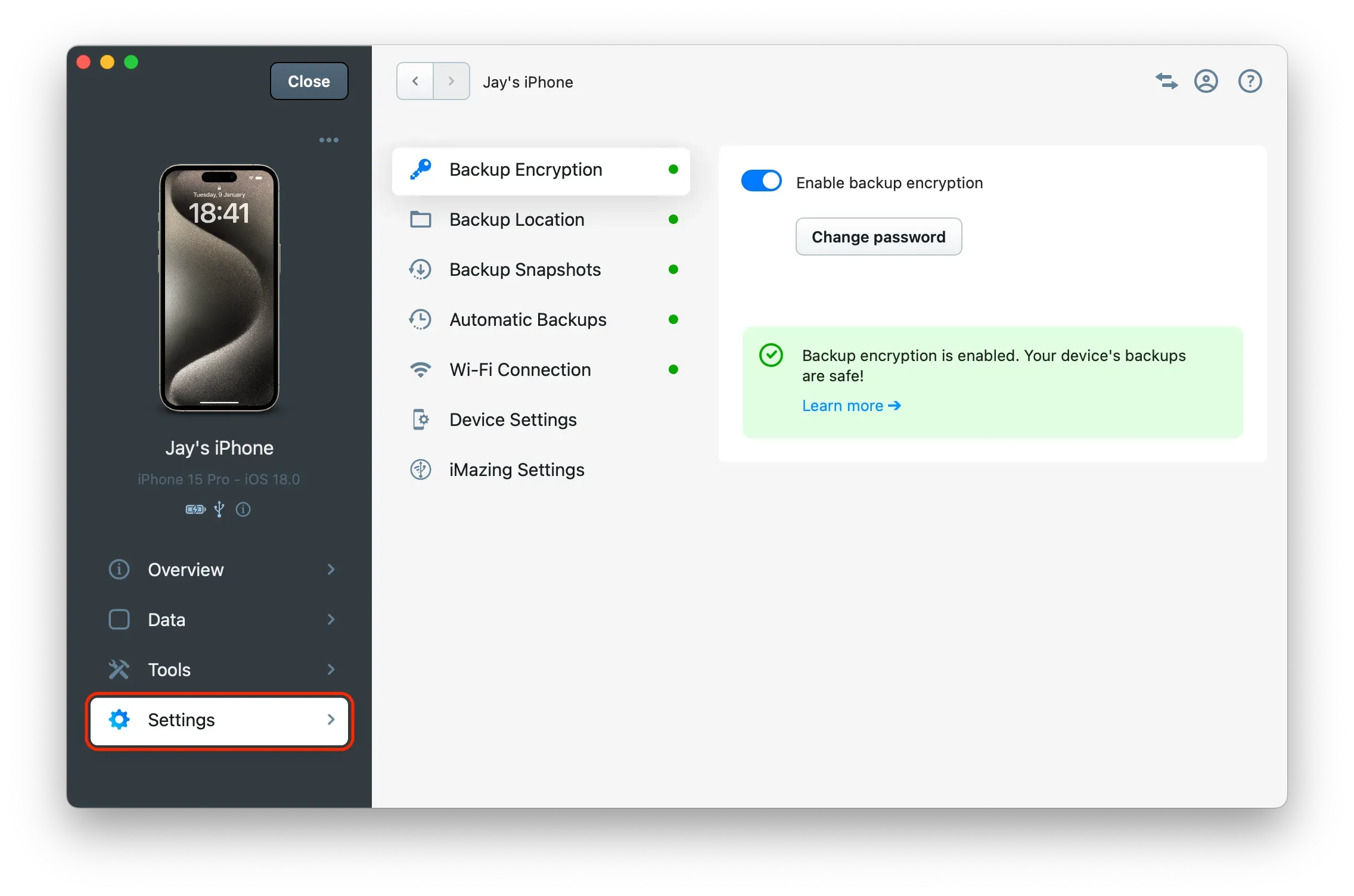
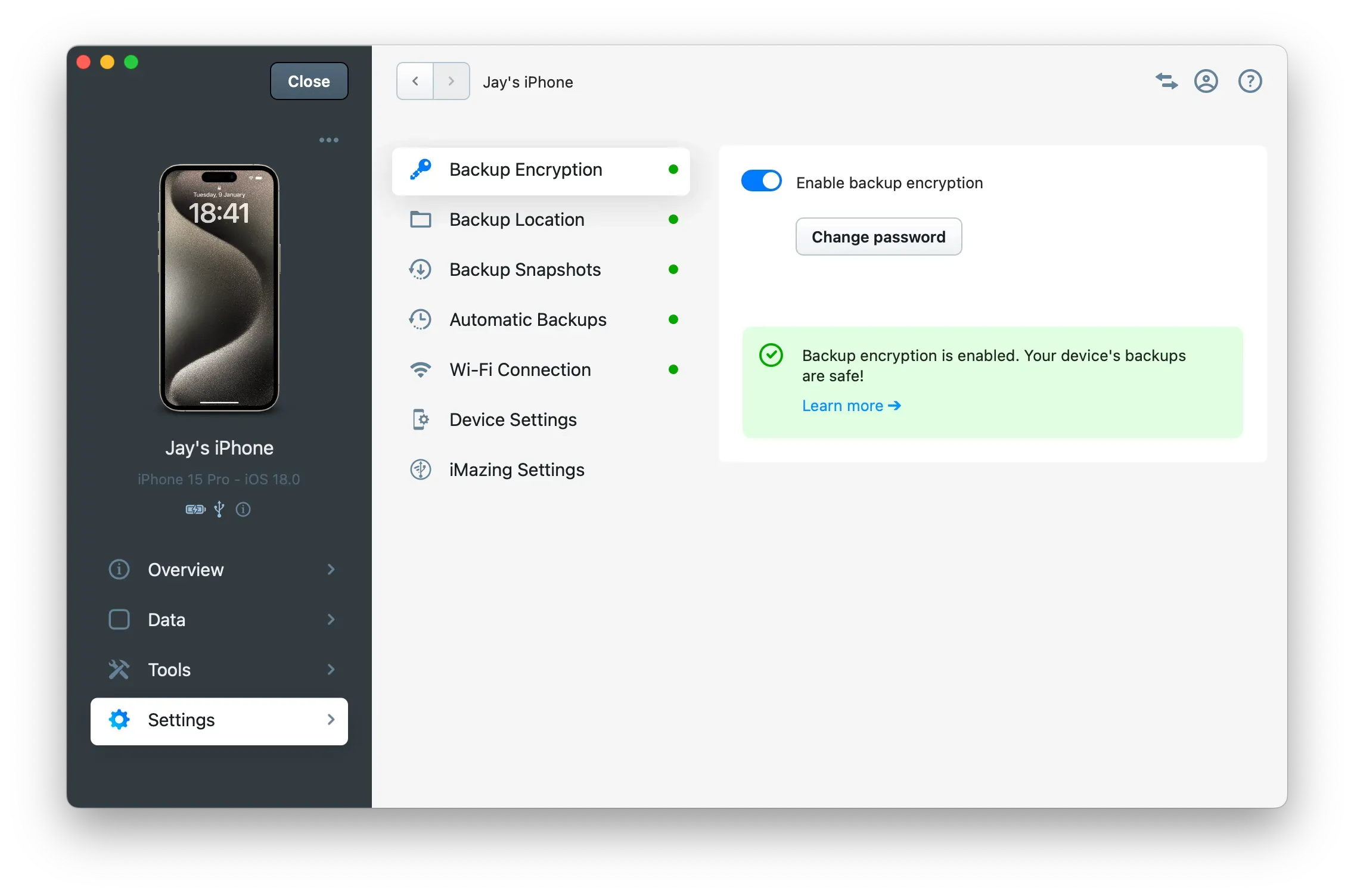
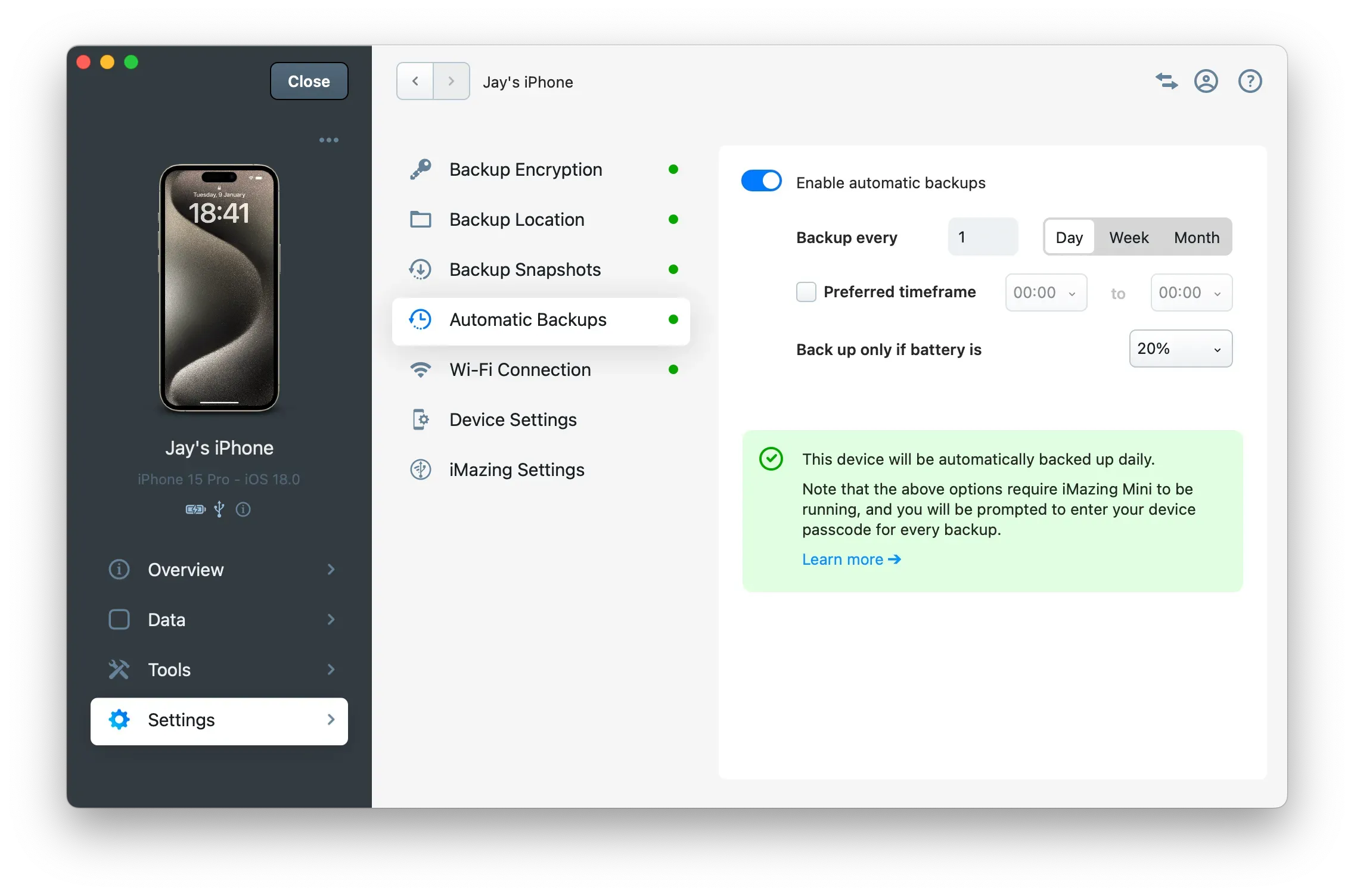
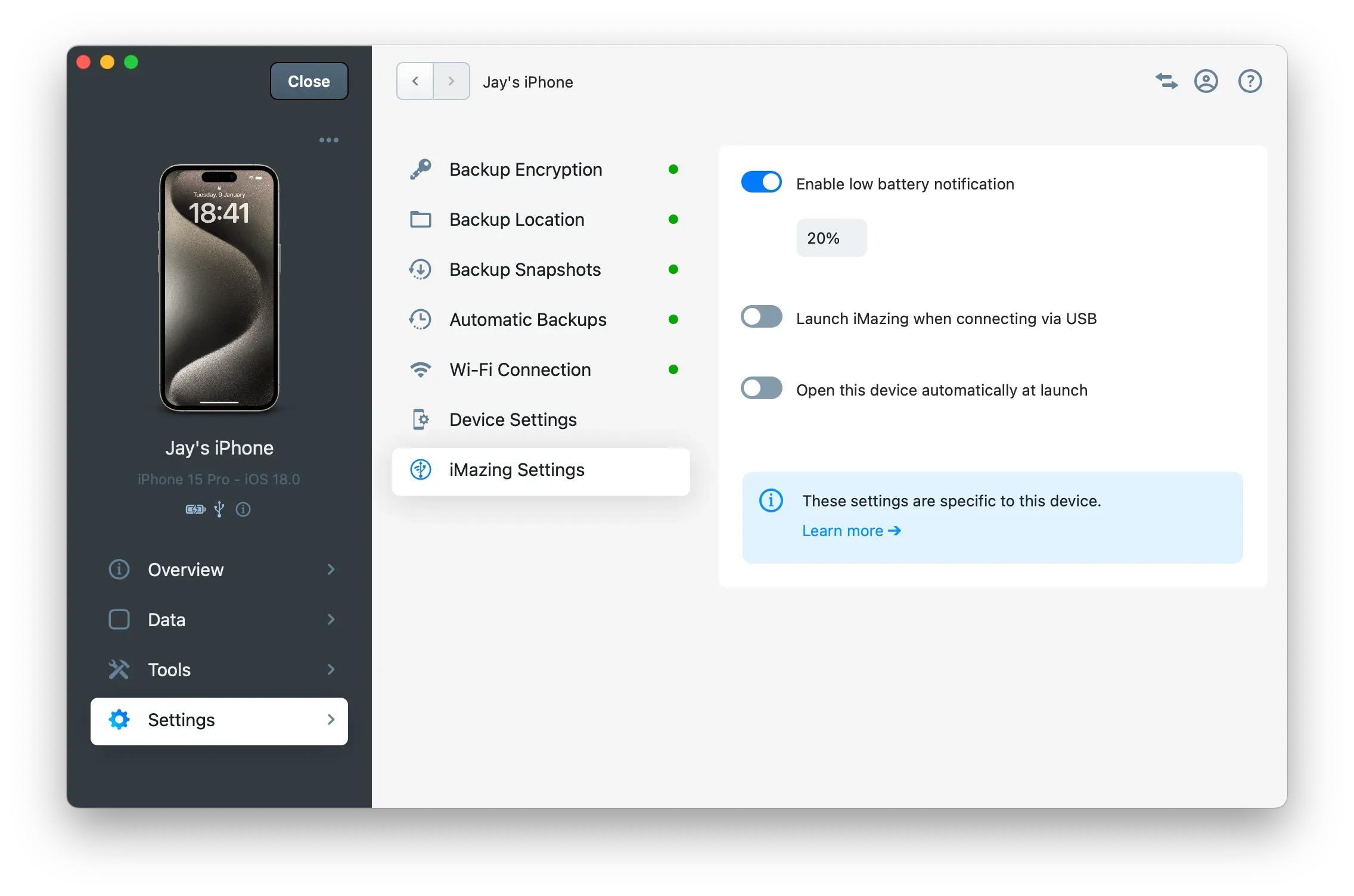
To access Device Settings, select a device from the iMazing Devices section on the home screen, then select the Settings section.
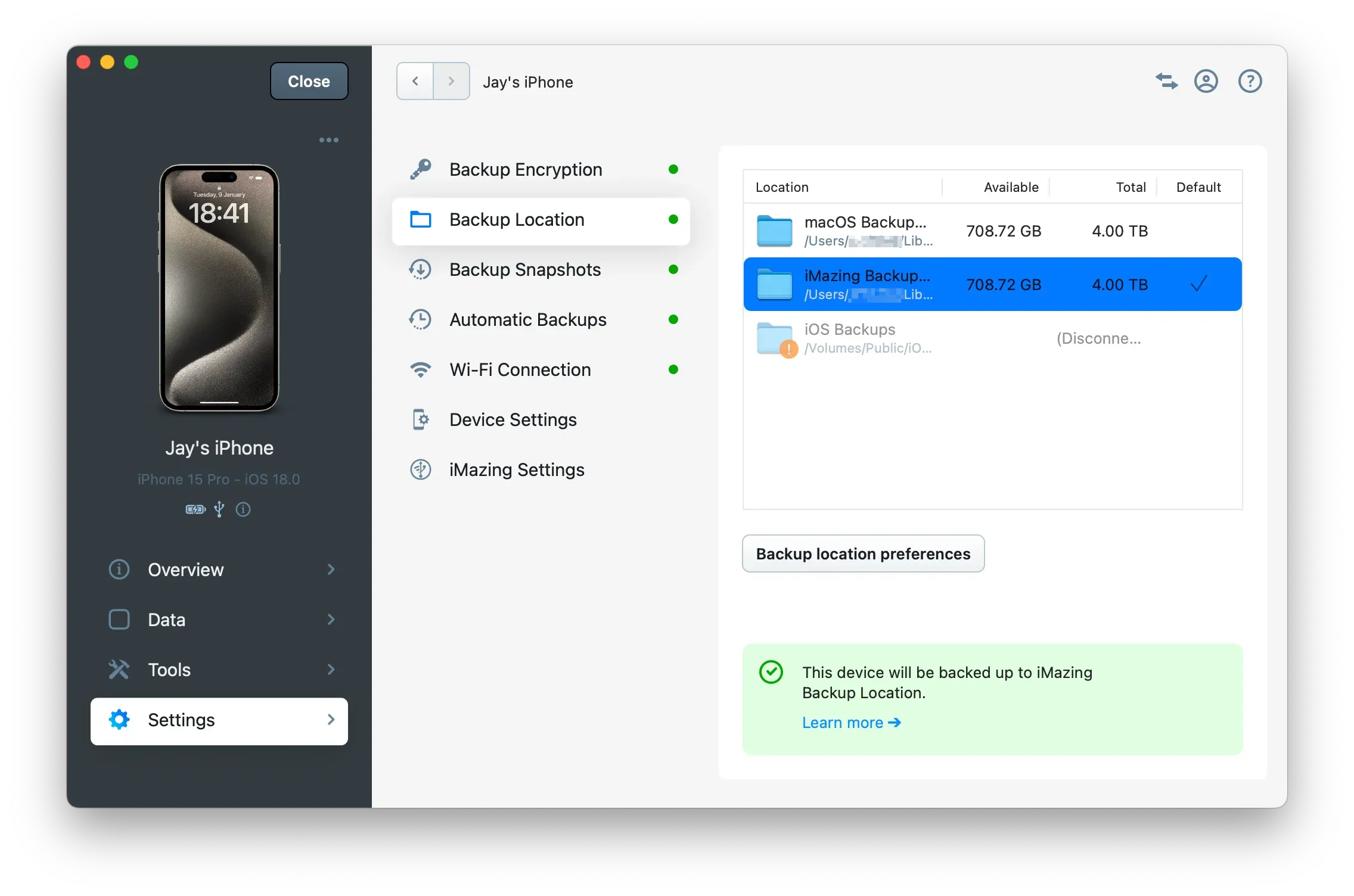
Tip: For an optimal experience with iMazing, enable all your device's options (indicated by green dots), especially Backup Encryption and Backup Location. Automatic Backups remains optional.
Backup Options
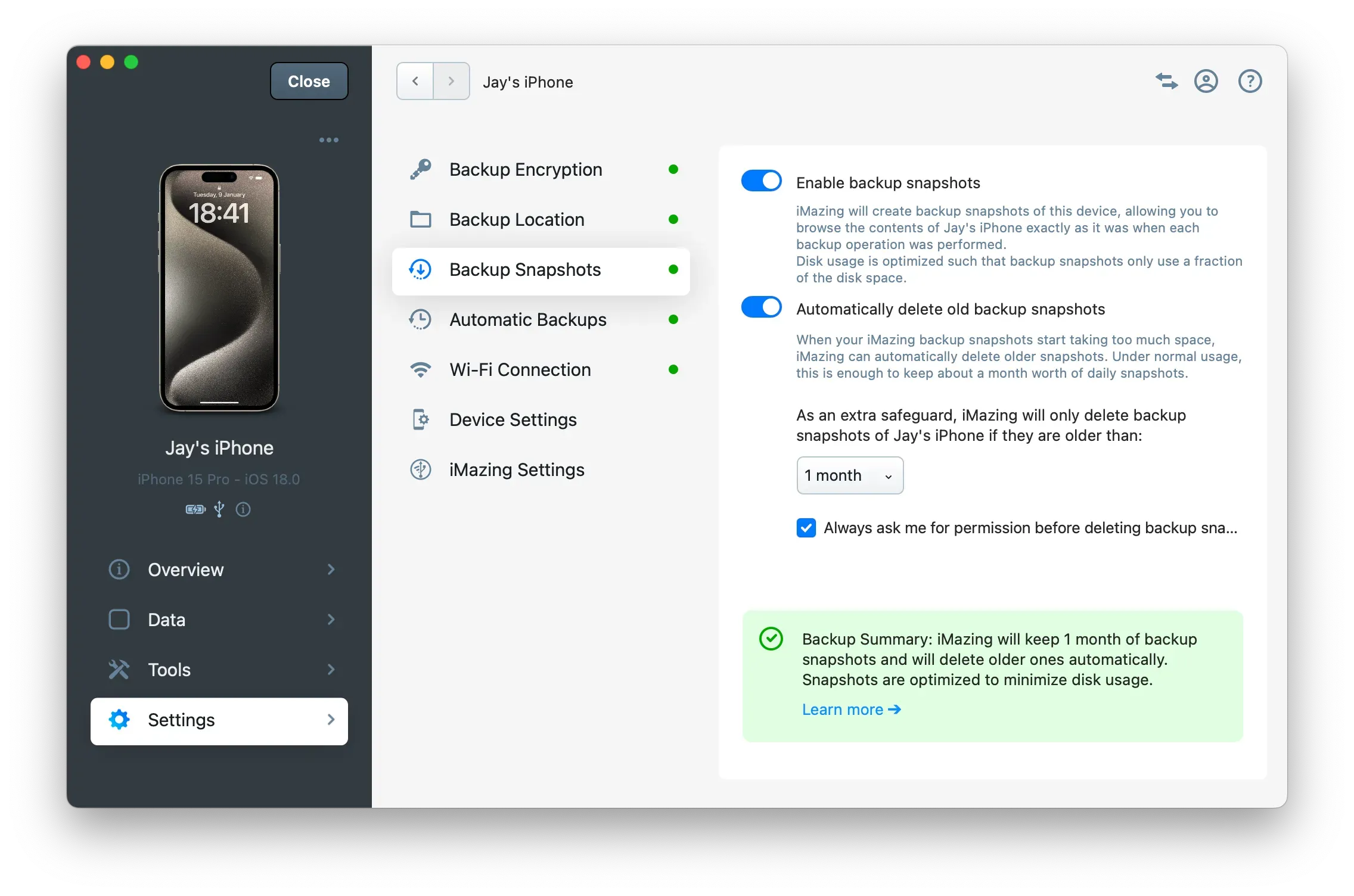
Explore iMazing backup options, through these dedicated guide sections:
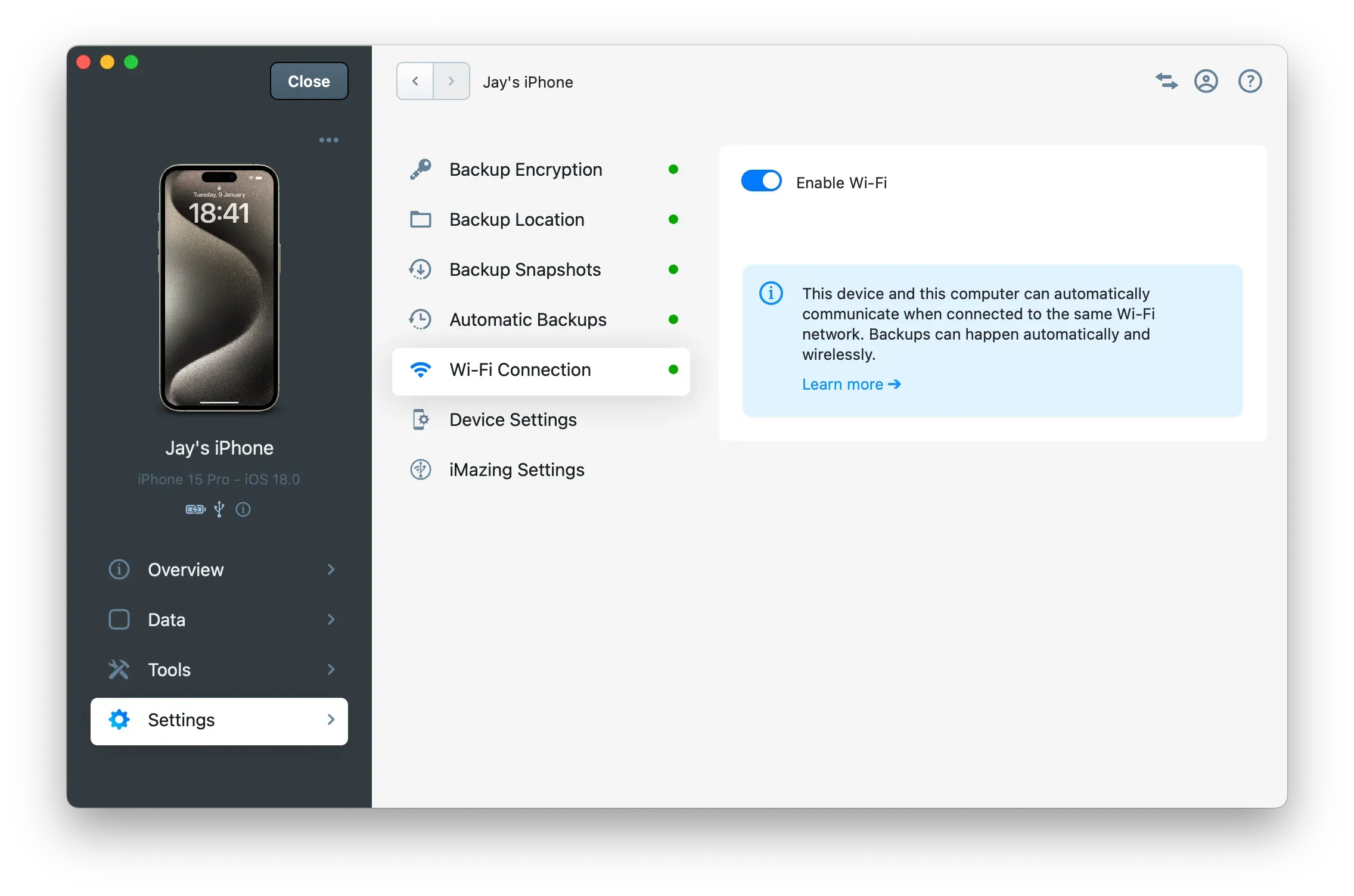
Enable or disable Wi-Fi connection for the selected device. Nearly all types of operation or device transfer can be done via the local Wi-Fi network, including backups. However, to restore a backup, update or re-install iOS, you will need to connect your device via USB.
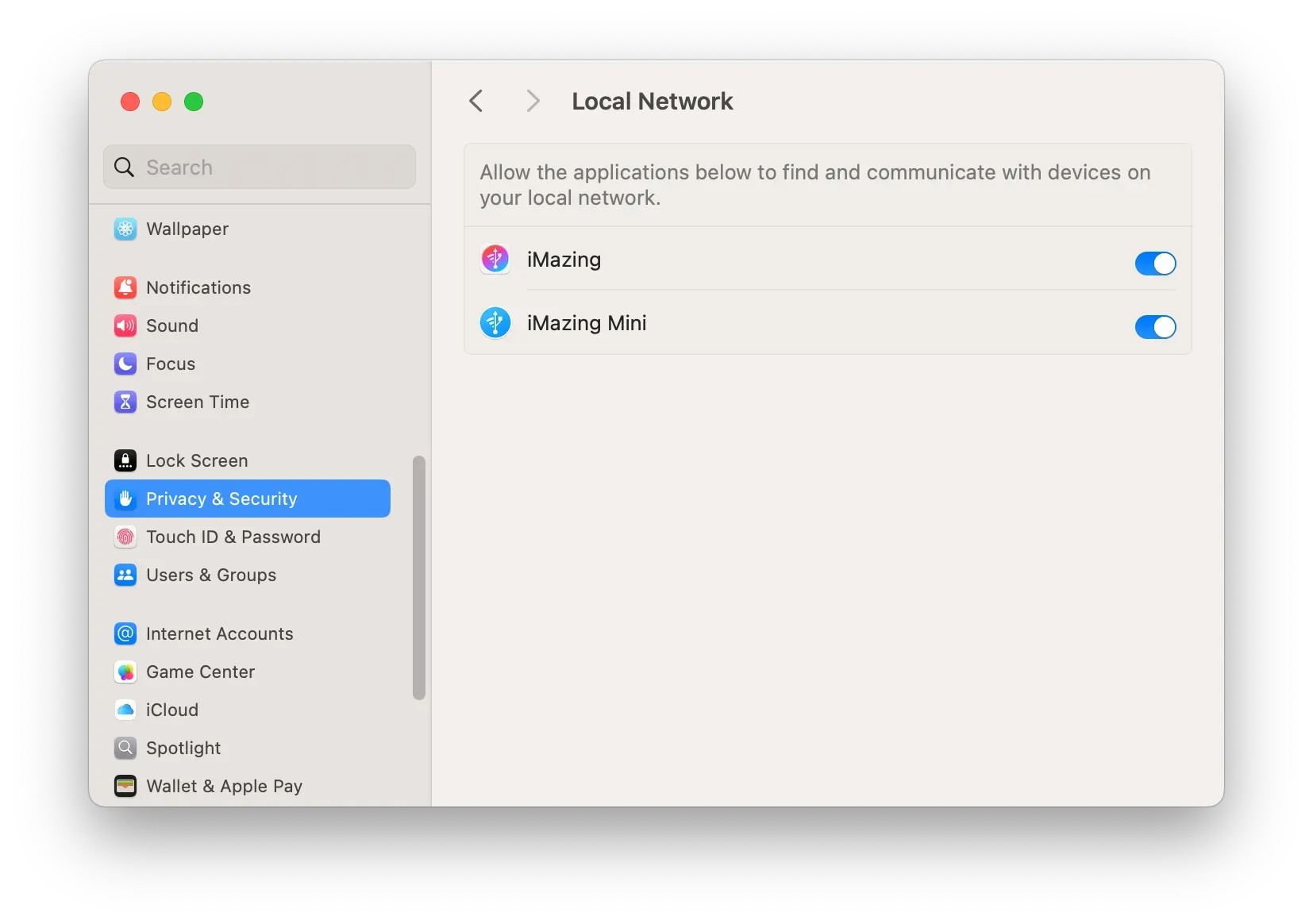
Important: Starting with macOS Sequoia 15, to allow Wi-Fi connections in iMazing, you must go to your Mac's System Settings in Privacy & Security > Local Network and allow the applications iMazing and iMazing Mini to find and communicate with devices on your local network.
Tips: To enable Wi-Fi connection, your device needs to be connected via USB.
You can configure whether or not iMazing enables Wi-Fi by default on newly connected devices in the iMazing Preferences window, in the Devices tab.
Device Settings
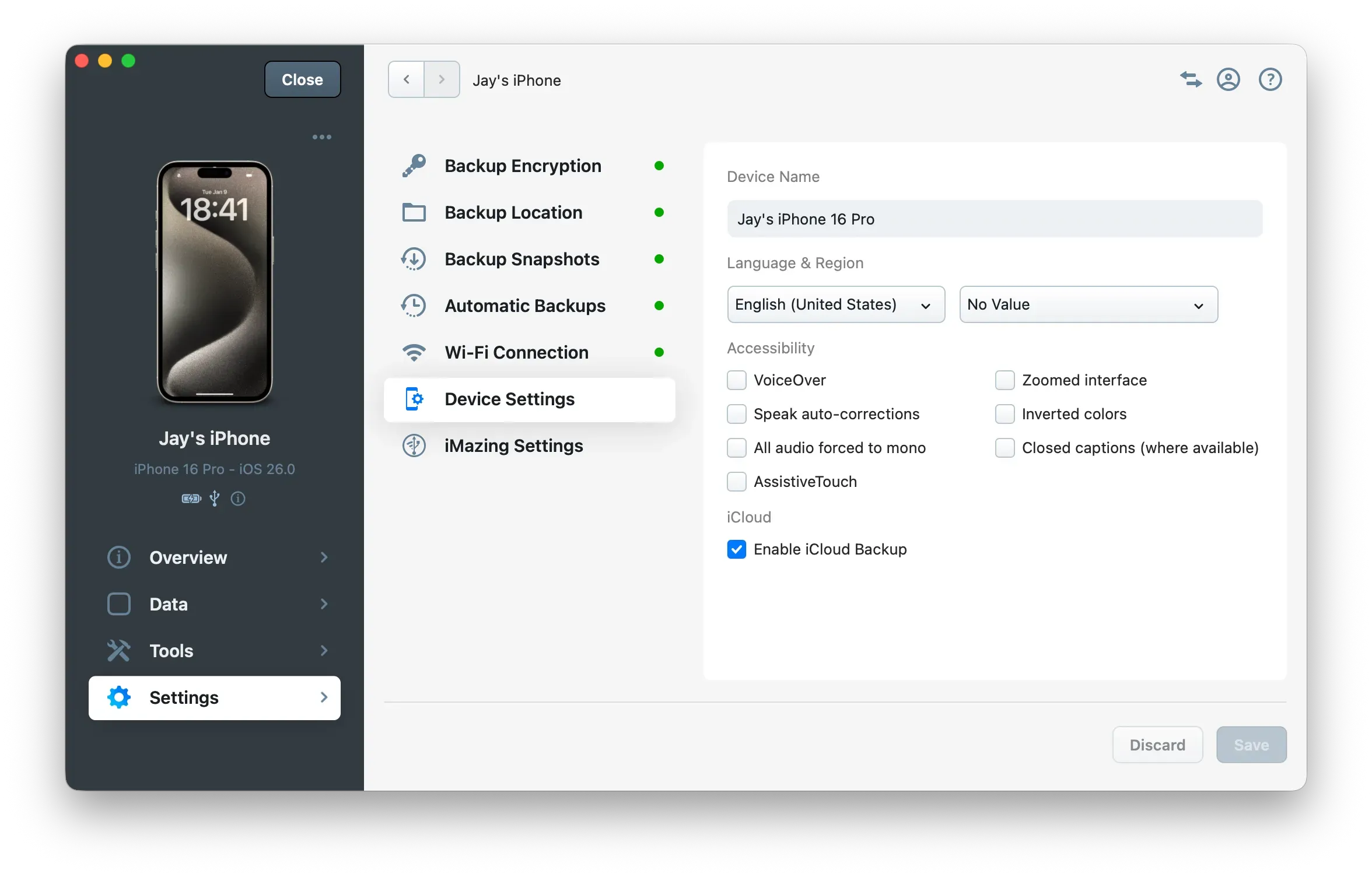
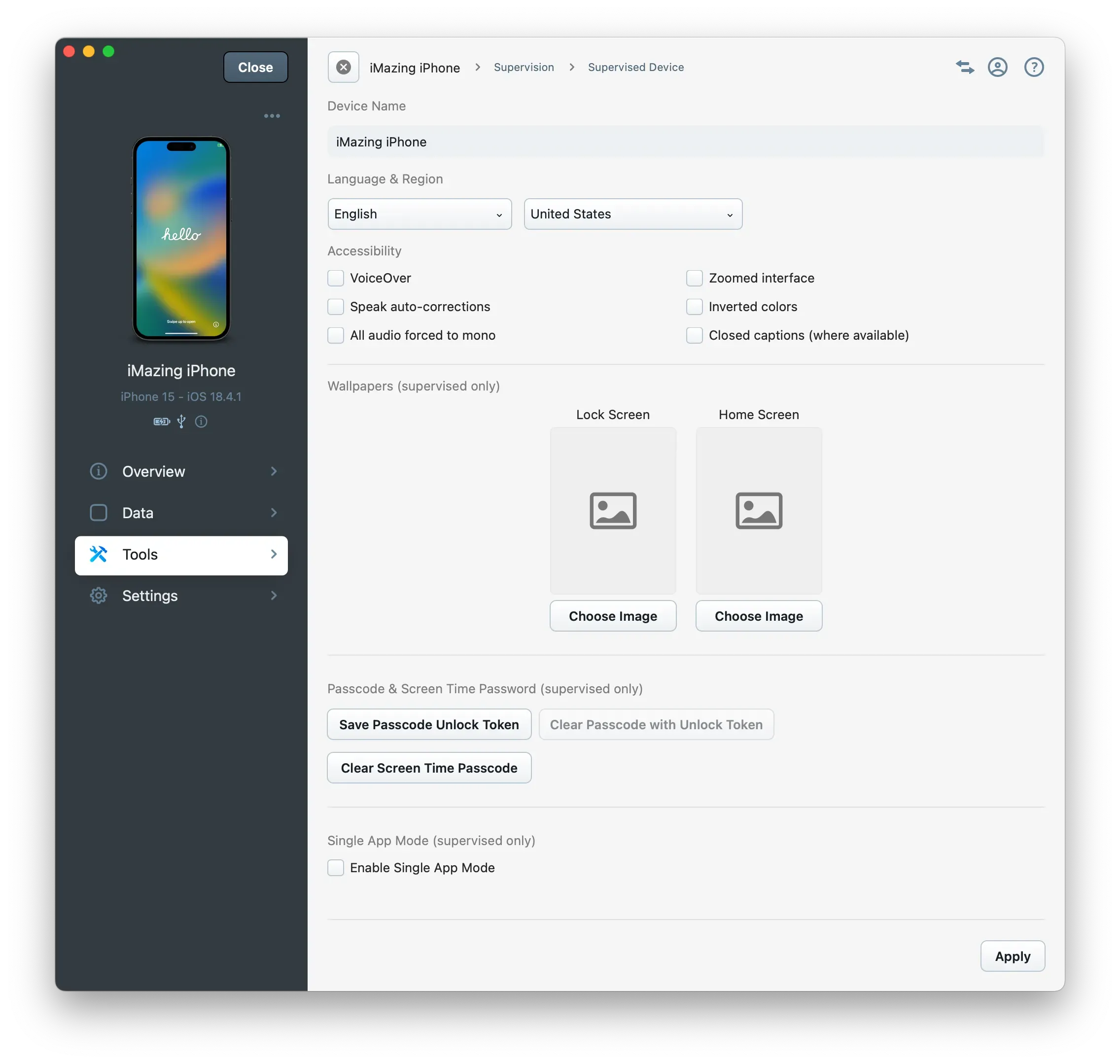
This panel allows you to modify a device's name, language, region, and accessibility options. You can also enable or disable iCloud Backup. All changes take effect only after clicking the Save button in the lower right corner of the window.
Tip:
For devices supervised by an organization, please use the Supervision tool available in the Tools section to access Supervised Settings such as wallpapers, passcode unlock and single app mode.
This panel allows you to customize how iMazing interacts with your device.
Receive notifications when your device needs charging.
Automatically launch iMazing when you connect your device to your computer via USB.
Open the device automatically when iMazing starts. This is helpful if you use iMazing with just this device or want a specific device to open by default at launch.