


Learn iMazing's interface
Updated on Jun 18, 2026
Reading time ~11 minutes
Home & Device Screens
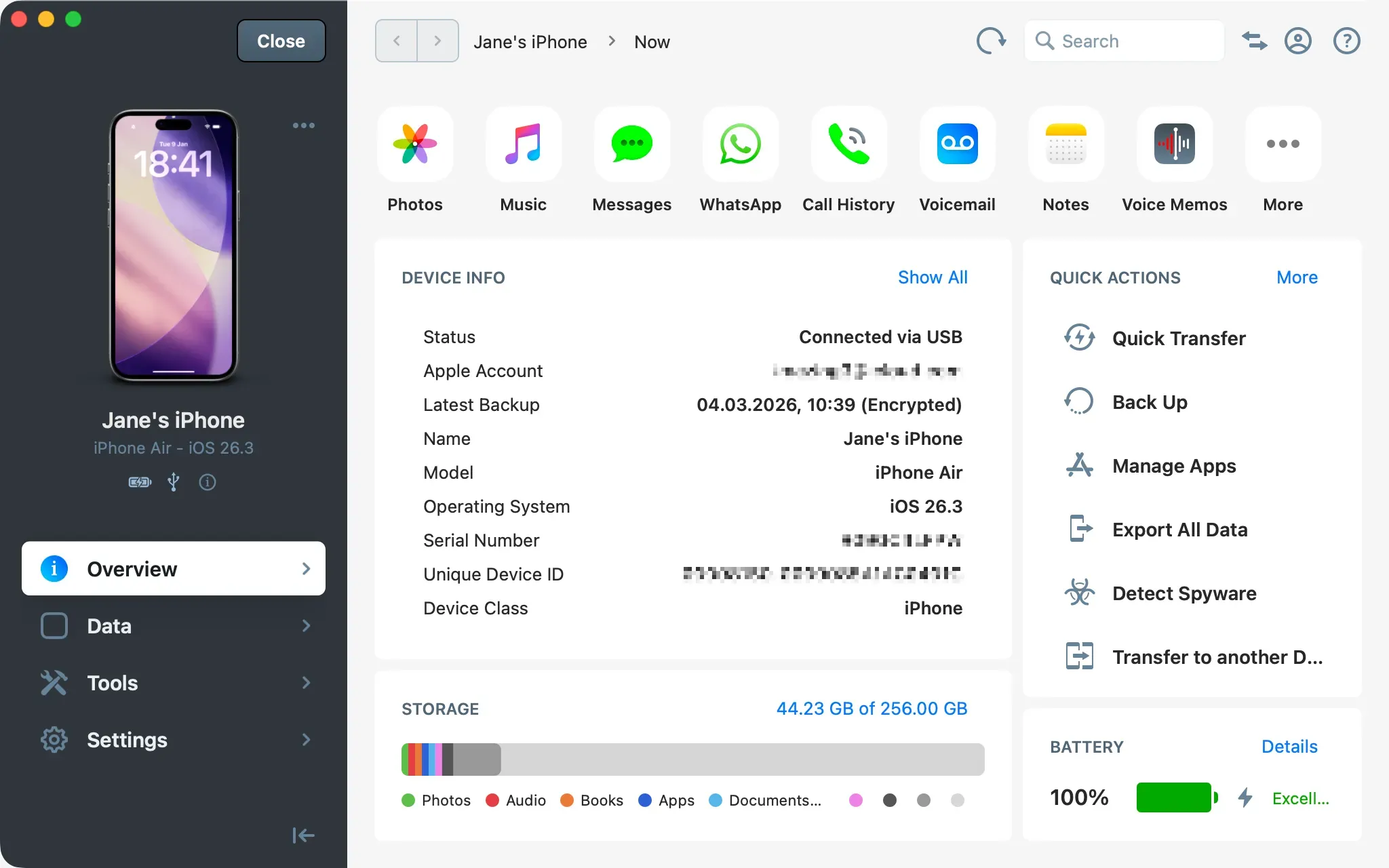
The iMazing interface consists of two main parts: the home screen, where all your devices and backups are listed, and the device screen, where you can view a specific device or backup.
Home Screen
Device Screen
General Toolbar
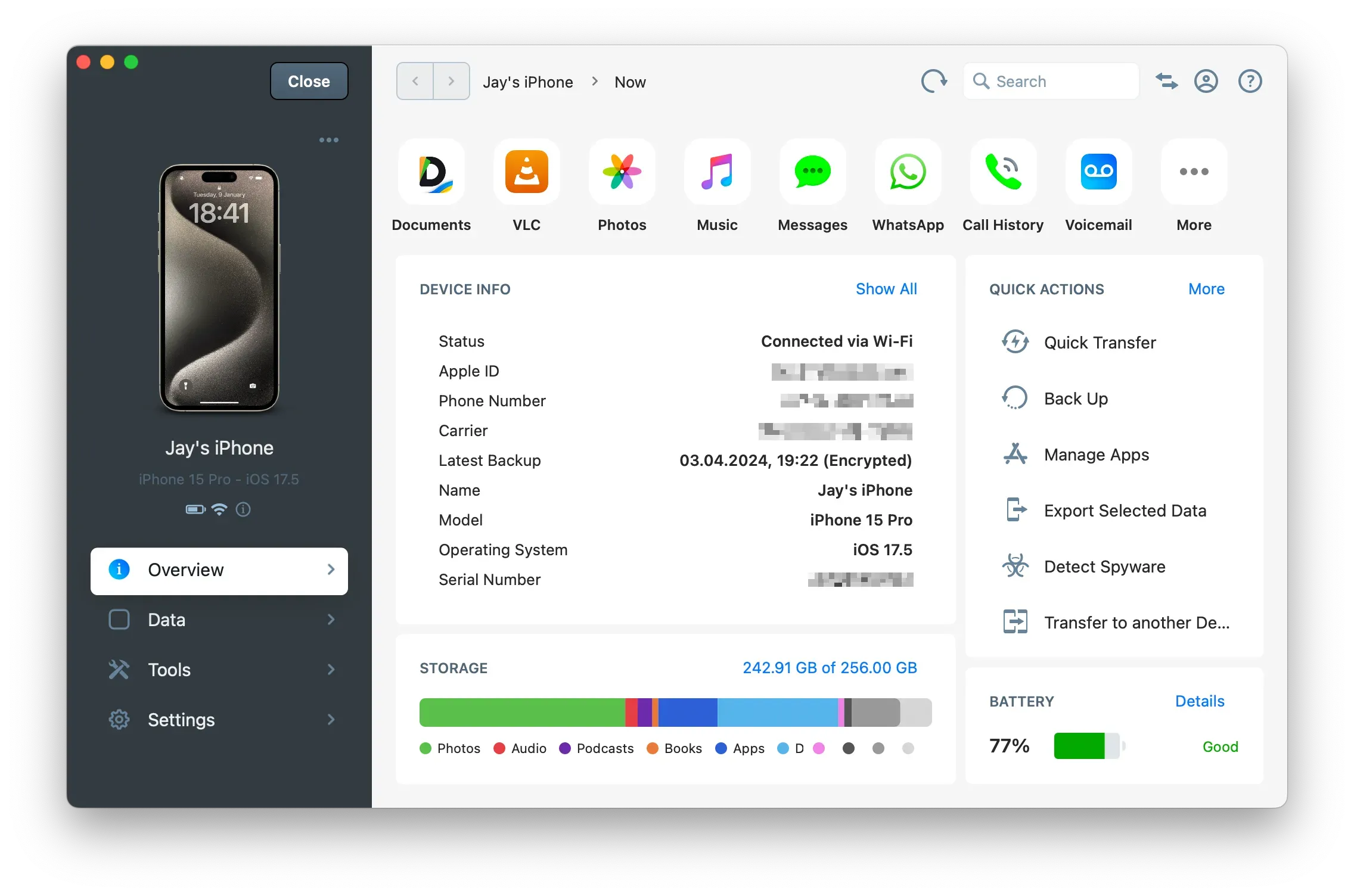
The upper toolbar contains the following buttons:
2.1. Refresh - refreshes the current view 2.2. Search - search or filter the current view 2.3. Operations Panel - lists all current and completed operations 2.4. Unlock iMazing - buy or activate iMazing, manage your license or plan 2.5. Help - opens contextual help in your web browser

Refresh
Click the Refresh button to update the current view.

Search
You can search or filter any content by typing into the search bar.

Operations Panel
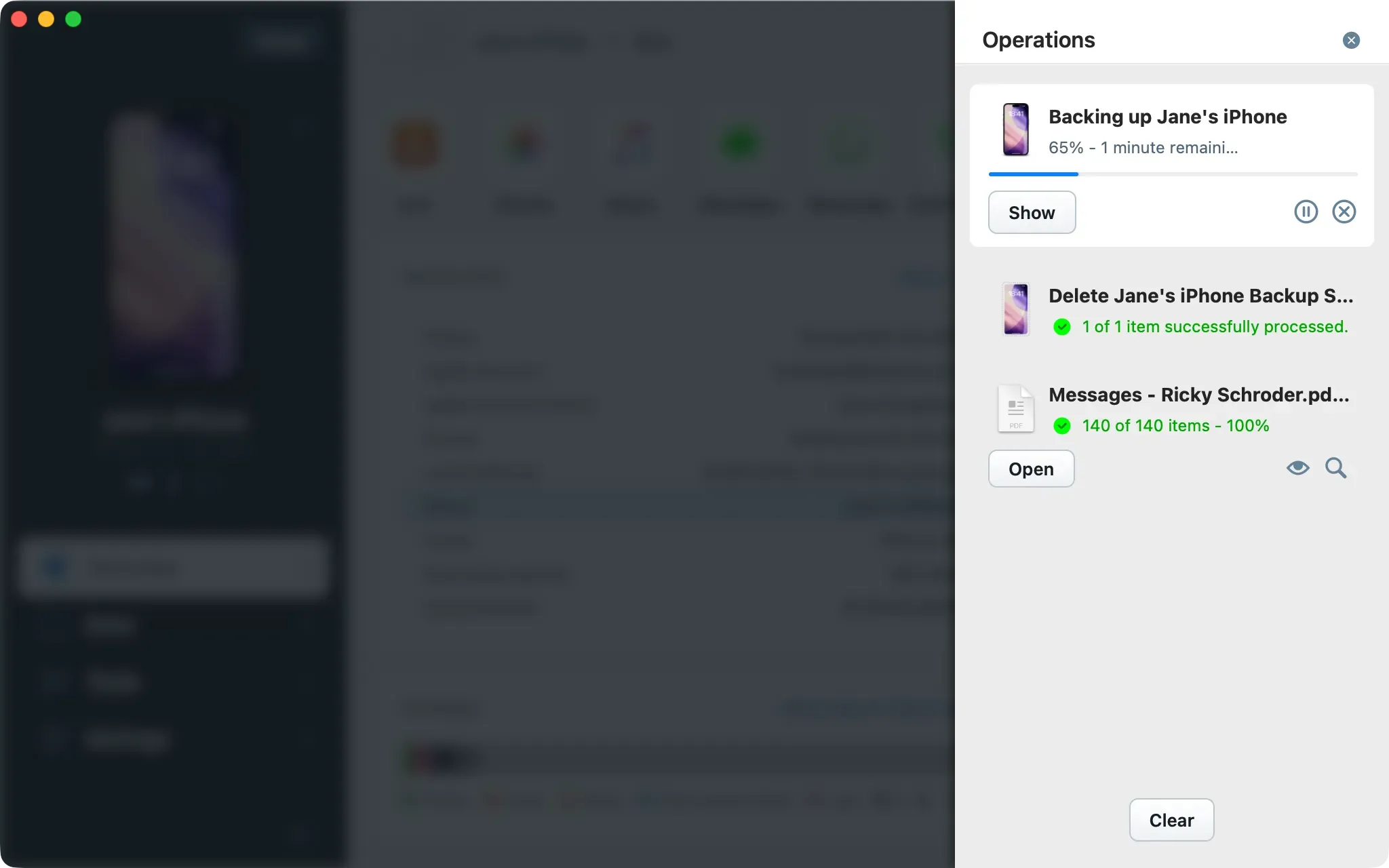
The Operations panel displays all ongoing and past operations since you opened iMazing (e.g. importing music, exporting messages, …)

Display Modes
When you launch an operation, a compact popup appears in the top right corner showing the operation name and its current status. You can pause or stop the operation directly from this popup.
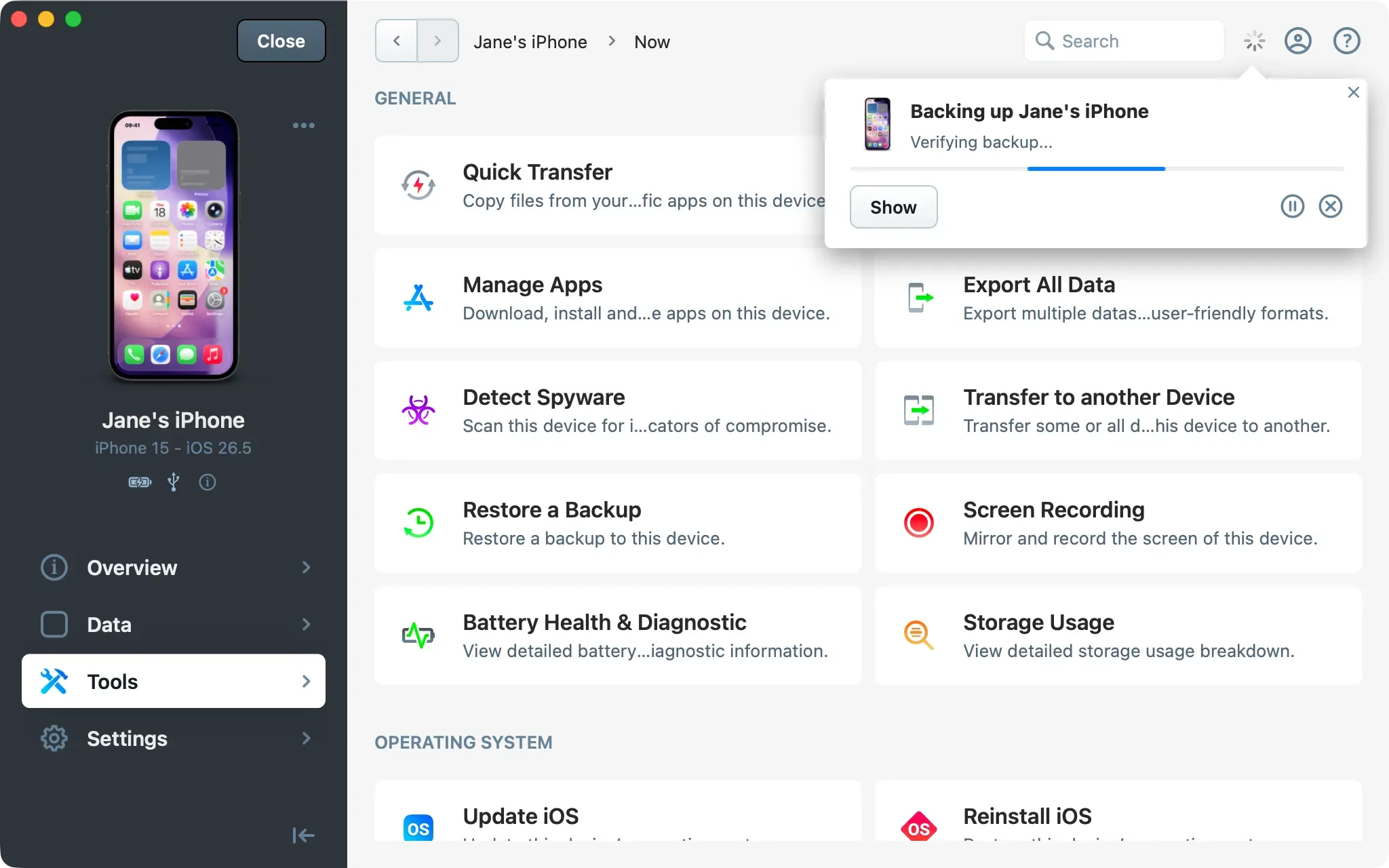
Click Show to open the operation in full-page view with detailed progress information. Click Hide at the bottom right to dismiss this view. The operation continues in the background.
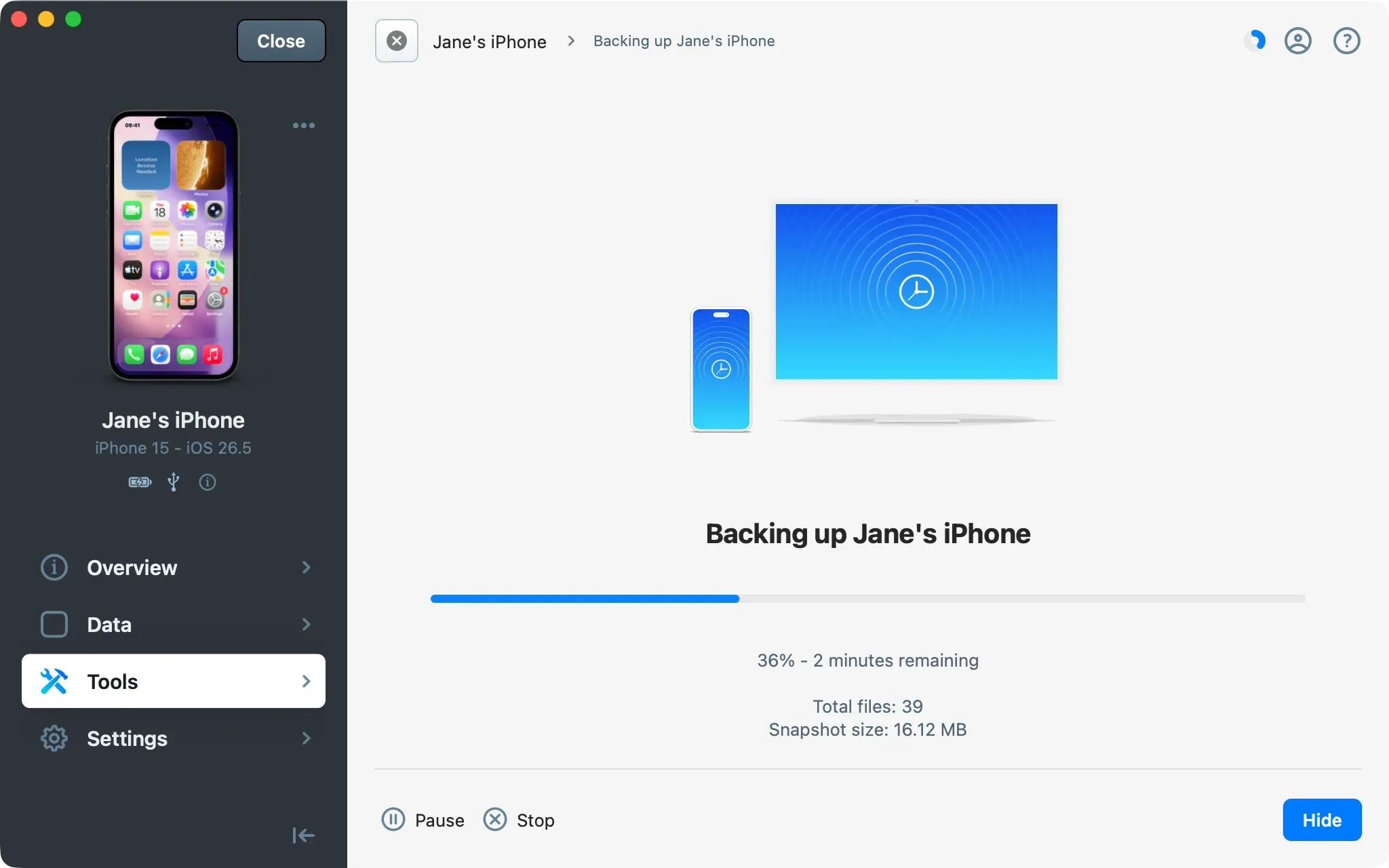
To review all current and past operations, click the Operations button (two arrows) in the toolbar. This opens a side panel listing every operation with its status. Click Clear to dismiss passed operations.
Pause, Resume, and Stop
Click Pause to temporarily suspend the active operation, and Resume to continue from where it left off. Click Stop to cancel the operation entirely.
Note: Both Pause and Stop take effect at the next safe point in the operation. Some steps respond almost immediately, while others need to complete before iMazing can pause or stop the process.
Important: Pausing an operation does not make it safe to disconnect your device or unplug an external drive. Doing so may interrupt the process and cause it to fail. Use Stop and start the operation again later.
Manage License
First, purchase or activate iMazing. After it is activated, manage your license by clicking this icon.

To unlock all of iMazing's features, you'll need to purchase a license and enter your activation code.
For more information, see Manage your iMazing license
Help
Anywhere in iMazing, the Help button opens a related iMazing Guide in your web browser.

Home Screen
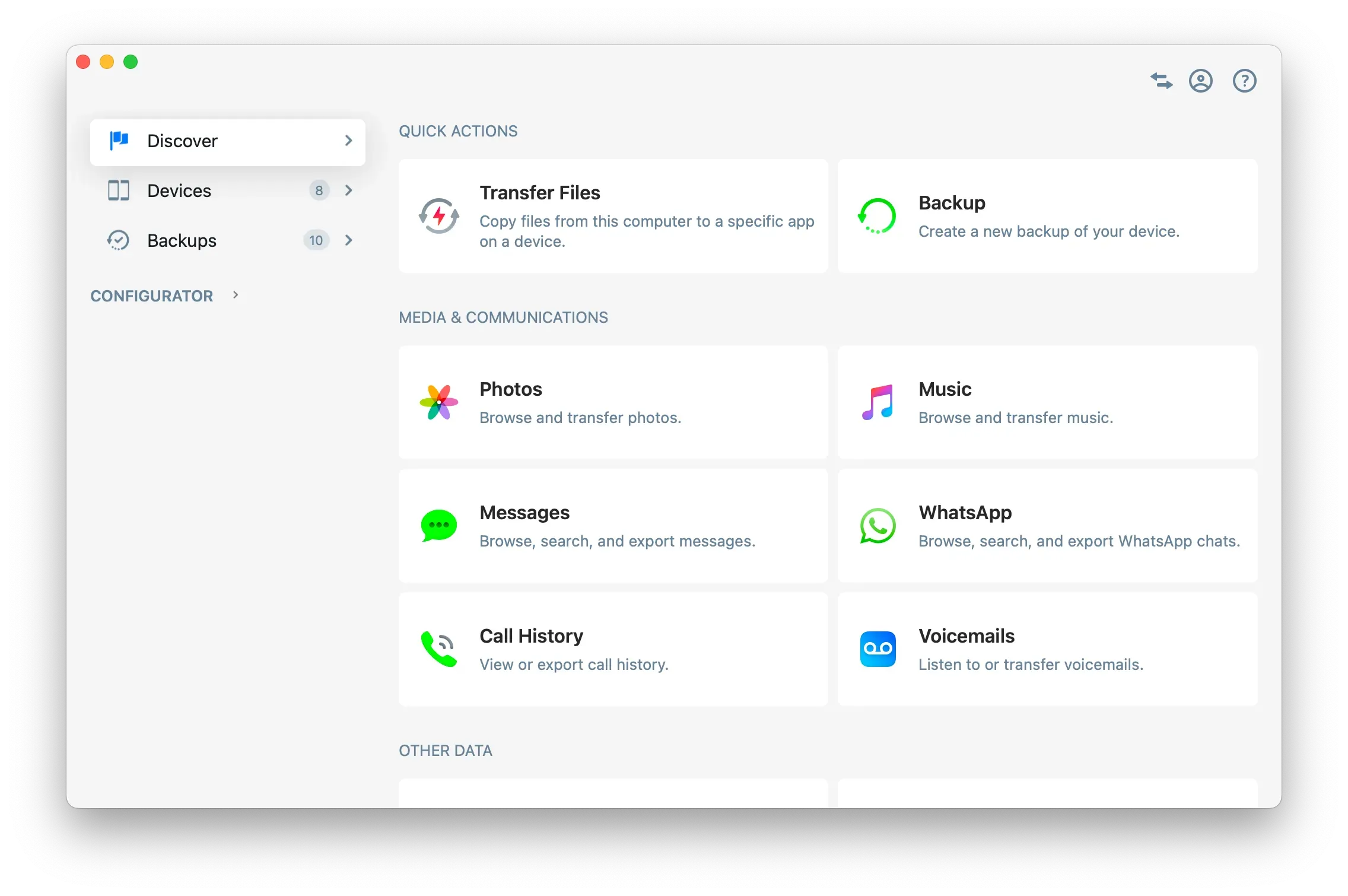
The usual iMazing workflow consists of selecting a device or backup from the iMazing home screen, then browsing a data section or triggering an action.

Discover
Explore iMazing's features and access them quickly.
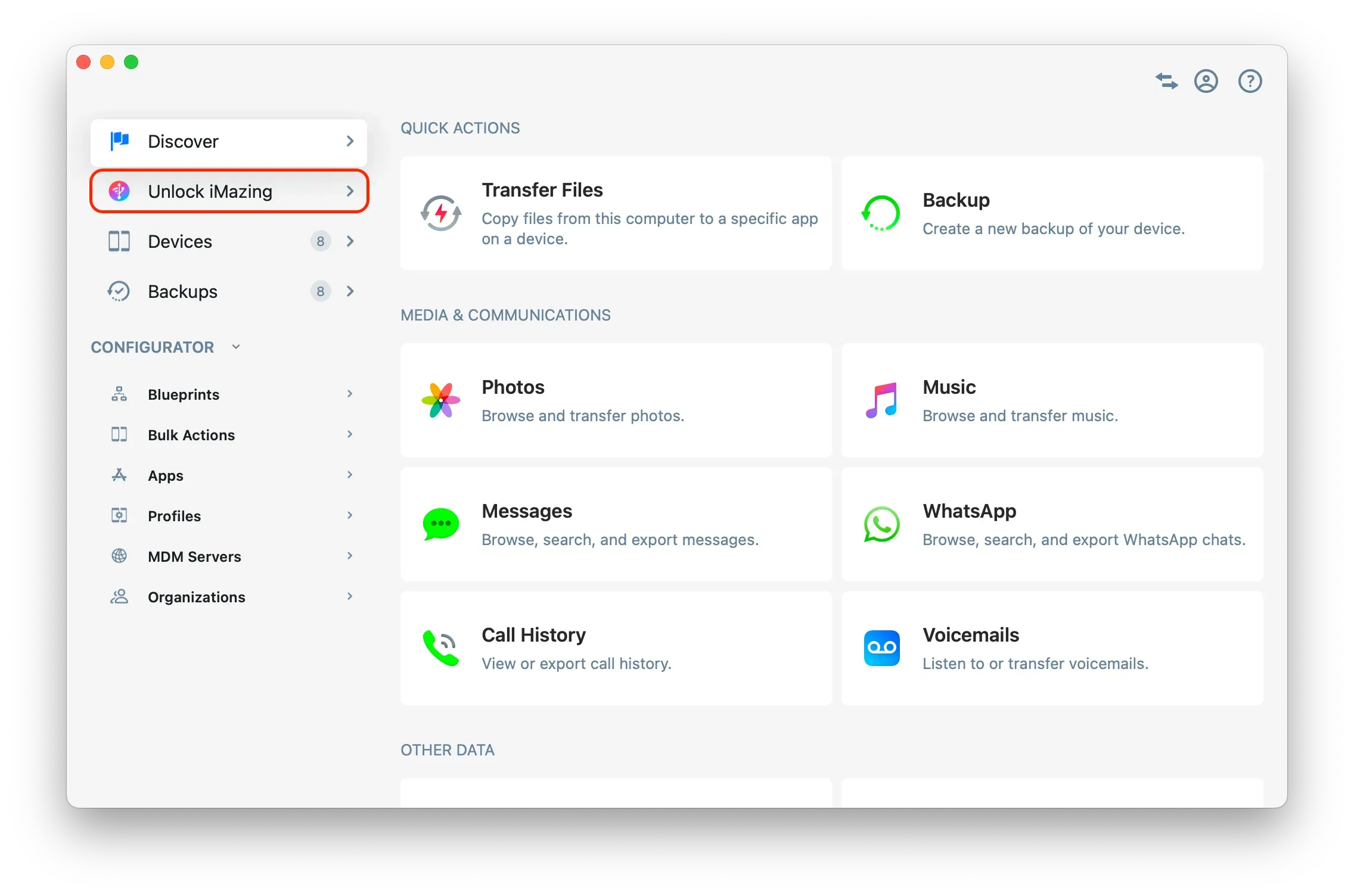
Unlock iMazing
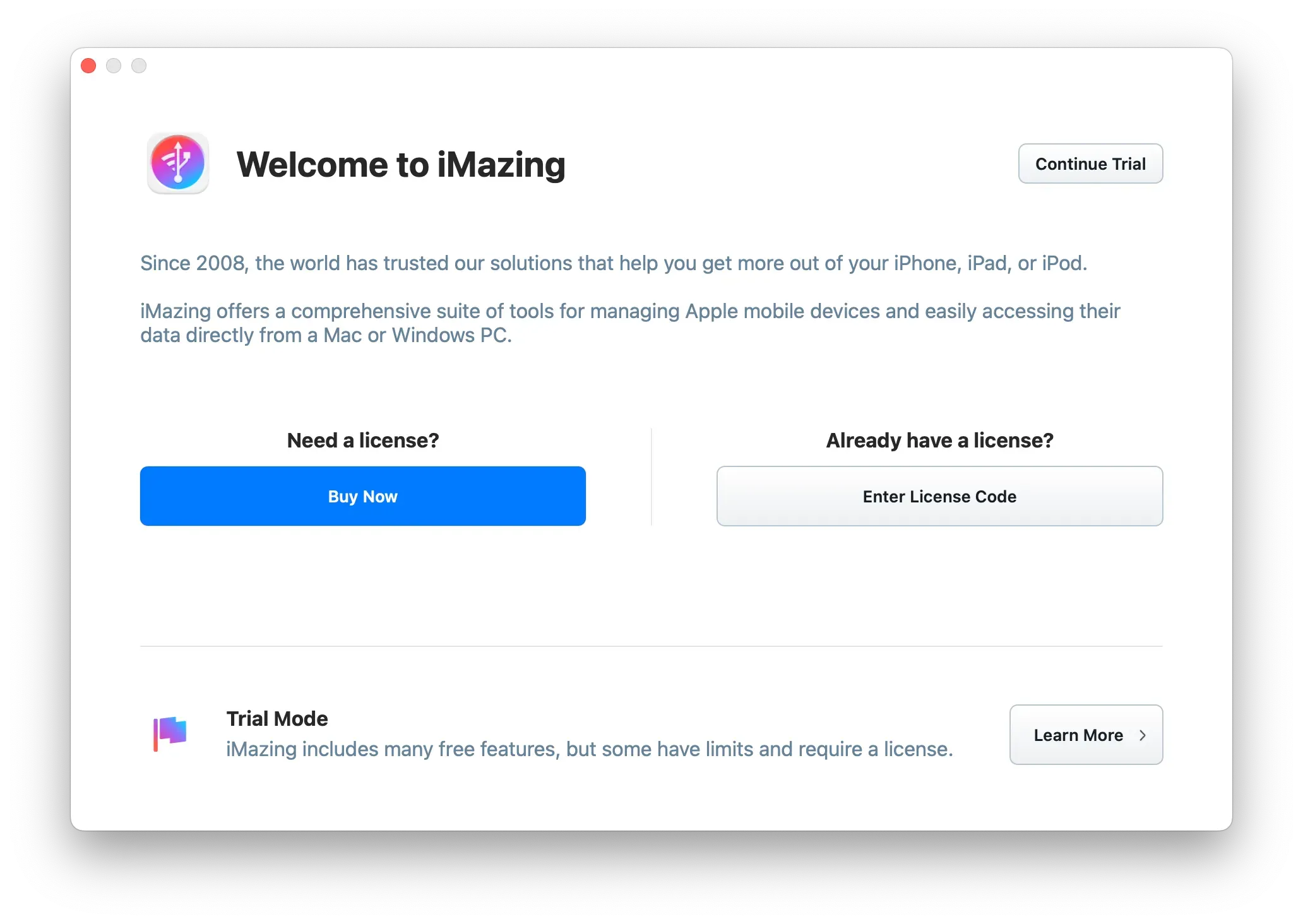
This menu item is only visible when iMazing is running in trial mode. Click on Unlock iMazing to purchase an iMazing license, learn more about the free features available in trial mode, or activate it with a license code.
Unlock iMazing
iMazing Welcome Trial Window
Devices
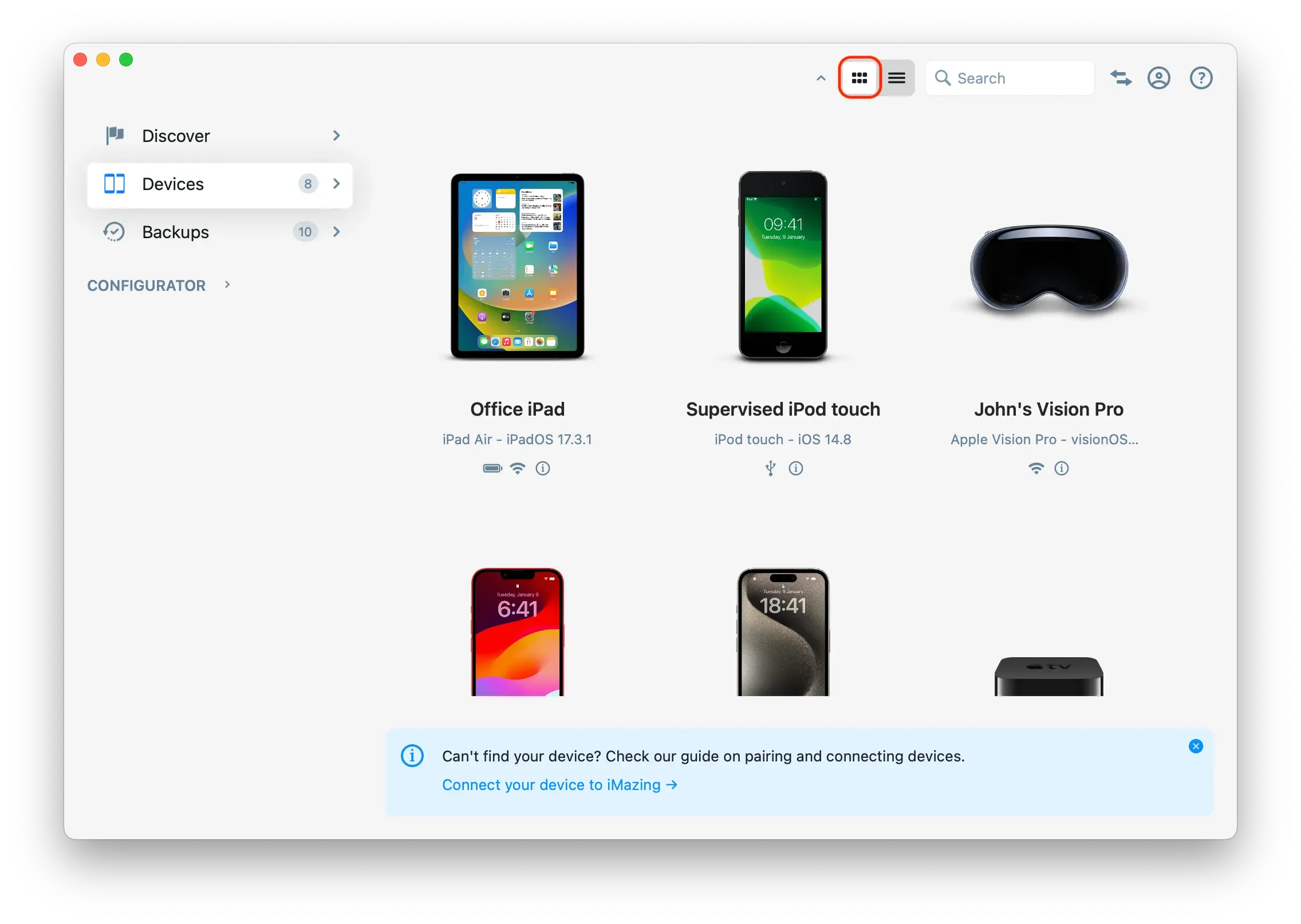
View all devices currently connected or previously paired with iMazing. A hint box is also available with a link for further information on how to connect and pair your devices with iMazing.
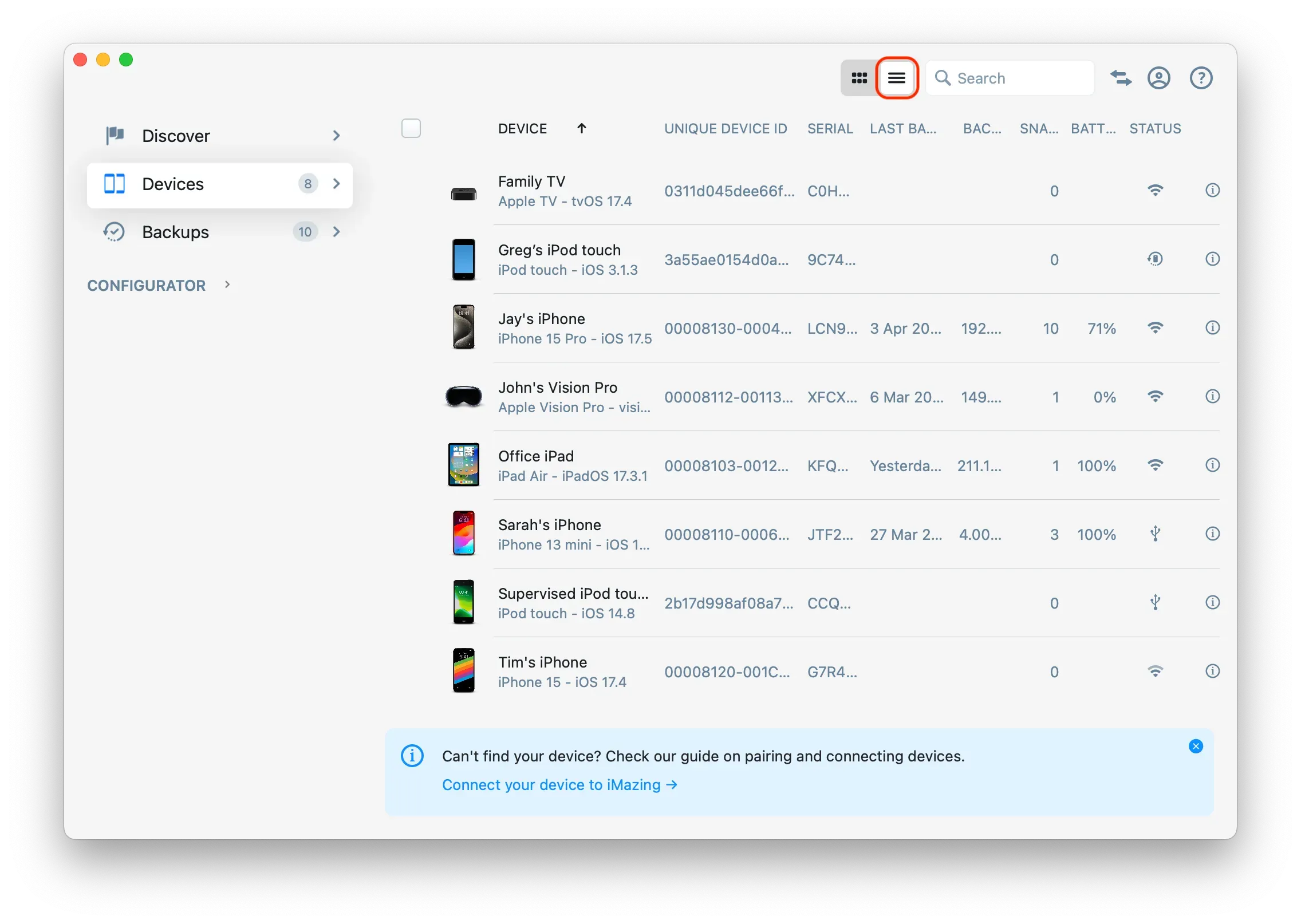
In this section, you can also adjust how the devices are displayed, either as a grid or in a detailed list view.
Devices Grid View
Devices List View
Backups
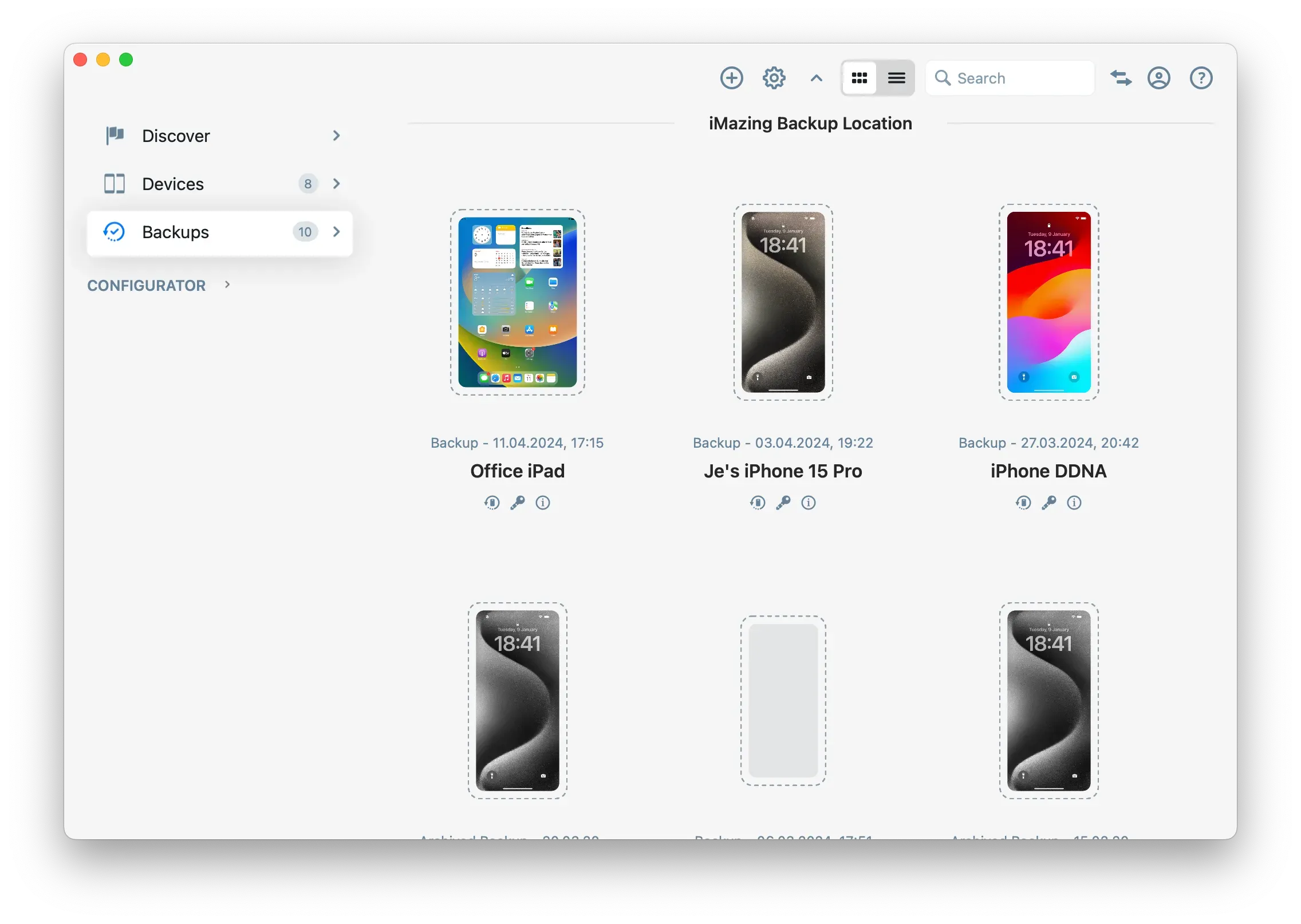
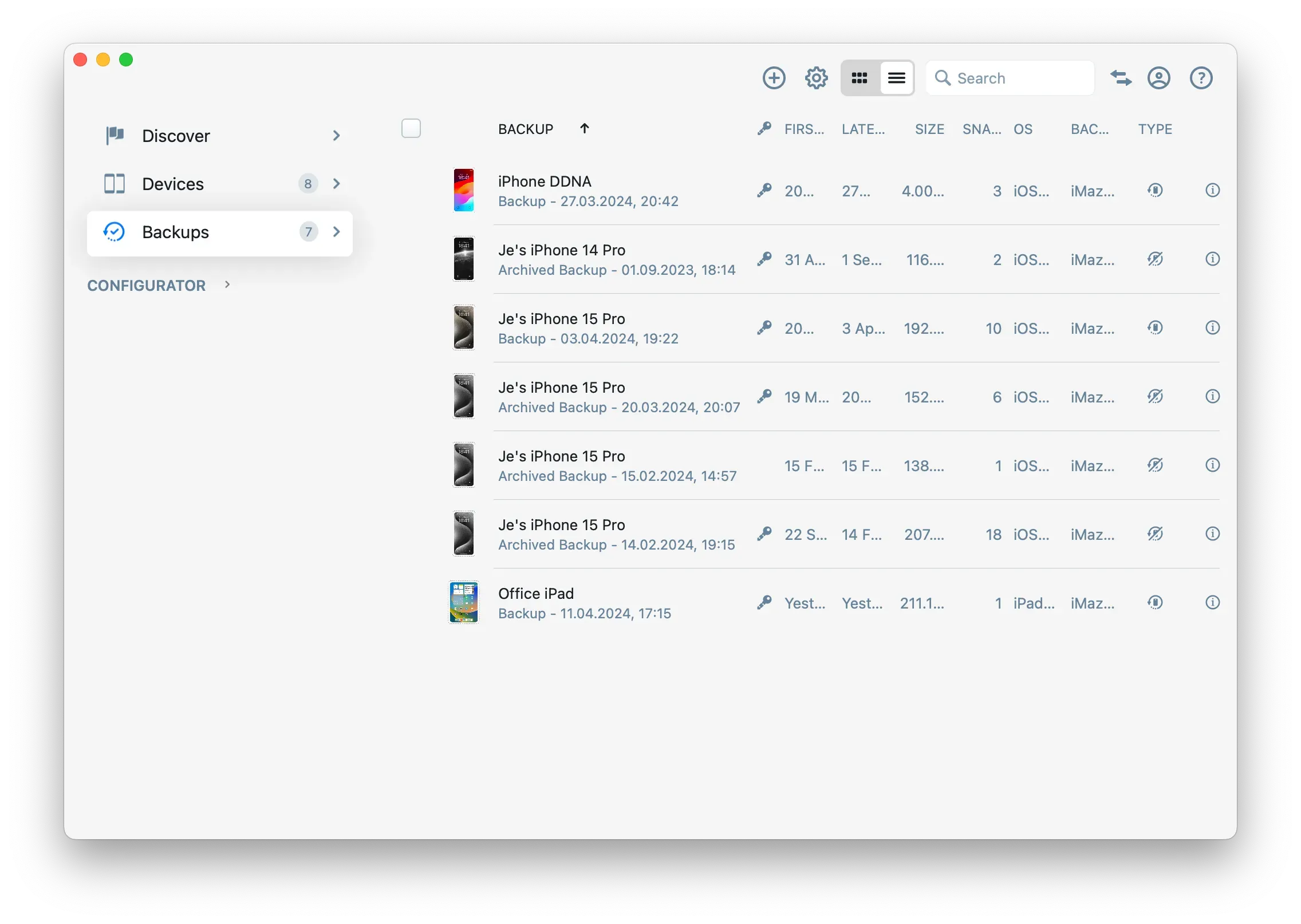
View all your device backups. Similar to the Devices section, you can alter the display of your backups, choosing between a grid or a detailed list view.
Backups Grid View
Backups List View
Backup Snapshots
A backup may include one or more snapshots. To view all backup snapshots, click on the Backup Snapshot menu.
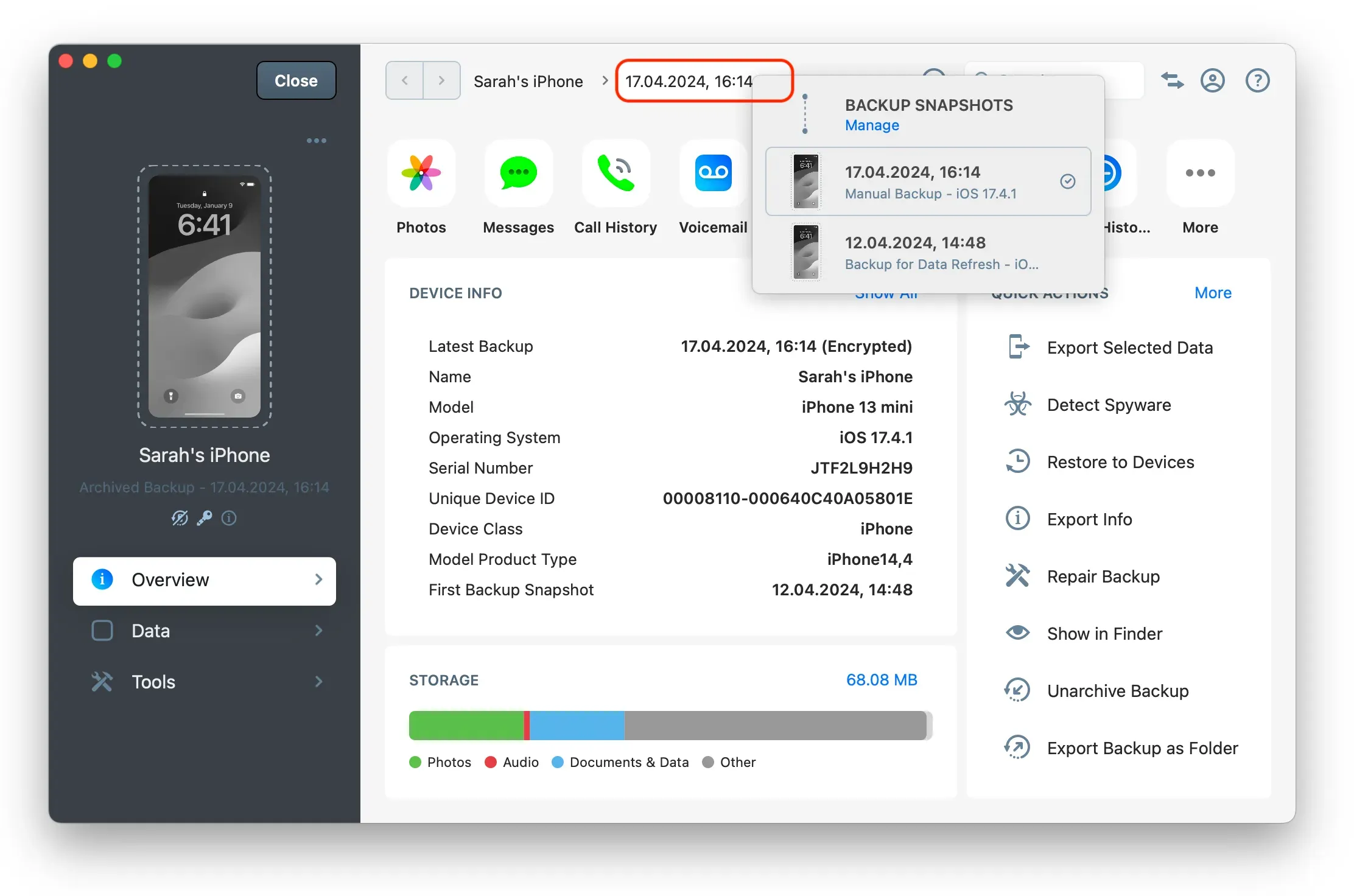
Double-click on your backup snapshots to browse them. To manage or delete specific backup snapshots, select Backup Snapshots | Manage, as shown in the following screenshot.
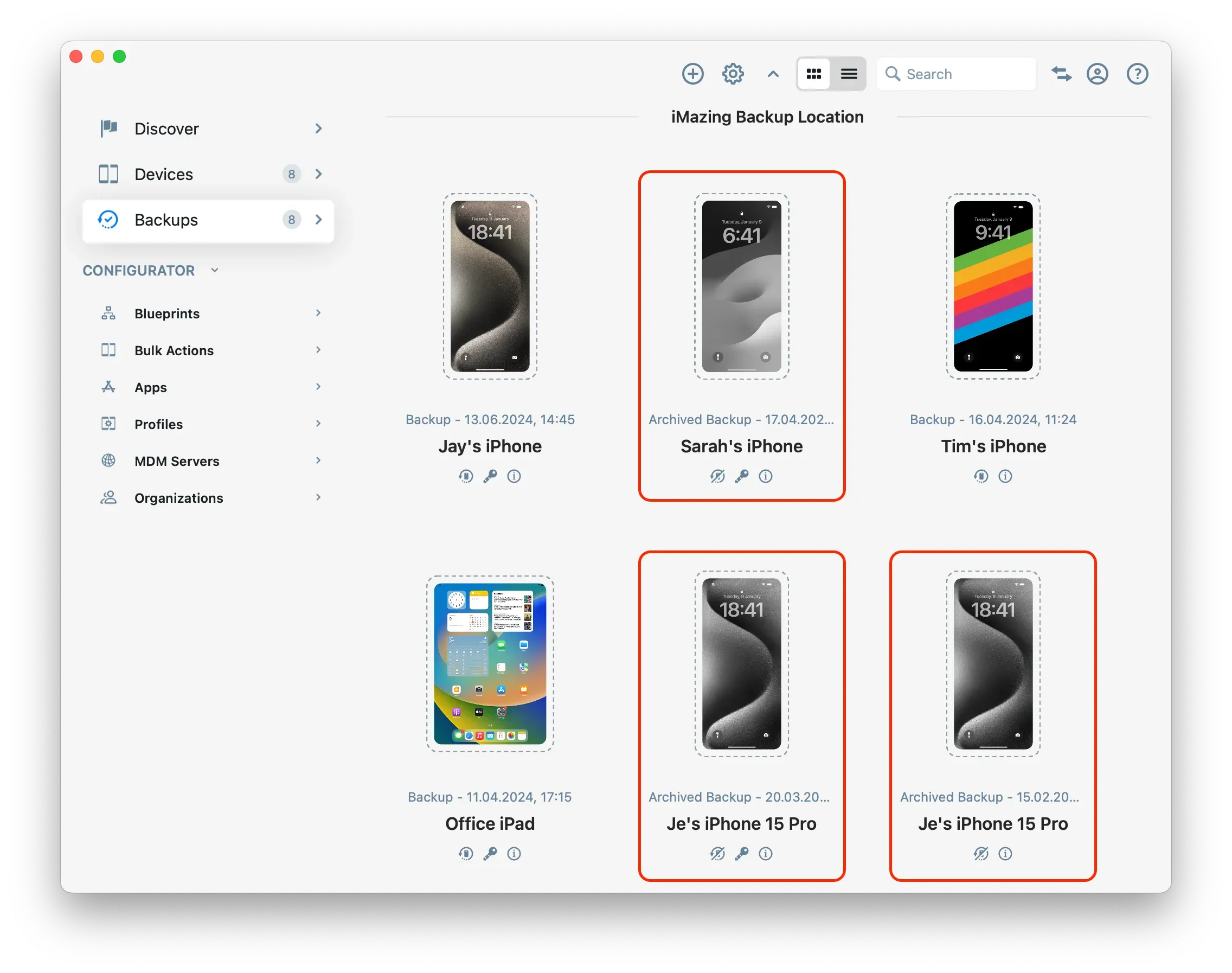
Archived Backups
When iMazing loads a backup which is not the device's current main backup, it will display it as Archived Backup and will appear in gray-scale. This happens in the following cases:
- Backup is of a device which you removed from iMazing
- Backup is stored in a location which is not the current backup location of the device
- Backup is an iTunes archived backup
Archived Backups can take a lot of space on your hard drive. These backups are often not needed anymore - check their contents before deleting them to regain storage space on your computer.
For further details on managing your backups with iMazing, refer to this guide: Manage your backups with iMazing
Load Backups
iMazing allows you to load backups from any location or add a location that contains multiple backups (backup disk). You can do this by clicking the + icon. Once a backup is loaded, it will appear in the Backups section, and its contents can be browsed.
Add Backup Menu
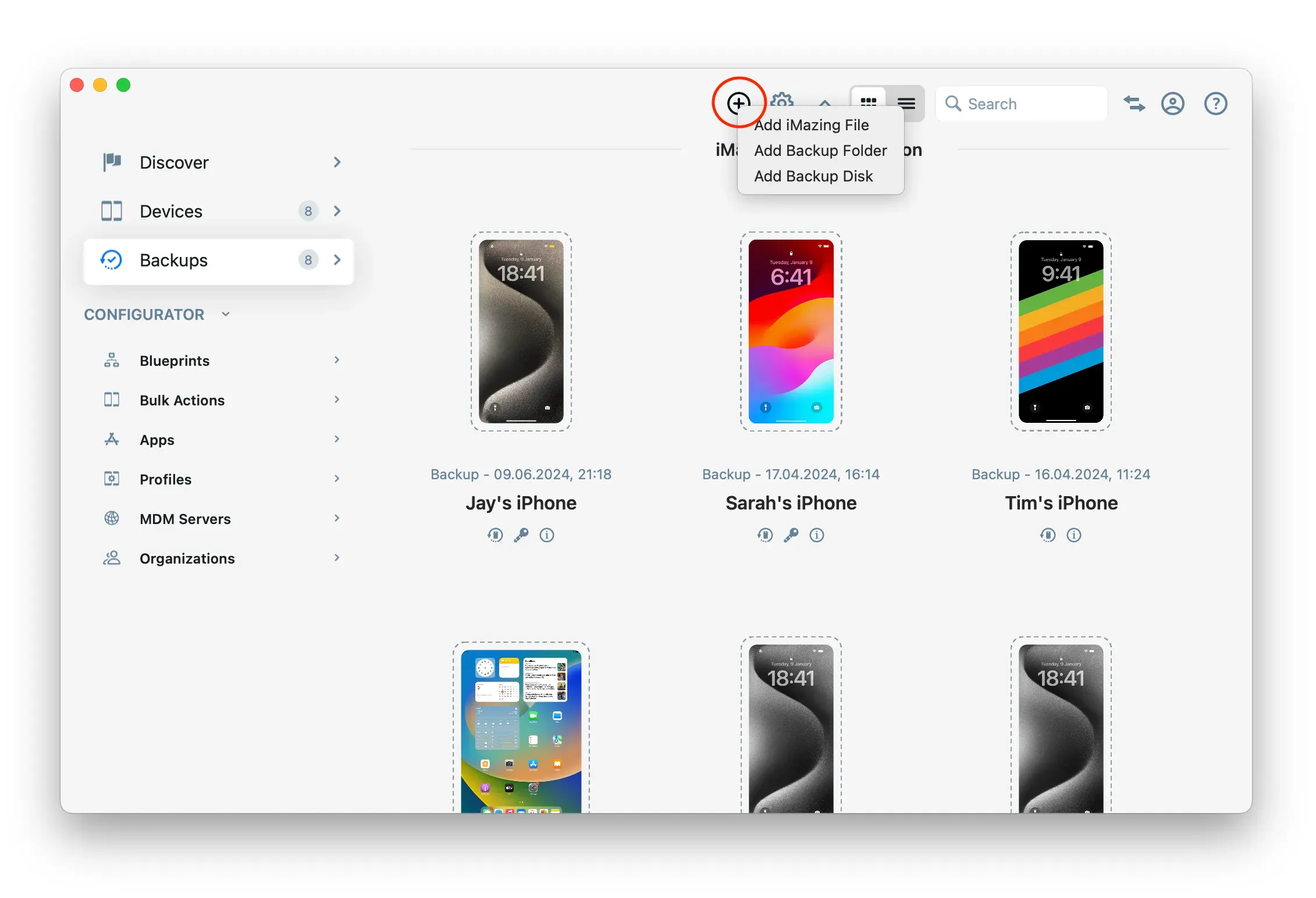
- Add iMazing File: Import a .imazing file, iMazing 1's default backup export format.
- Add Backup Folder: Load a specific backup folder. When you select this option, iMazing will ask whether you want to copy the backup folder to your default backup location to see it always loaded, or if you want to open it from its current location.
- Add Backup Disk: When you select a disk as your backup location, iMazing creates an
iMazing.Backupsfolder at the root of that drive. Adding a backup disc loads all the backups inside theiMazing.Backupsfolder of the selected local, external or network drive.
Manage Backup Locations
You can manage backup locations by clicking the Gear icon.
Configure Backup Locations
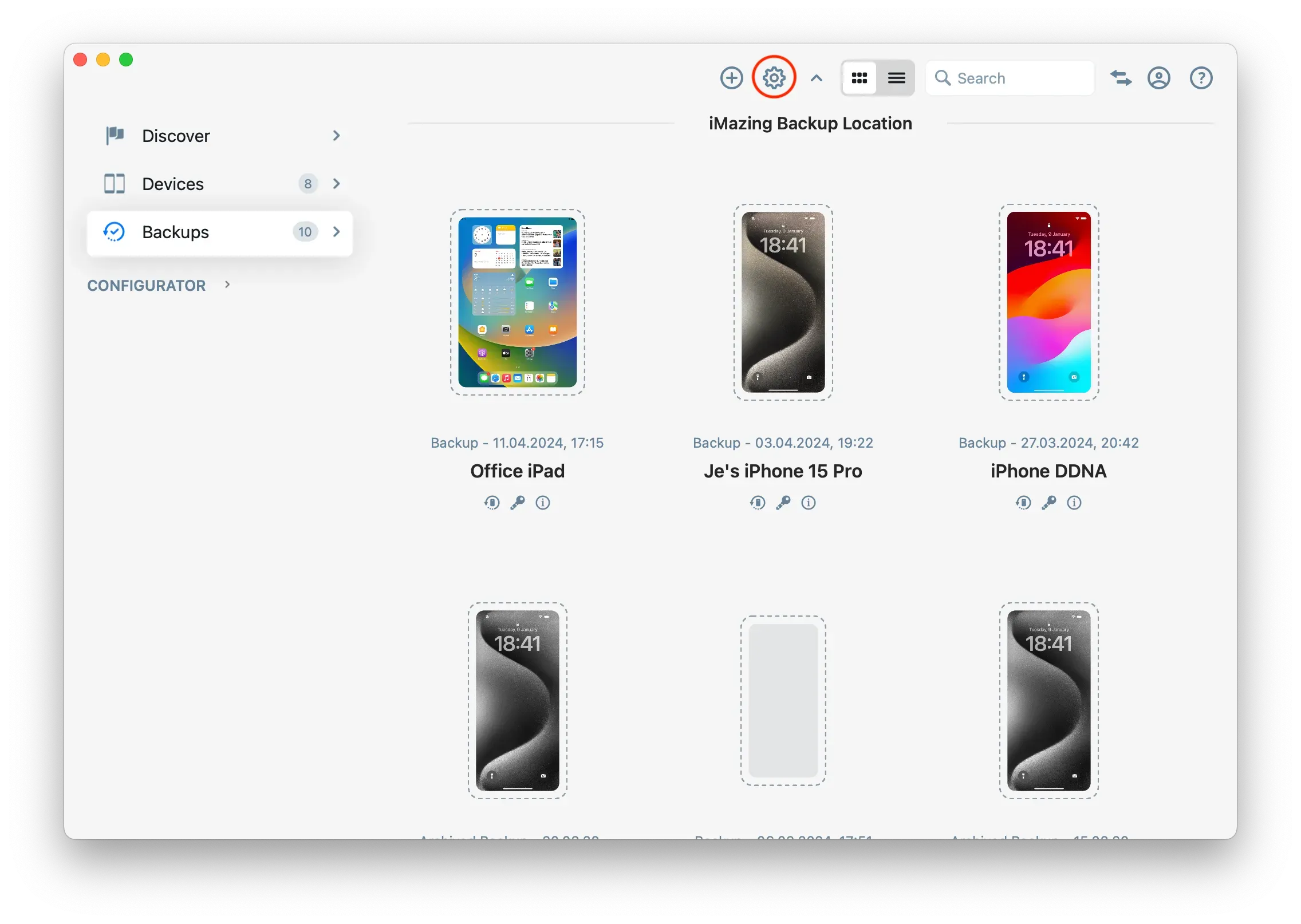
Backup Location Preferences
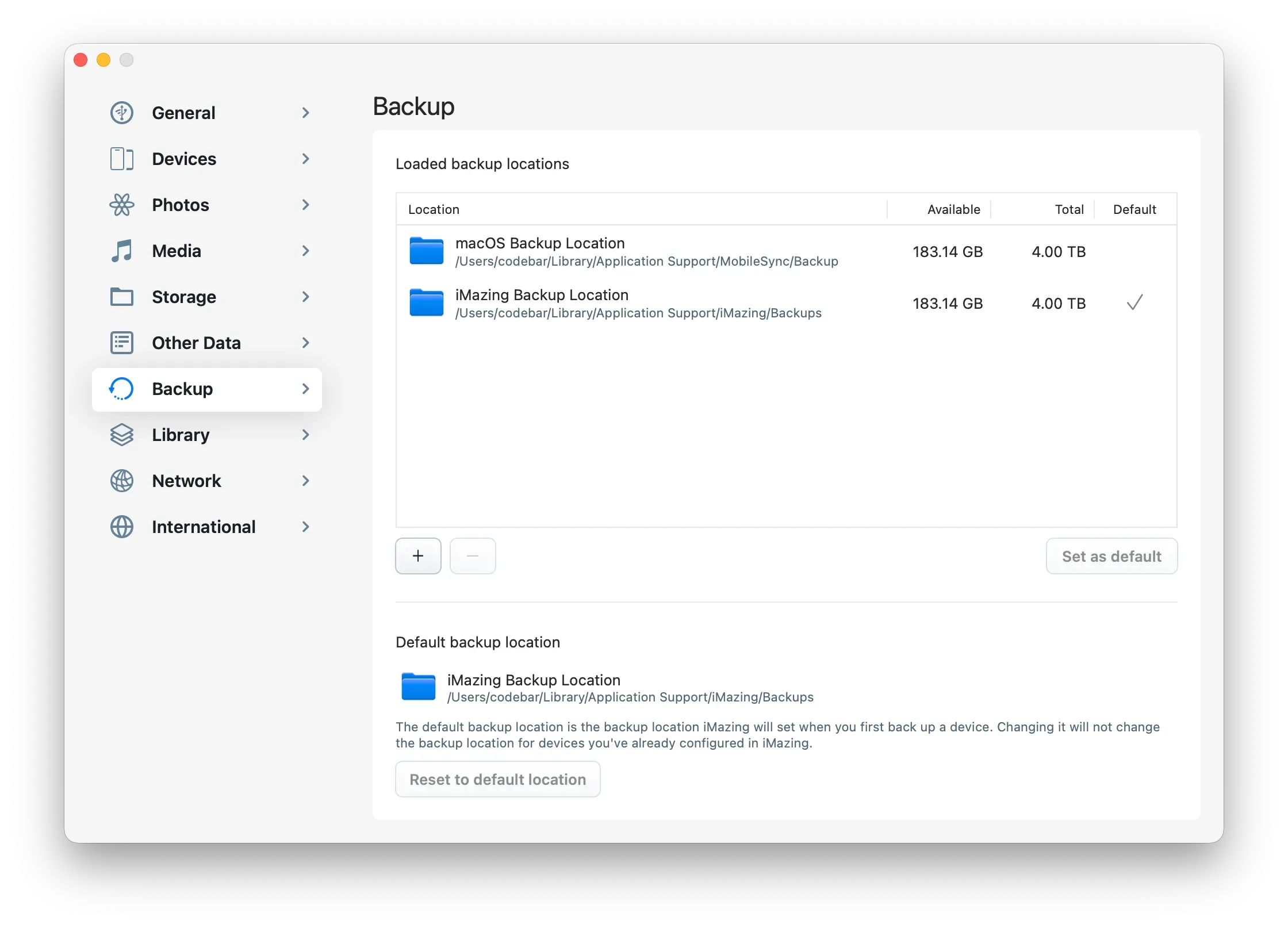
For further details on managing your backups with iMazing, refer to this guide: Manage your backups with iMazing
Configurator (macOS)
The Configurator section provides a comprehensive set of tools for managing Apple mobile devices in bulk. These features are included in the iMazing Business plans. The iMazing Configurator features are available with iMazing Business plans.
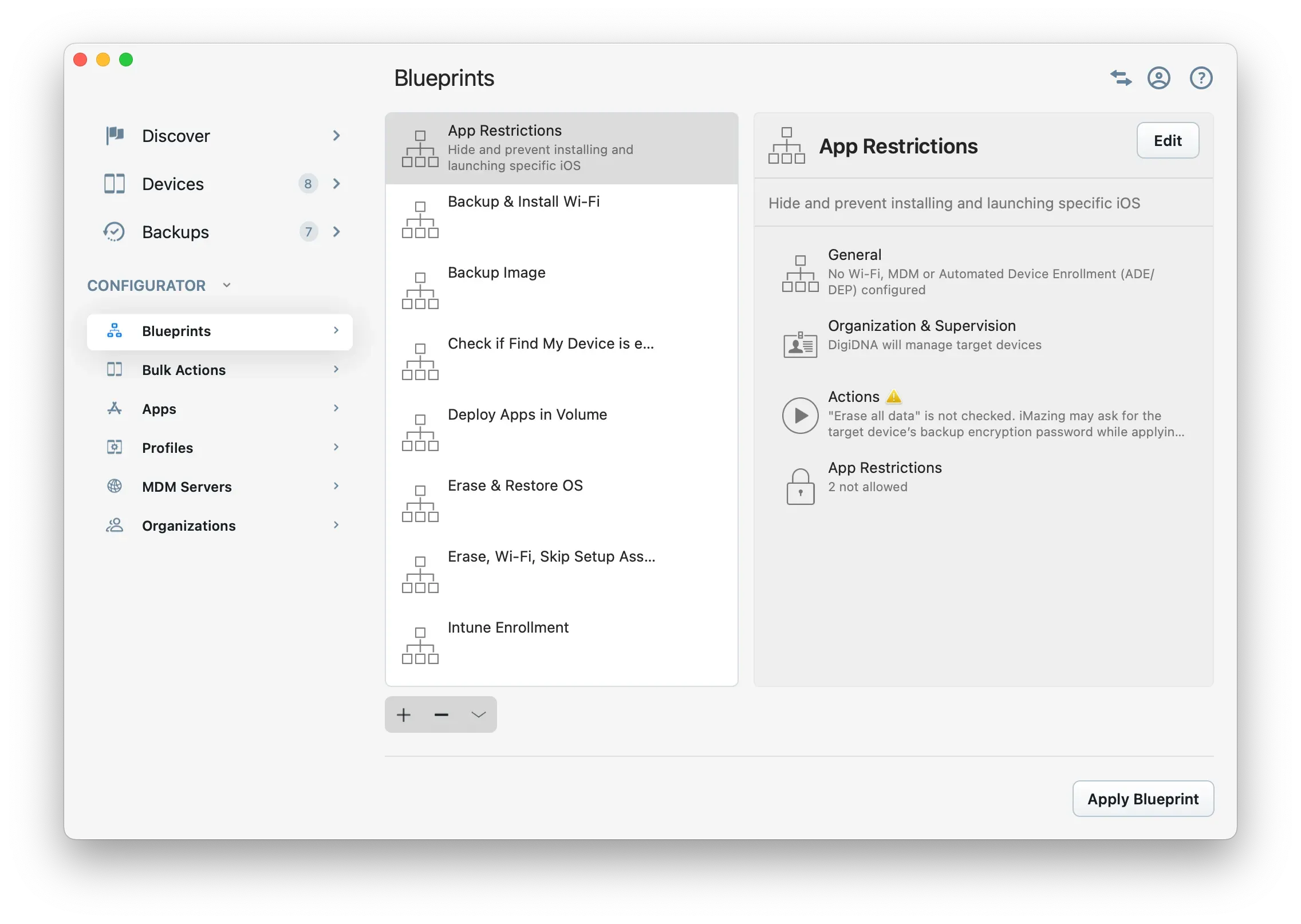
For more info on the iMazing Configurator, please visit the following links:
- iMazing Configurator Commercial Page
- iMazing Configurator Quick Start Guide
- iMazing Configurator Overview
The iMazing Configurator blueprint editor is only available on macOS. However, you can apply blueprints exported from iMazing for macOS on a Windows PC.
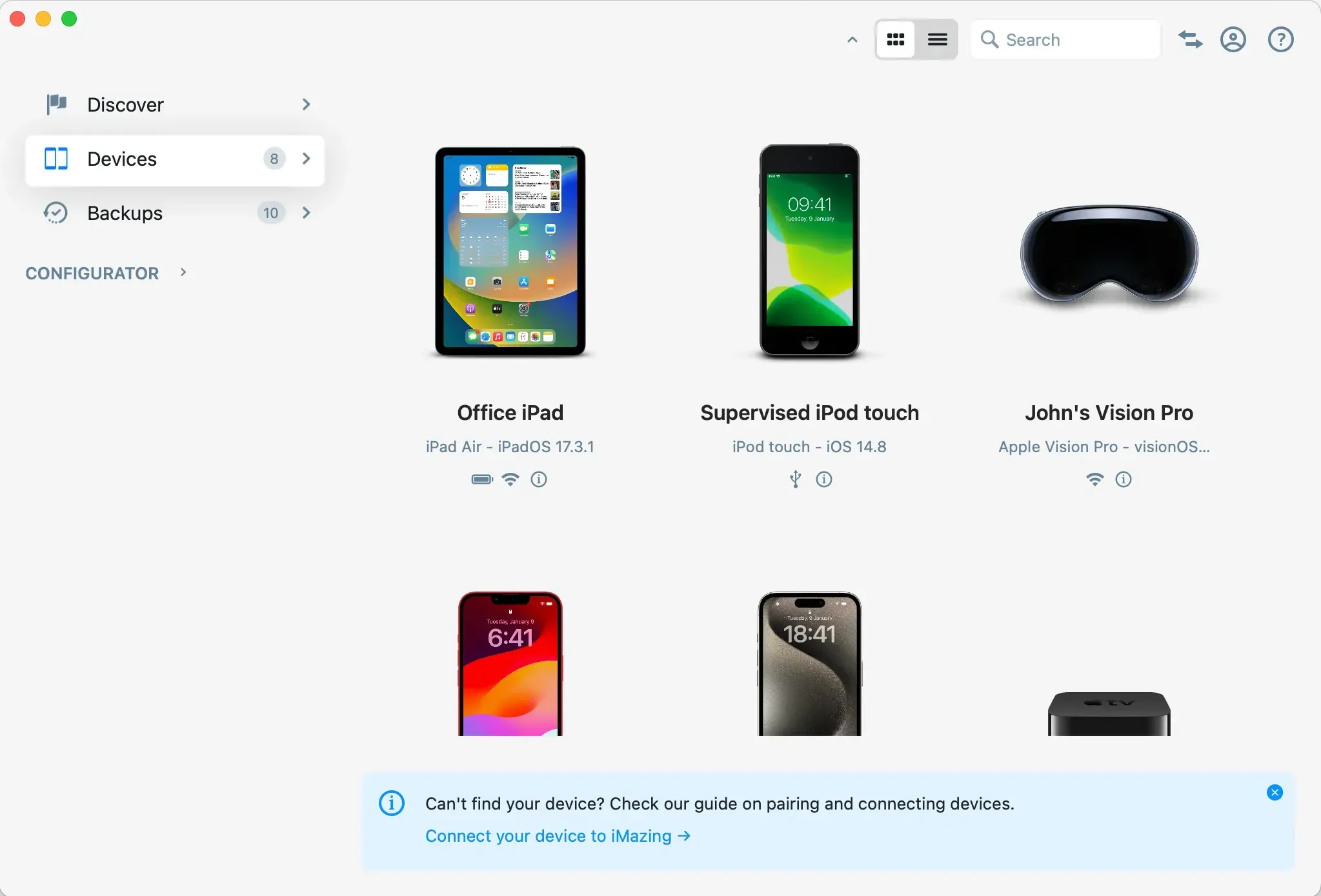
Device Screen
The device screen provides access to all information, data, and tools specific to a device.
General
Sidebar
In the sidebar, you'll find the main device info, connection status, battery level and the following 4 sections:
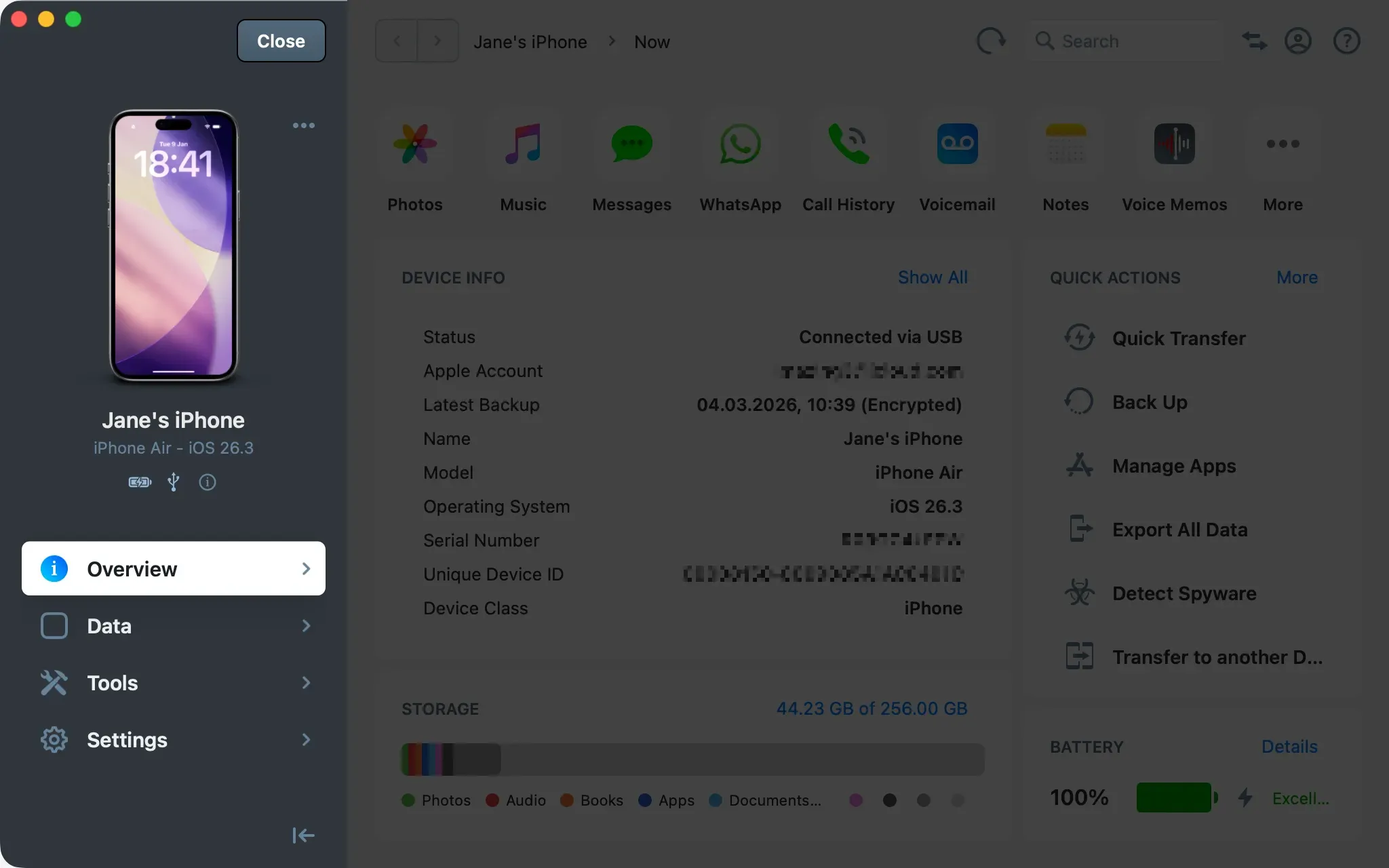
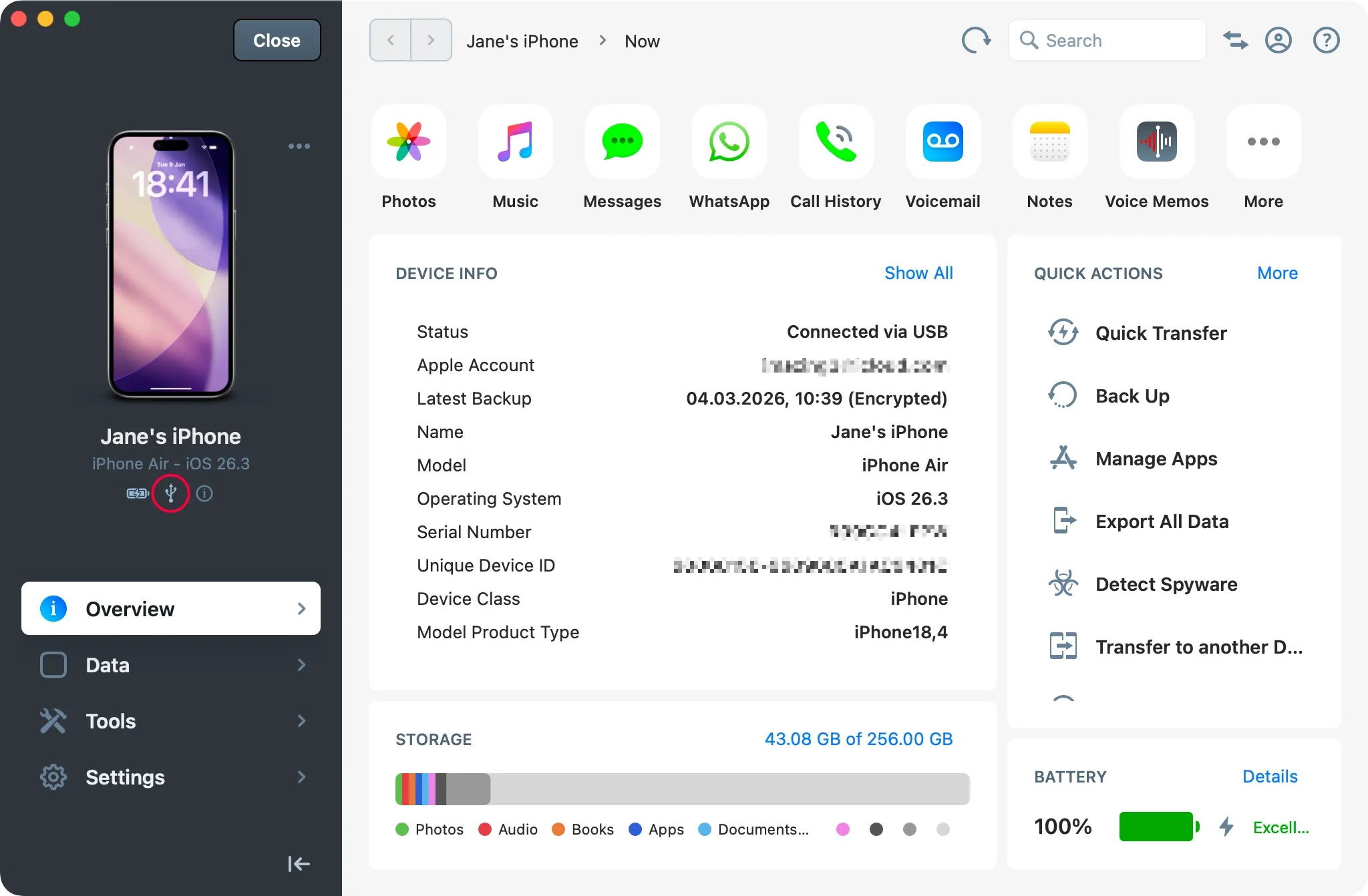
Connection Status
The device's connection status icon is displayed in the device sidebar.
Icon | Legend |
|---|---|
| Device is connected via USB |
| Device is connected via Wi-Fi |
| iMazing is searching for the device |
| Device is asleep |
| iMazing could not connect to the device, but you can still browse its backed up contents |


Battery Level
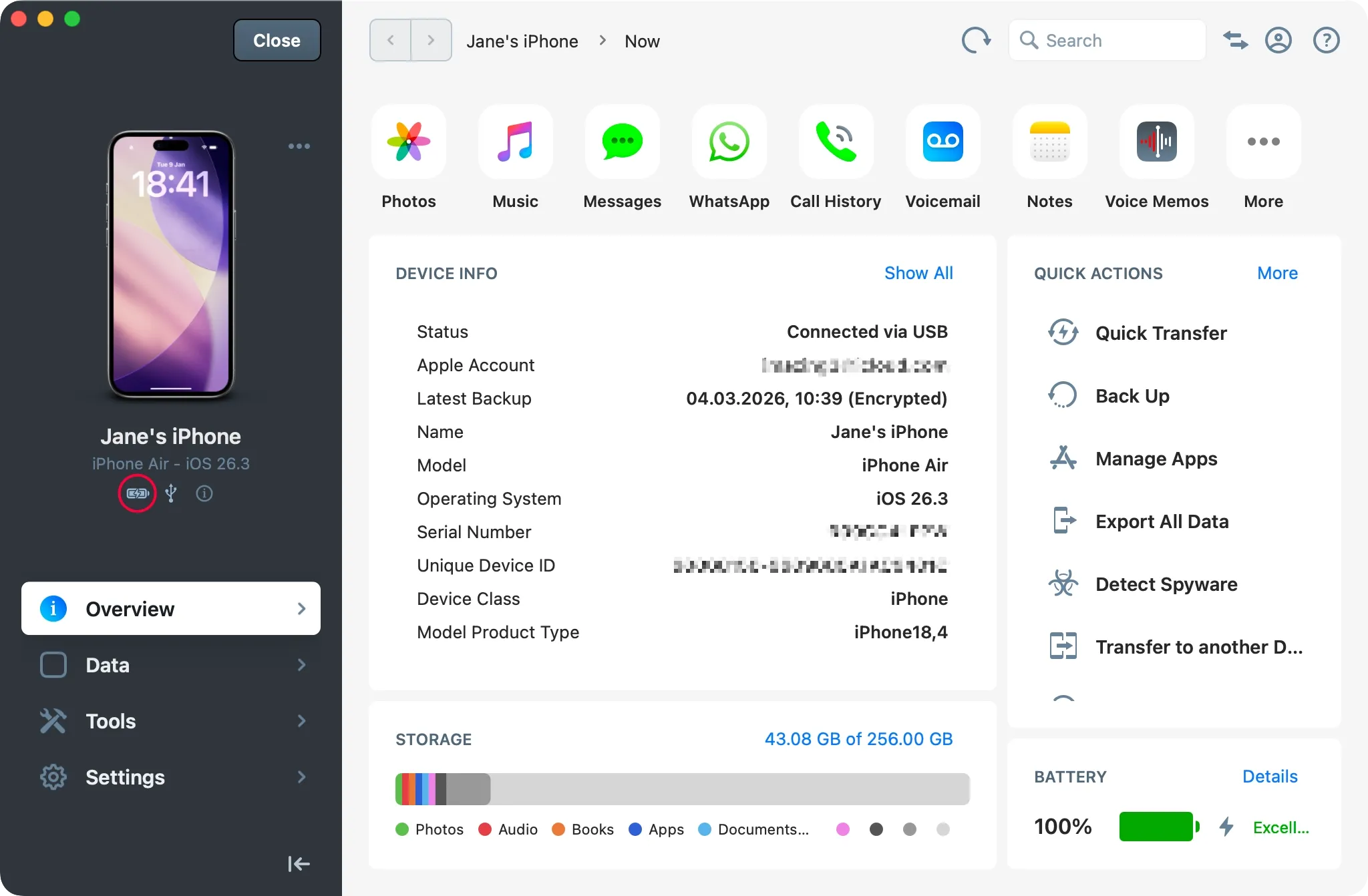
The device's battery level is displayed in the device sidebar as well.
Device Info Popup
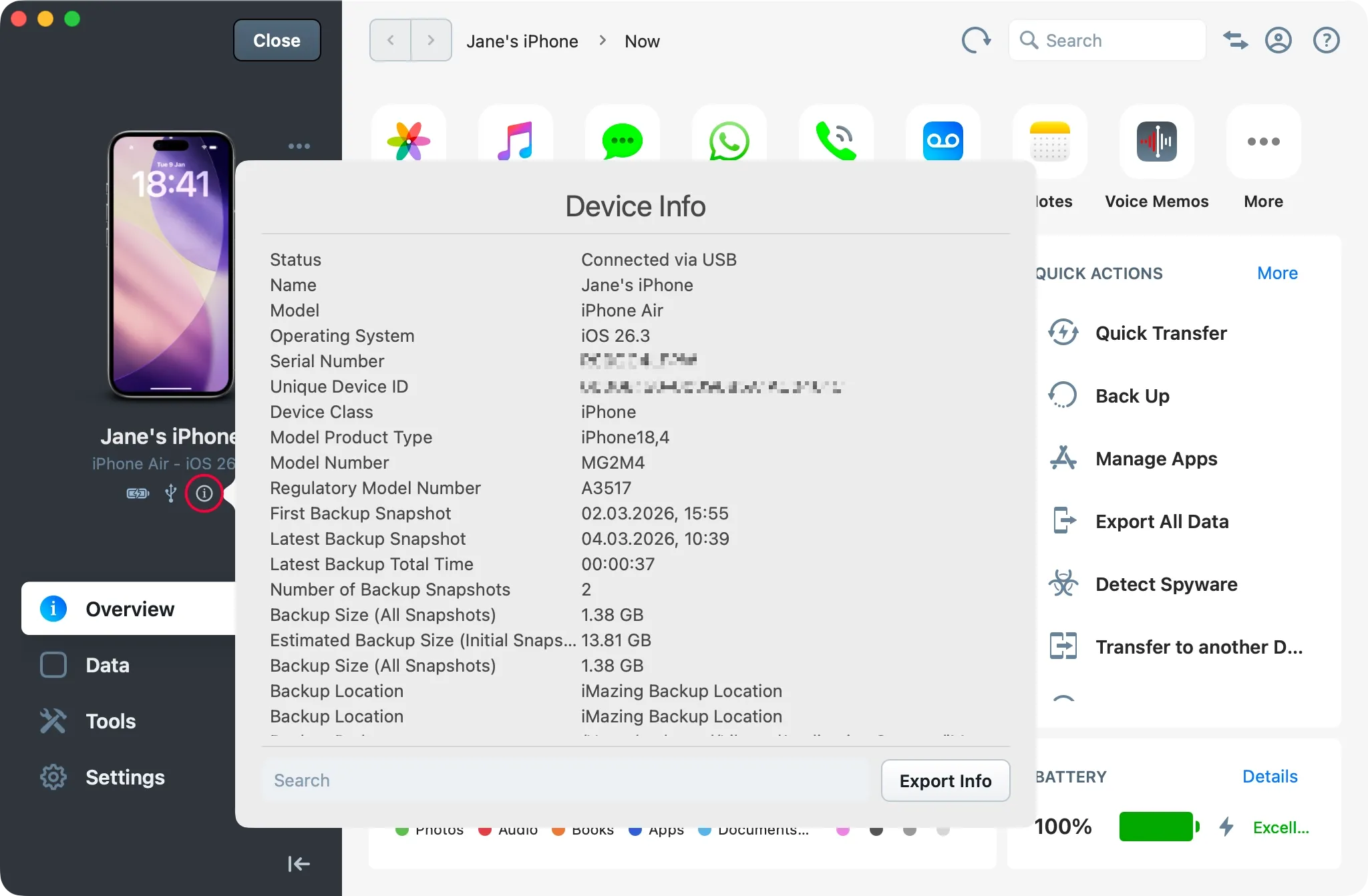
You can access all device info by clicking the Info icon.
Device Contextual Menu
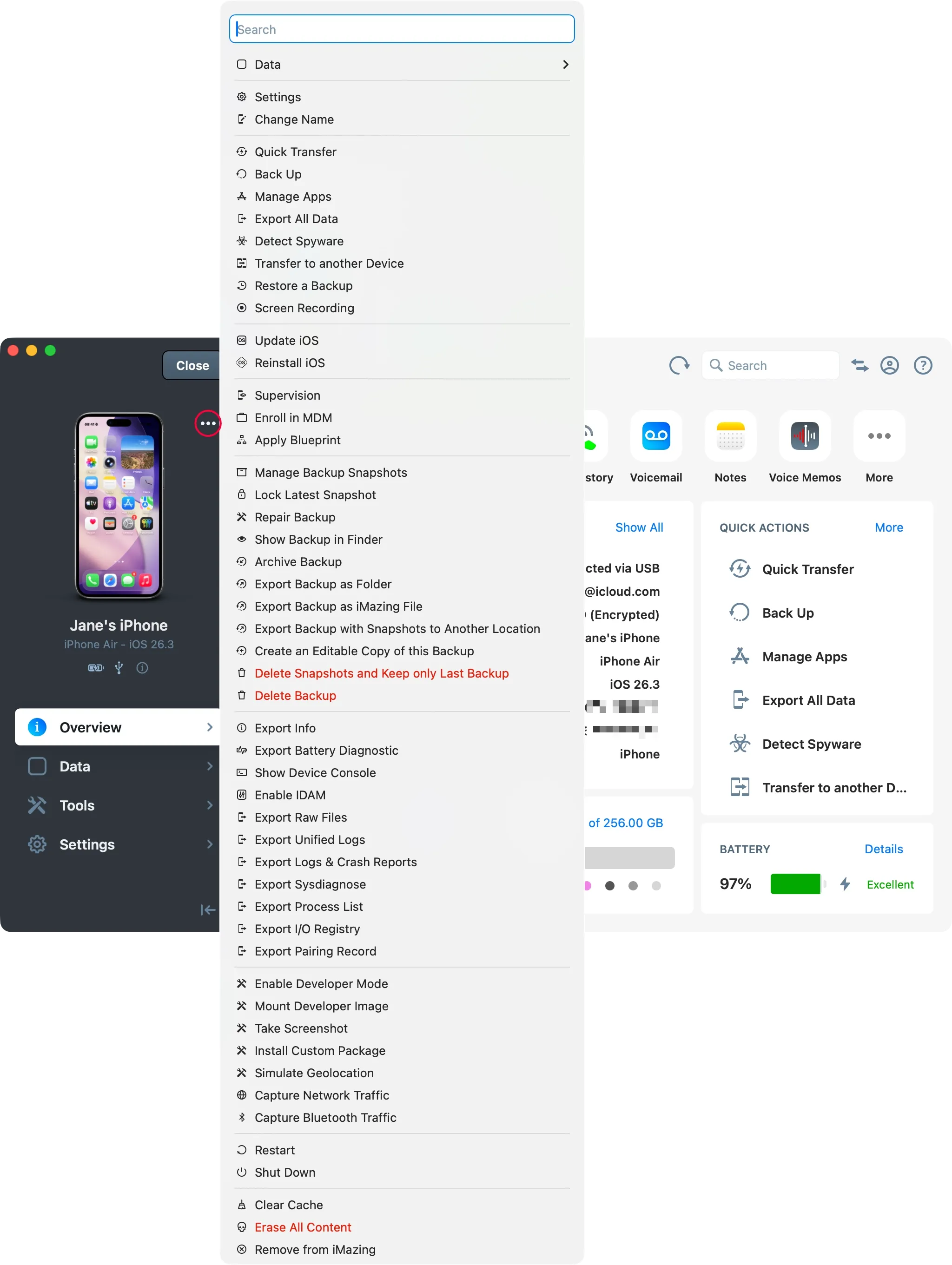
The contextual menu offers quick access to all iMazing features. You can access it by clicking the 3 dots icon or by right-clicking the device image anywhere in the app.
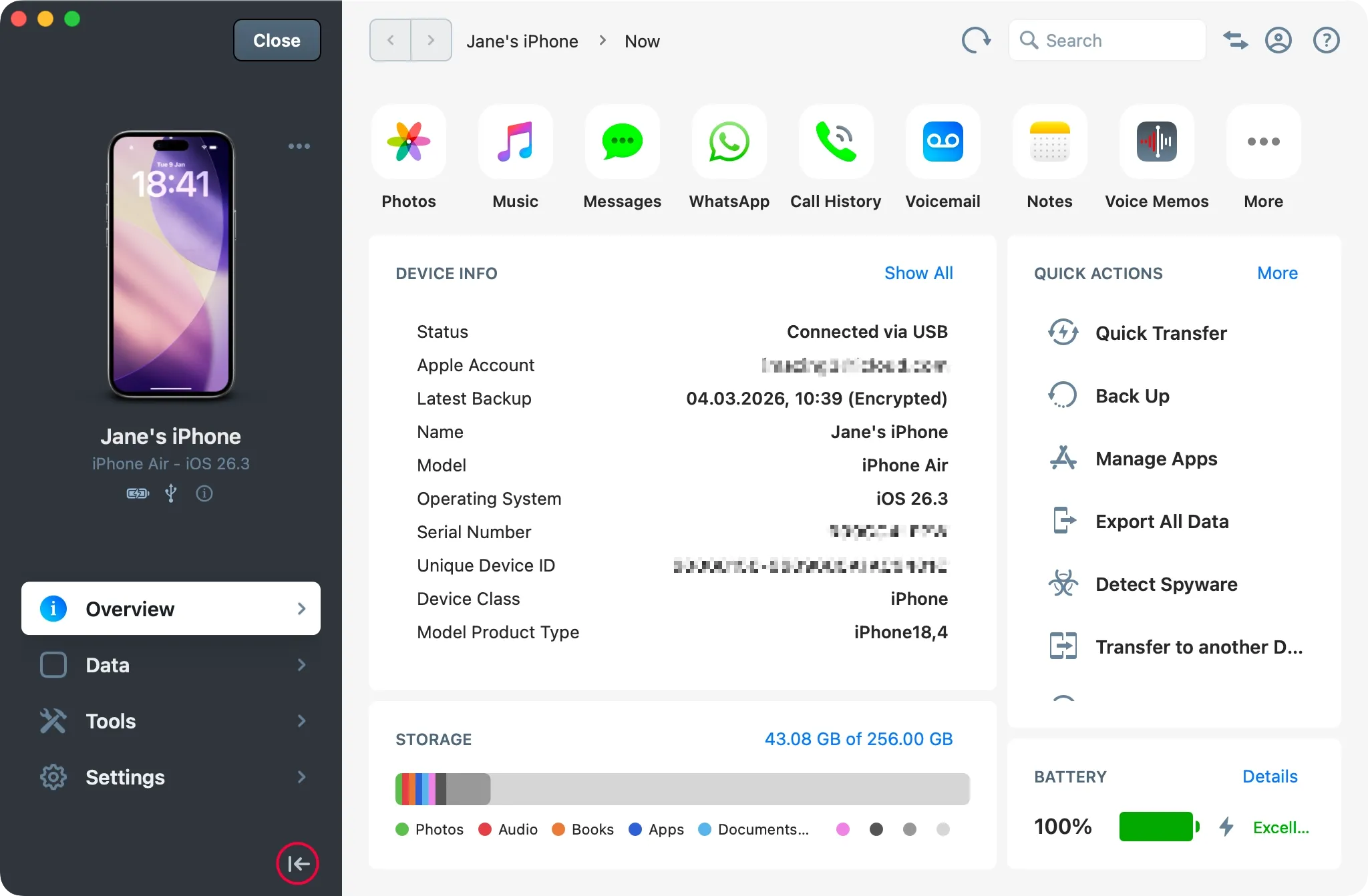
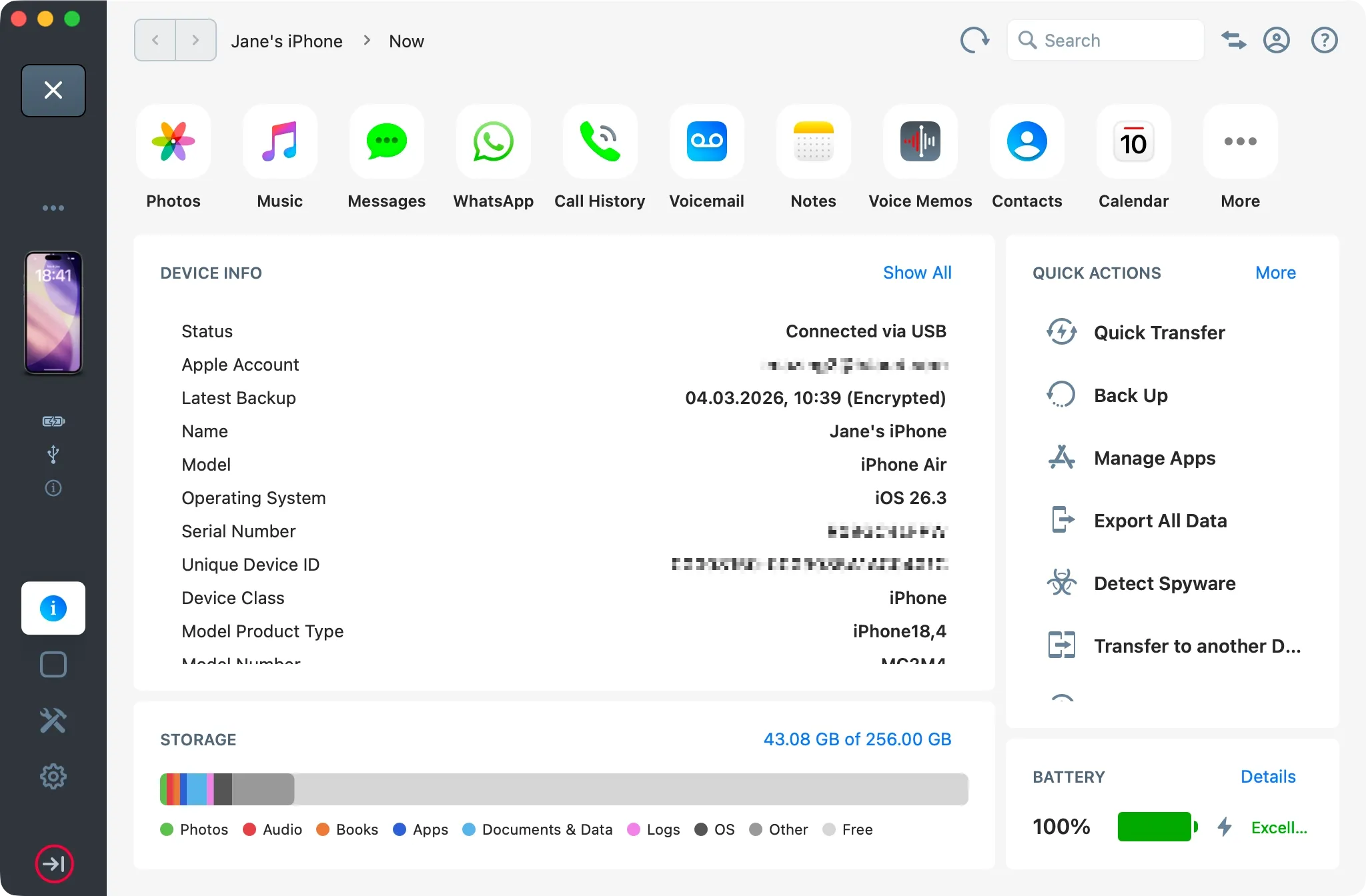
Collapsible Sidebar
Since iMazing 3.5 you now have the possibility to collapse the sidebar by clicking on the corresponding button.
Switch Quickly from One Device to Another
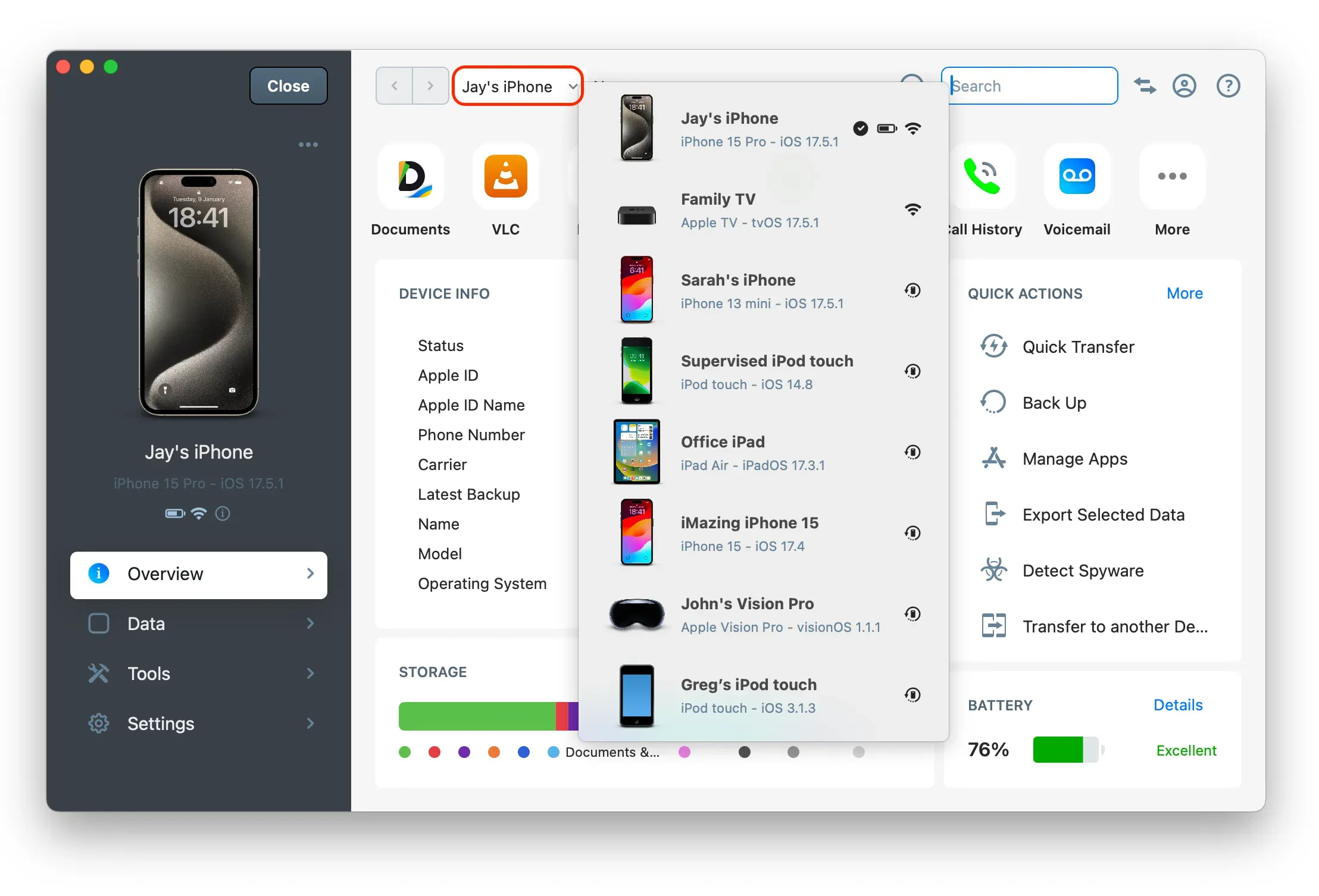
You can swiftly transition between devices by clicking the Devices Menu, as indicated in the following screenshot.
Backup Snapshots Menu
When iMazing backs up your device and you've enabled Backup Snapshots in the Device Settings, it creates snapshots for each backup while optimizing the storage space needed on your computer. Double-click on your backup snapshots to browse them. Manage your backup snapshots by selecting Backup Snapshots | Manage, as shown in the following screenshot.
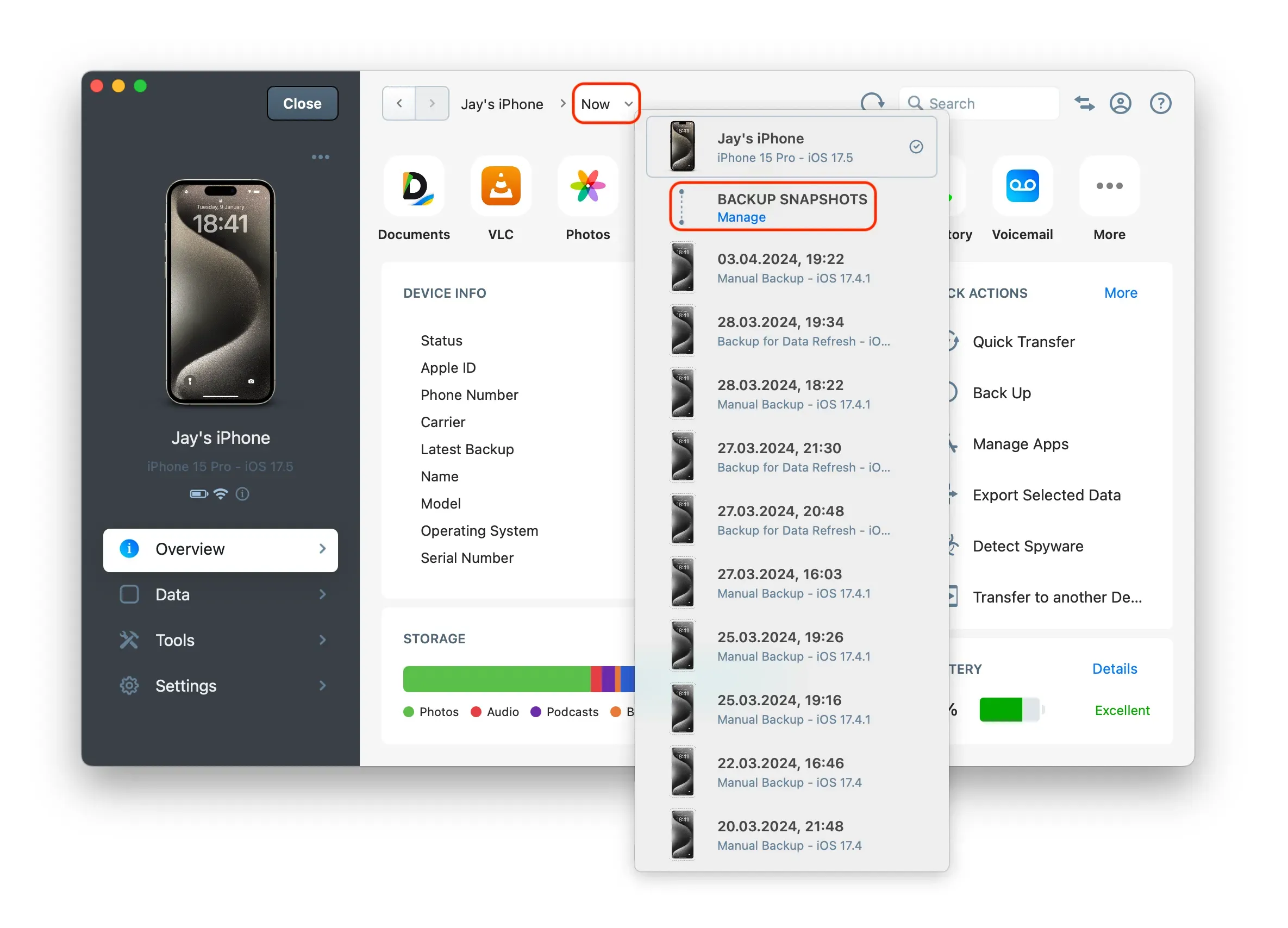
For more details on how to manage, edit, delete, or restore your backup snapshots with iMazing, please refer to this guide: Manage your backups with iMazing
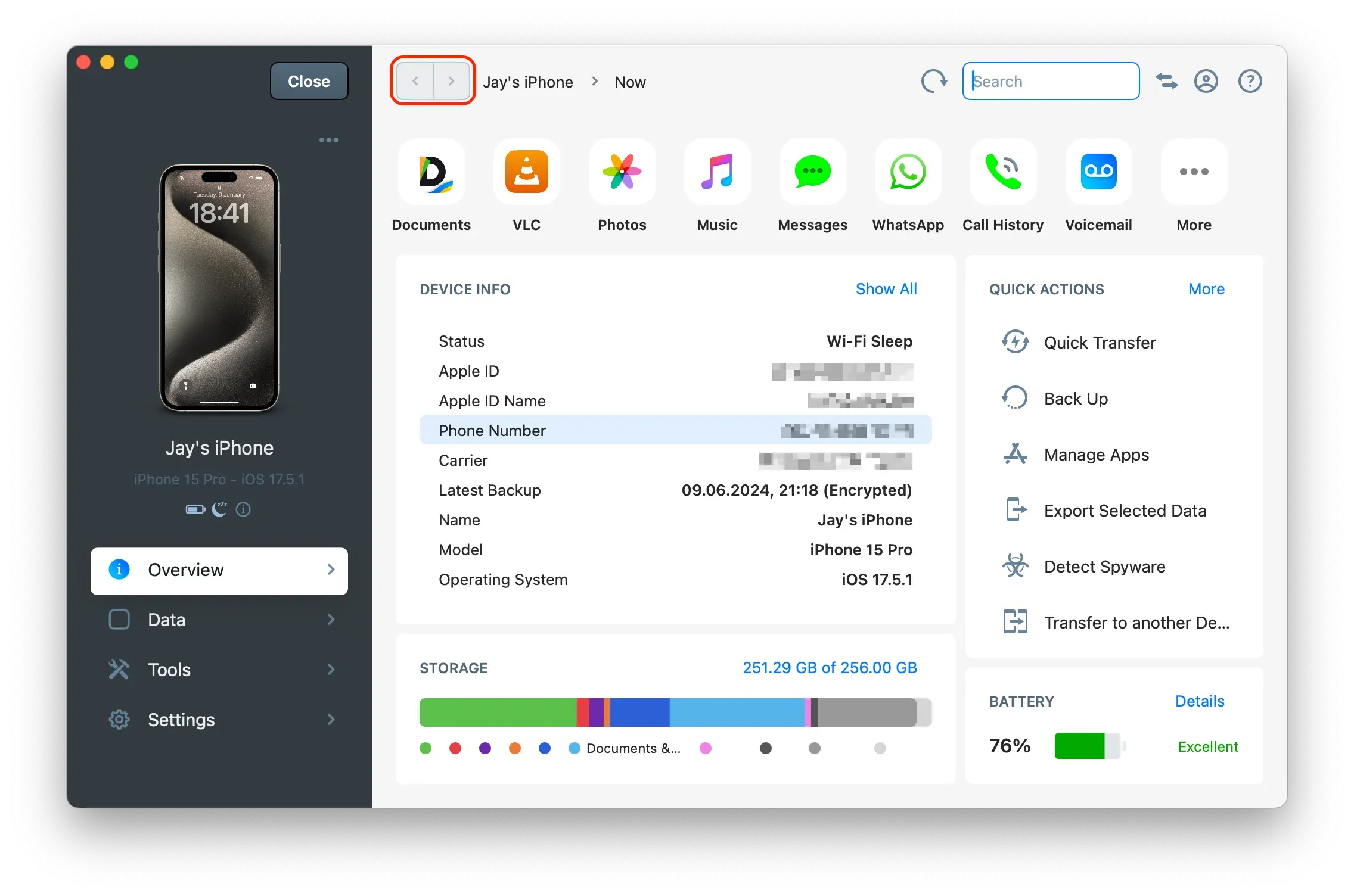
Navigate Back and Forth
You can navigate back and forth using the Back and Forth buttons.
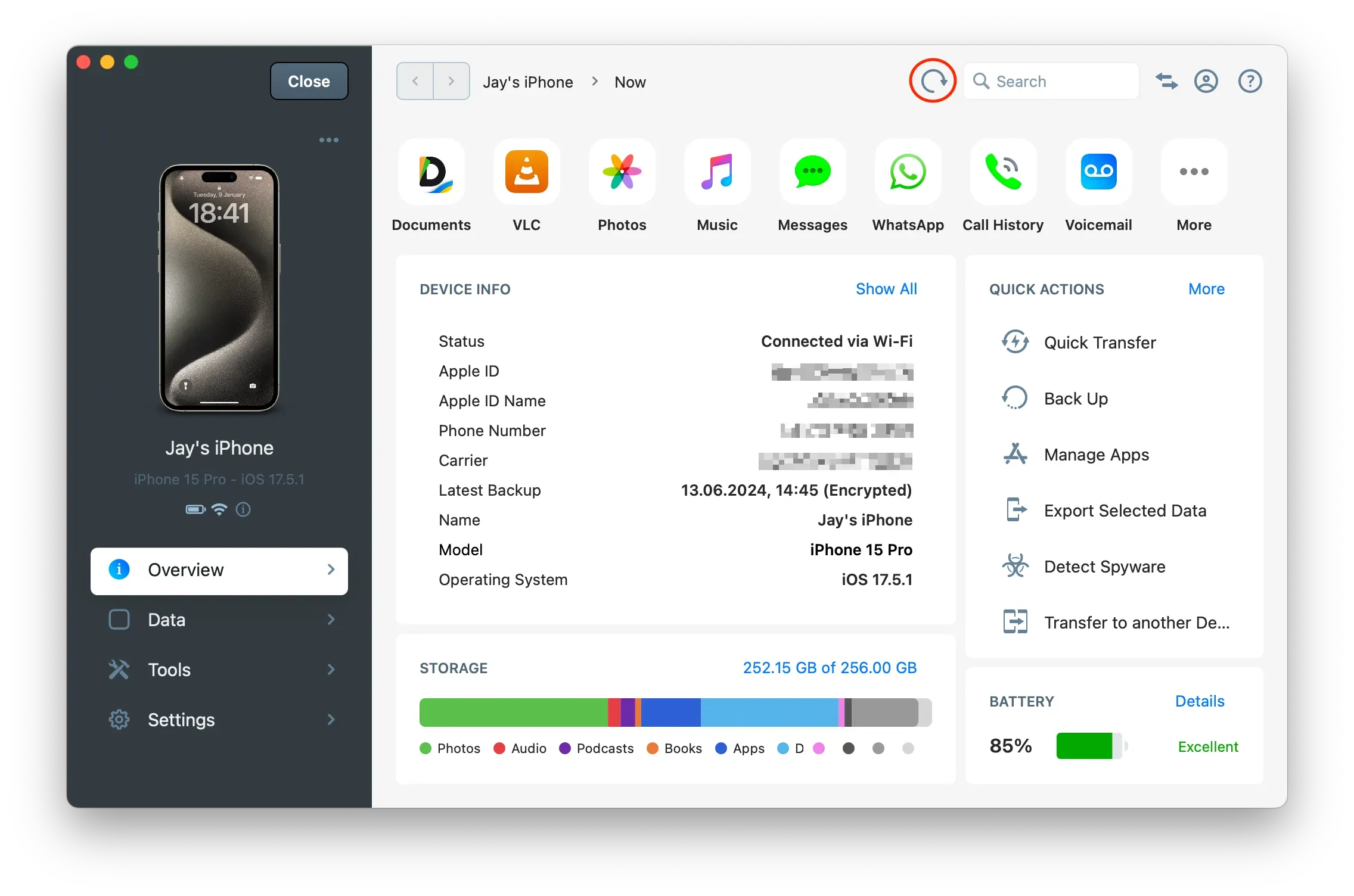
Refresh Data
You can refresh data anywhere in the app by using the Refresh icon.
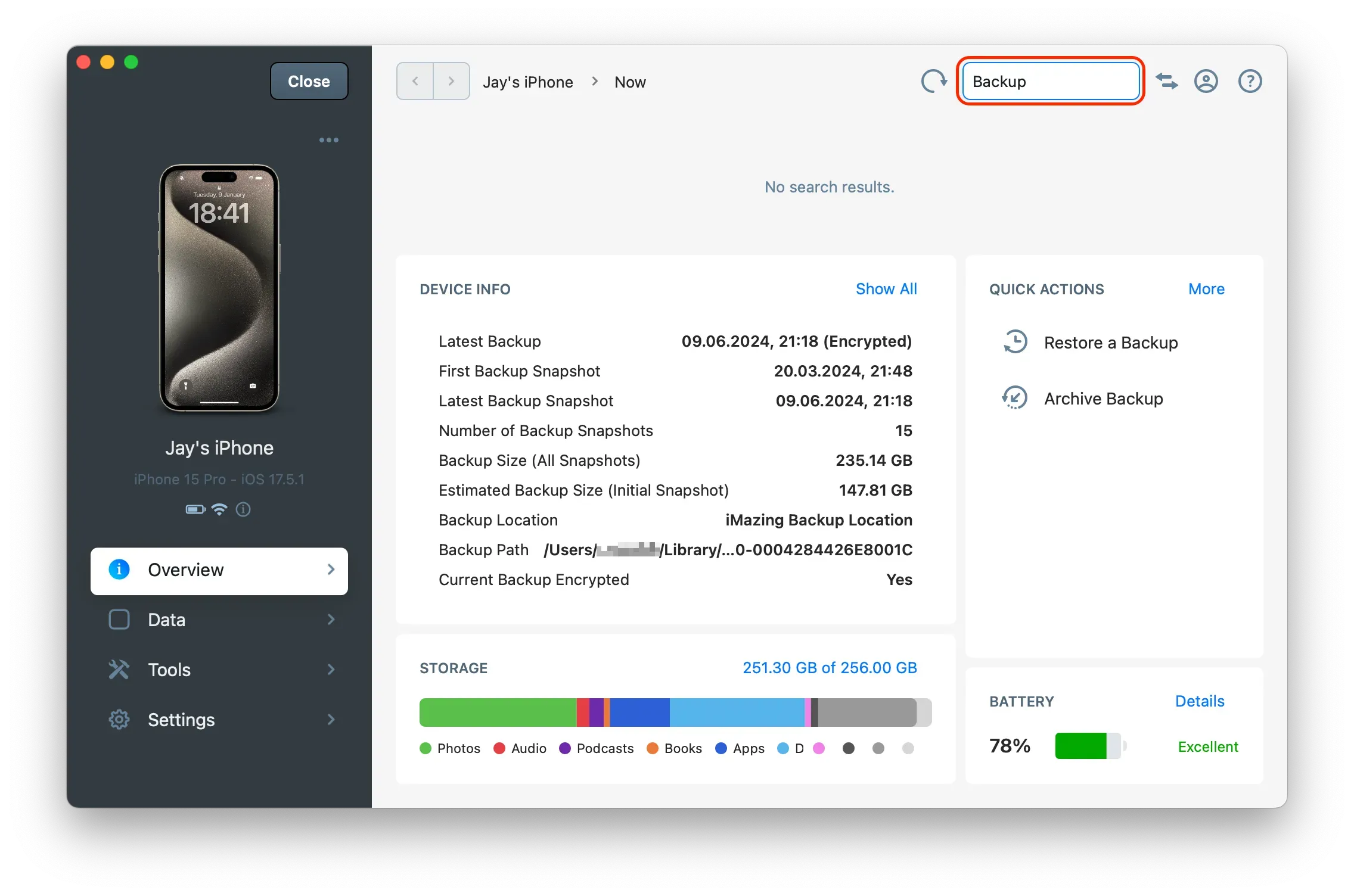
Search and Filtering
You can search for and filter displayed items at any time by typing in the search field.
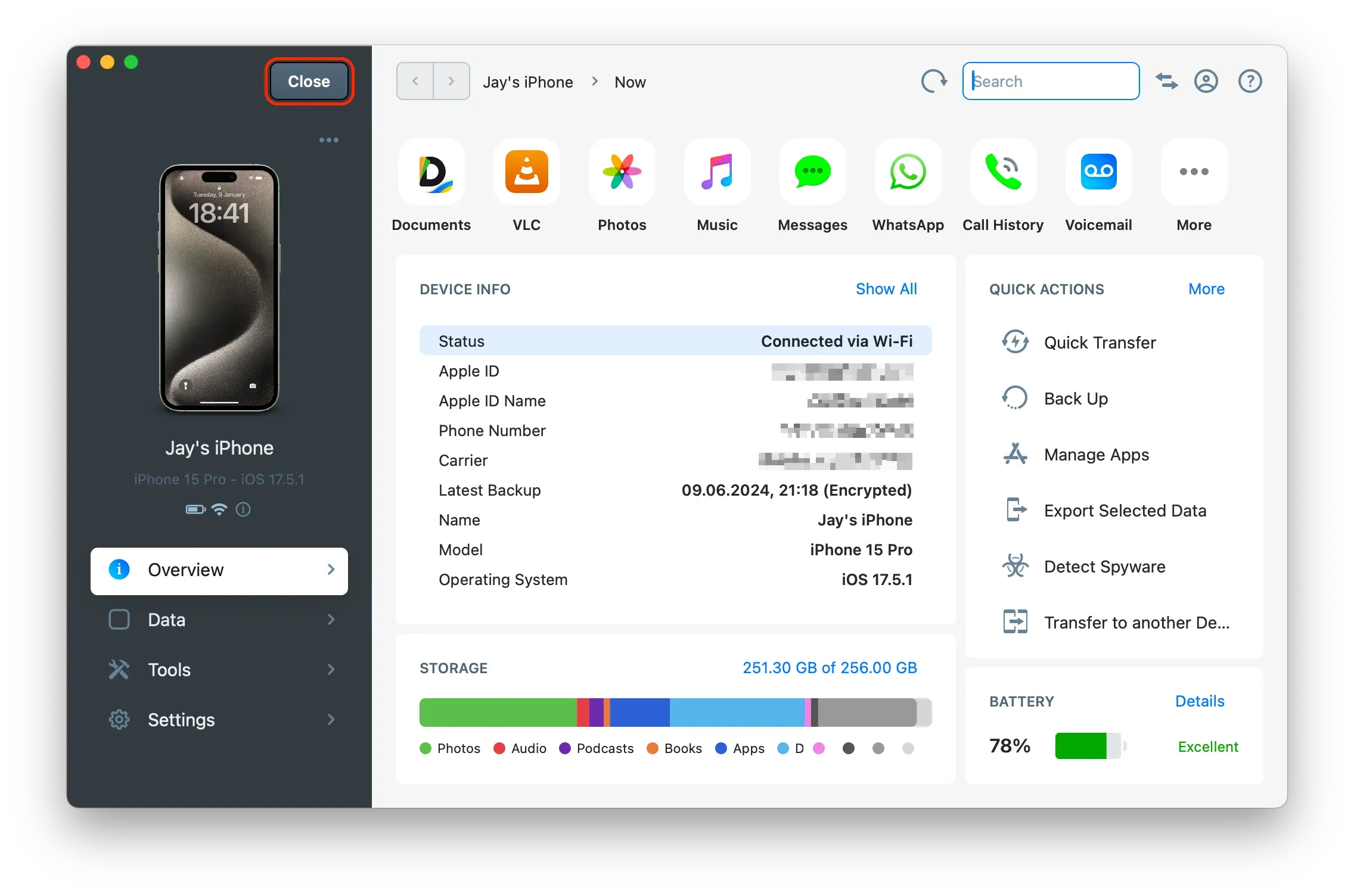
Close Device
To close a device and return to the Home Screen, click the Close button.
Device Overview
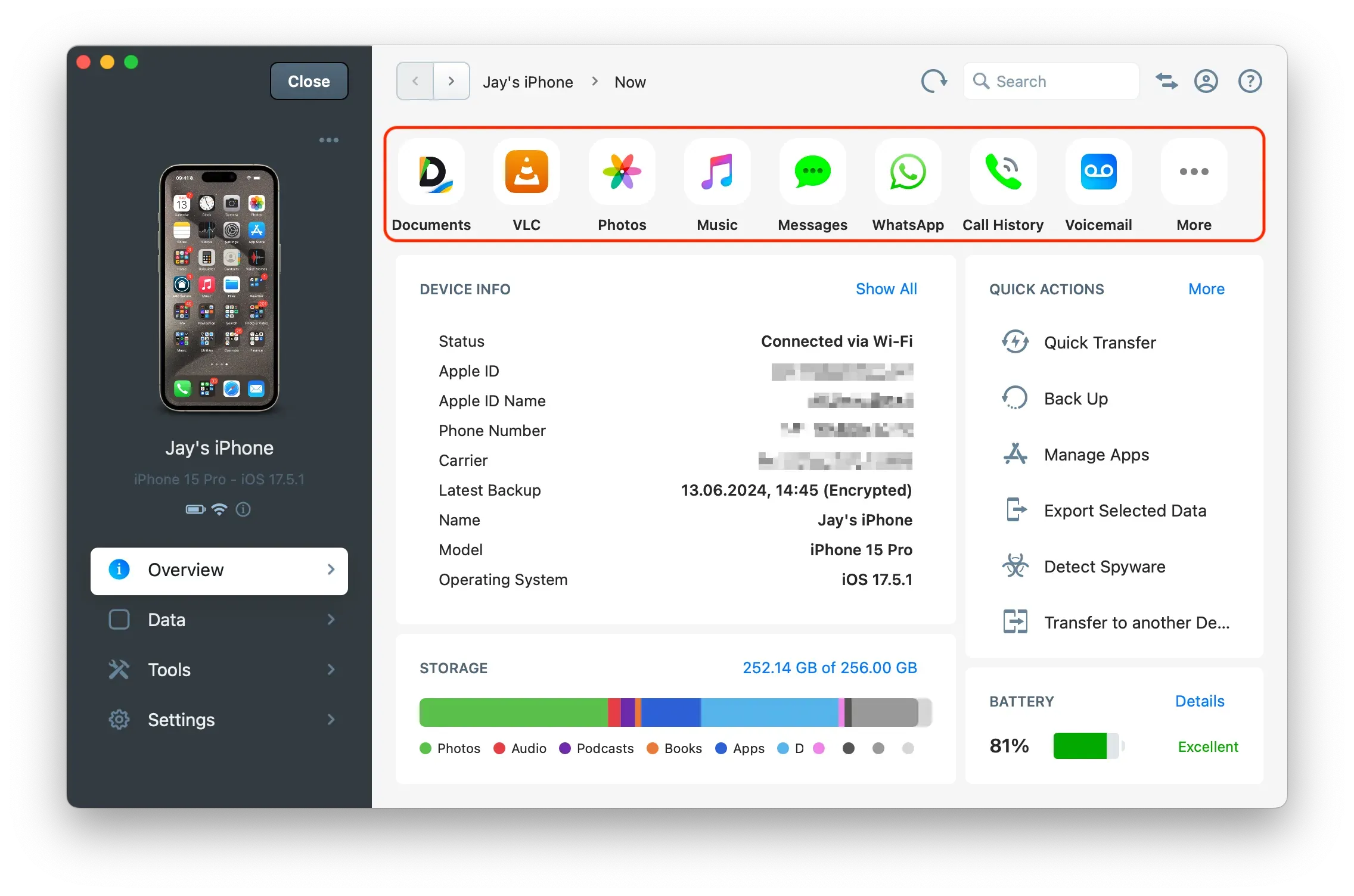
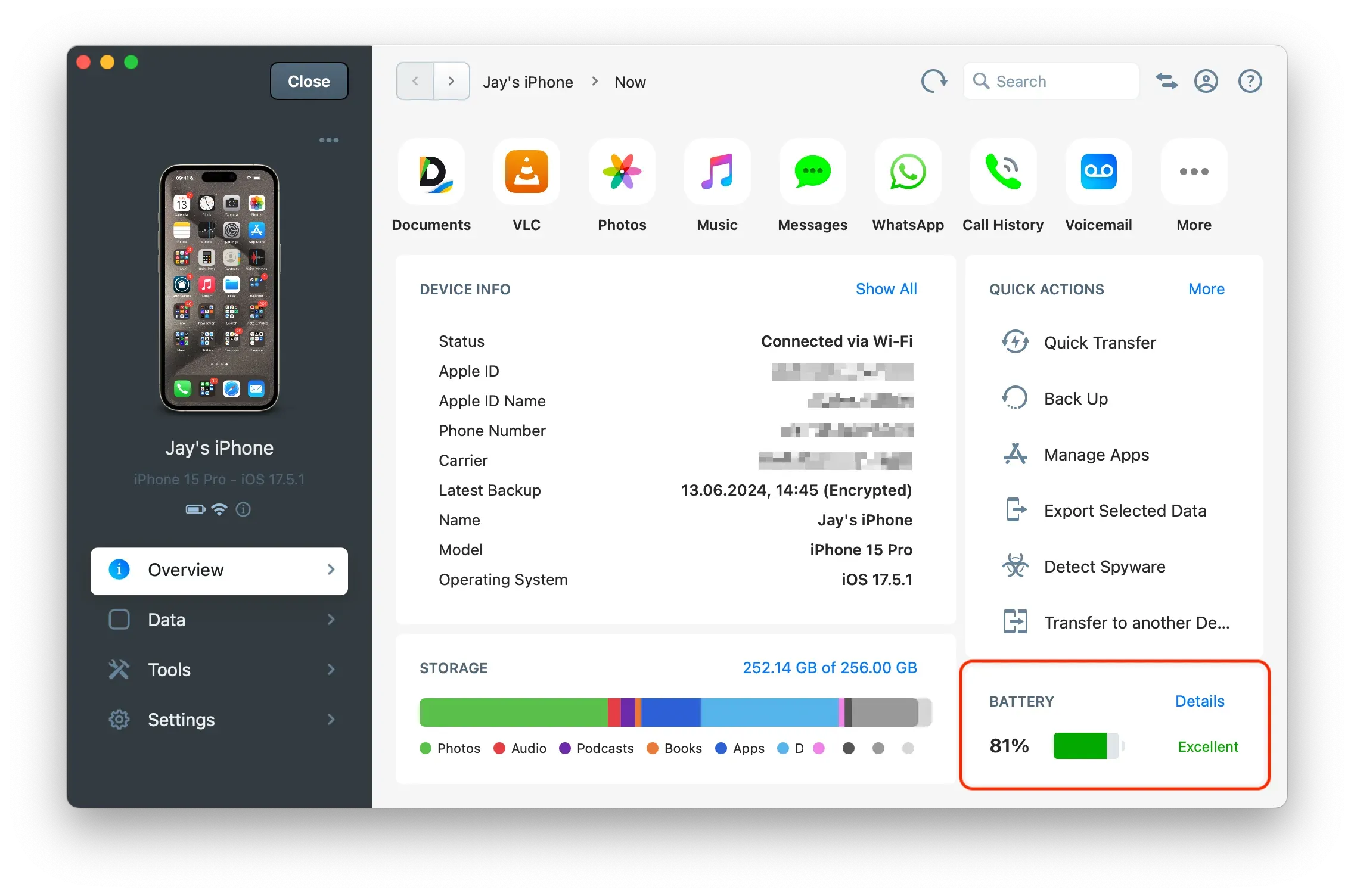
This section offers shortcuts to primary data sections, quick actions, device information, storage usage, and battery diagnostic.
Data Shortcuts
From here, you can quickly access main data sections and shortcuts. Click on More to view all data sections and shortcuts.
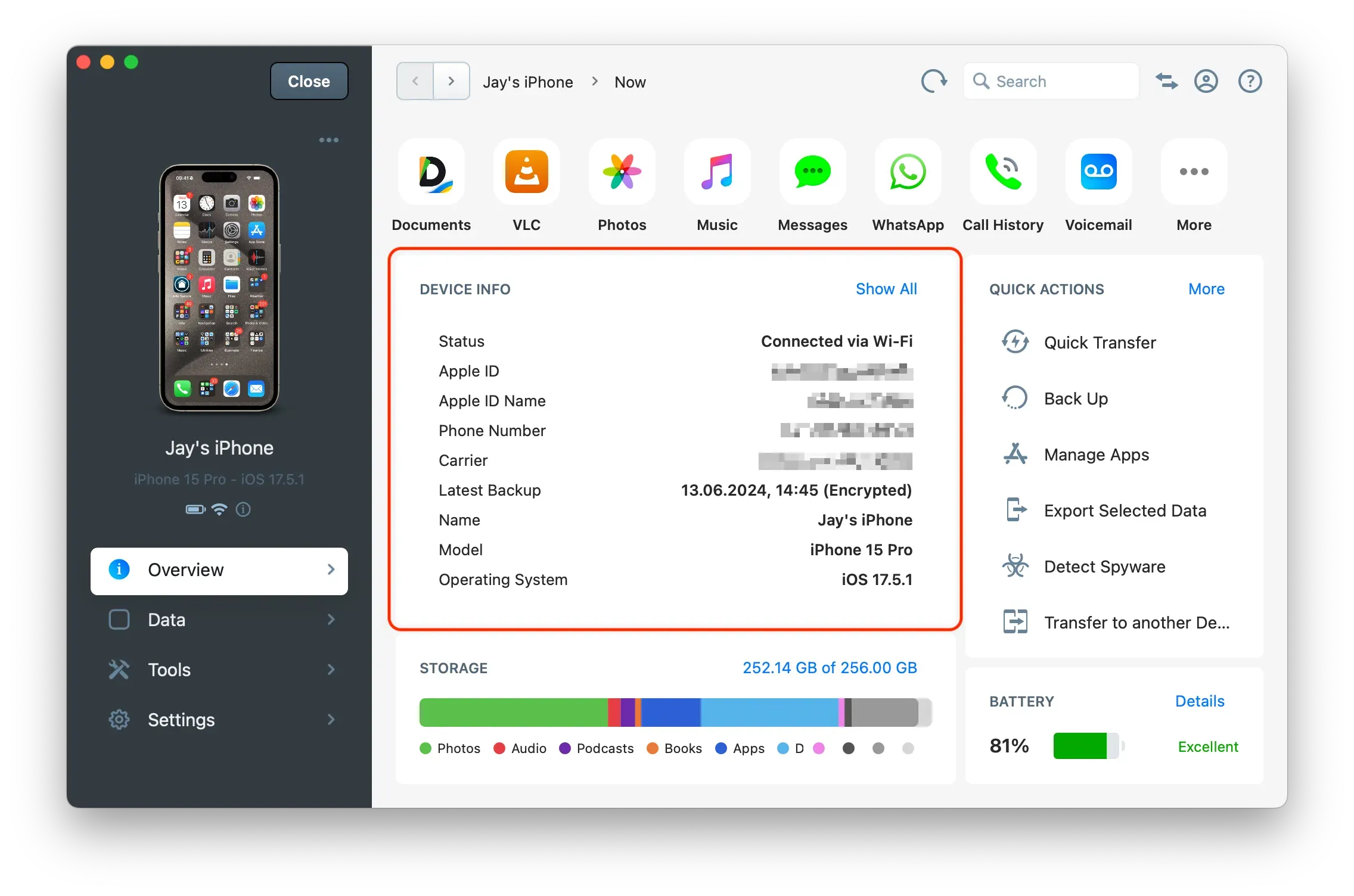
Device Info
All device information can be found here. Click on Show All to see the full list of device details.
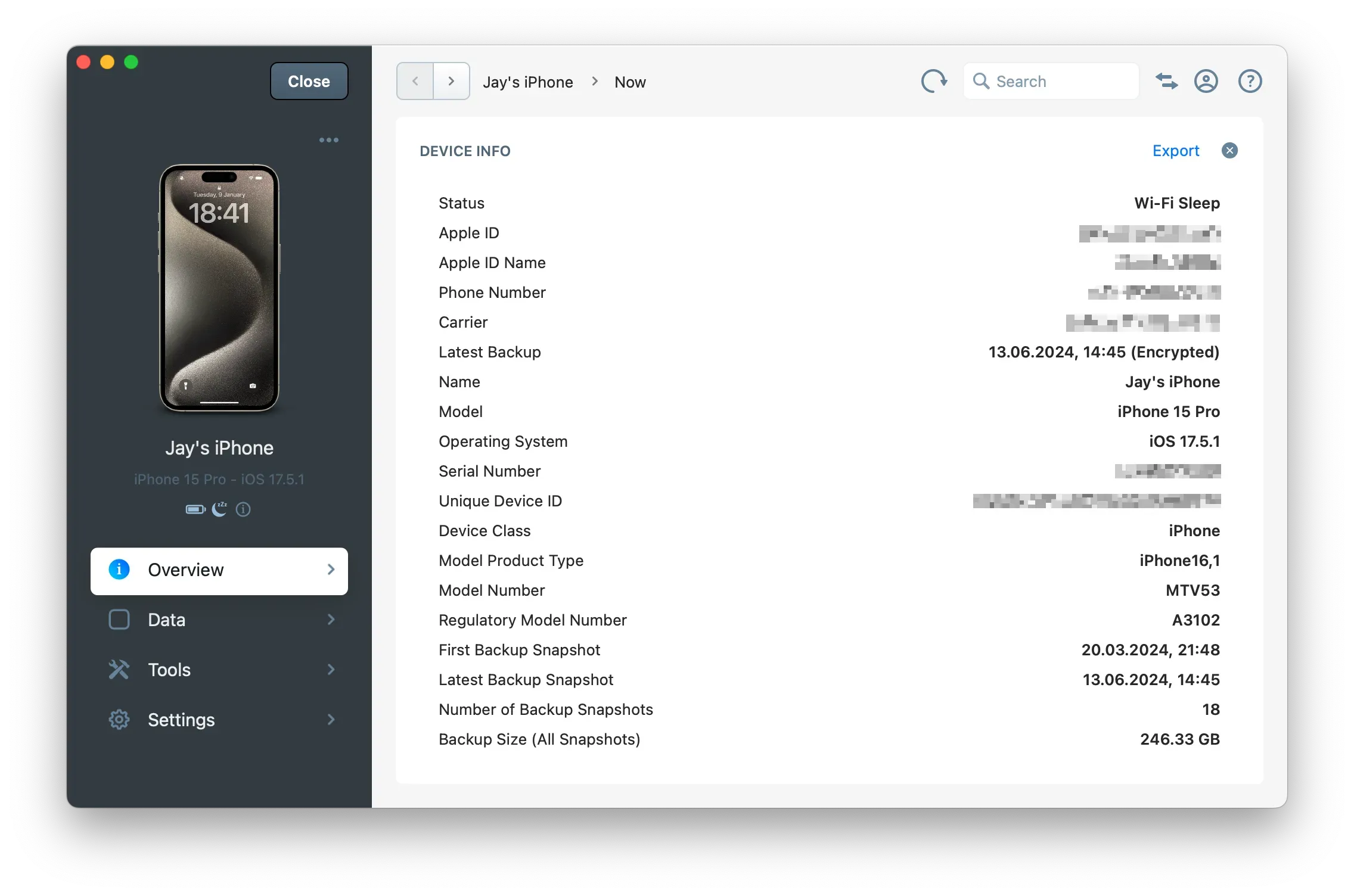
Tip: You can export all device information to a
.txtfile by clicking on Export.
For more information, refer to How to find an iPhone or iPad's UDID and other device info (serial,model, IMEI, …)?
Quick Actions
This area provides access to the primary actions and tools for this device. Click on More to view all available actions and tools.
Tip: When iMazing is minimized, some actions may not be visible until you scroll down.

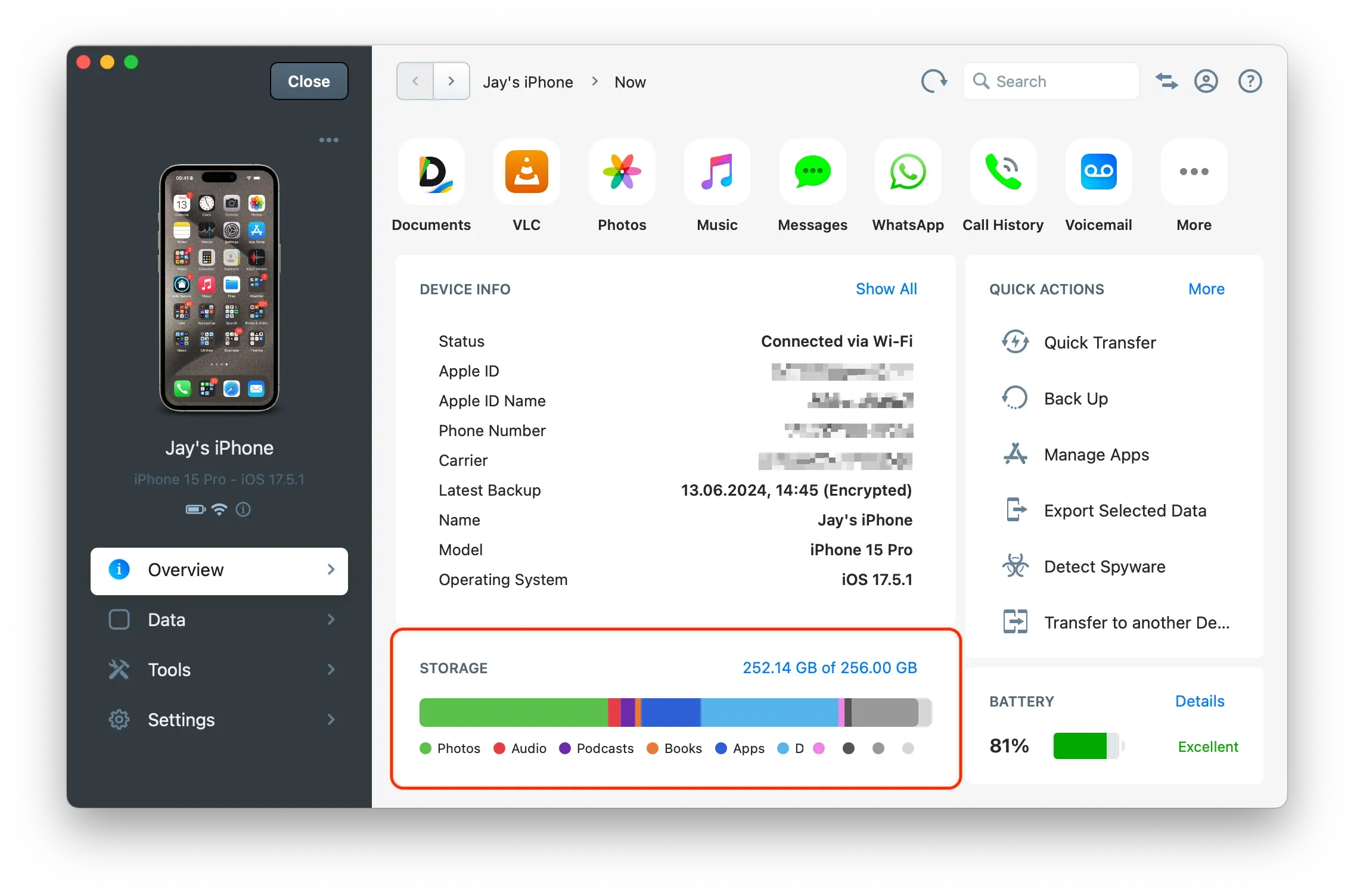
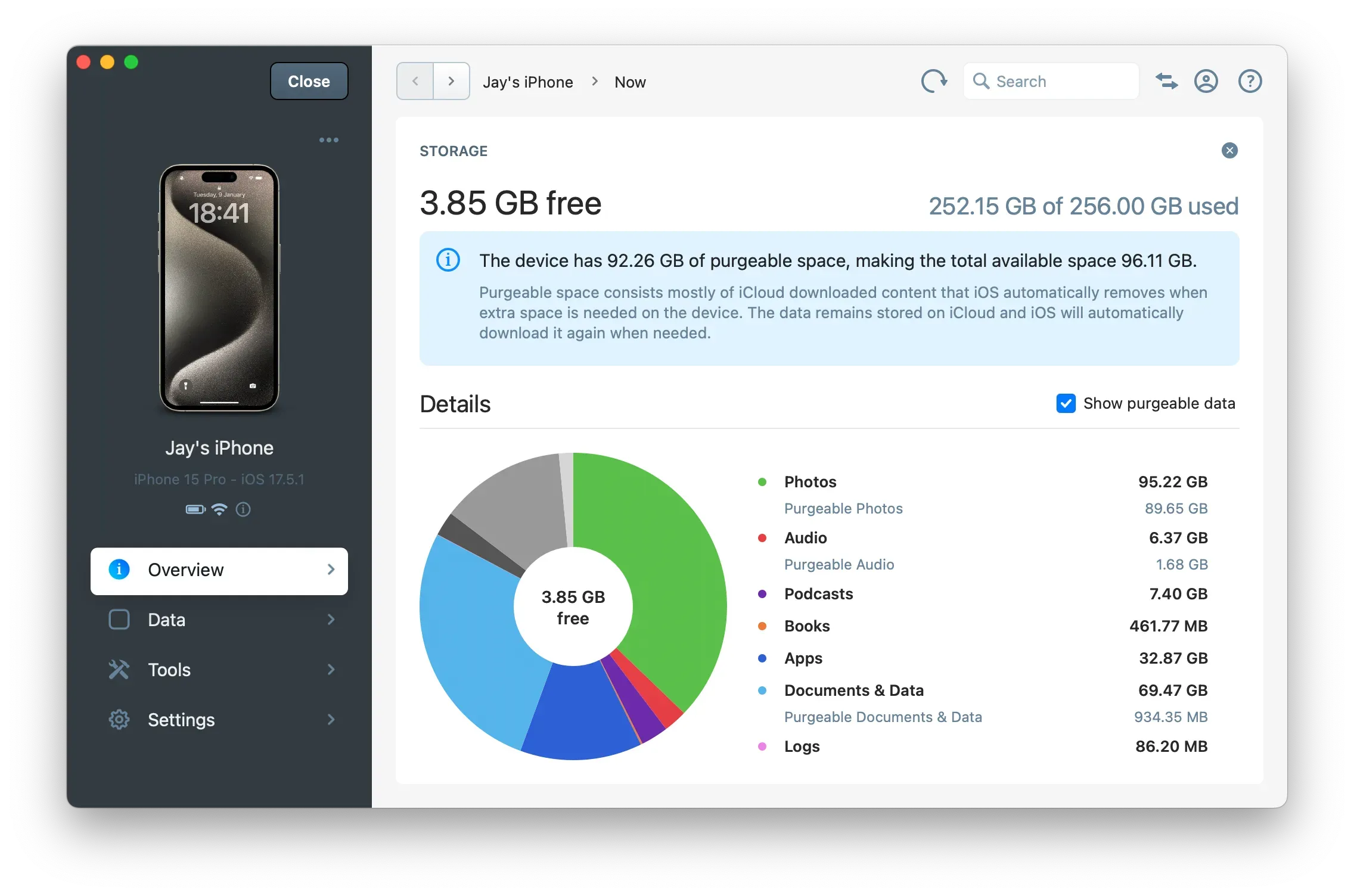
Storage Usage
The Storage Usage bar provides a breakdown of the storage used by each type of data. Click the blue text to access a detailed pie chart and additional information related to disk usage.
Battery Health
The battery health can be found in this area. Click on Details to access the full battery diagnostic.
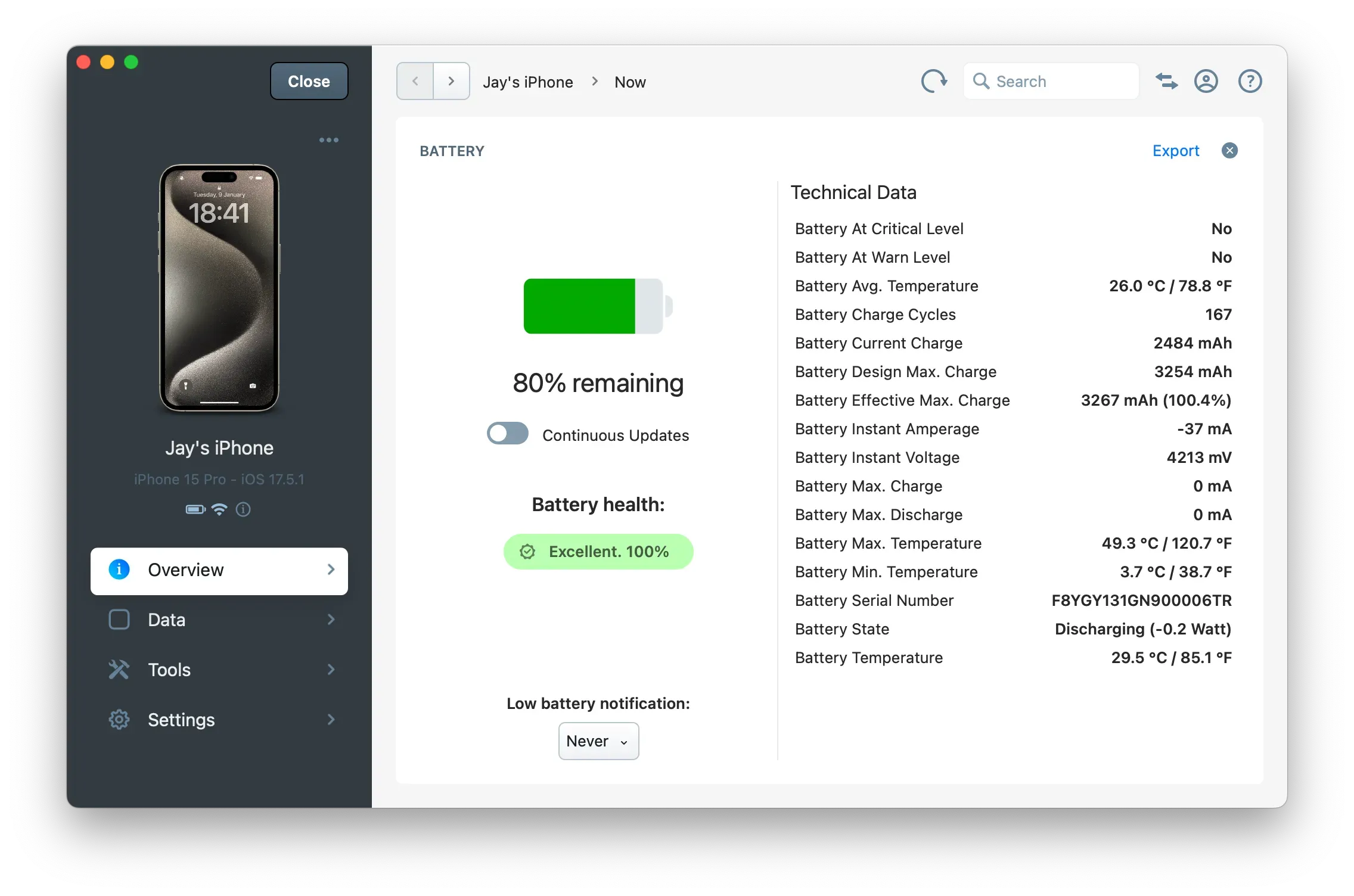
For more information, see How to check an iPhone or iPad's battery health and diagnostics?
Data
To close a device and return to the Home Screen, click the Close button.
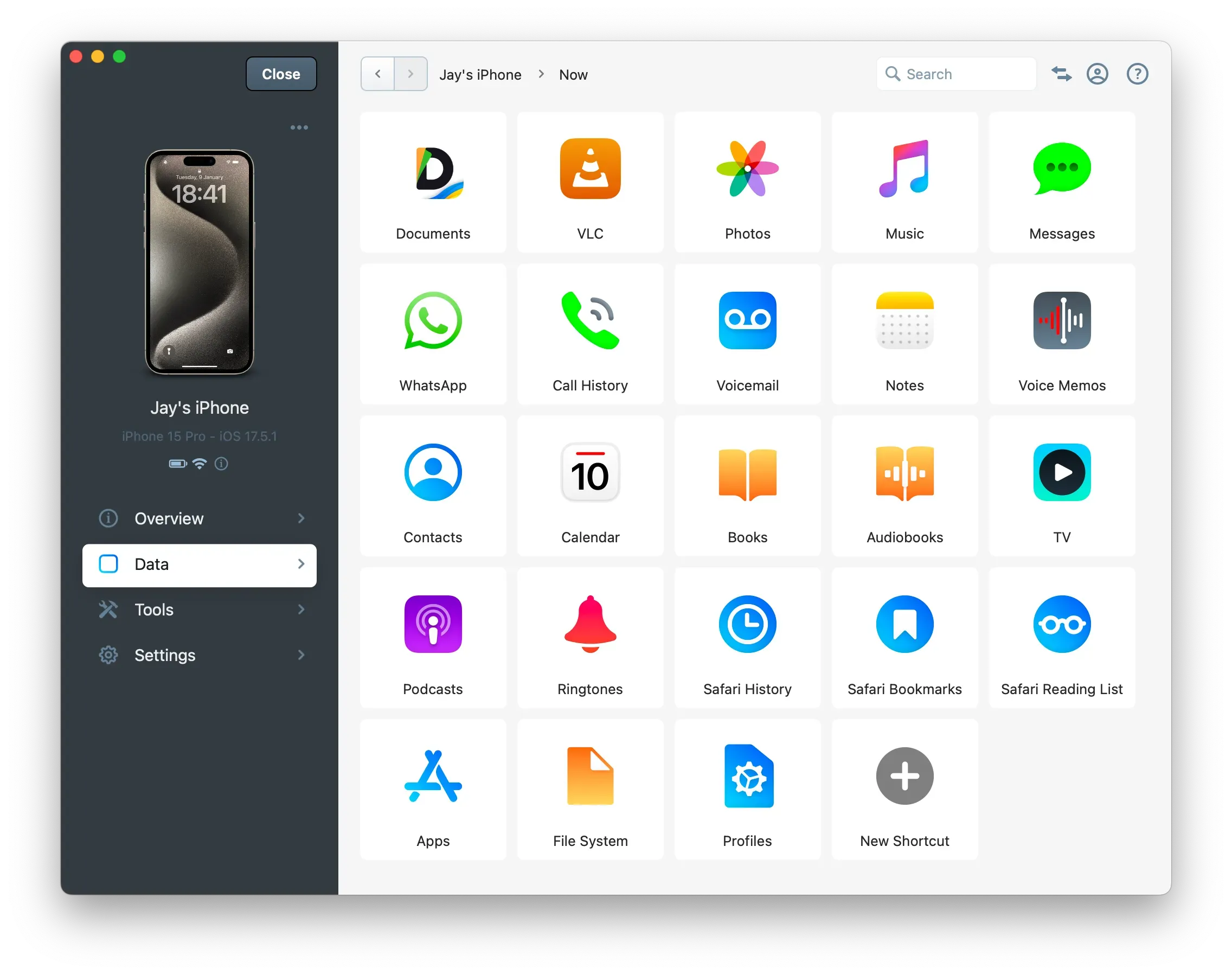
Tip: You can create shortcuts to third-party apps installed on your device that have file sharing enabled by clicking New Shortcut. This creates a quick access to a dedicated file browser, allowing you to transfer files to and from a specific app.
For more information, refer to Data Section in iMazing.
Tools
In this section, you can access all the tools and actions available for this specific device.
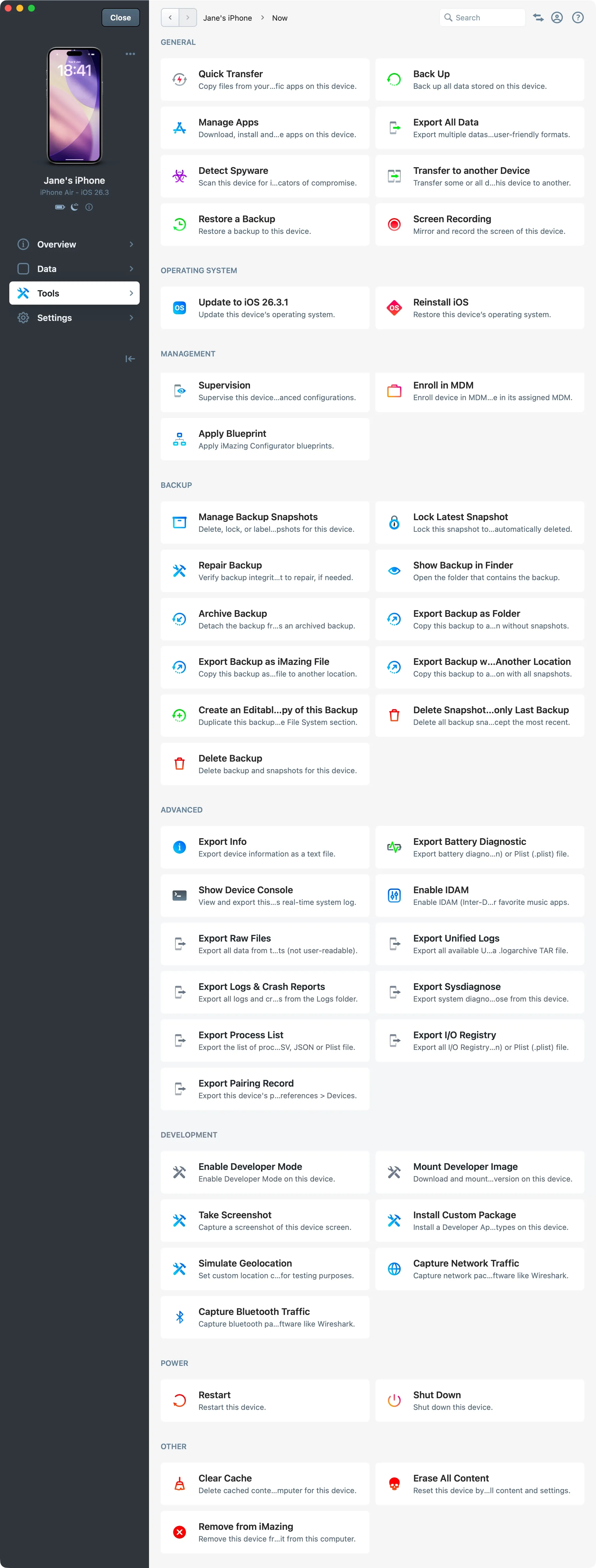
For more information, refer to Device Tools Section in iMazing.
Device Settings
In this section, you can modify iMazing settings for the chosen device, particularly all backup options. These include the backup location, encryption, snapshots, and automatic backups.
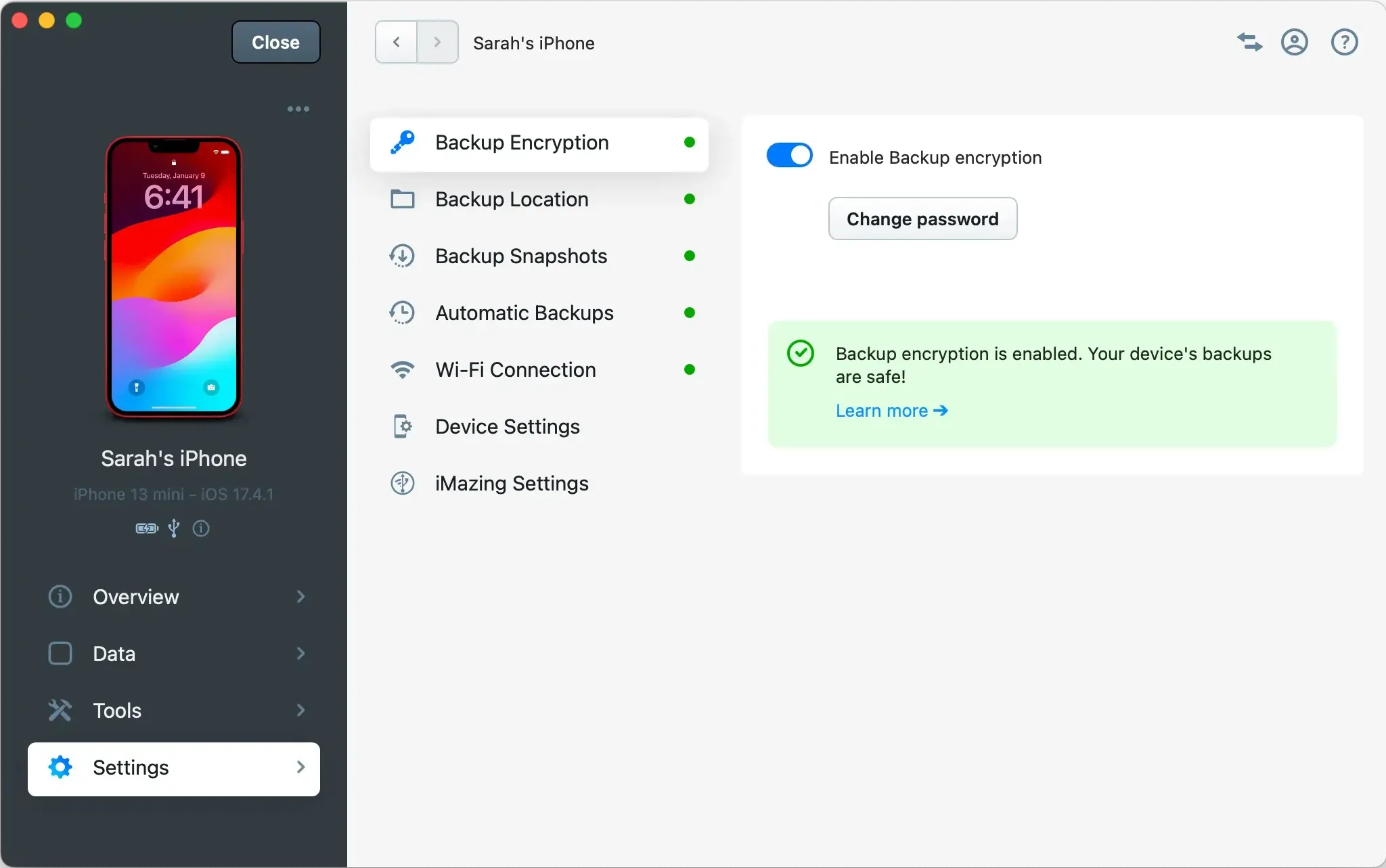
For more details on the available options, please refer to: Device Settings in iMazing
Main Menu
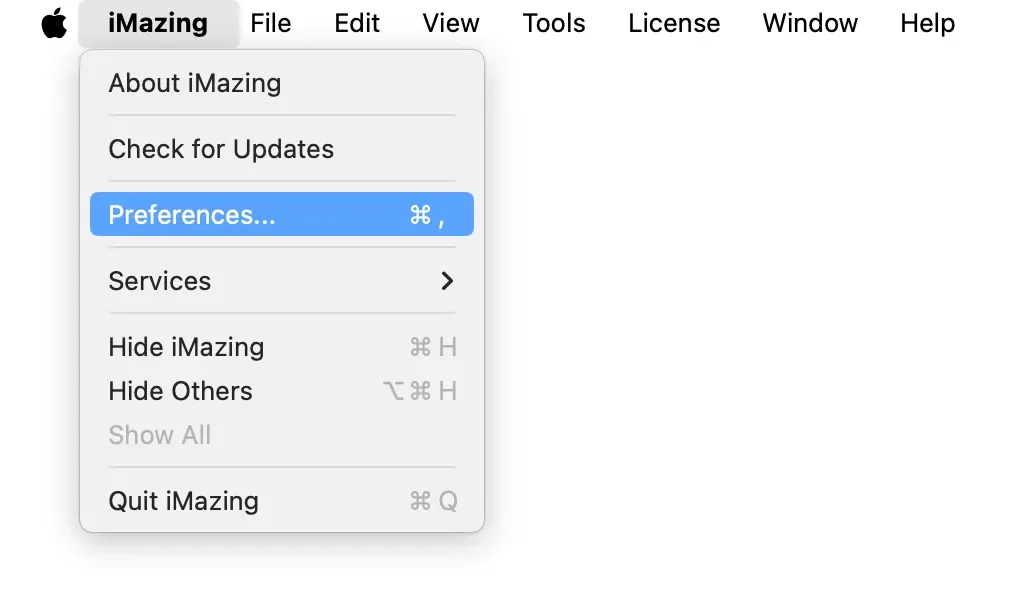
In addition to the traditional File, Edit, and Help menus, the main menu provides access to iMazing's Preferences and to License Management options.
iMazing Preferences
General, Backups, Language settings and more can be accessed from iMazing's Preferences Window.
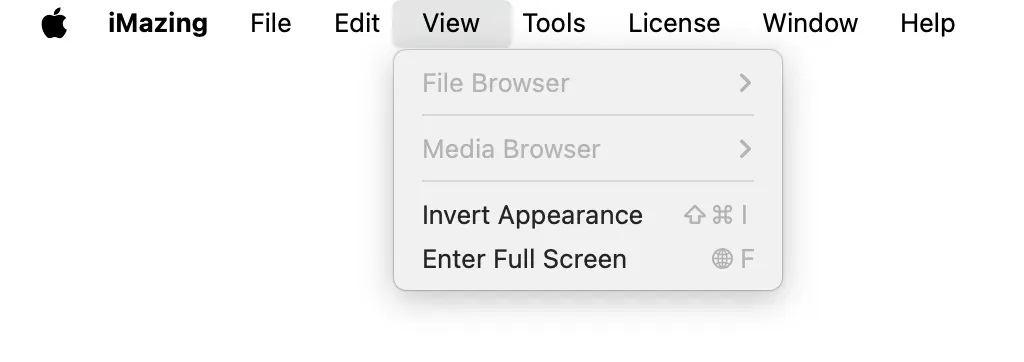
View
From the View menu, you can manage options related to how iMazing displays some data browser views. You can also invert the appearance to control the iMazing interface in either Light or Dark mode.
Tools
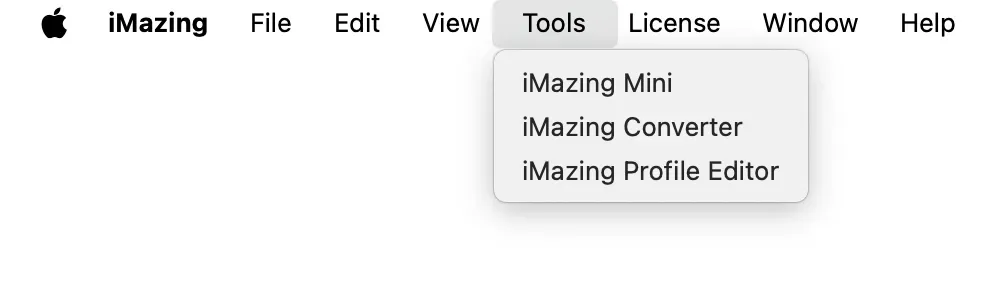
The Tools menu offers shortcuts to launch other utilities included with iMazing:
- iMazing Mini is iMazing's menu bar companion app which performs automatic backups. Getting Started with iMazing Mini
- iMazing Converter is a small utility which converts images in High Efficiency Image Format to JPEG or PNG. How to Convert HEIC to JPEG
- iMazing Profile Editor is a fully fledged Apple configuration profile editor, useful for system administrators. Getting Started with iMazing Profile Editor
License
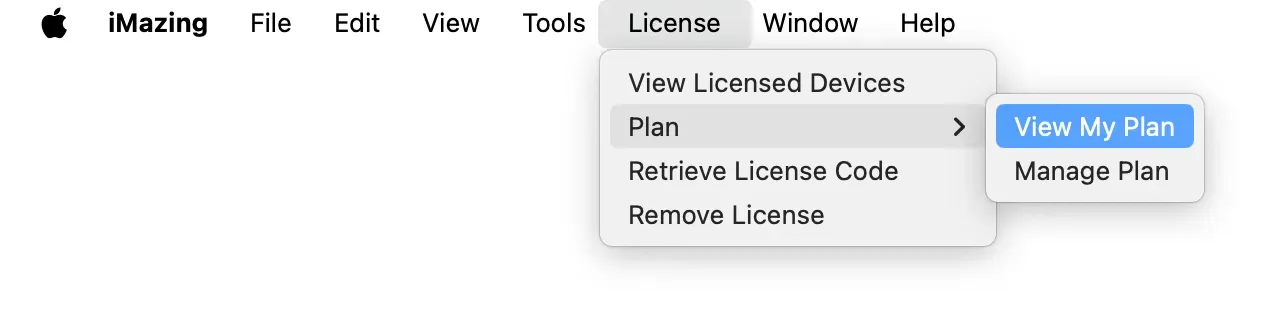
The License menu provides access to iMazing's licensing management.
Help
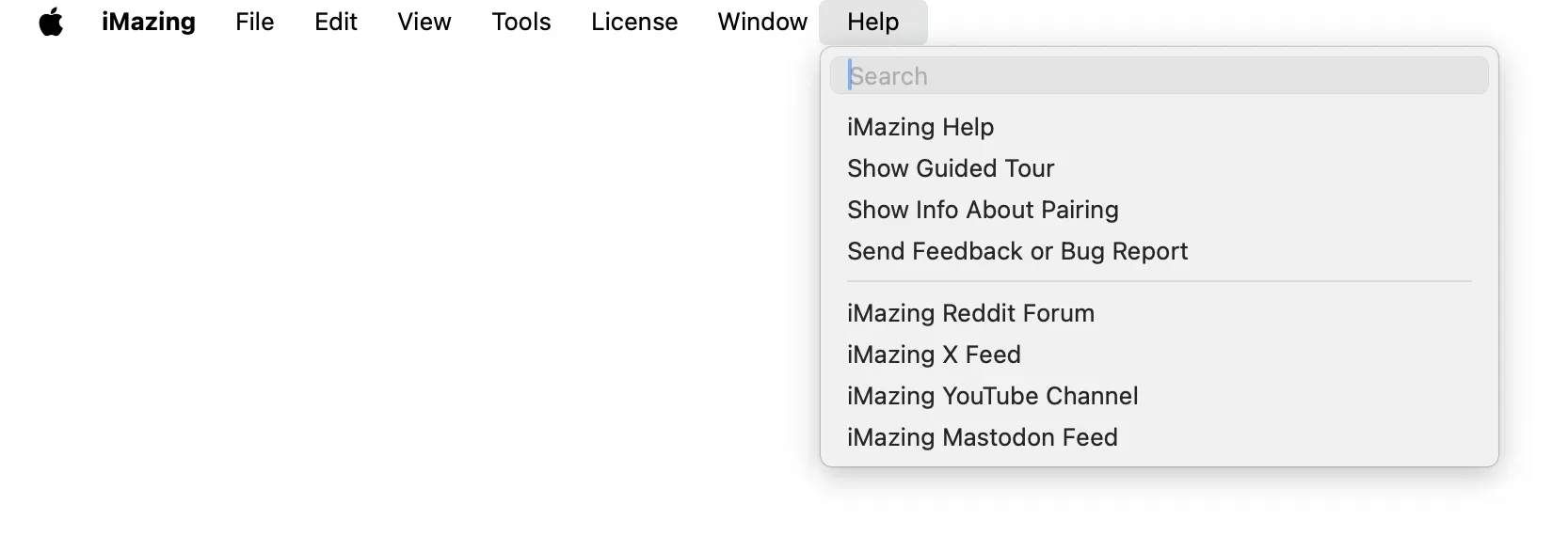
The Help menu provides shortcuts to iMazing's Support Center, the iMazing Guided Tour, and social media pages, as well as options to send feedback or bug reports.
File Browsing
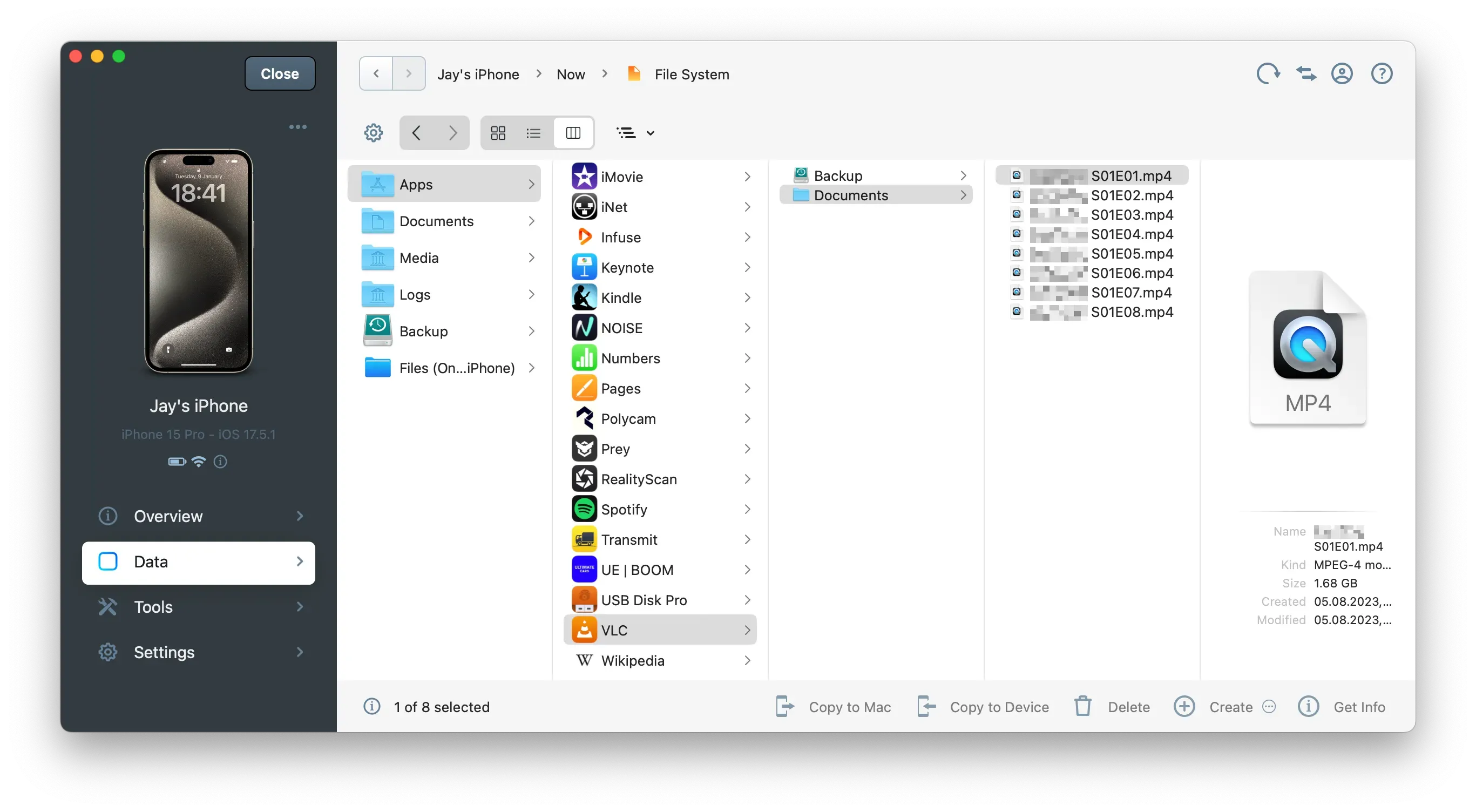
The Apps and File System sections share common features and actions that allow you to browse your files and copy them between your computer and your device:
5.1. Browser Views - change your view to icons, list or columns. 5.2. File Path - navigate to a different folder. 5.3. Browsing Area - select files or folder. 5.4. Bottom Toolbar - interact with your selection.
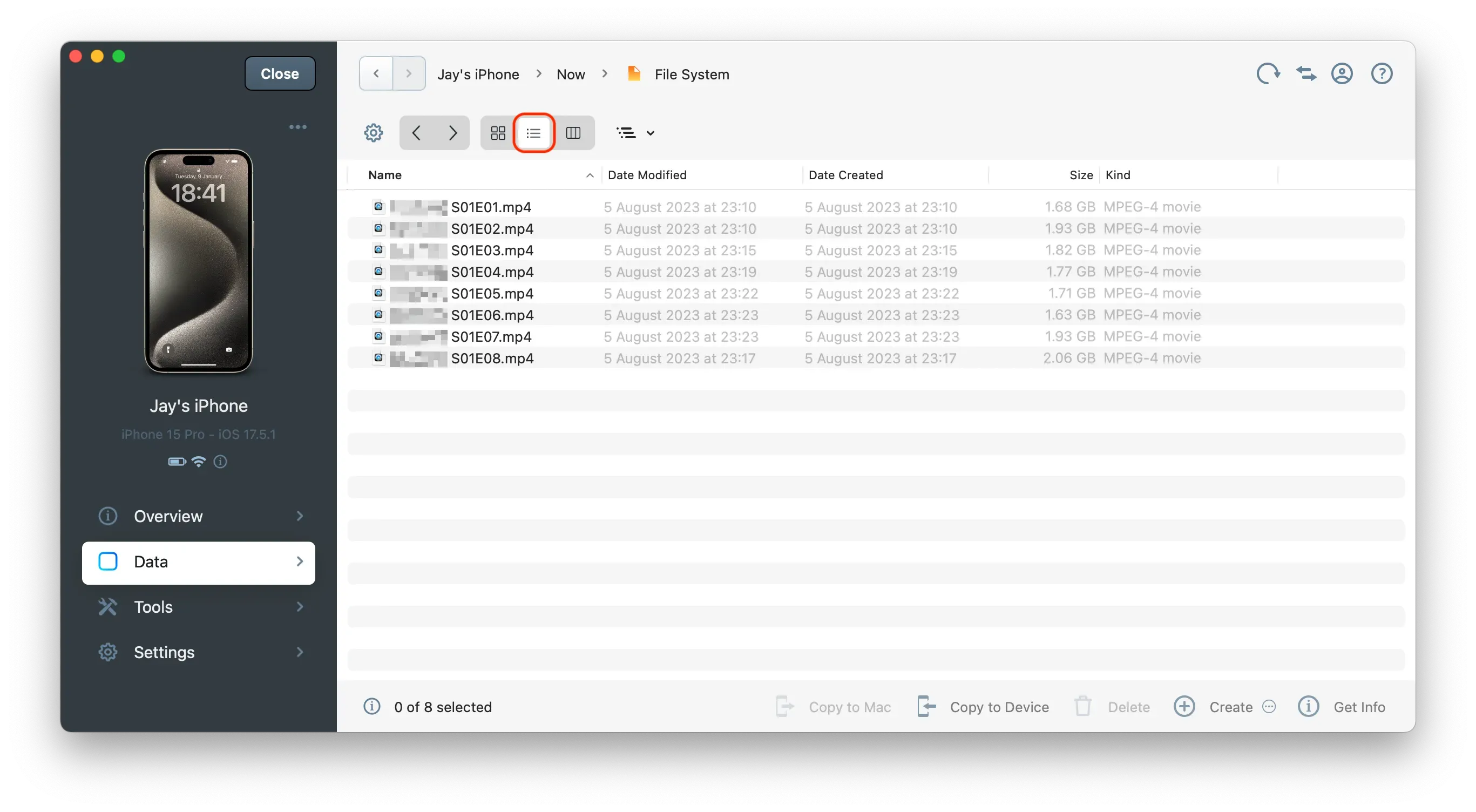
Browser Views
Click one of the view buttons to change the view in the browsing area.
Mac Browser Views
| View objects as icons |
| View objects as a list |
| View objects as columns |


Windows Browser Views
| View objects as large icons. |
| View objects as tiles. |
| View objects as icons. |
| View objects as a list. |
| View objects' details. |


Sort Files
From the List (macOS) or Details (Windows) view, you can sort your files by Name, Date Modified, Date Created, Size or Kind.
To sort your files, simply click one of the column headers.
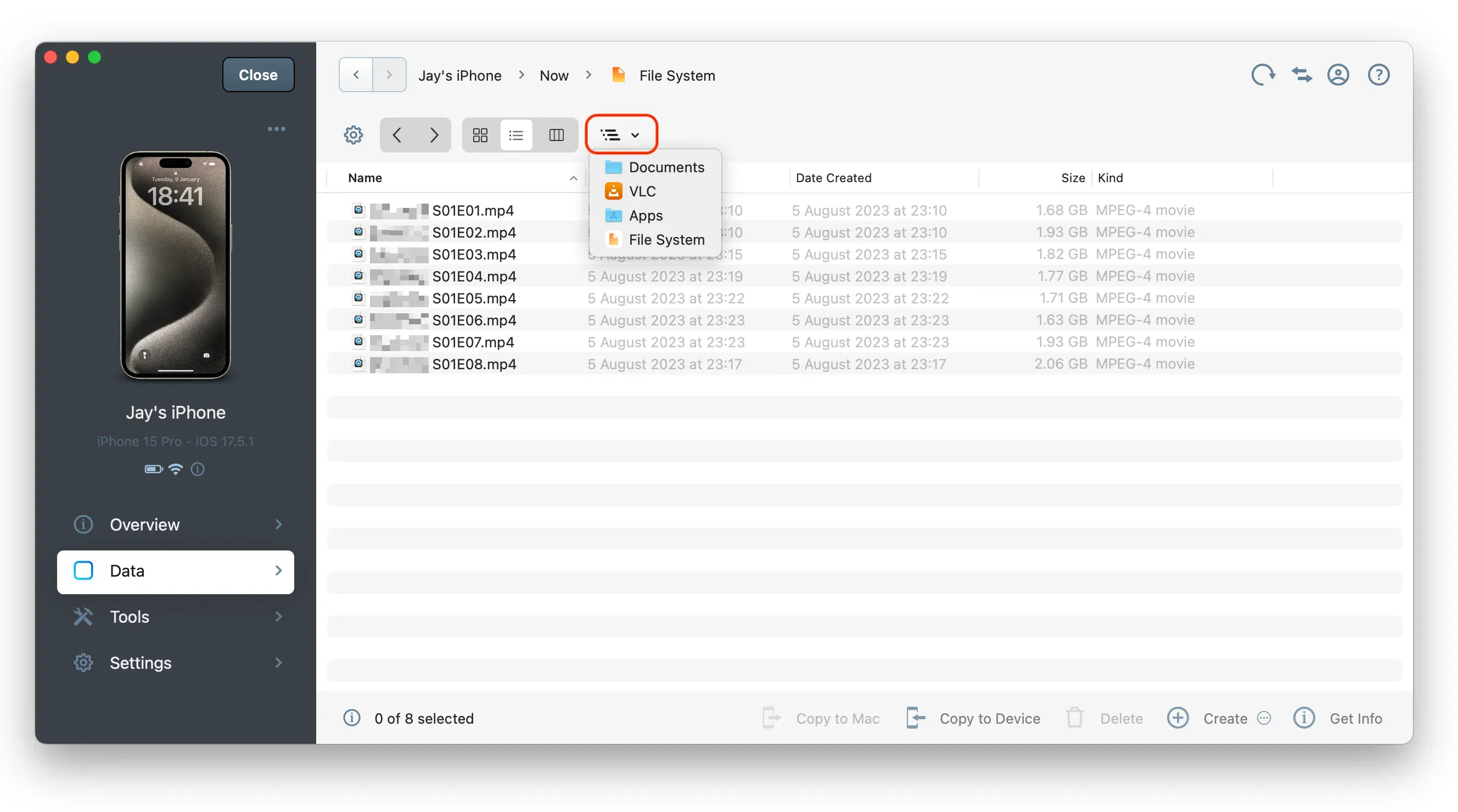
File Path
Click on this dropdown menu to view or select a parent folder in the browsing area.
Browsing Area
Where iMazing displays all files and folders in the selected view. This is where you can make your selection.
You can also drag and drop files to and from views that allow File Sharing.
Warning: Some folders in the Browsing Area are read-only. For example, you can copy files to an app's Documents folder, but not to its Backups folder.
Bottom Toolbar
Access all available action for your selection from the bottom toolbar.
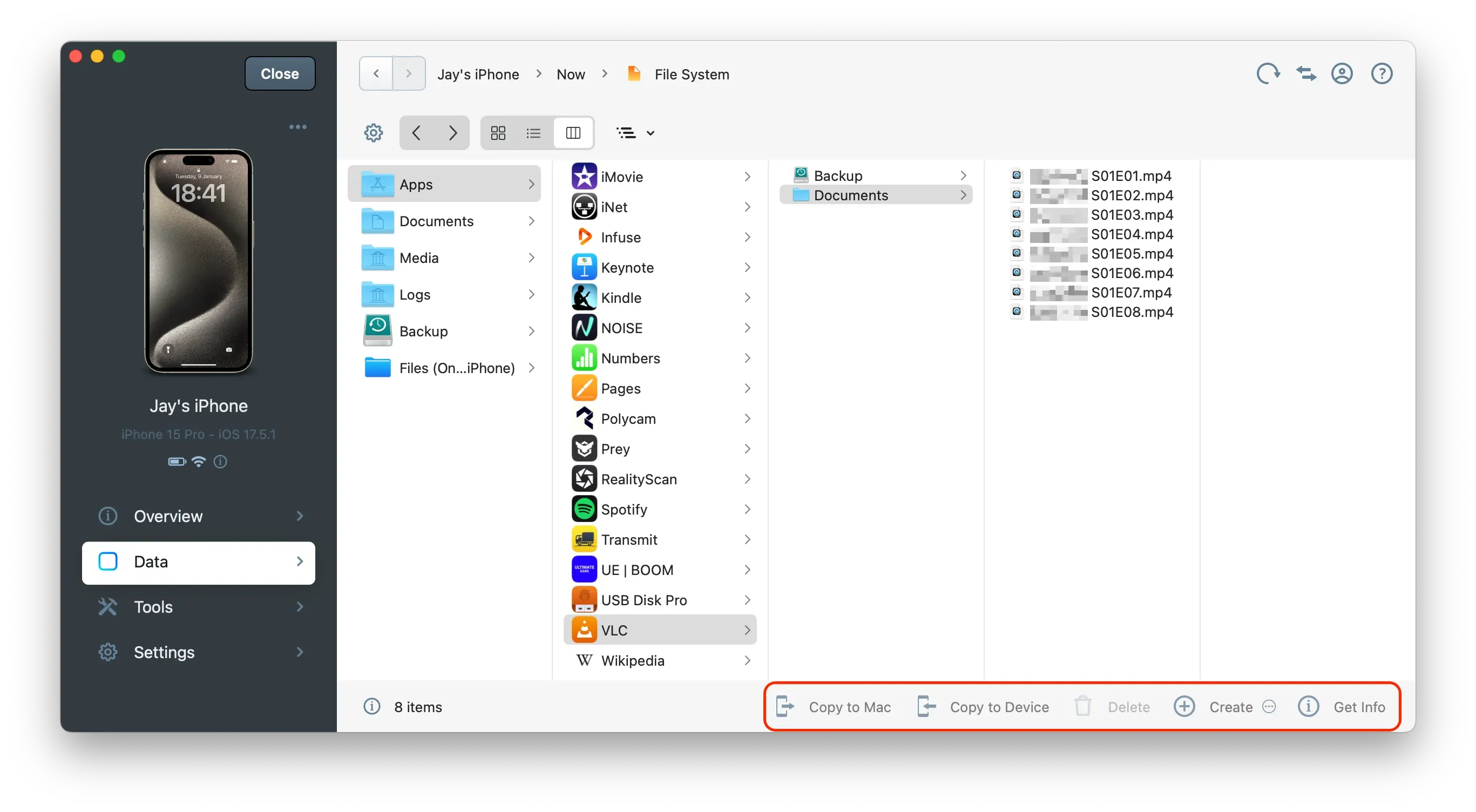
Actions are contextual: depending on your view, some might be disabled (grayed out).
Copy to Mac/PC | Copy files from your iPhone, iPad, or iPod to your computer. |
Copy to Device | Copy files from your computer to your iPhone, iPad, or iPod. |
Delete | Delete the selected files from your device. |
New Folder | Create a new folder at the current path. |
New Shortcut | Create a new iMazing shortcut. |
Get Info | Get information on the selected file or folder. |
Options | Access options for the current view. |
Tip: Actions are also available by right-clicking inside of the browsing area.