


Find an iPhone or iPad's UDID and other device info (serial, model, IMEI, ...)
Updated on Mar 18, 2026
Reading time ~1 minute
iMazing's Device Info window provides a quick and easy way to access all sorts of information about your device: Device ID, Model, Serial Number, IMEI, chip type and more are just a click away.
This feature is ideal for developers, teachers and IT administrators who need to manage multiple devices.
Before you begin
Launch iMazing and connect your device
Launch iMazing and connect your device to your Mac or PC.
Click on Devices in the left pane
From the Devices view, you will see all the devices previously connected and paired to your computer. Click to select a device.
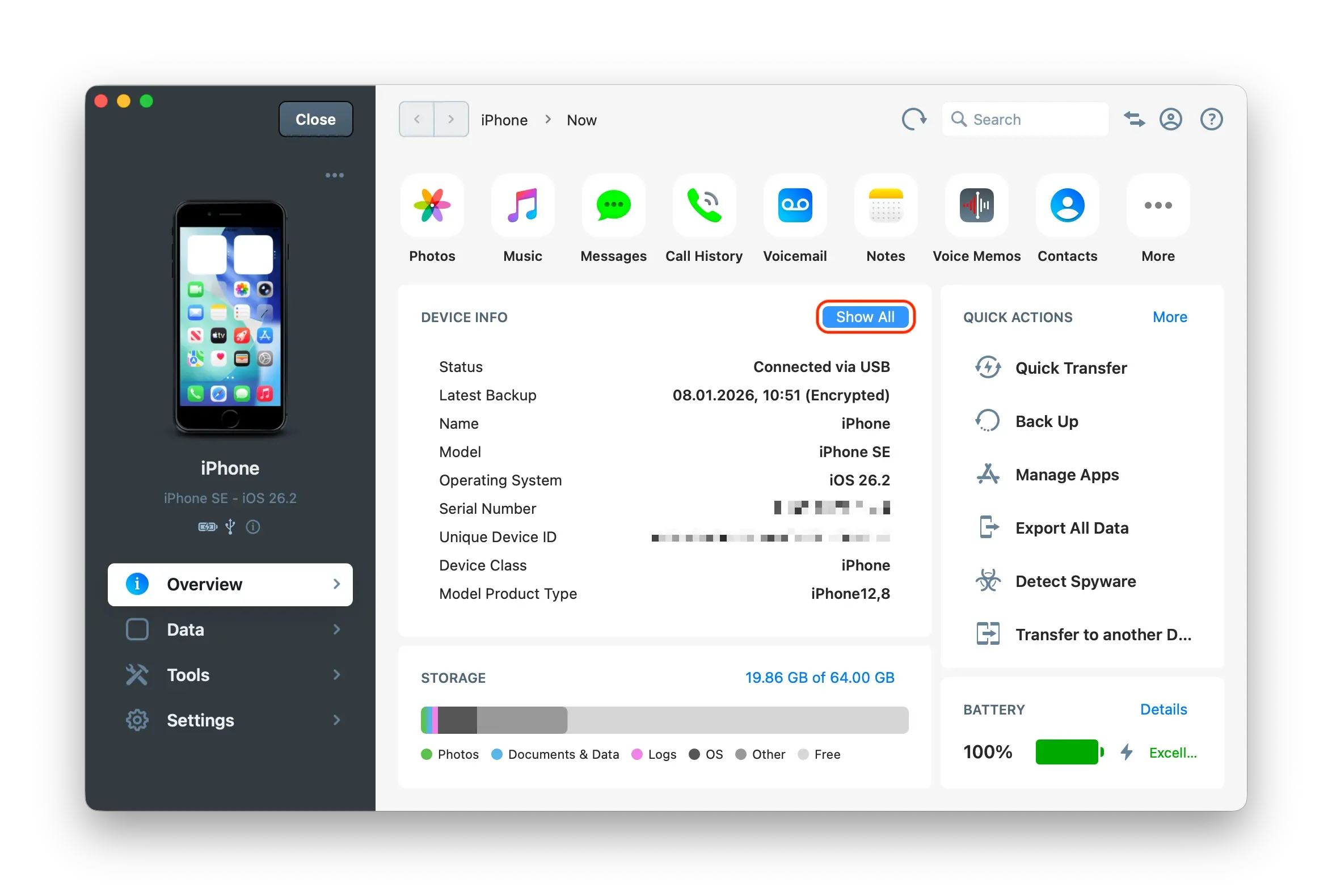
Click on Show All in the main window
From the overview page, you can already see the main device information. To view more details, click Show All.
From the Device Info window, you can:
- Scroll for more information
- Type in the search bar to quickly find the field you're after
- Exports a .txt file containing all the displayed information