


Getting started with iMazing Mini
Updated on Apr 22, 2026
Reading time ~6 minutes
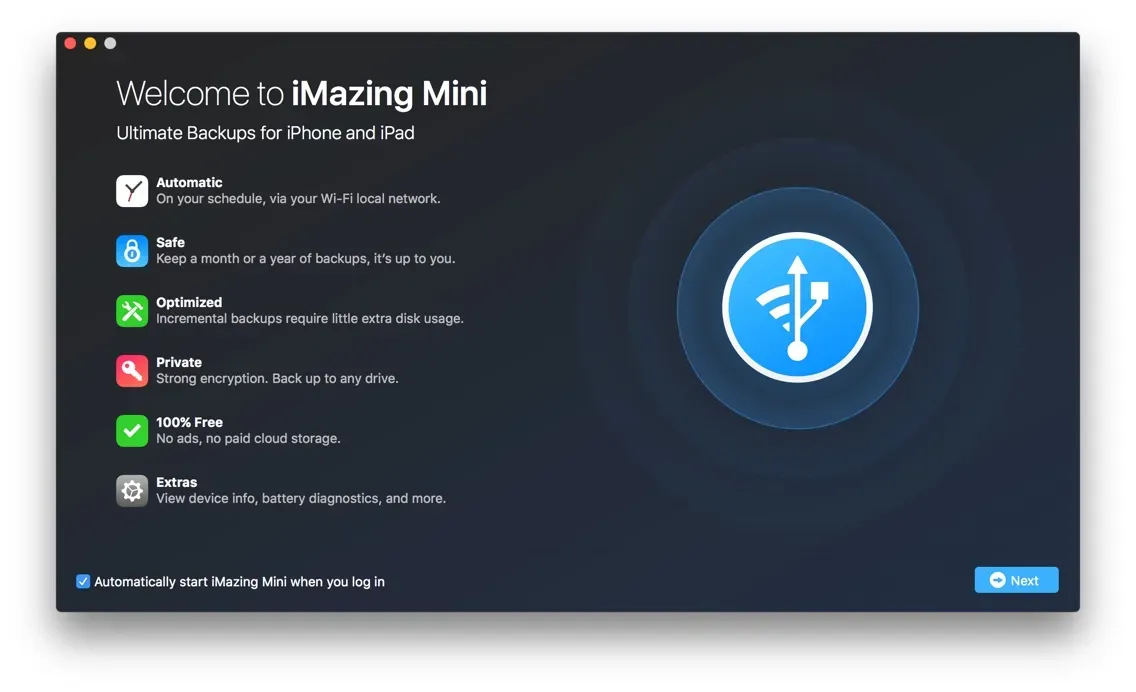
iMazing Mini is a menu bar app for macOS and a system tray app for Windows. It backs up your iOS device automatically, wirelessly, and privately. Here, you'll find all the information you need to quickly start using iMazing Mini.
Download and install iMazing
iMazing Mini is packaged with iMazing. iMazing is an application that needs to be installed on your Mac or Windows PC. You do not need to install anything on your iPhone, iPad or iPod.
Download and install iMazing
If you already use iMazing
Just make sure to update to the latest version of iMazing.
Launch iMazing and connect your device
To use iMazing Mini, you'll need to connect your device to your computer with a USB cable.
When you connect your device, a wizard will open and guide you through the pairing process. Once paired with your computer, your device will automatically connect via Wi-Fi.
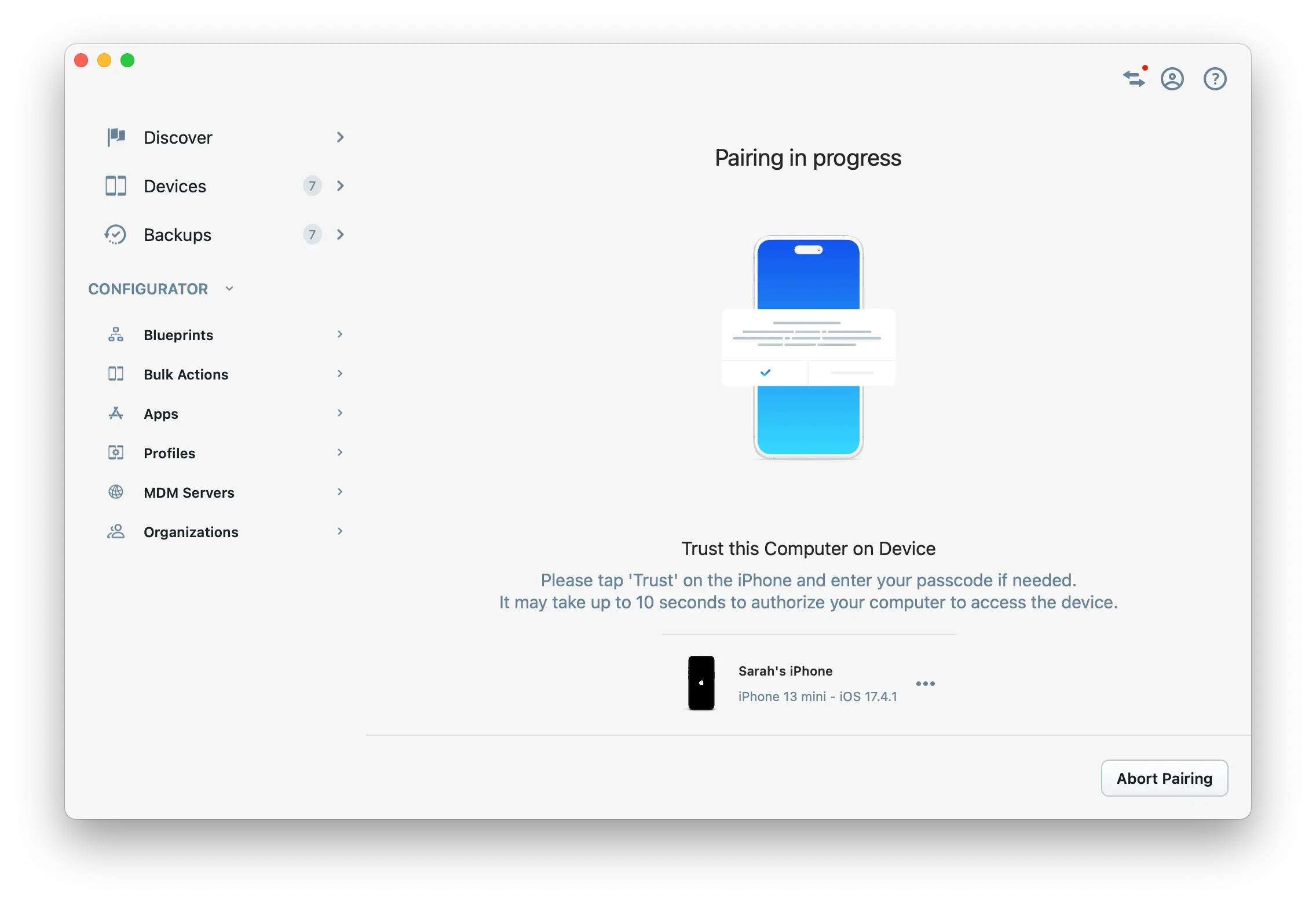
For more information on device pairing, see Connect your device to iMazing.
Supported devices
iMazing Mini supports all models of the following devices:
- iPhone: all models
- iPad: all models, Air, Mini and Pro included
- iPod touch: all models
Schedule automatic backups
When you first connect your device to your computer, you'll be prompted to select your backup options. These options are set per device.
To ensure an optimal backup experience, make sure to greenlight (🟢) all available options.
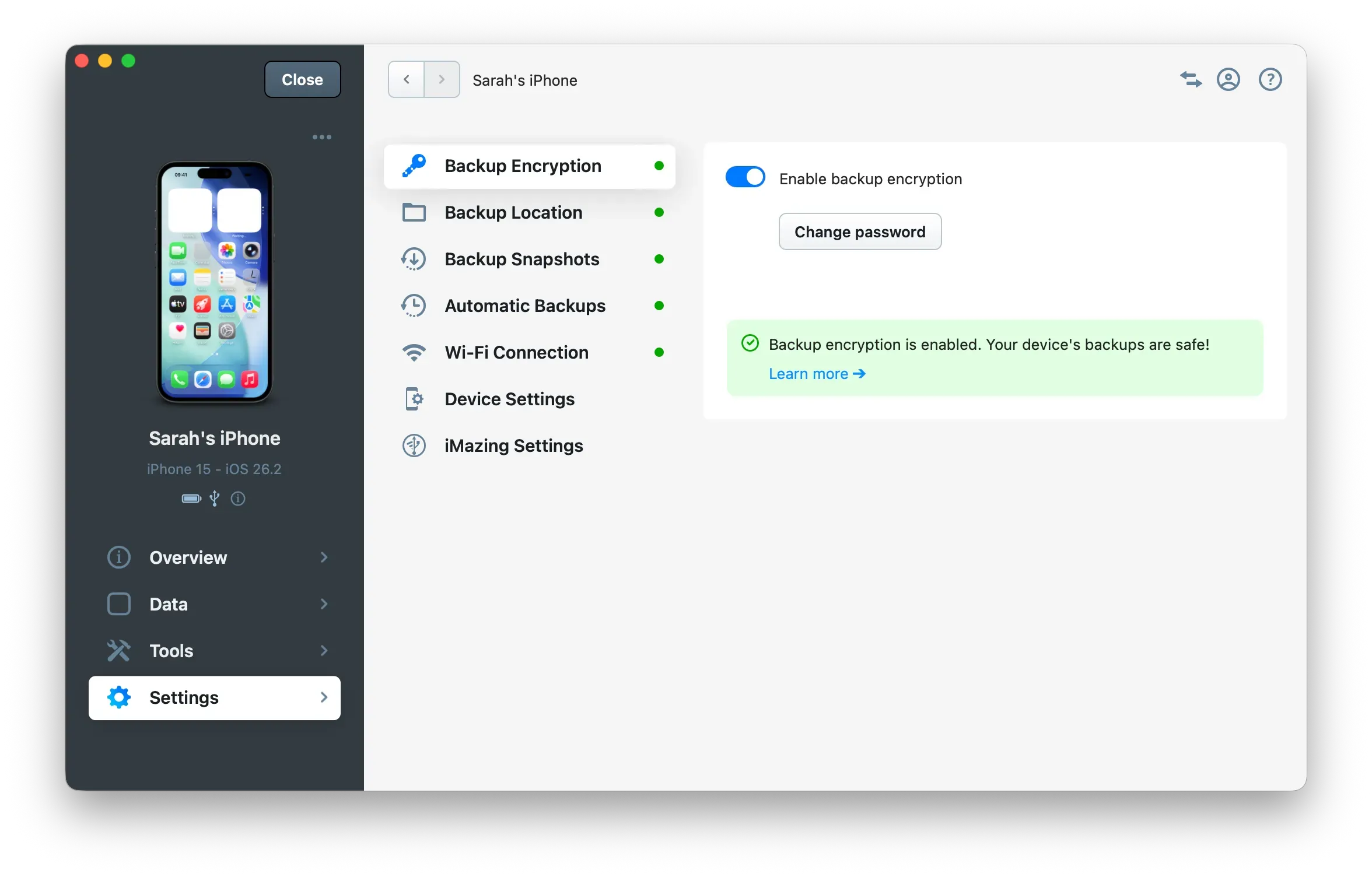
Important: To protect your data and enable backing up sensitive information such as Health Data and Passwords, we strongly recommend that you enable backup encryption for all of your devices.
Select Automatic Backups to schedule your device's automatic backups:
- Choose your backups' frequency.
- Set a timeframe for your preferred backup time.
- Prevent backups from running if your battery is running low.
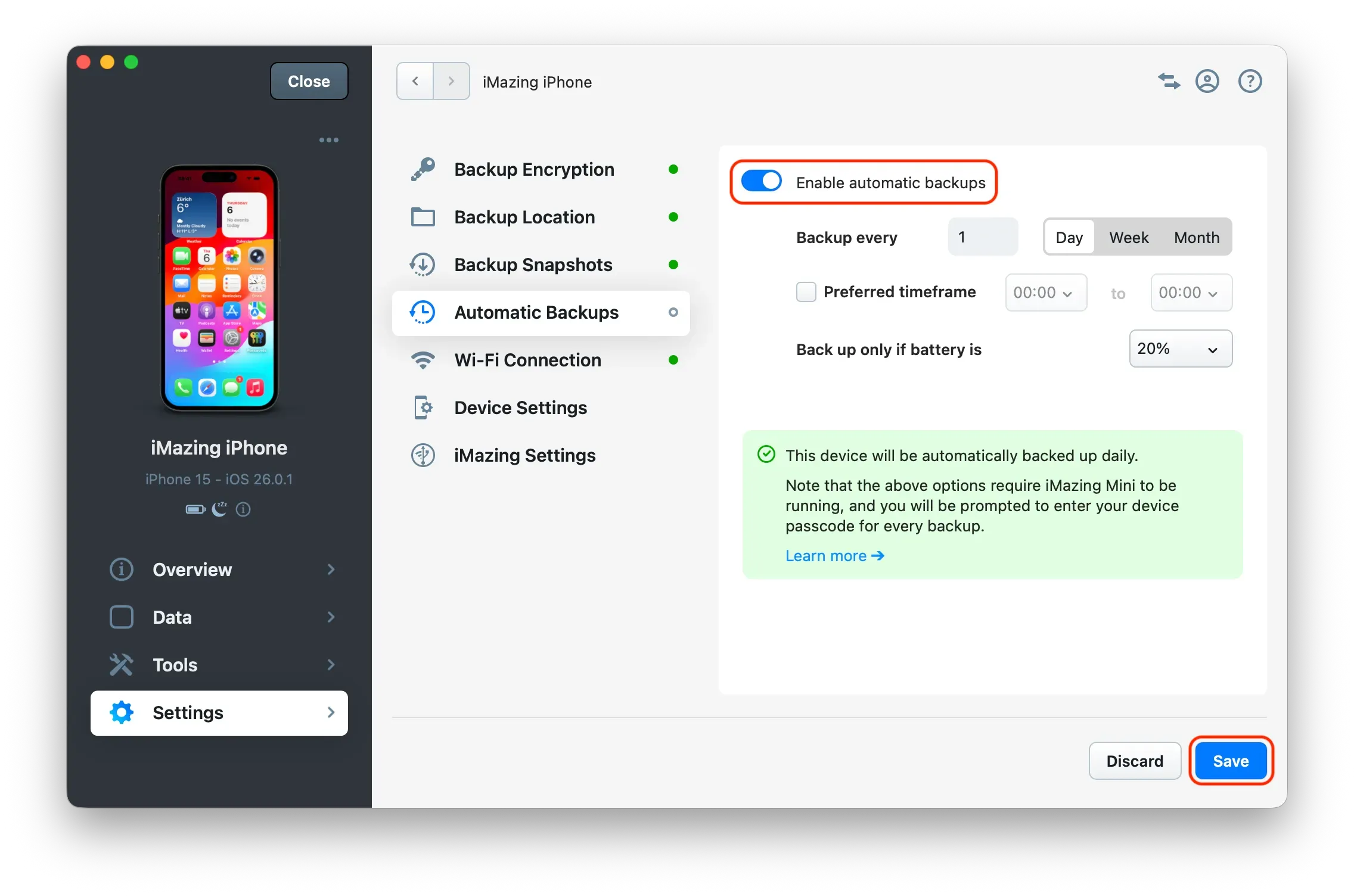
By default, iMazing Mini will back up your devices daily via Wi-Fi, and will keep one month of backups. Everything is customizable and well labelled: snoop around and don't hesitate to adjust default settings for a truly personalized backup experience!
How does iMazing Mini work?
Once you've configured automatic backups, iMazing Mini will automatically launch when you login to your Mac or PC. It runs it the background and periodically checks your backup schedule to back up your chosen devices automatically, to your computer or to the storage device of your choice, never online. And unlike iTunes or Finder backups, it maintains multiple snapshots of your backup which you can browse or restore.
What can I do with iMazing Mini?
iMazing Mini is mainly a backup tool, but we've also included quite a few handy extras!
Action | Definition |
|---|---|
Backup | Back up your devices via Wi-Fi or USB. Configure how frequently and where each device should be backed up. |
Restore | Restore a specific backup version. Restore everything in your backup, or go Pro with iMazing and restore only selected types of data and apps. |
Battery Monitoring | Monitor your devices' battery health. Get notified when the battery runs low. |
Device Info | Easy access to UDID, Serial, IMEI, Chip Model, other advanced device info. Developers: discover our great device console. |
Quick Transfer | Drag & drop photos, music and documents straight to your iOS device in iMazing Mini |
iMazing Mini vs iMazing
iMazing, the Mini's older sibling, is your go-to application for advanced control over your devices and content. iMazing can do everything the Mini does, and packs in many additional features:
Action | Definition |
|---|---|
Browse | View the contents of your devices or your backups - including iTunes/Finder backups (Free!). |
Transfer | Device to device data transfer: a backup and restore procedure merged into one, with the same control over what data to restore |
Export | Transfer data from your device to your computer. |
Import | Transfer data from your computer to your device. |
Advanced | Additional tools and features for power users, developers and enterprises. |
To learn more about iMazing, see Getting started with iMazing.
Learn iMazing Mini's interface
iMazing Mini is a menu bar app for macOS and a system tray app for Windows. To open it, click the iMazing icon in your macOS menu bar or in the system tray section of Windows, located in the lower left corner.

Device List
The Device List displays all devices connected with your computer, or for which you already have a recent iMazing backup.
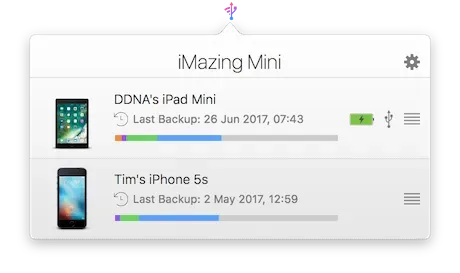
The Device List shows you the date of the last backup, the device's disk usage breakdown, and its connection status.
| Date and time of last backup. |
| Monitor your battery health. |
| Connection status: USB, Wi-Fi or Sleep. |
| Access additional features, such as forgetting your device and checking its warranty. |
| Access preferences, check for updates, send us feedback,… |


Tip: The Disk Usage bar is interactive. Try hovering your mouse's cursor over it!
Backup List
In the Device List, click on your device to open the Backup List.
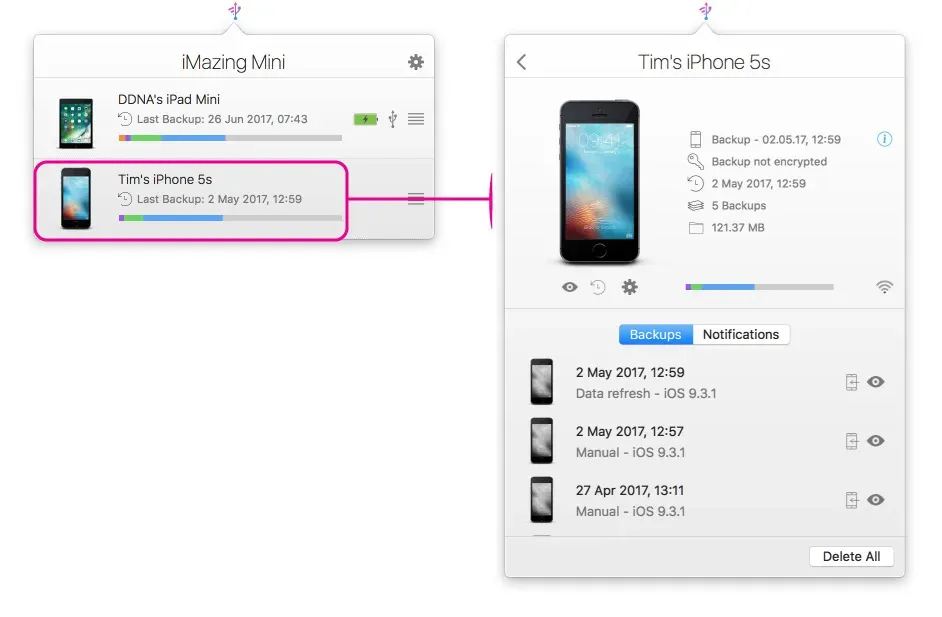
The following actions are available from the Backup List:
| Restore the selected backup |
| Browse your backup's contents in iMazing.If you don't already have iMazing, you'll have the option to install it now. Browsing backups in iMazing is 100% free! |
| Back up your device. |
| Monitor your device's battery's health. |
| Access device and backup options. |
| Return to the device list. |
| Access advanced device info |


Monitor your battery level
Click on the battery icon ( ) anywhere in the app to display the battery health window.
You can configure a low battery level notification, so that you don't forget to charge your device before running out the door.
For more information, see Check an iPhone or iPad's battery health and diagnostics.
Restore a backup
To restore a backup with iMazing Mini, click the restore icon ( ) next to your device's name. This will open a wizard will guide you though the restore process.
Tip: iMazing offers more restore options than iMazing Mini. To customize your restore, or restore to multiple devices at once, use iMazing
Transfer media and files
You can drag and drop files and folders straight to your Apple mobile device in iMazing Mini's window:
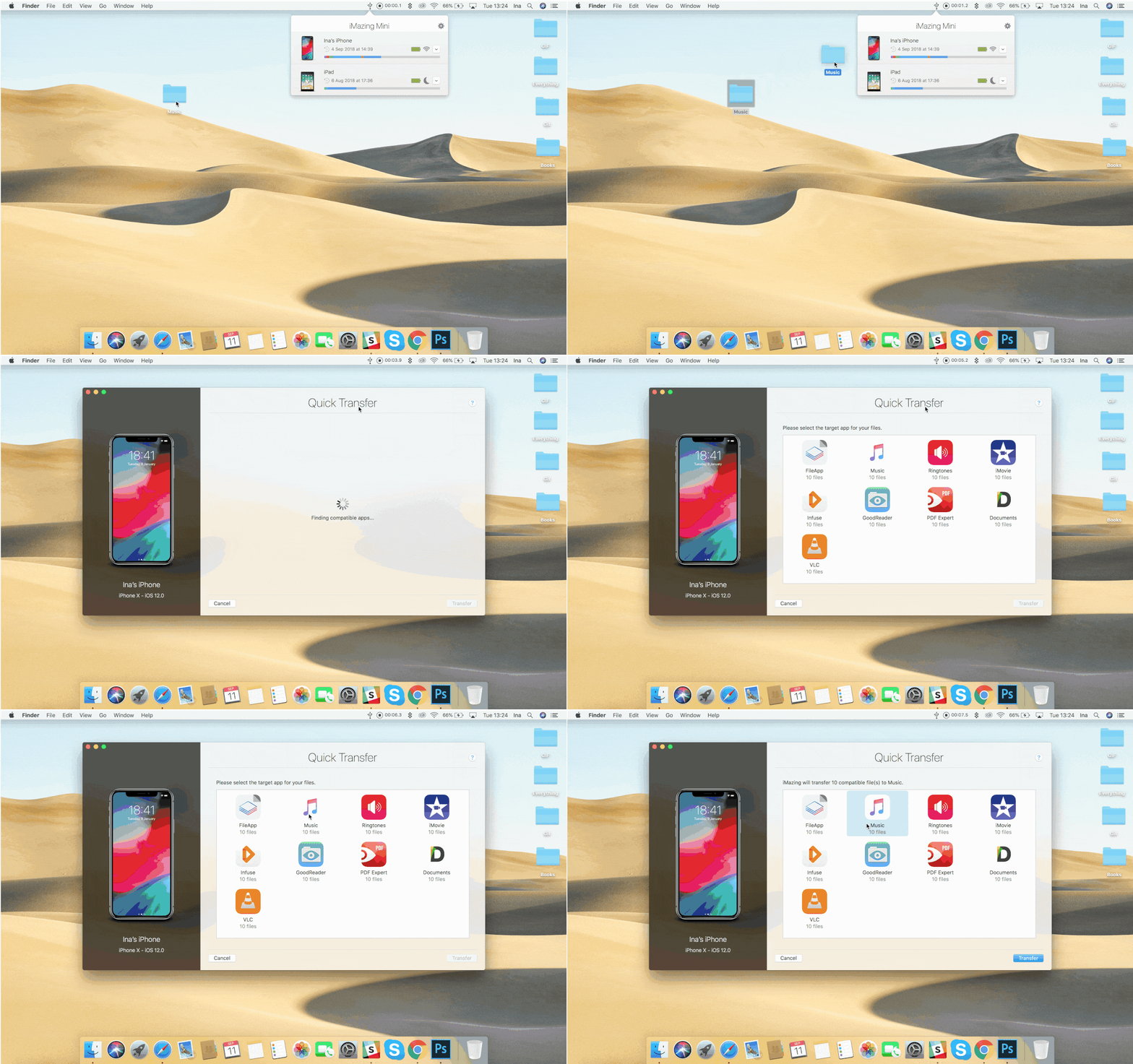
Simply pick a compatible app from the Quick Transfer screen, and your content will be copied immediately.
Learn more about Quick Transfer in this guide.
Device to device transfer
When using iMazing Mini, you first back up your device, then restore that backup to another device.
If you're looking for a faster way to transfer data from one device to another, you'll want to use iMazing.
For instructions on how to use iMazing's Device to device transfer, see Transfer data from an iPhone, iPad or iPod touch to another device.
iMazing Mini Preferences
iMazing's Mini Preferences are organized by tab:
General
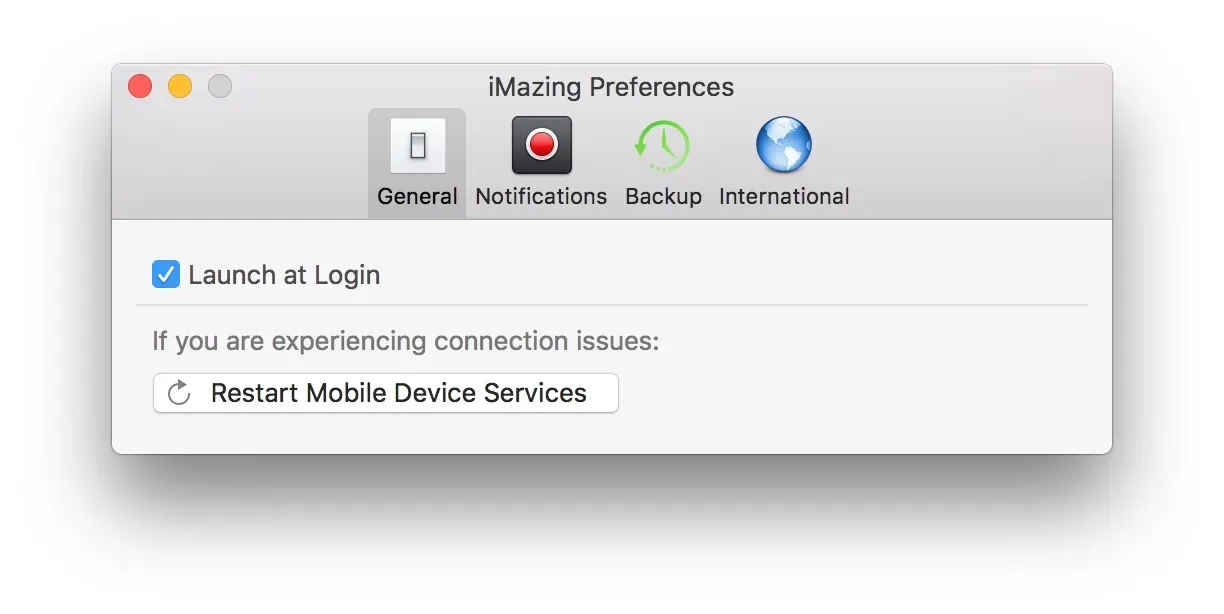
Restart Mobile Device Services
Mobile Device Services are a suite of Apple drivers iMazing uses to communicate with your iPhone, iPad, or iPod. Restarting Mobile Device Services can resolve some connection issues.
Notifications
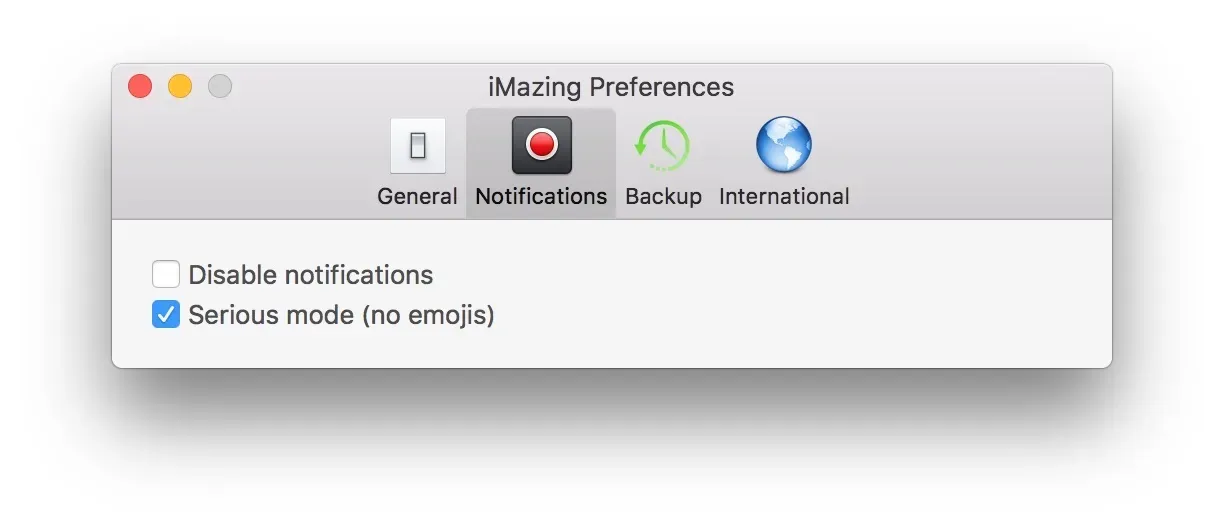
Disable notifications
When this box is ticked, you won't receive notifications for successful or failed backups,
Backup
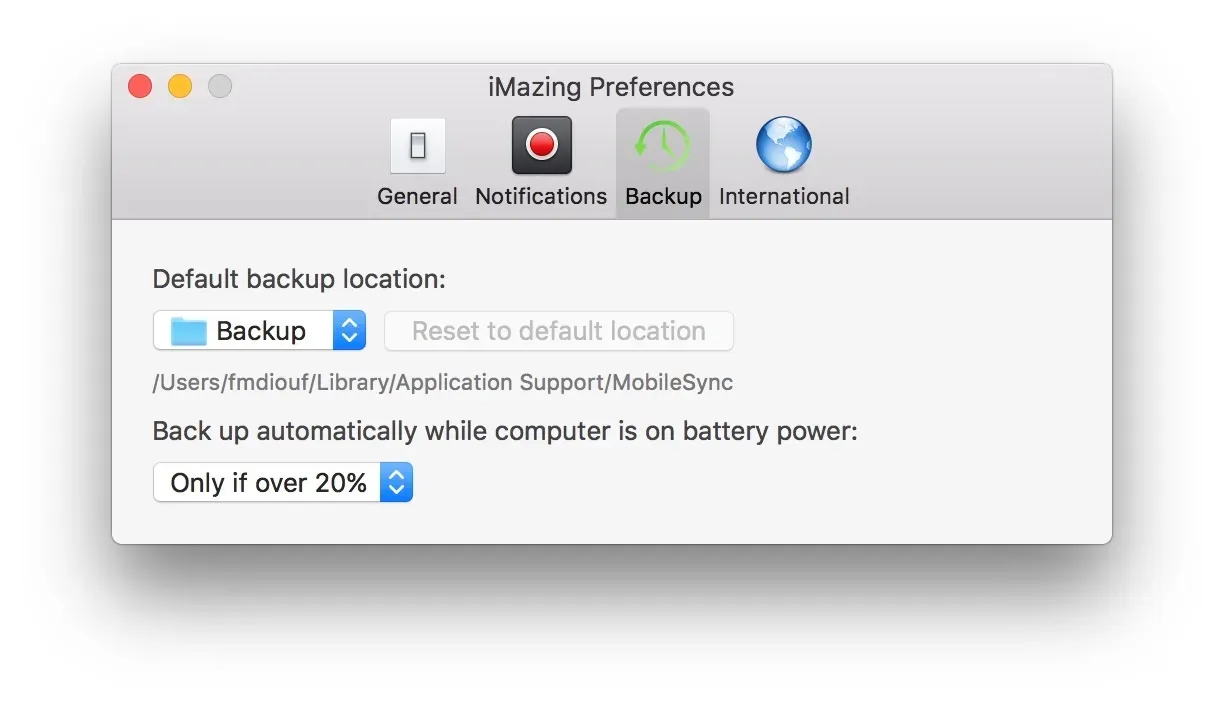
Default backup location
Location where iMazing will back up a newly connected device.
By default this location is set to the following:
- macOS:
/Users/<YOUR_USER_NAME>/Library/Application Support/iMazing/Backups - Windows:
C:\Users\<YOUR_USER_NAME>\AppData\Roaming\iMazing\Backups
Changing the default backup location will not move existing backups or change the backup location of already connected devices.
International
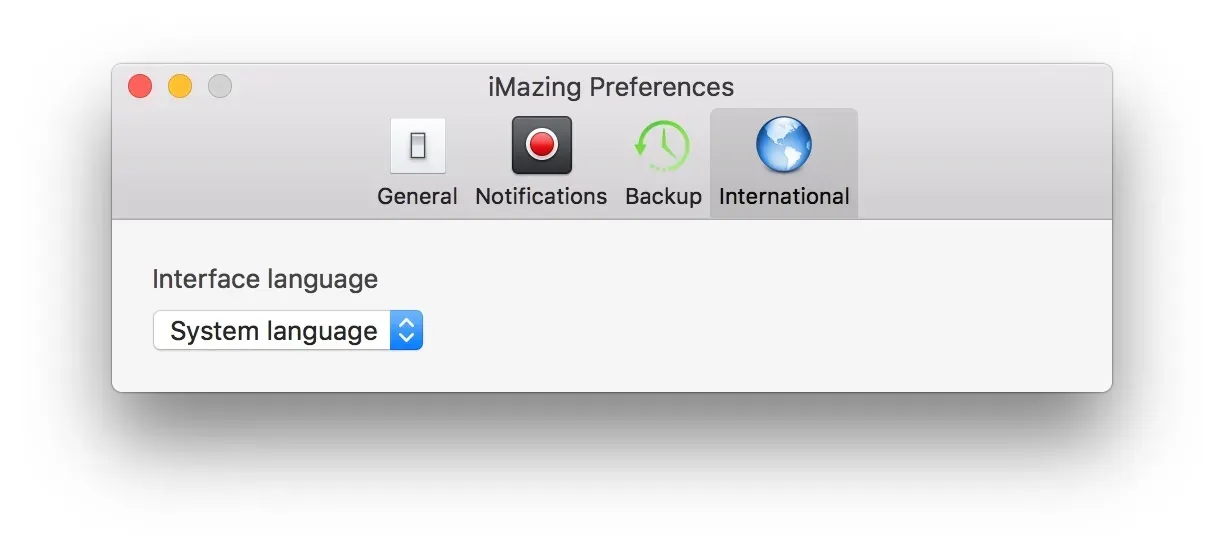
iMazing Mini's display language is by default set to automatically match your system language, but you can manually set it to another language.