Restore an iPhone, iPad or iPod touch from a local backup
Updated on Sep 8, 2026
Reading time ~4 minutes
To return an iPhone, iPad, or iPod touch to an earlier state, or to move your data onto a new device, you can restore a local backup: a backup saved on your computer rather than in iCloud. You can restore a local backup with iTunes, Finder, or Apple Devices, as well as with iMazing.
iMazing can restore any local backup, whatever you used to create it. Unlike a standard restore, it lets you choose which data and apps are restored, and browse a backup's contents before you start. To back up and restore the data of one specific app only, see our guide on Export, backup and transfer iOS Apps' Data and Settings.
iCloud
iTunes, Finder or Apple Devices
iMazing
Restore an iCloud backup
✅
❌
❌
Restore a local backup
❌
✅
✅
Choose which data and apps to restore
❌
❌
✅
Browse the backup before restoring
❌
❌
✅
Restore an earlier backup snapshot
❌
❌
✅
Important: Restoring a backup will erase all current data on the target device. When you restore a backup made with iMazing, Finder, iTunes, or Apple Devices, you can’t keep the device’s current data. With iMazing, you can exclude certain datasets or apps from the backup you’re restoring, but this still won’t preserve the data currently on the target device.
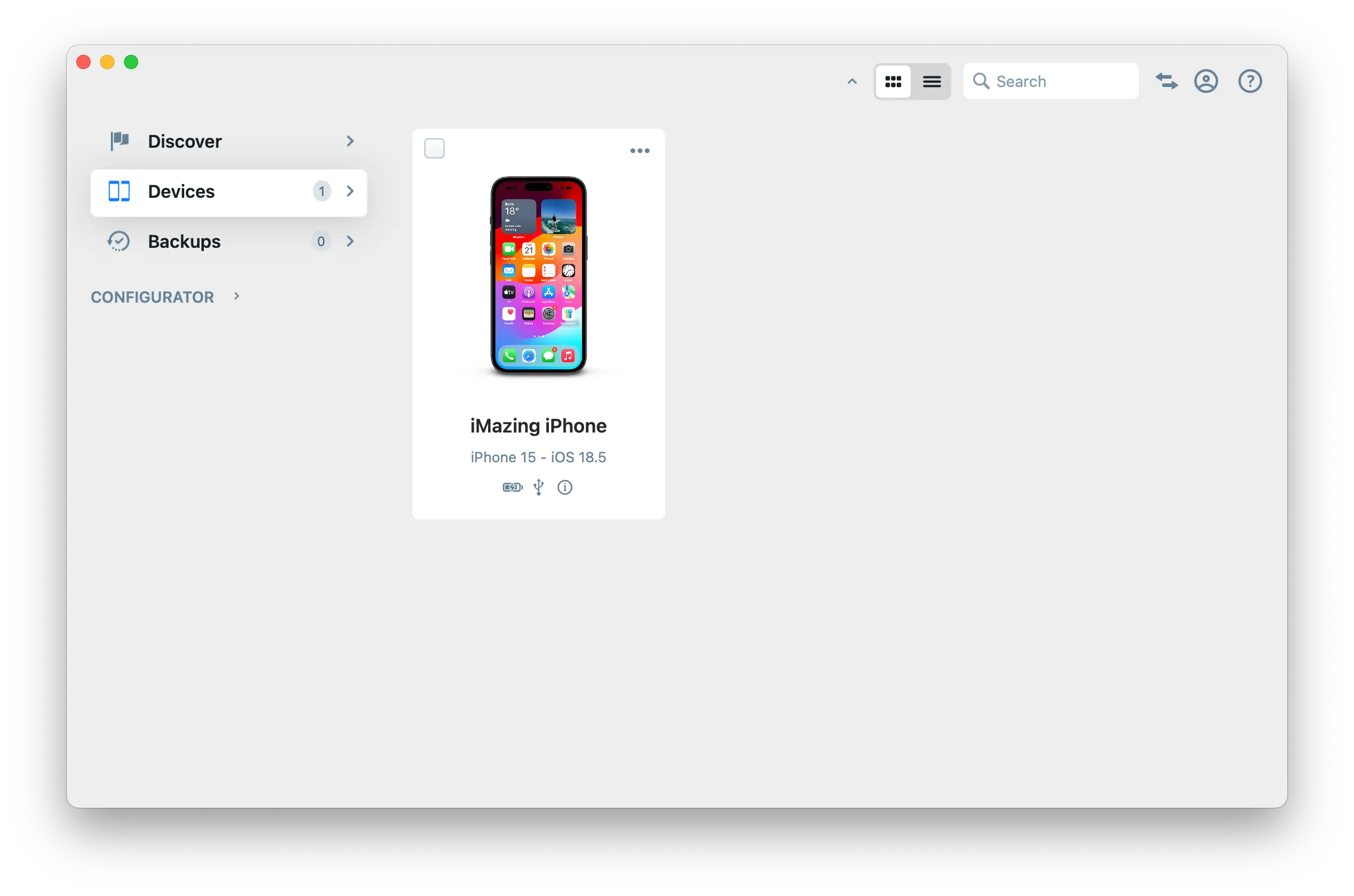
In the Devices section you will see all the devices previously connected and paired to your computer. Click a device to select it.
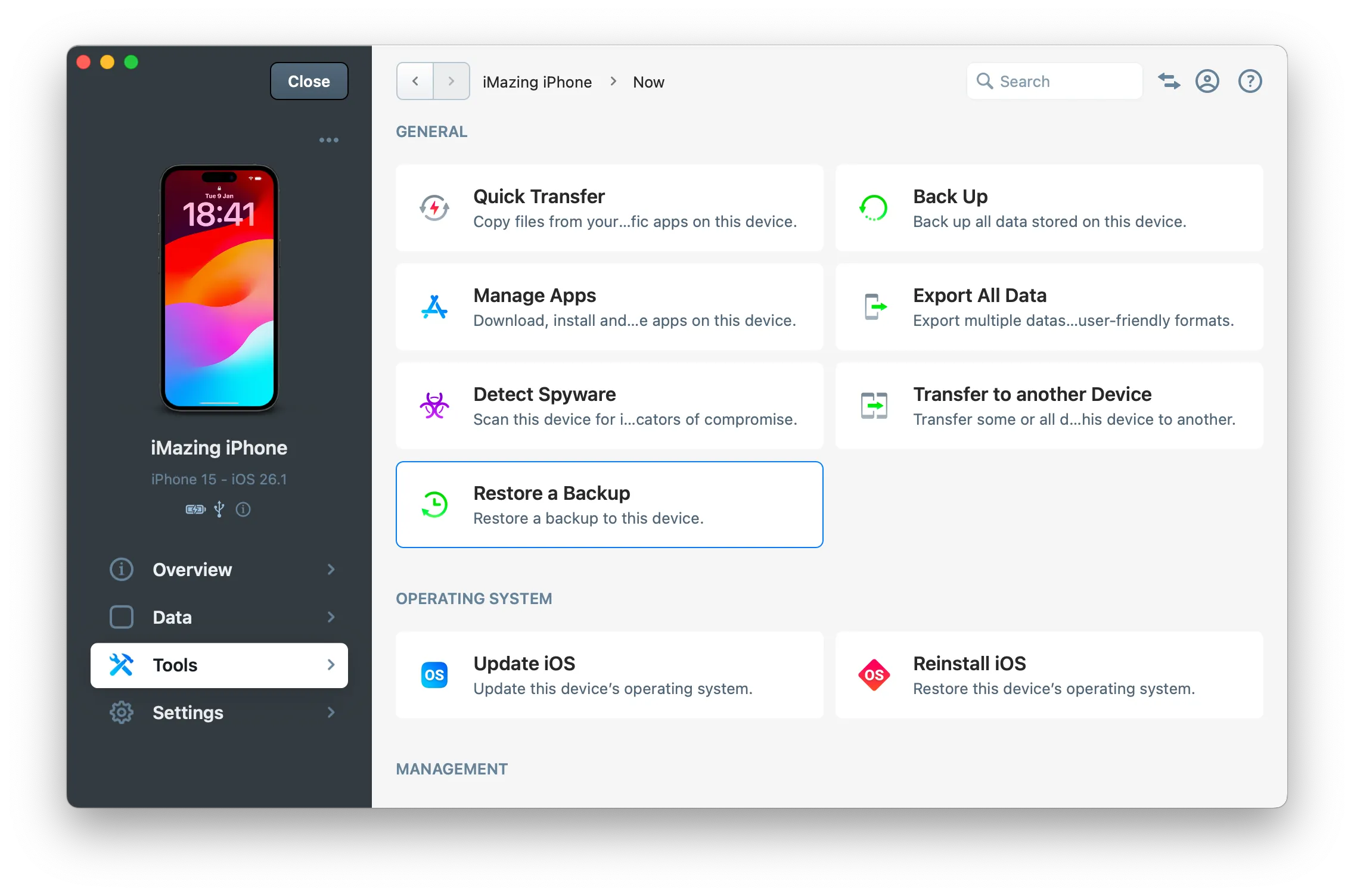
Open the Tools section
iMazing opens the device's Overview. In the left pane, select Tools, then click Restore a Backup.
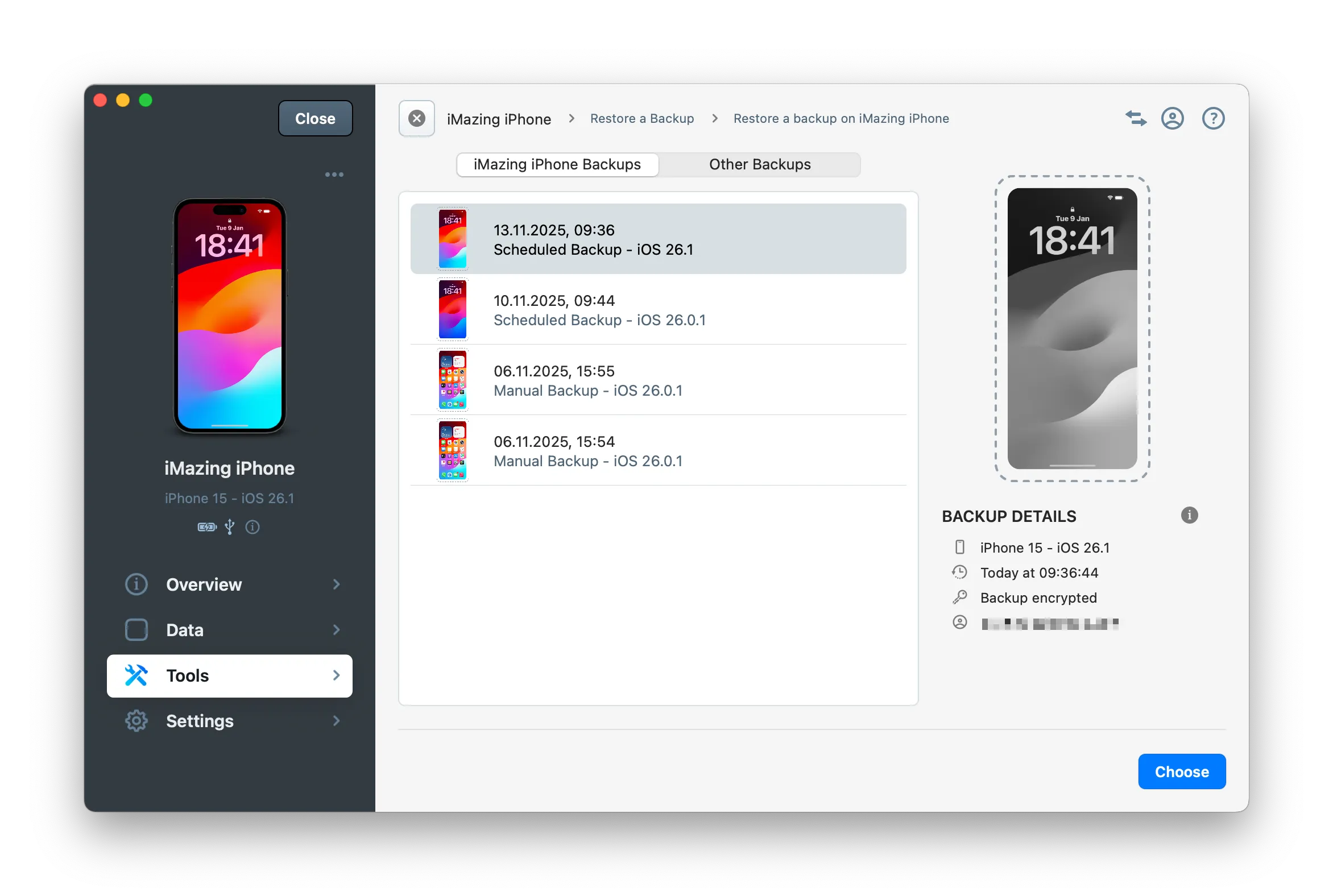
Select the backup to restore
On this next screen, select the backup you want to restore and click Choose.
Selected device backups - Restore selected device to a previous state.
Other backups - Restore another device's backup to the current device.
Note: iMazing creates snapshots of your backups automatically, a unique solution that is similar to Apple's macOS Time Machine feature, but for an iOS or iPadOS devices. Learn more about Backup Snapshots in iMazing.
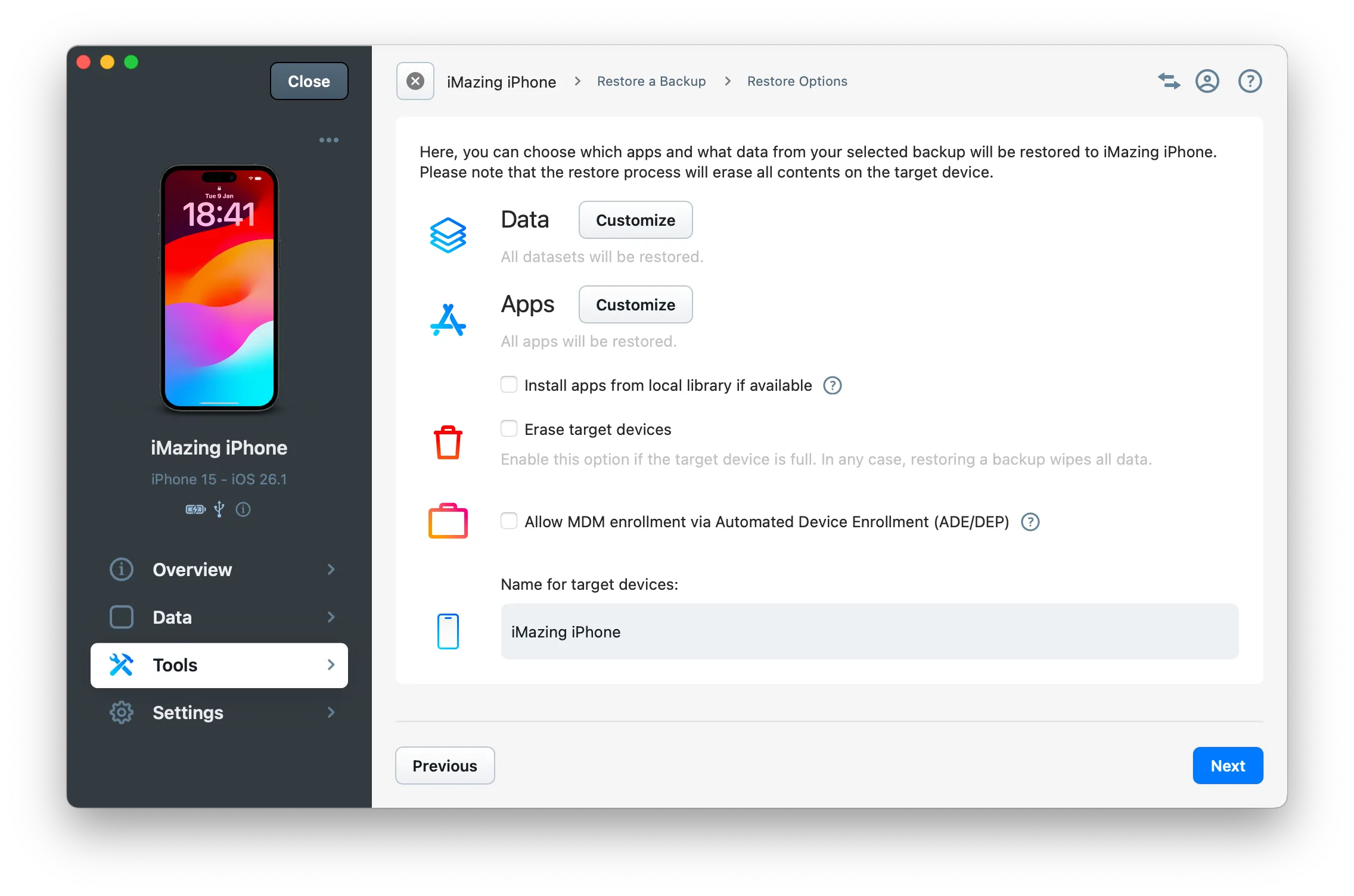
Review the restore options
By default, iMazing restores all data and apps from the selected backup. To control what is restored, review and adjust the options before you start:
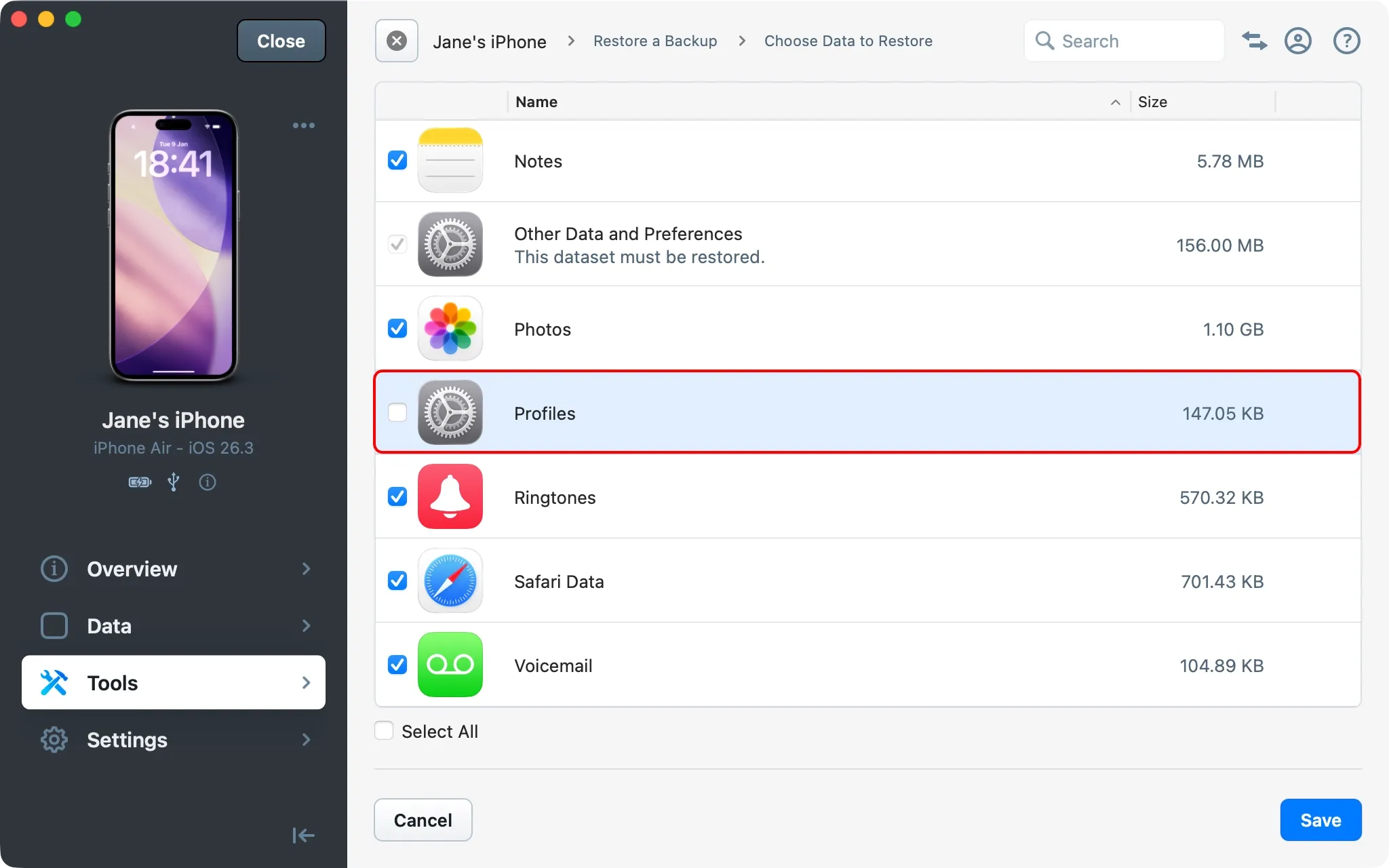
Customize what Data to transfer: select the datasets to restore. Use Select All to select or deselect every dataset.
Customize which Apps to transfer: choose the apps to restore. Use Select All to select or deselect every app.
Other options: erase the target device before transferring data, allow MDM enrollment via ADE/DEP, and set the name of the target device after the transfer.
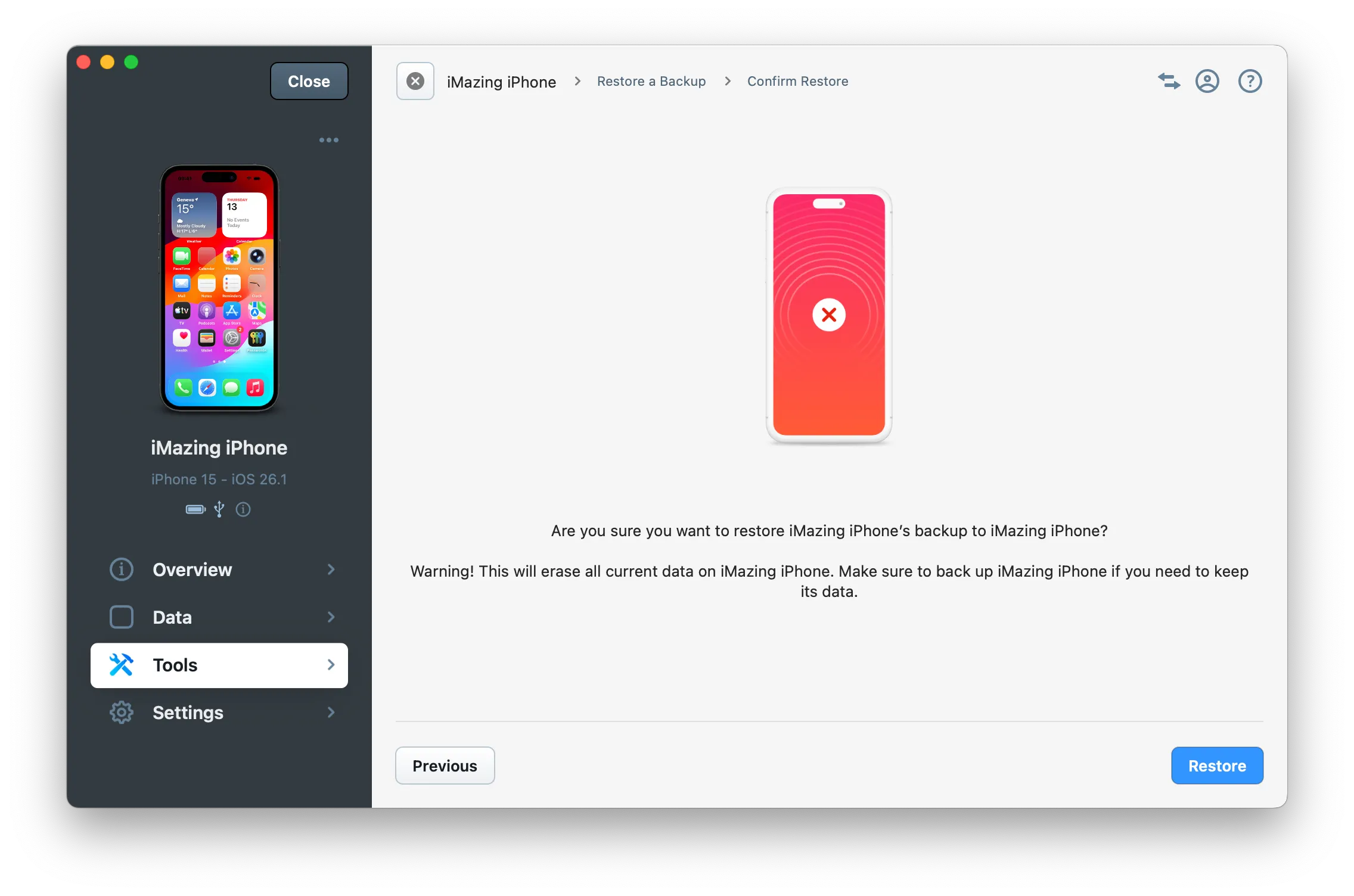
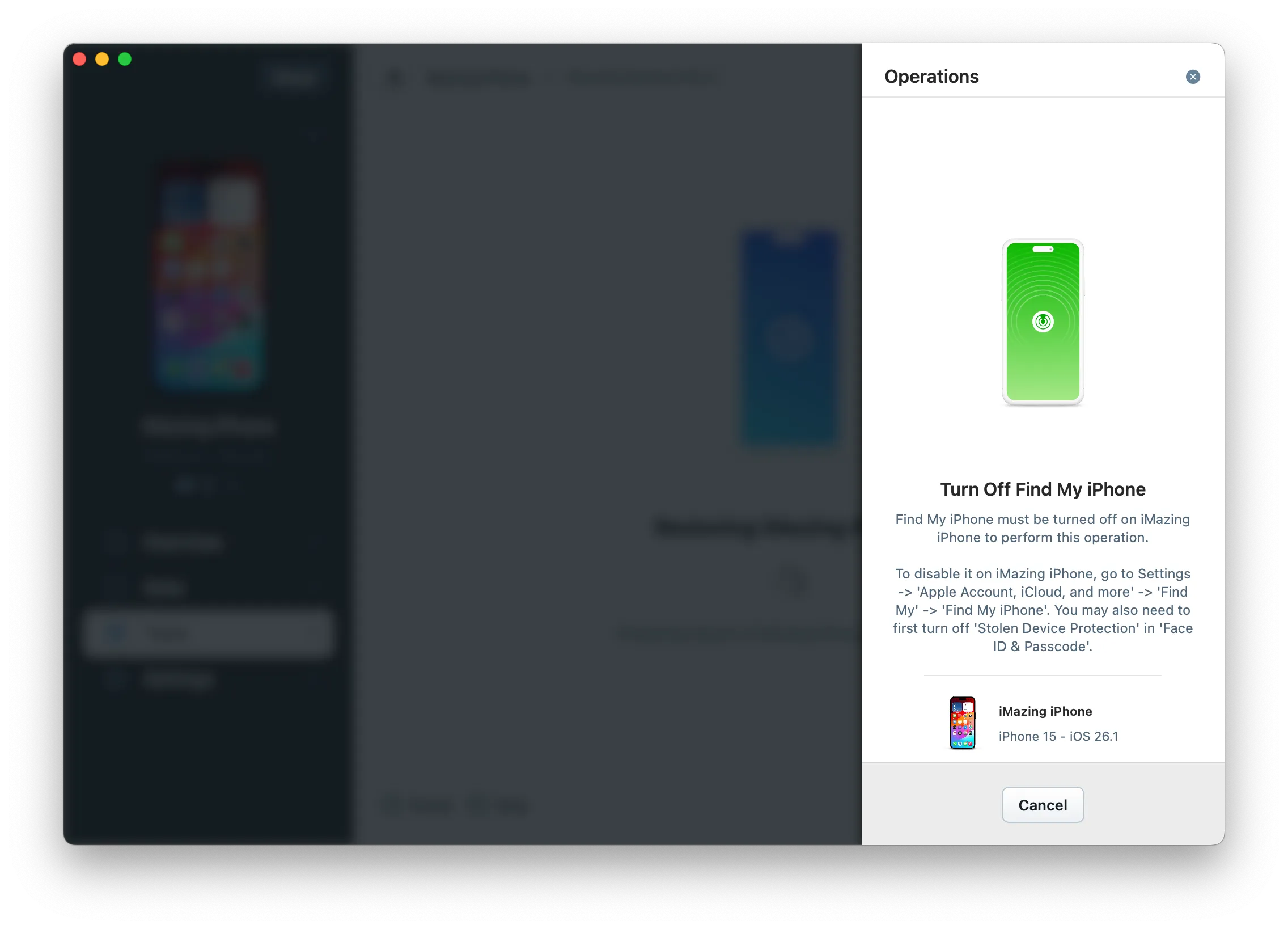
iMazing will prompt you for confirmation. Click Restore to proceed. If find my iPhone is enabled on the device, you will be prompted to disable it before proceeding.
Note: If your backup is encrypted, you will have to enter your backup password to initiate a restore.
Disable Find My iPhone
When Find My iPhone is turned on, Activation Lock prevents iMazing from restoring a backup to the device. You will have to turn off Find My iPhone before proceeding.
Since iOS 17.3, Apple has added an extra security layer called Stolen Device Protection. If it's activated on the device, you will need to disable it first before being able to turn off Find My iPhone.
Restoring a backup will not change the target device's passcode.
Backups do not include your iTunes Media Library (Music, Books, iTunes U, Podcasts, Ringtones and Movies synced or purchased on iTunes), so that data will not be restored and should be synced separately if needed. This data is usually already synced via iTunes, Apple Music or iCloud Music Library. Learn more about what is included in an iOS backup.