


Export, backup and transfer iOS Apps’ Data and Settings
iMazing lets you back up, restore, or transfer app data and settings from any iOS device to any other. You can also manage iOS apps. When you import data and settings for an app that is not on your device, iMazing will automatically download and install it from the App Store.
Who is this guide for?
Anyone who wants to easily back up and restore data and/or settings for their apps. This includes:
- Games: save or transfer game progress easily, even to other devices.
- Apps that store user documents: file managers, scanners, photo editors, etc.
- Messaging apps that store conversations locally (WhatsApp, Line) WhatsApp users can also follow this specific guide
Here is how to Export, Backup and Transfer iOS App's Data and settings:
Before you begin
Back up an iOS app's data
- Select your device. In the Overview tab under Quick Actions, click Manage Apps. The Manage Apps wizard opens.

- Click the Device tab to see the apps installed on this device. Scroll to find the app you want to back up.

Tip: Use the CTRL/Command, or SHIFT keys to select multiple apps before backing them up.
- Click the 3 dots and then click on Back Up; iMazing's Back Up App Data wizard opens. The wizard explains how this process works.

- To extract your App Data, choose a destination folder (by default, this is your Desktop), then check the Extract Options. You can extract the current app data (will back up your device afresh), or you can try to extract data from the latest backup of that device if you have one.
- Click Next and read the Important Notice, explaining that for some apps, not all data will be accessible.
- Click OK, and iMazing starts extracting your app's data to a
.imazingappfile. It shows the progress as it saves the data to your computer. When this process has completed, iMazing will inform you, and you can click Close Window to return to the main view.
Extract app data from a backup
The Manage Apps wizard is only available for a connected device. To export an app's data from an existing backup or from a specific snapshot, work directly from the Data view instead.
- From the Home Screen, select a backup in the Backups section, or a device in the Devices section.
- Open the Backup Snapshots menu and select the appropriate snapshot.
- Go to Data, then select Apps. iMazing loads the apps list from the backup.
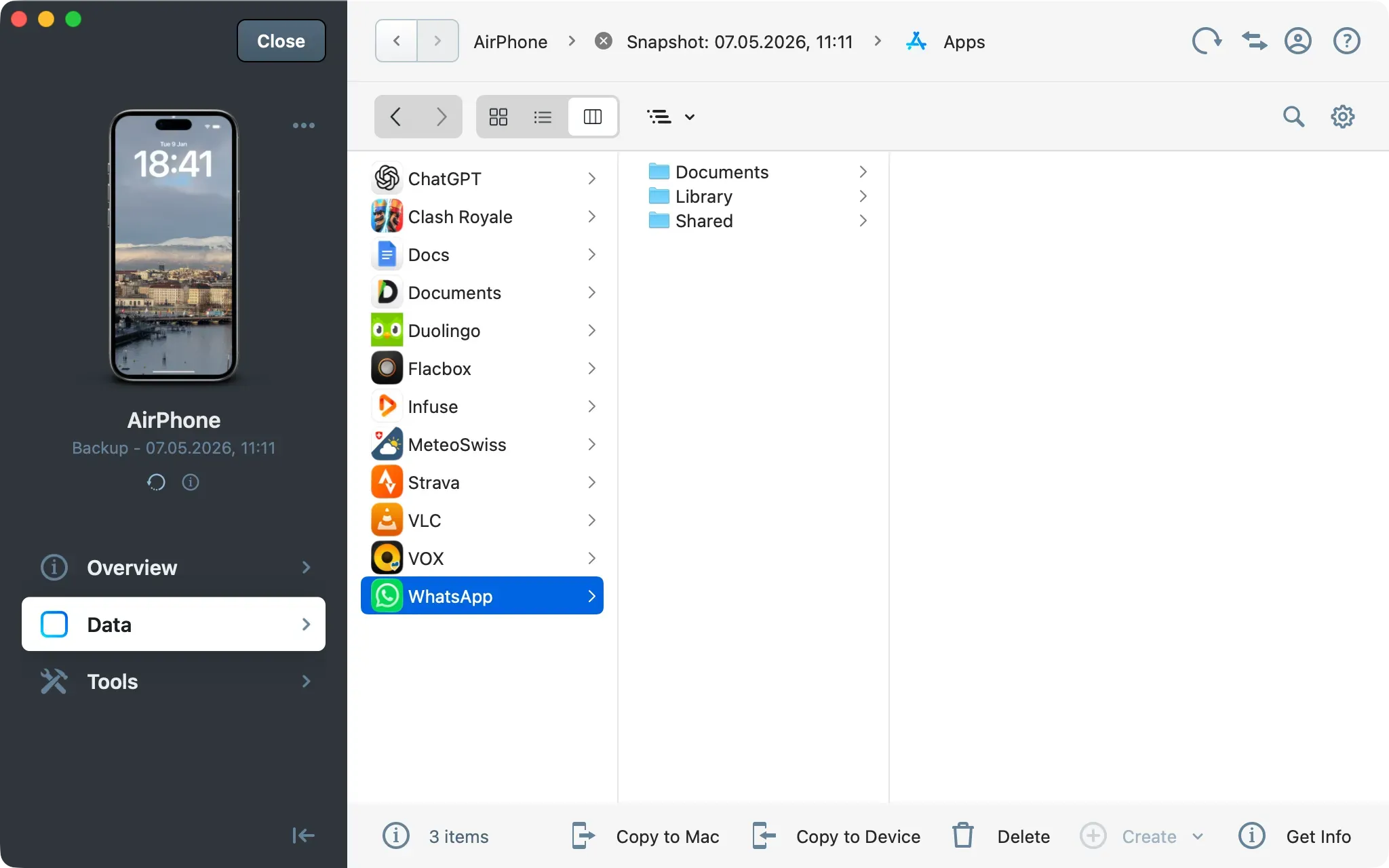
- Select the app, then click Copy to Mac (macOS) or Copy to PC (Windows).
- Choose the target folder for the export. iMazing saves the app's data as a
.imazingappfile to that location.
Tip: You can also drag any app from the Apps list directly to your desktop. iMazing extracts it in
.imazingappformat.
Restore an iOS app along with its backed up data
Important: During the process, your device will restart and may show the Partially Set Up screen. Choose Continue with Partial Setup, otherwise your device will be erased.
iMazing backs up your device before the restore, and this backup is mandatory. If your device was erased, you can return it to its initial state by restoring the backup created at the start of the process. See how to Restore an iPhone, iPad or iPod touch from a local backup.
- Select the target device. In the Overview tab under Quick Actions, click Manage Apps.
- Click the Device tab, click the three dots next to Uninstall, then choose Restore App Data. The Restore App Data wizard opens.
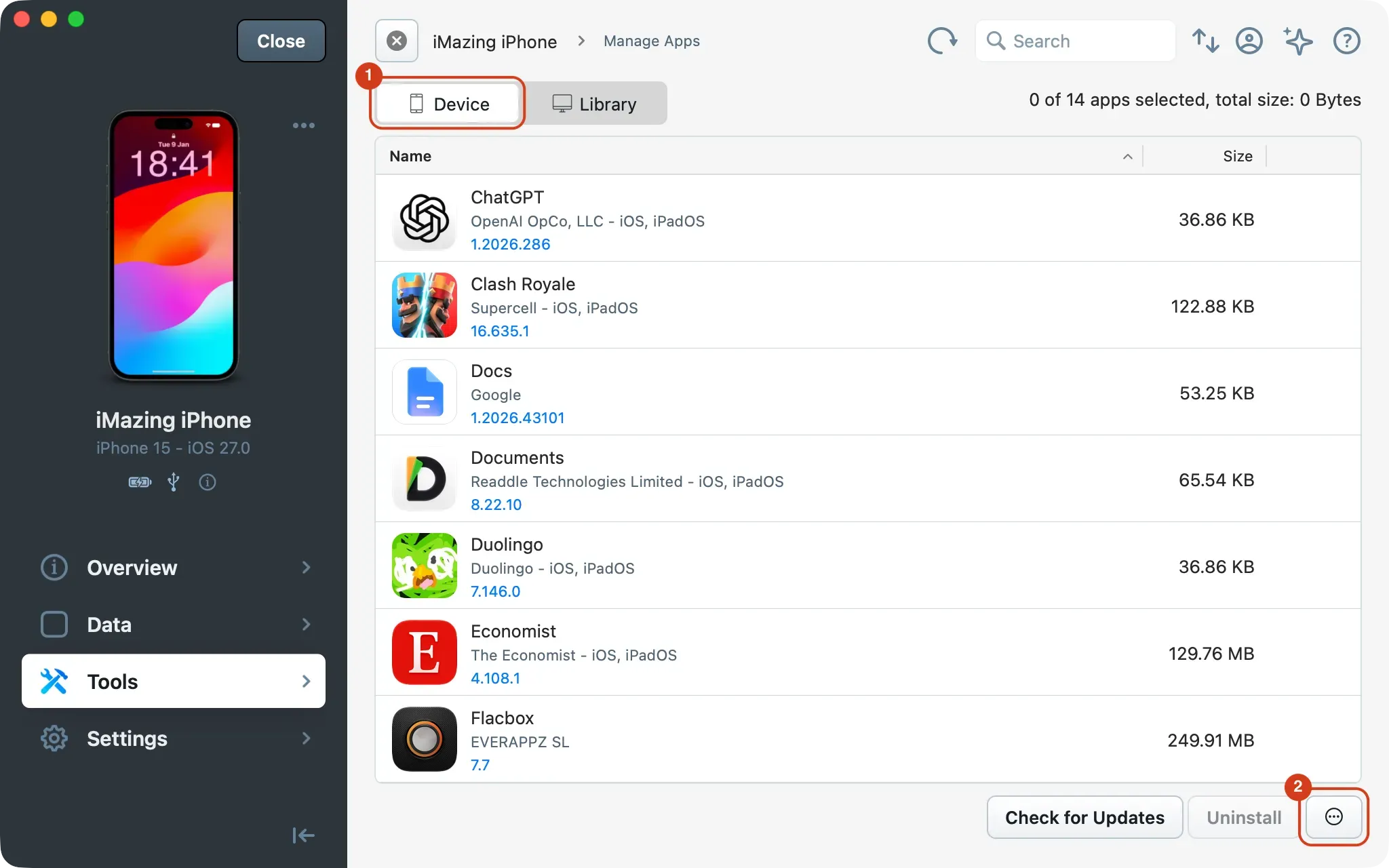
- Click Choose, select the .imazingapp files to restore, then click Done.

Tip: To restore several apps with a single restart, select all their .imazingapp files in the same restore.
- Click Continue in the Installing Apps dialog. iMazing backs up your device first, then restores the app data and restarts the device. iMazing may ask you to sign in to the App Store to download apps that are not installed on the device.
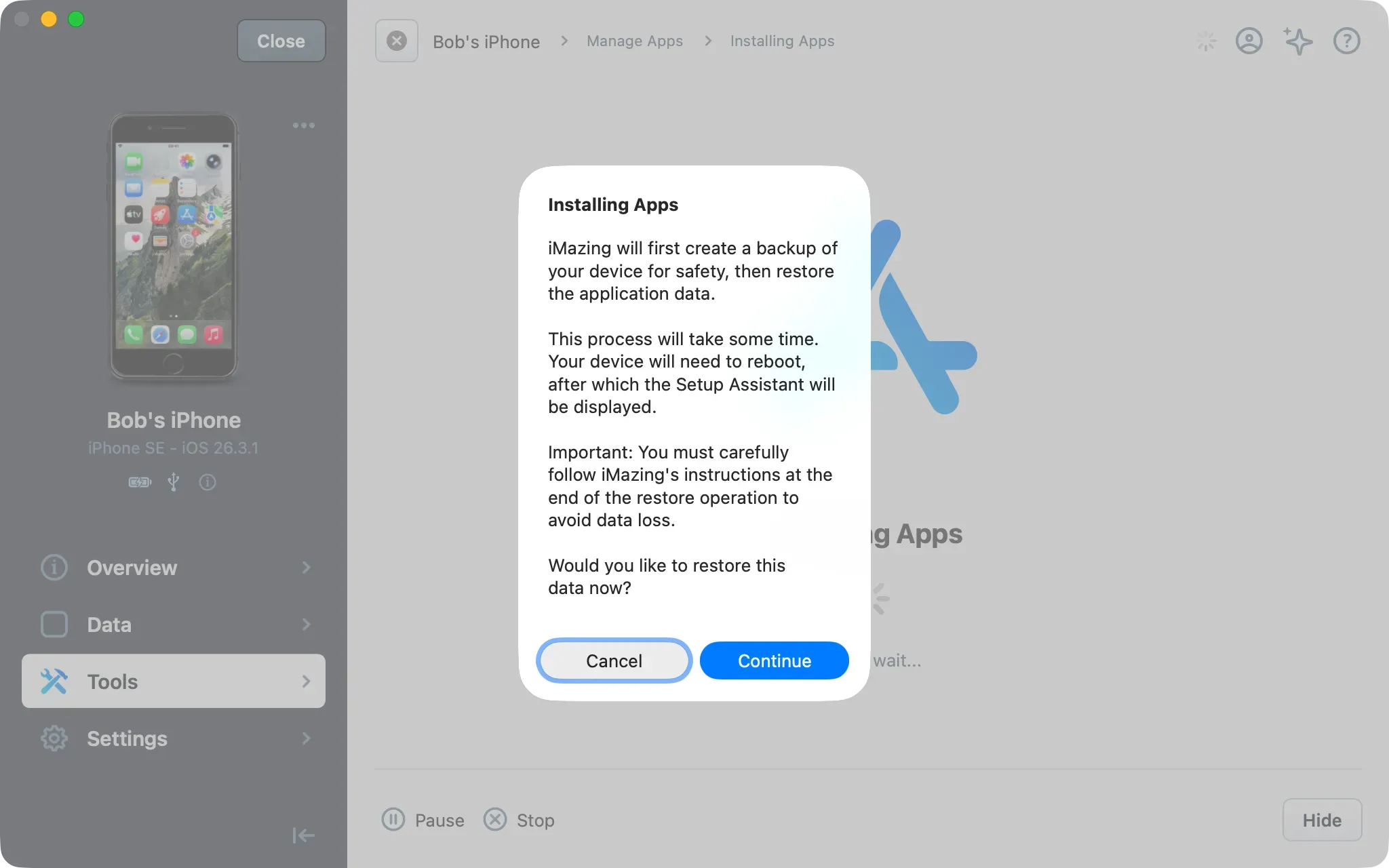
Note:
- The restore takes some time. Downloading missing apps depends on your bandwidth and the size of each app.
- If iMazing asks you to turn off Find My iPhone, do it on your device, then enter your Apple Account password.
- On your device, enter your passcode and follow the Setup Assistant. If the Partially Set Up screen appears, tap Continue with Partial Setup. On older iOS versions, if the Make This Your New iPhone screen appears, tap Customize, then Don't Transfer Anything. Once setup completes, the restored app is available alongside your existing data.
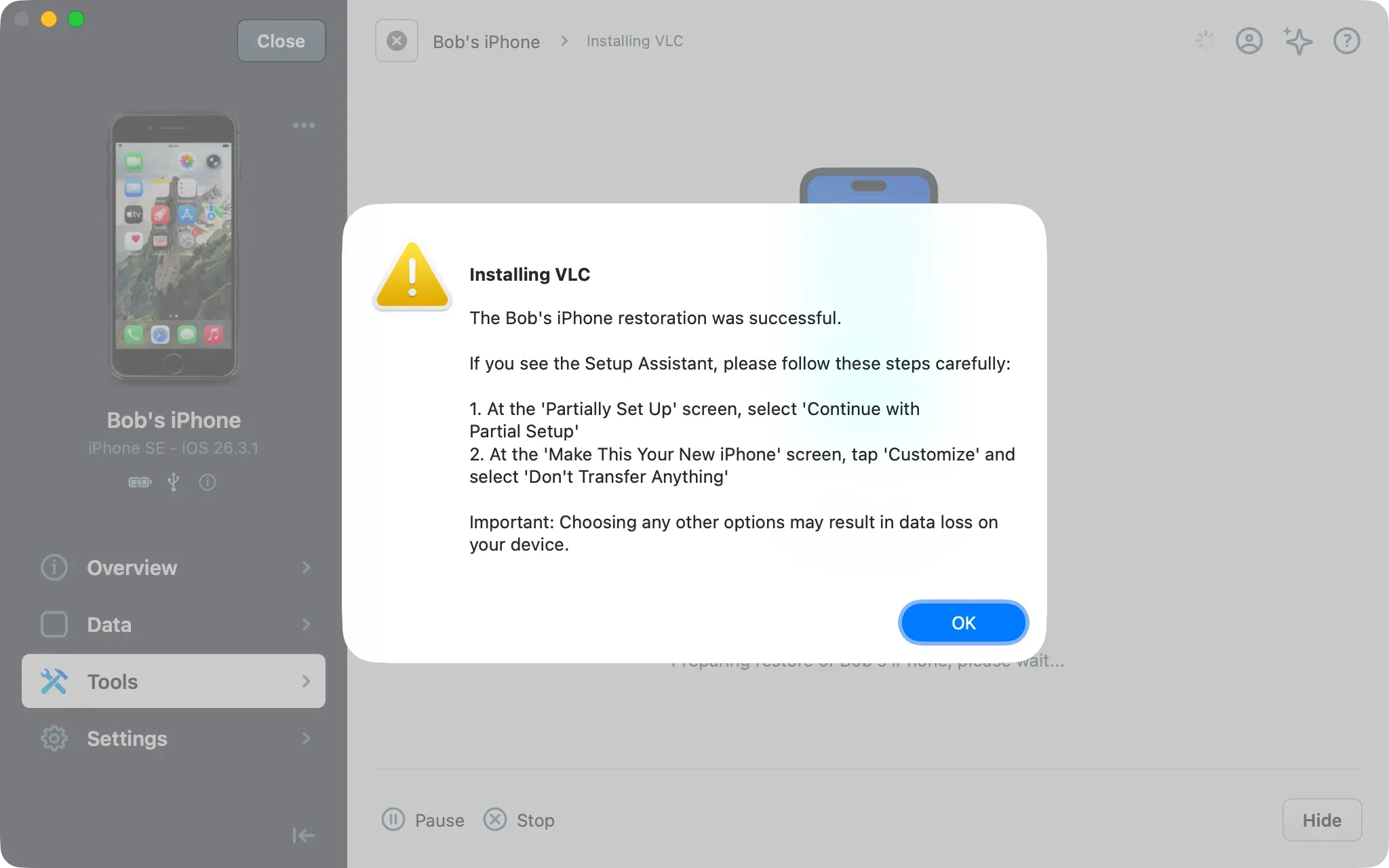
Note: On iOS 27, the Setup Assistant does not show the Partially Set Up screen.
- Complete the remaining steps. The restored app is then available alongside your existing data.
What to keep in mind
- Not all apps allow you to back up and restore data and settings. Apps which rely on web services such as Facebook, Twitter, or Instagram, for example, do not need to be backed up and restored. They simply load your data from their servers when you log in after installing their apps.
- Apps which store sensitive data, such as 1Password, will store that data securely in your keychain or online. In that case, restoring application data will not restore the secure data, but will restore local app settings.
- Restoring app data requires backup encryption. If it is off, iMazing asks you to enable it before the restore. Learn more about Backup Encryption.
Going further
To learn more about interaction with files in the Apps view, see our guide on File Browsing.