


Transfer podcasts between iPhone, iPad, or iPod and Mac or PC
Updated on Mar 9, 2026
Reading time ~3 minutes
Podcasts have become hugely popular and for some iPhone or iPod users, they have even completely replaced the radio. In iMazing, transferring podcasts between iOS devices (iPhone, iPad or iPod touch) and PC or Mac computers is dead-easy and convenient. Whether you want to back up your entire podcasts library from your iPod touch to your PC, or quickly drag and drop a podcast from your Mac to your iPhone, workflows are simple and easy to follow. Let's jump in!
Here's how to transfer podcasts between iOS devices and Mac or PC with iMazing:
- Launch iMazing on your Mac or PC and connect your iPhone or iPad via USB or Wi-Fi.
- Select your mobile device in the sidebar and click Podcasts.
- Drag and drop podcasts in and out of iMazing's window.
In-depth tutorial
Before you begin
Always make sure you are running the latest iMazing version, to do so select Check for Updates from the iMazing menu, or just download the latest available version for your computer below.
Download and install iMazing
Launch iMazing on your computer
If you haven’t already, download and install iMazing. For more details please refer to our guide available for PC and for Mac.
Connect your device to your Mac or PC via USB
iMazing will prompt you to connect the device to your computer on the first time you're using it. To do so use a USB cable, and unlock the device using your passcode, Face ID or Touch ID, and follow the instructions for pairing.
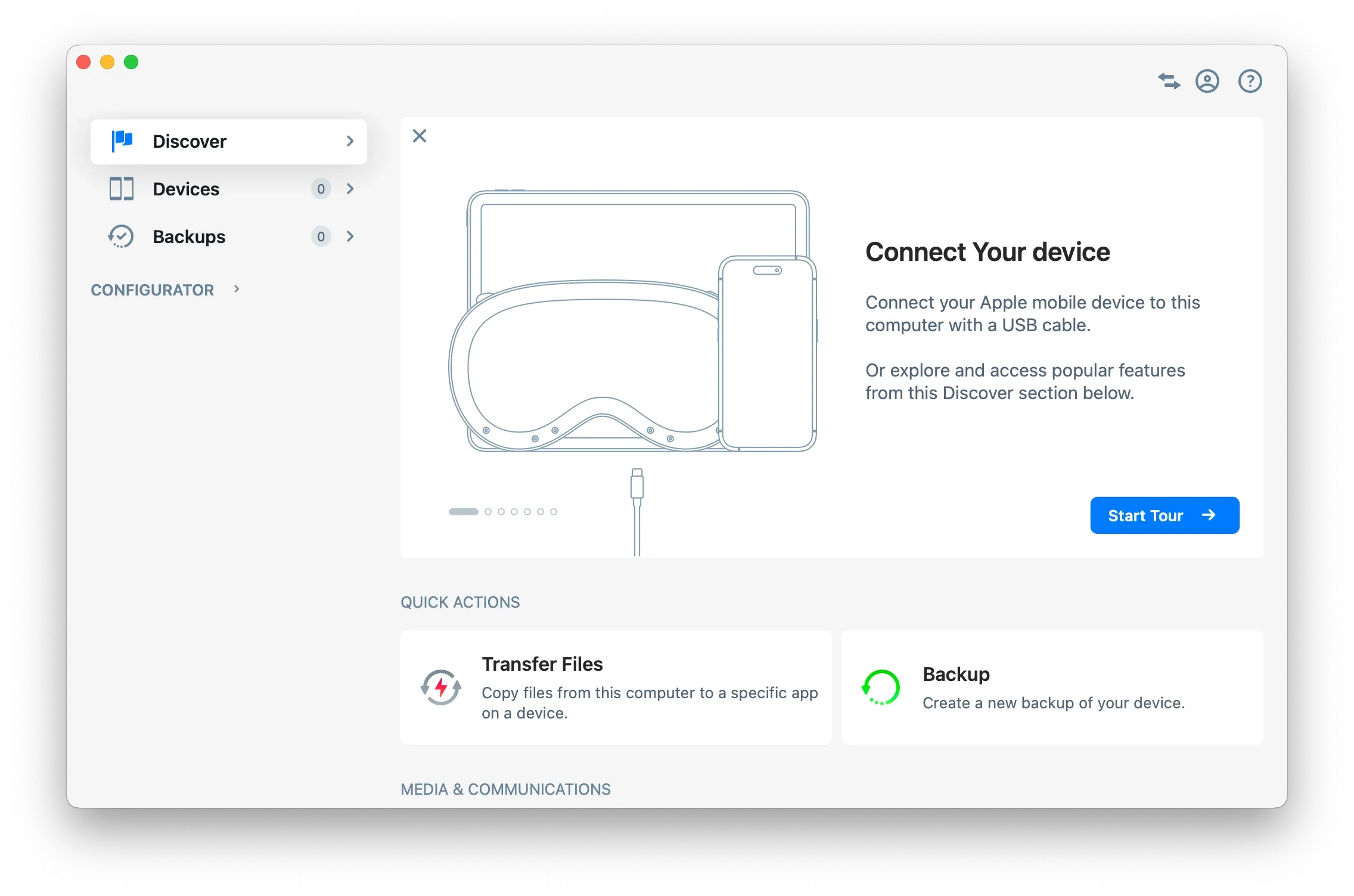
Tip: For more details on connections and pairing refer to this guide.
Click on Devices in the left pane
From the Devices view you will see all the devices previously connected and paired to your computer. Click to select a device.
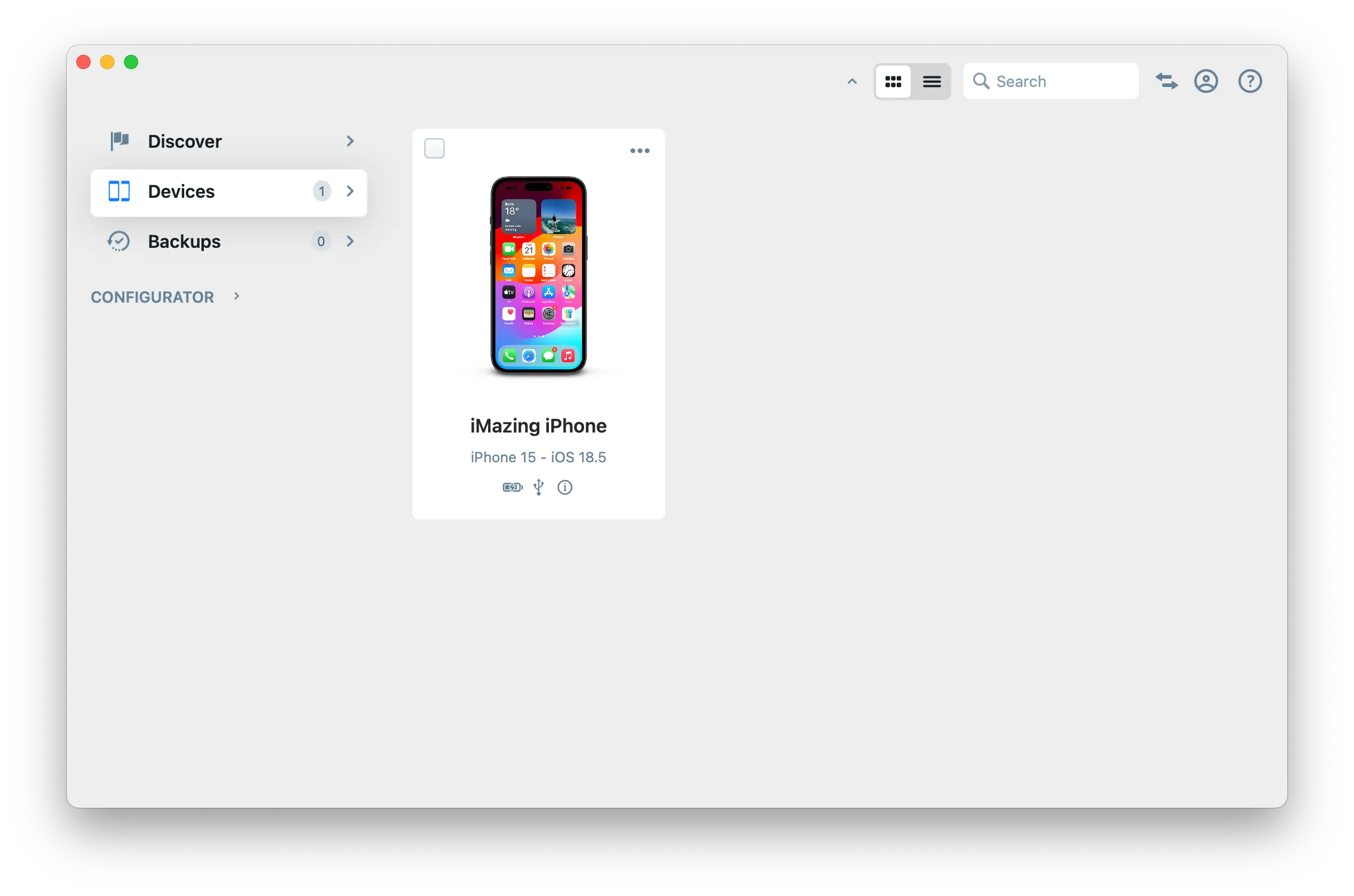
Tip
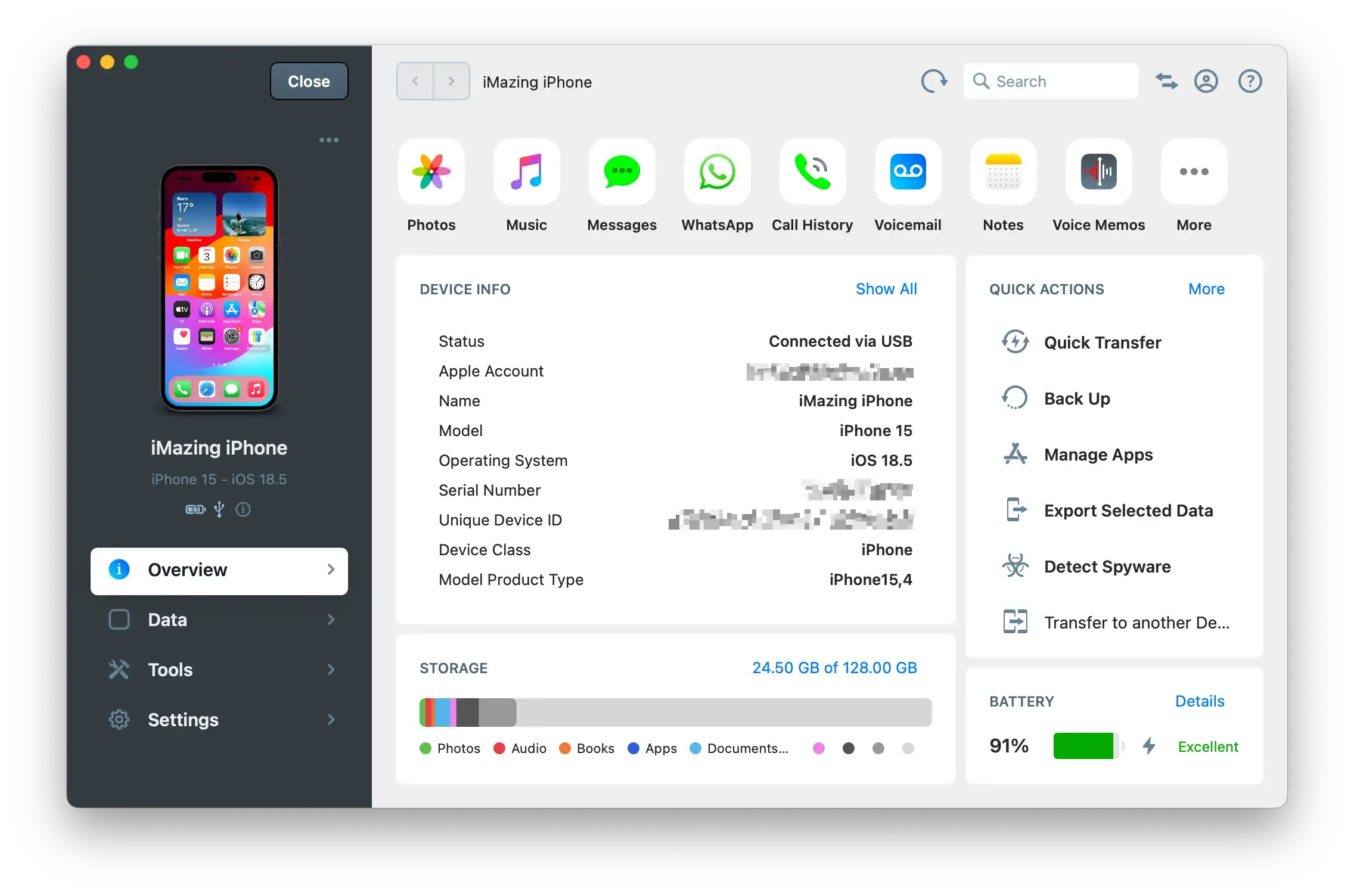
Once your device is connected and paired, you can access any dataset or tool directly in iMazing:
View the datasets you can access
iMazing will display the Overview screen for the selected device. From here you can access all available datasets for that device. The top row shows the most commonly used datasets, such as Messages, Photos, Music, and more. If you don't see the dataset you want, click the More button in the top row to see all available datasets for that device.
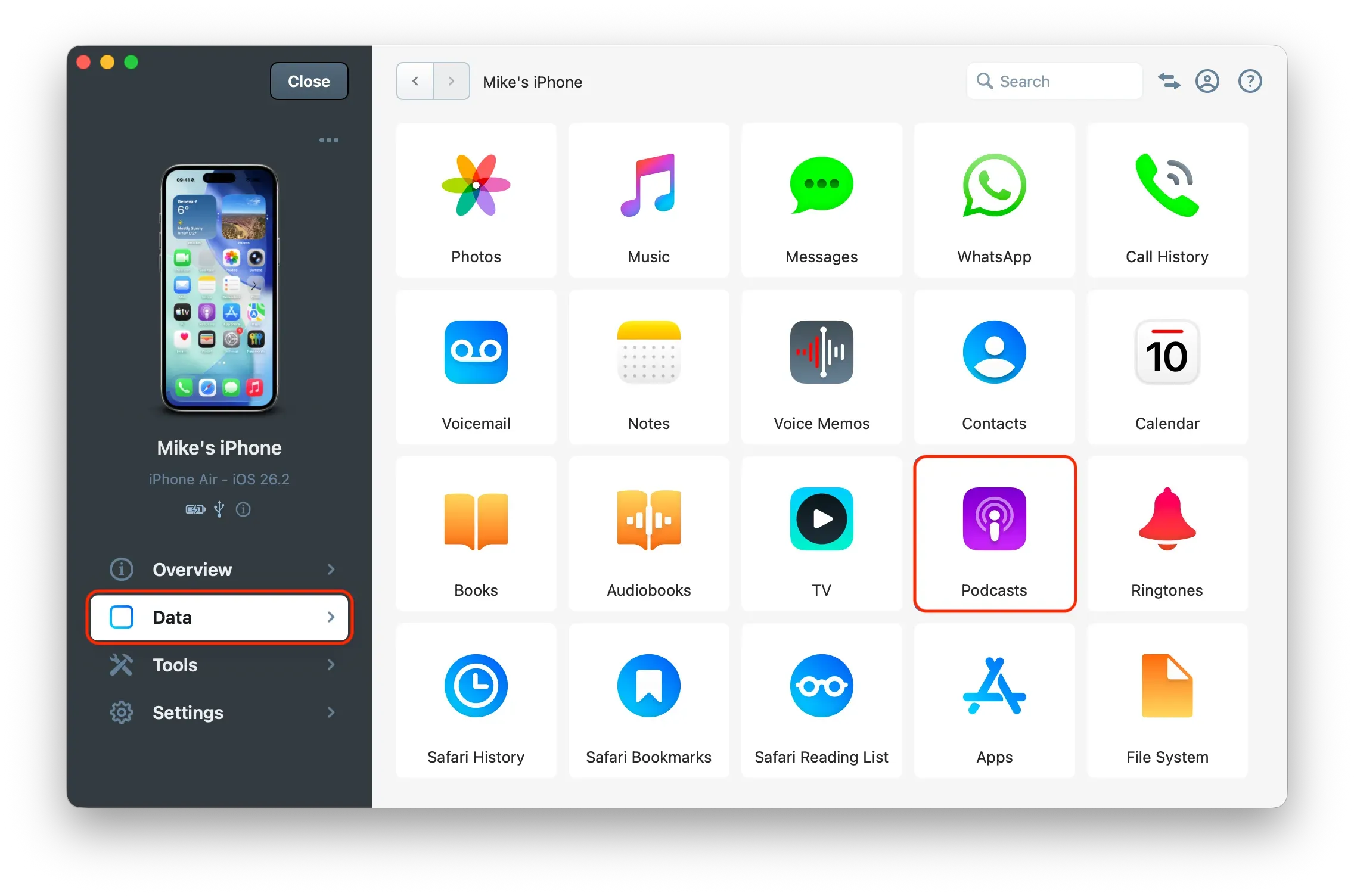
Tip: Altenatively, click on Data in the left pane to see every single dataset available for that device, including shortcuts to third party apps such as VLC and more.
From the Data view click on Podcast
iMazing will load the podcasts from your device's library (Apple's Podcasts app) and display them in a list:
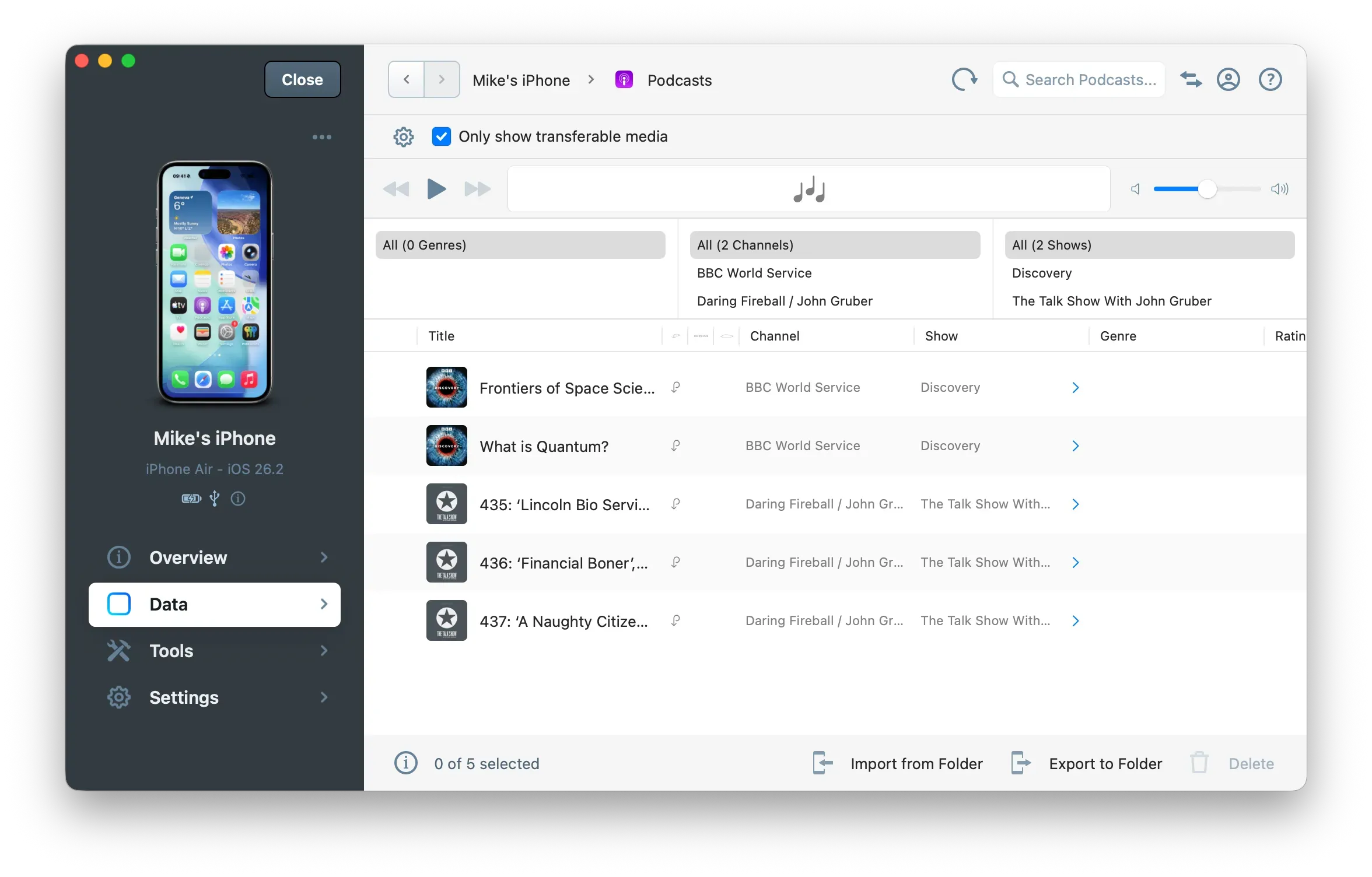
Note the Only show transferrable media checkbox at the top of the screen is checked by default. This means that iMazing will only display podcasts that are downloaded on your device (and which therefore you can transfer), and not the entire library.
Actions
At the bottom of the podcasts list, notice the 3 action buttons used to export, import and delete podcasts:
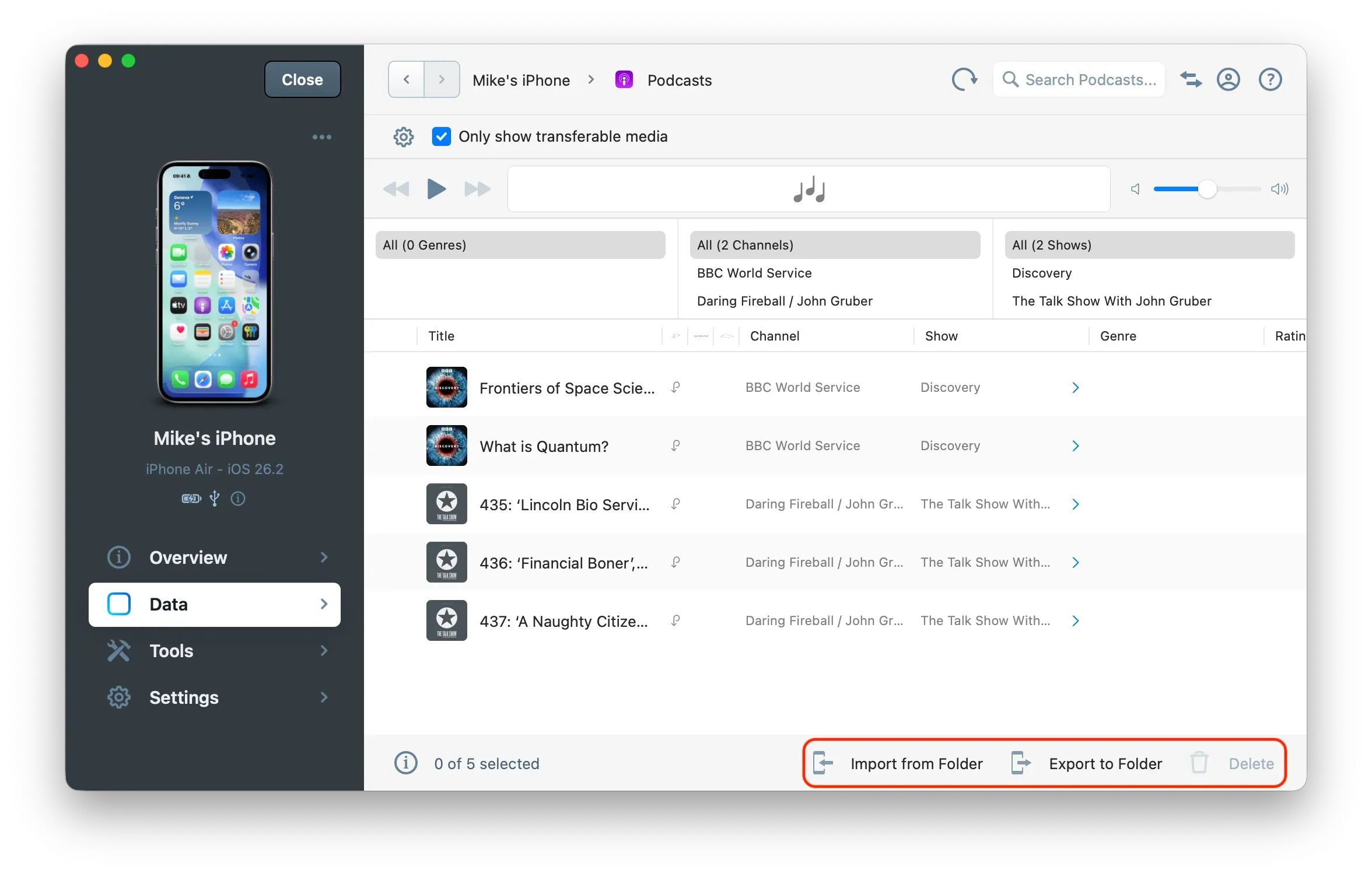
You can also use drag and drop or contextual menus of course.
Export podcasts
To export one or more podcasts, first select the items you wish to export:
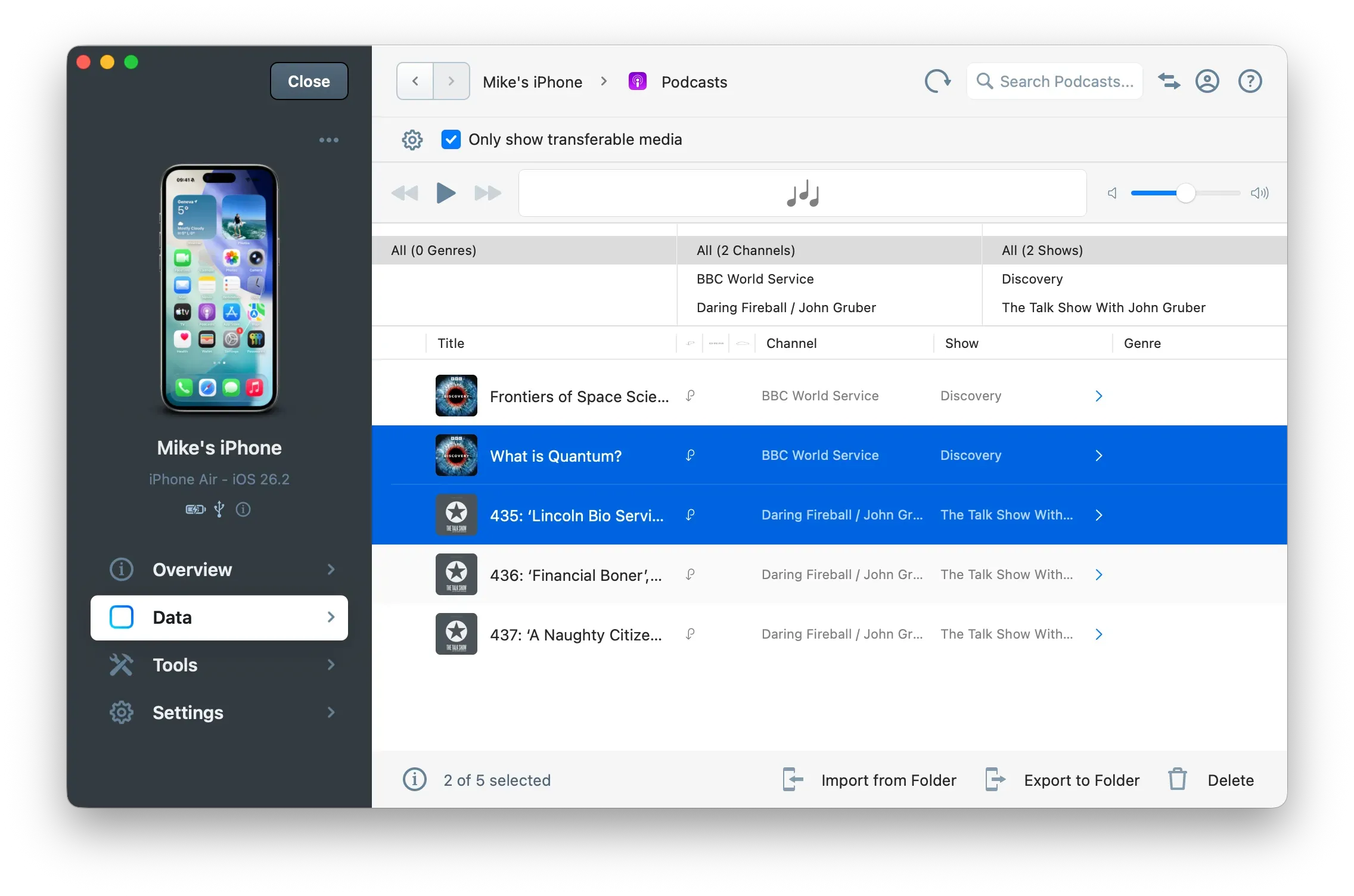
Now click on the Export to Folder button. iMazing will display the following options window:
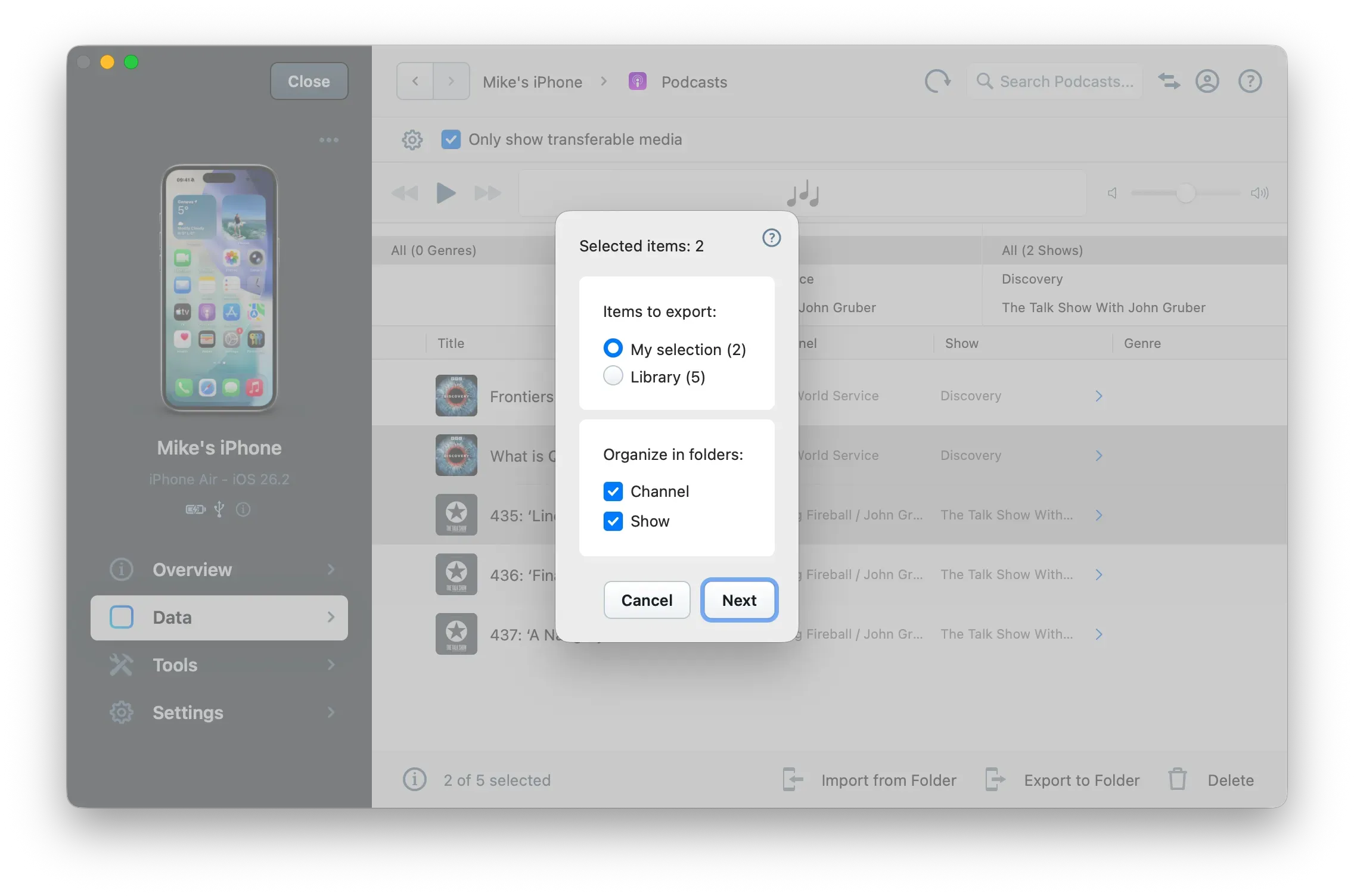
Here are the available export options:
- Items to export: choose if you only wish to export your selection, or all available podcasts.
- Organize in folders: choose whether or not iMazing should create folders for channels and shows.
Once your satisfied with the options, click Next to display a standard save panel where you'll choose the location on your computer or drive where you want iMazing to transfer the podcasts to.
Drag and drop workflow: you can also drag out a podcast or a selection of multiple podcasts to your desktop.
Import podcasts
To import one or more podcasts, first click the Import from Folder button below the podcasts list. iMazing will display a standard Open Panel, from where you can select a folder or specific files. Confirm, and iMazing will transfer the podcasts to your iPhone, iPad or iPod touch. They will be available in Apple's Podcasts app.
Drag and drop workflow: you can also drag a podcast or a selection of multiple podcasts from your computer to the podcasts list in iMazing.
Supported formats
Podcasts are usually .mp3 files, but other standard audio files are also supported:
- AAC - M4A (16 to 320 Kbps)
- Apple Lossless
- AIFF
Delete podcasts
Use the Delete button in the bottom toolbar to delete selected podcasts from the Podcasts app on your device. Note that if you have enabled iCloud Music Library, this feature is not available and will result in iMazing displaying a warning to that effect.