


Access your iPhone App's data and files
Updated on Mar 11, 2026
Reading time ~4 minutes
An iPhone may be a pocket computer, but it doesn't work the way a desktop or laptop computer works. On a computer, you interact directly with stored files: you open them, work on them, and save them; you organize them in folders using macOS Finder or Windows File Explorer; and you can view them when you want.
iOS is very different, you don't have access to the entire file system. There's a good reason for this: it's called sandboxing. This is a security feature that ensures that apps are sequestered, and no app - or its data or files - can communicate with another app. There are some exceptions to this, of course: you can access your photo library from apps other than Photos to send pictures via email or Messages; you can play music files with third-party music player apps; and so on. But in general, sandboxing means that apps can't access other apps, their data, or their files. An app has only access to its own folder (sandbox).
Therefore, the focus is on apps, and, while apps do work with files under the hood, you don't usually see them. Some apps do allow you to see files, but it depends on the apps. The ones that let you see files generally allow these files to be synced from a computer, using File Sharing:
How to Transfer files and folders to an iPhone or iPad App from a Mac or PC.
But most apps don't have File Sharing enabled. Also even if the app has File Sharing enabled, you cannot access other folders than the Documents folder. In an app's sandbox you also have a Library folder containing app's settings, configuration, and sometimes content:
How to export, backup and transfer iOS Apps’ Data and Settings.
With iMazing, you can access the Library folder of apps as well as nearly the entire iOS file system via a backup of your device.
Tip: App developers can enable file sharing by adding the boolean key
UIFileSharingEnabledand setting it toYESin their app'sInfo.plistfile. This allows iMazing to access the app's container Documents folder.
Here's how to browse files on your iOS device:
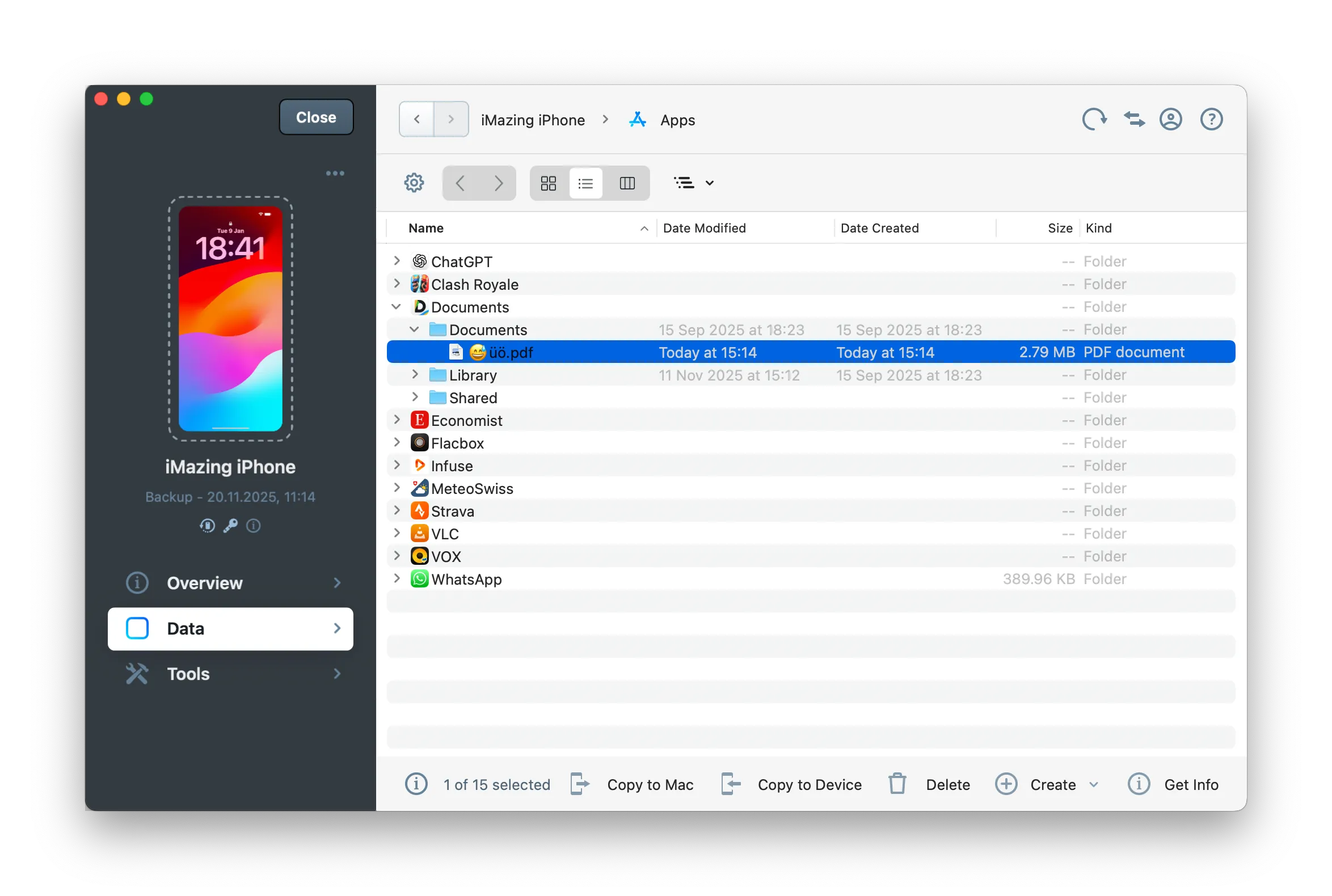
Before you begin
Launch iMazing and select your device
From the Devices view, click on your device to enter the Overview.
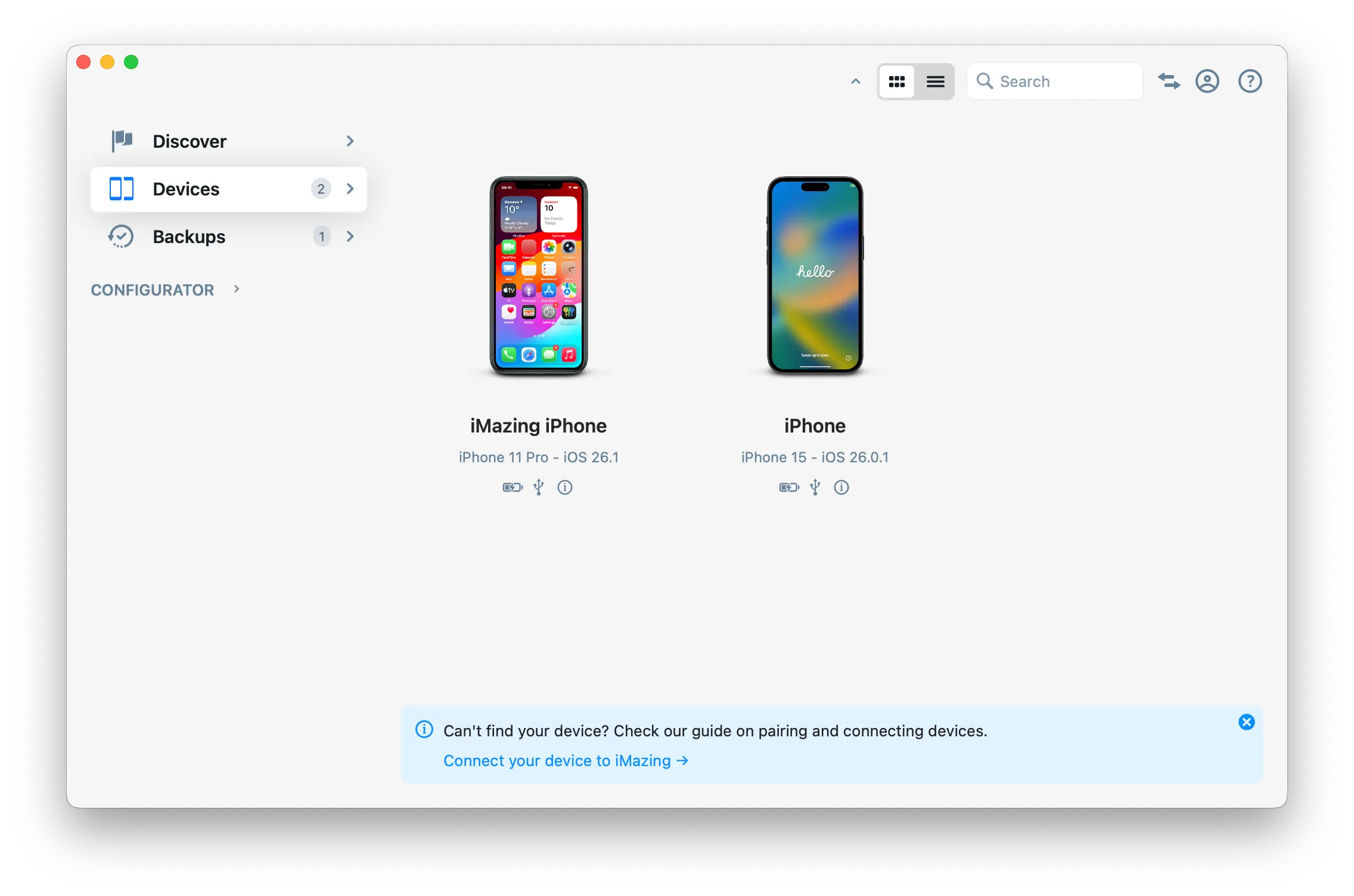
Refresh your Backup
Click on Back Up in the right Quick Actions section. This will refresh your backup with the latest data.
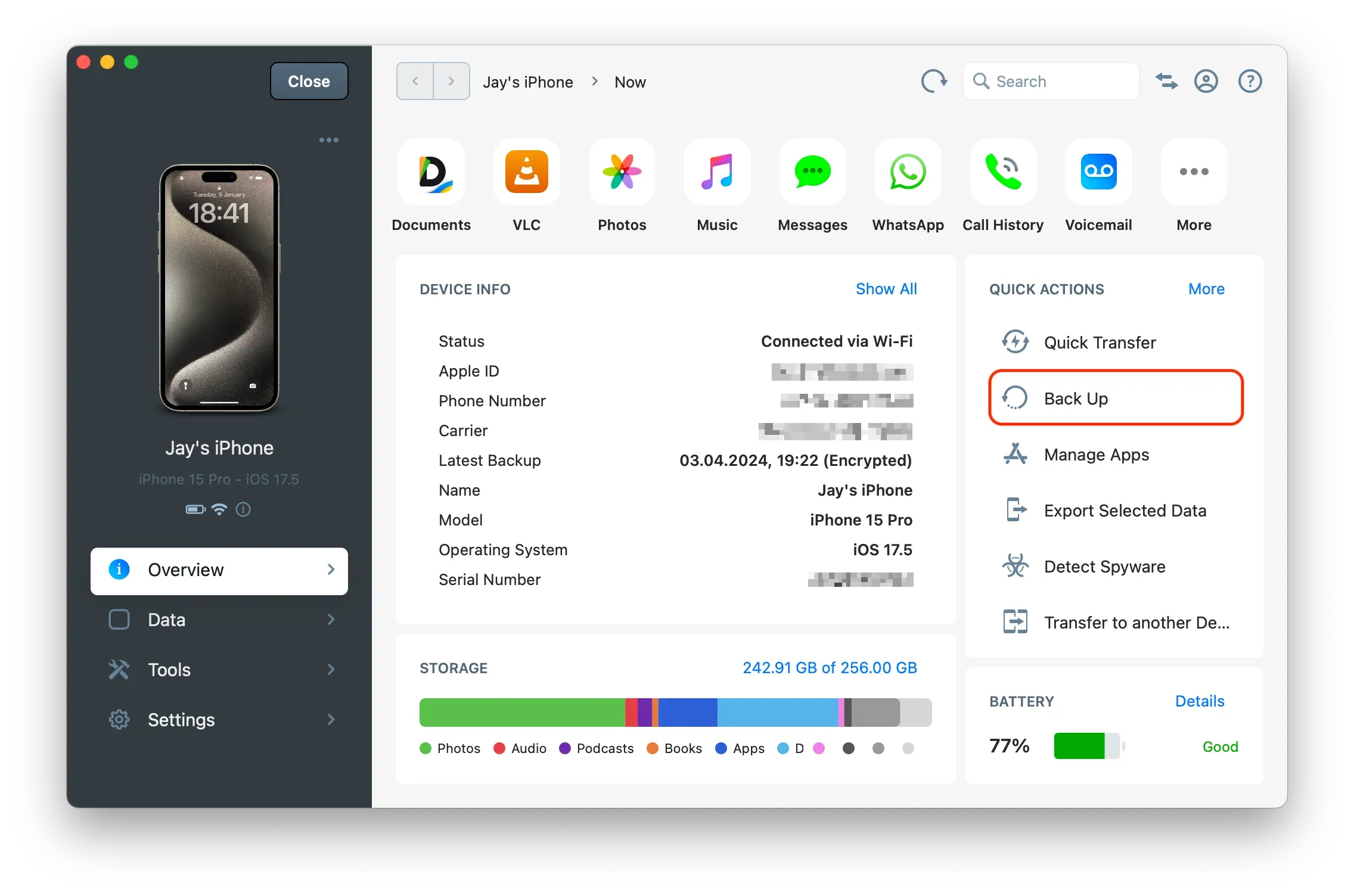
Select an app, then view its Backup folder
Once the backup has completed, click More in the Data Shortcuts bar at the top, then select Apps. Choose the app whose files or data you want to view.
By default, iMazing only lists apps that have file sharing enabled. To also display apps without file sharing, click the cogwheel icon above the app list and adjust the filter setting.
If you open the Documents folder of an app that does not have file sharing enabled, iMazing will display a message explaining that the folder is not accessible. In that case, navigate to the app's Backup folder instead, which contains the files and data captured for that specific app during the backup.
Browse files
You can view these files in three ways from the View Mode button in iMazing's toolbar: as icons, in list view, or in column view:
- Icon view: If you're in Icon view, you can double click an app or a folder to view its contents, as you would on a computer. To move back in your viewing history, click the < button in the toolbar.
- List view: In List view, you can click the disclosure triangles to the left of any folder to view its contents, then continue to drill down in the sub-folders in the same way.
- Column view: If you choose Column view, you move right and left into and out of an item. You can select an item then click its subfolders in the column to its right, or use the left- and right-arrow keys to move around in the columns.
If you simply want to read the contents of a file, you can try double-clicking it; you may or may not have an app able to read that file. If you right-click on a file, you can choose an app to open the file. If that doesn't work, you can copy the file to your computer.
Copy files to your computer
If you want to copy files to your Mac or PC, select the item(s) you want to copy, then click Copy to Mac or Copy to PC in the toolbar at the bottom of the iMazing window. iMazing copies these files from your backup, but makes them available to you outside the encrypted, protected backup.
iMazing presents a standard Save dialog; select a location for the file(s), and click Choose. iMazing saves the file(s).
Export, backup and transfer iOS Apps’ Data and Settings
How to export, backup and transfer iOS Apps’ Data and Settings