Transfer PDFs to your iPhone or iPad
Updated on Mar 17, 2026
Reading time ~2 minutes
The iPhone and iPad are great devices for reading PDFs. You can use the Books app to store and display PDFs. You may have PDFs you've created from your own documents; you may have a library of manuals for software or hardware in PDF form; and you may keep individual files as PDFs, if you need to consult them at times. If you don't want to use the combination of the iBooks app and iTunes (on the Mac) or iTunes alone (on a Windows PC), iMazing can transfer your iBooks and PDFs to your iOS device. Here's how.
Here's how to transfer PDFs to your iPhone or iPad:
Before you begin
Always make sure you are running the latest iMazing version, to do so select Check for Updates from the iMazing menu, or just download the latest available version for your computer below.
Download and install iMazing
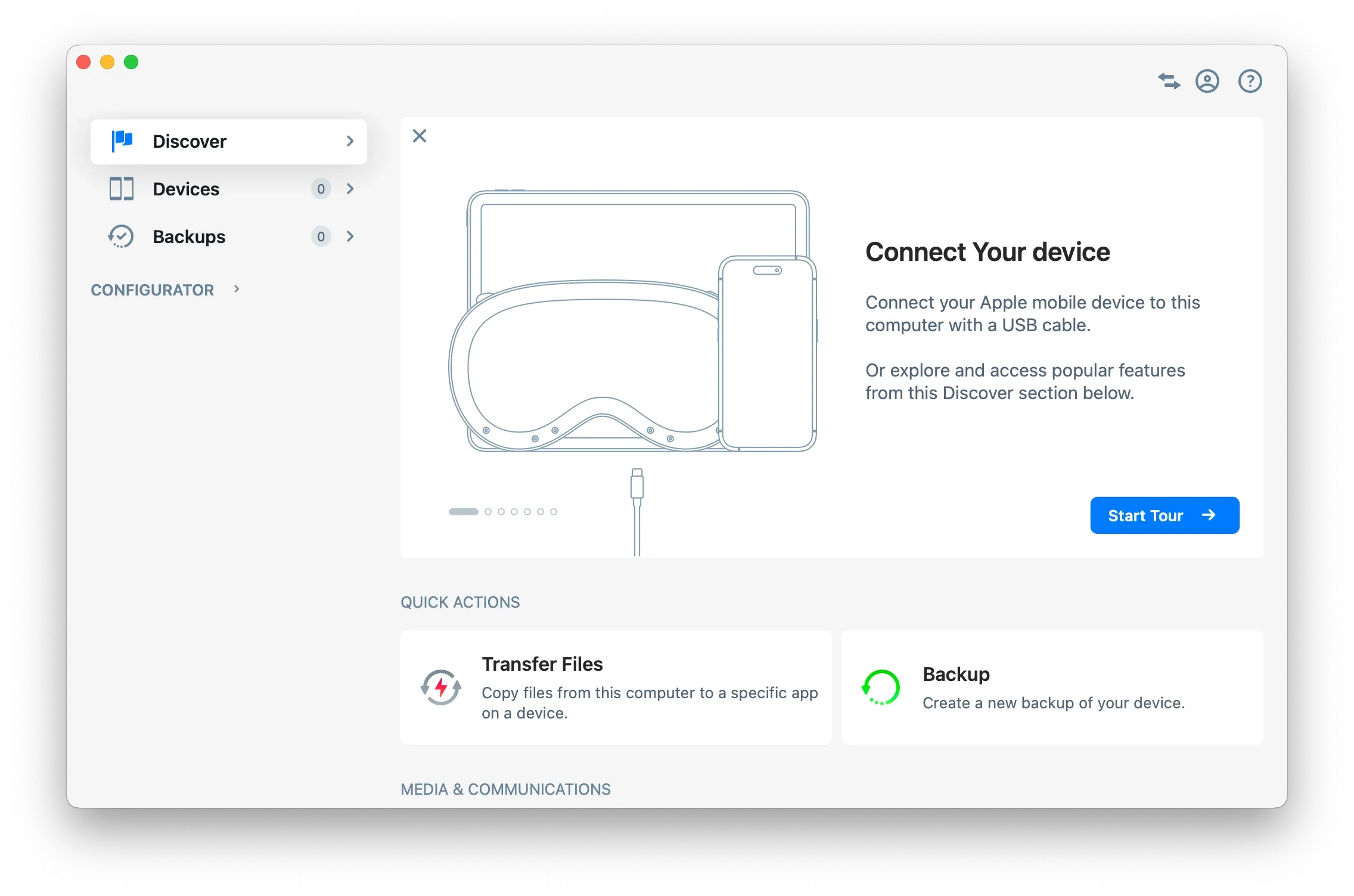
Launch iMazing on your computer
If you haven’t already, download and install iMazing. For more details please refer to our guide available for PC and for Mac.
Connect your device to your Mac or PC via USB
iMazing will prompt you to connect the device to your computer on the first time you're using it. To do so use a USB cable, and unlock the device using your passcode, Face ID or Touch ID, and follow the instructions for pairing.
Tip: For more details on connections and pairing refer to this guide.
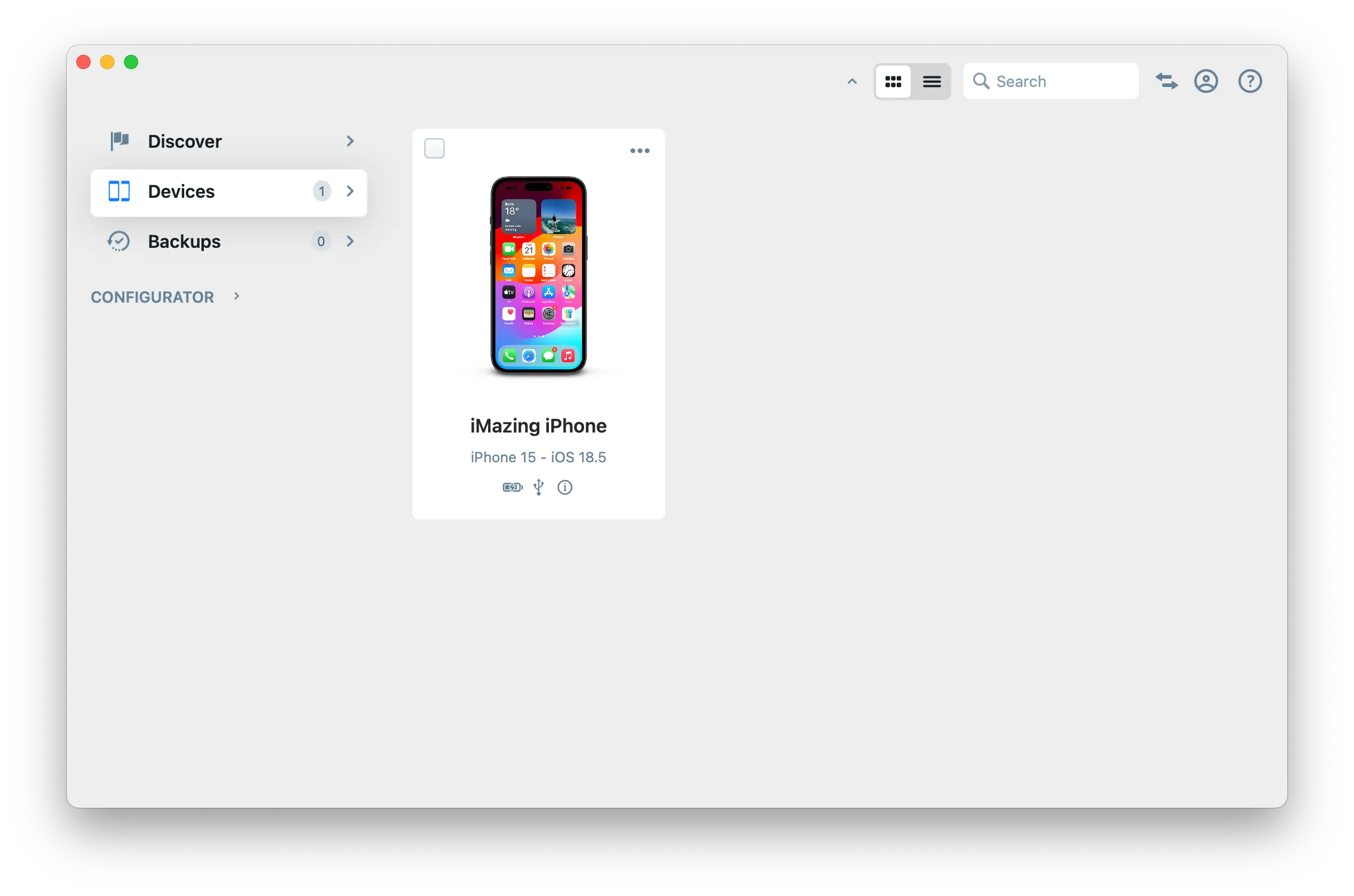
Click on Devices in the left pane
From the Devices view you will see all the devices previously connected and paired to your computer. Click to select a device.
Tip
Once your device is connected and paired, you can access any dataset or tool directly in iMazing:
View the datasets you can access
iMazing will display the Overview screen for the selected device. From here you can access all available datasets for that device. The top row shows the most commonly used datasets, such as Messages, Photos, Music, and more. If you don't see the dataset you want, click the More button in the top row to see all available datasets for that device.
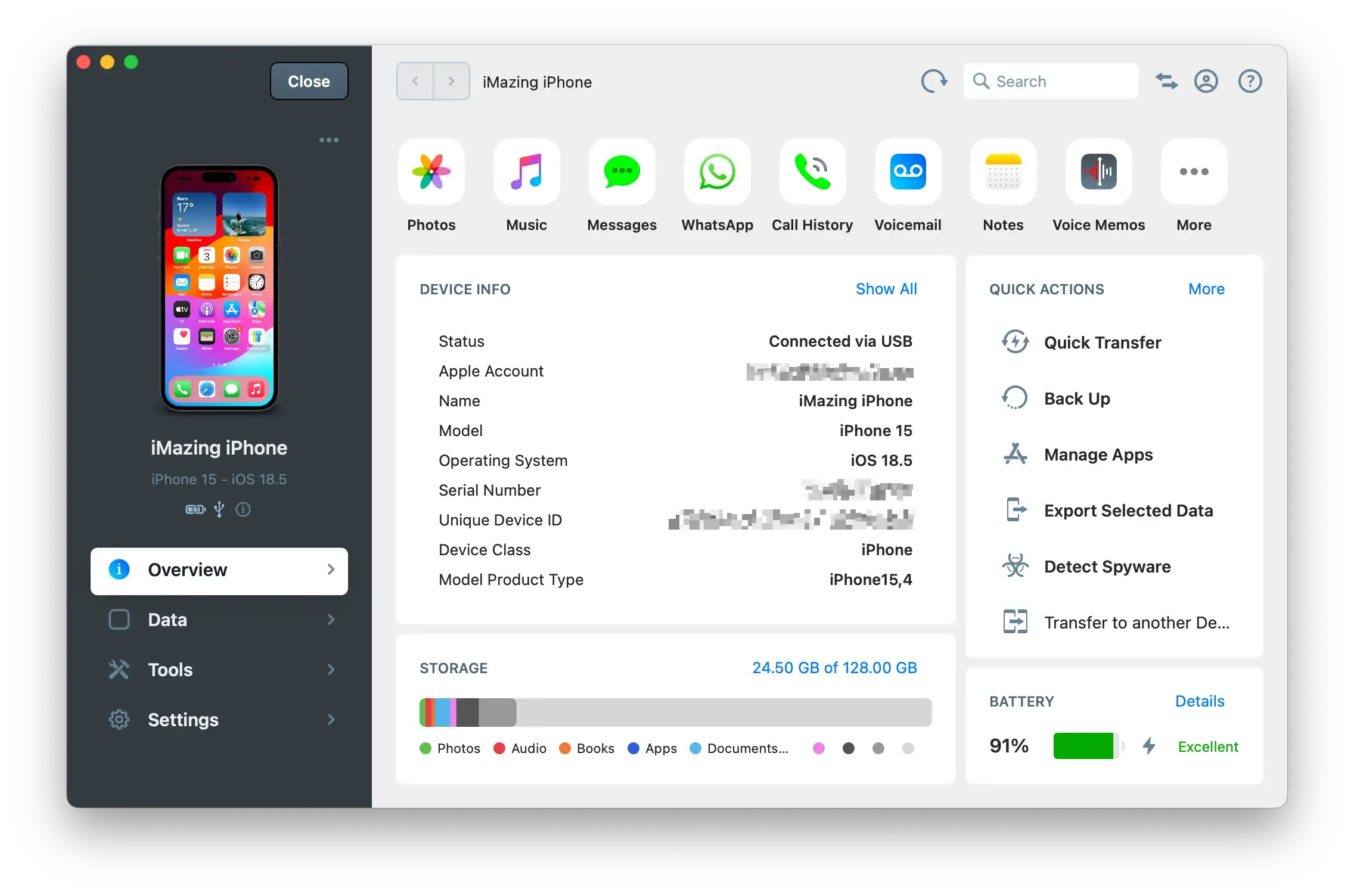
Tip: Altenatively, click on Data in the left pane to see every single dataset available for that device, including shortcuts to third party apps such as VLC and more.
Click on Books
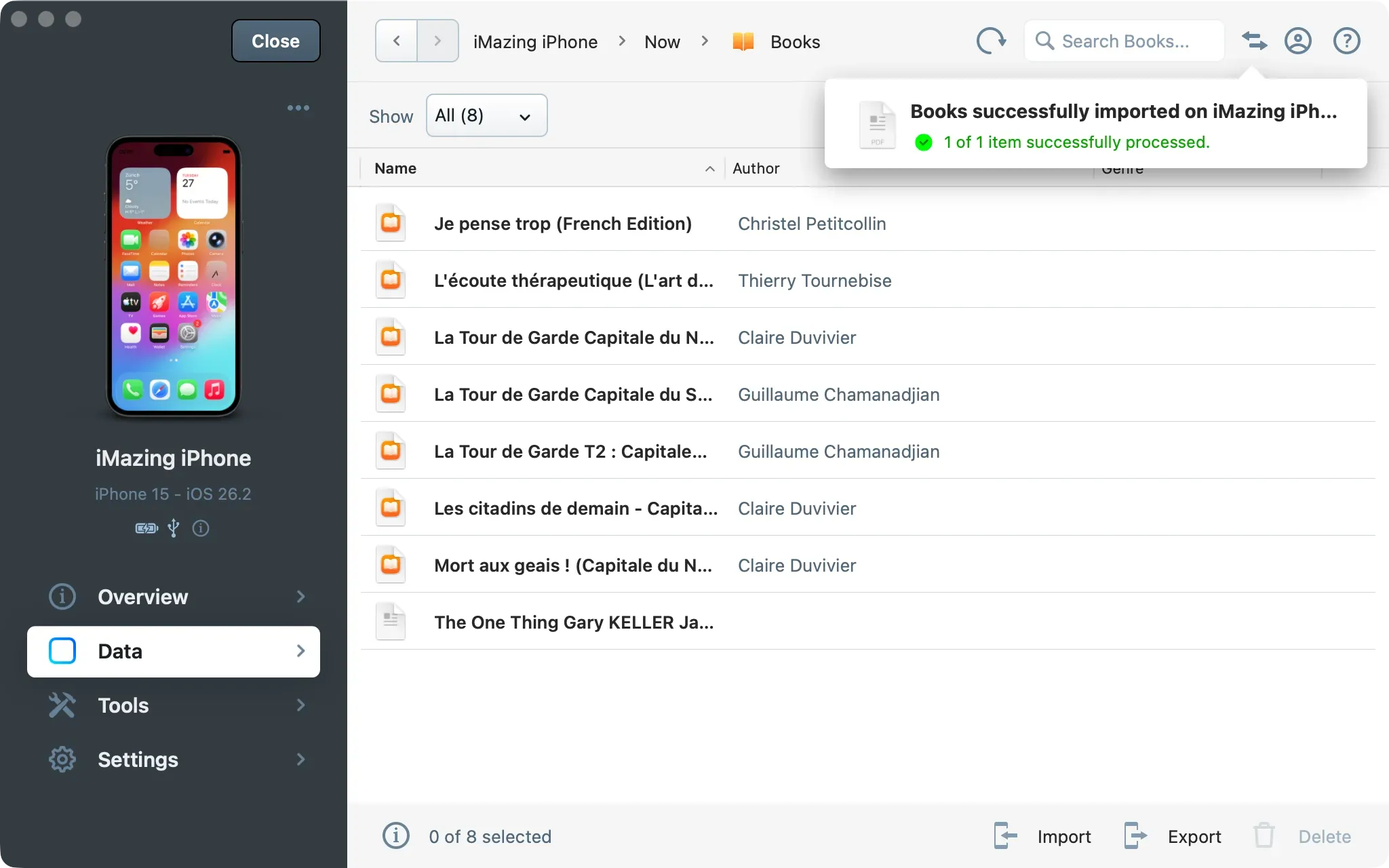
From the More button, you can click on Books. iMazing will load your device's e-books and PDFs.
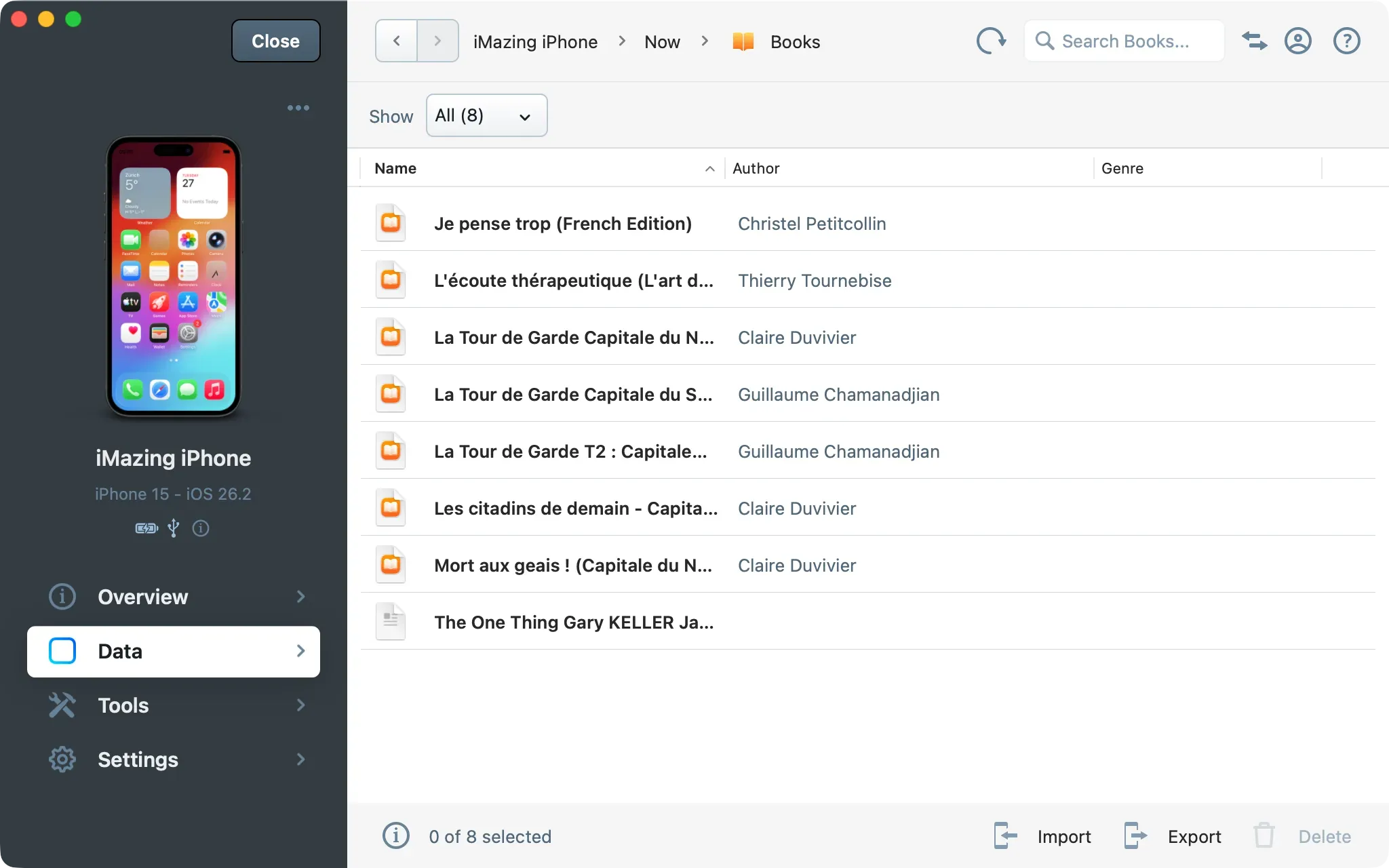
Import your PDF files
- Click the "Import" button in the toolbar at the bottom of the iMazing window.
iMazing displays a standard Open dialog prompting you to select a folder on your Mac or PC. - Select a PDF or a folder of PDFs to import.
Choose a single PDF, or, if you want to import a folder of PDFs, select that folder. If you want to import multiple folders of PDFs, you'll come back to this step after each folder has been transferred. - iMazing transfers the PDFs.
iMazing's Operations window shows the progress of the transfer, then, after the PDFs have been copied, reloads its window showing all your ebooks and PDFs. You can then quit iMazing and read the PDFs on your iPhone.