


Access an iPhone or iPad's Console Log
Updated on Apr 28, 2026
Reading time ~3 minutes
When an iPhone or iPad behaves unexpectedly, the device console gives you a direct view into what is happening at the system level. iMazing streams the live console log to your Mac or PC, lets you filter and pause the capture, and exports it to a file you can share with a developer or support team.
Common scenarios where the console may help: backup failures, iCloud sync errors, and app crashes. The log shows the exact process generating the error, which could help identify the root cause.
Here's how to record your device's activity using the device console log:
Open the device console
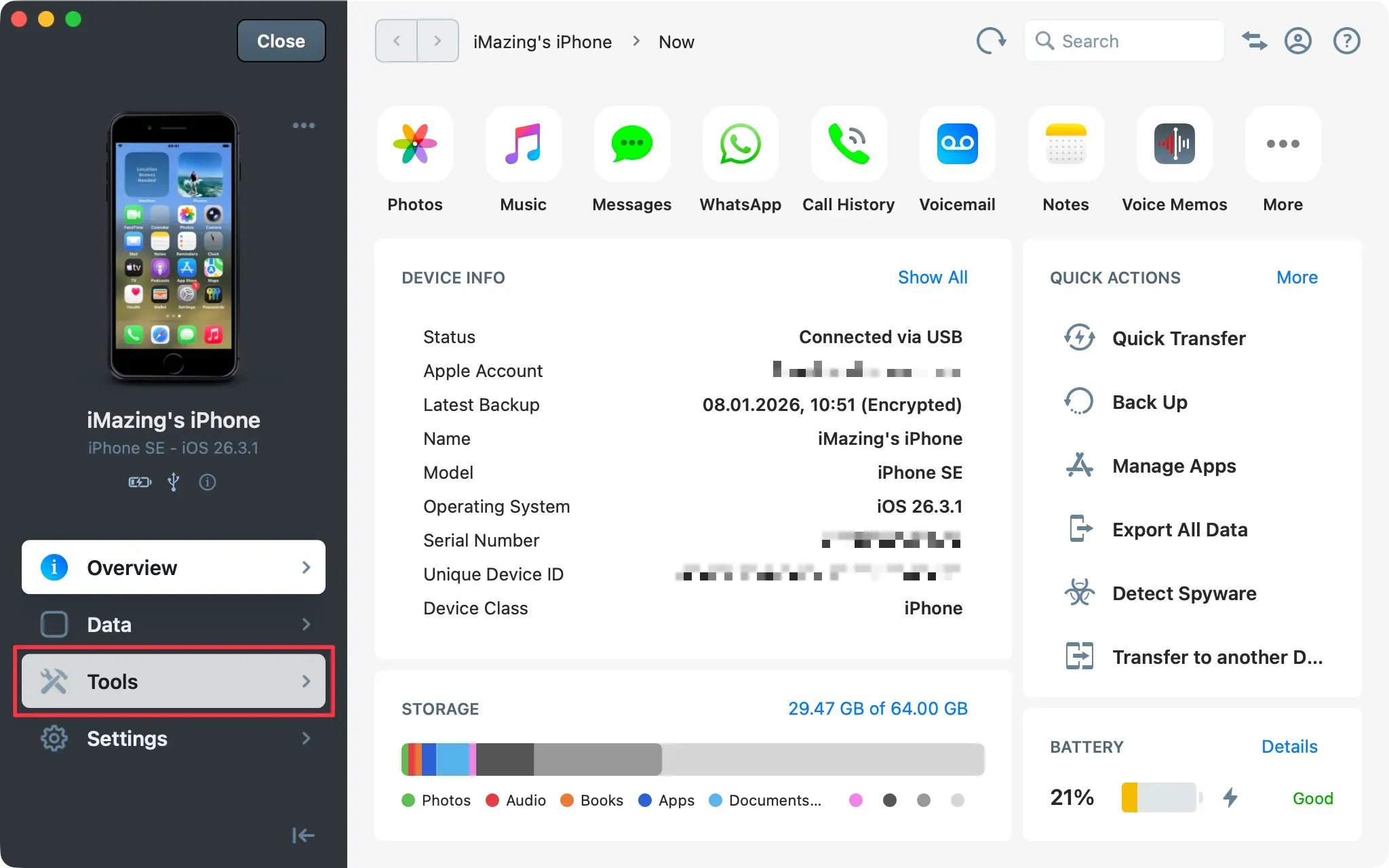
Select Tools
From the Device Screen sidebar, select Tools.
Open the Advanced category
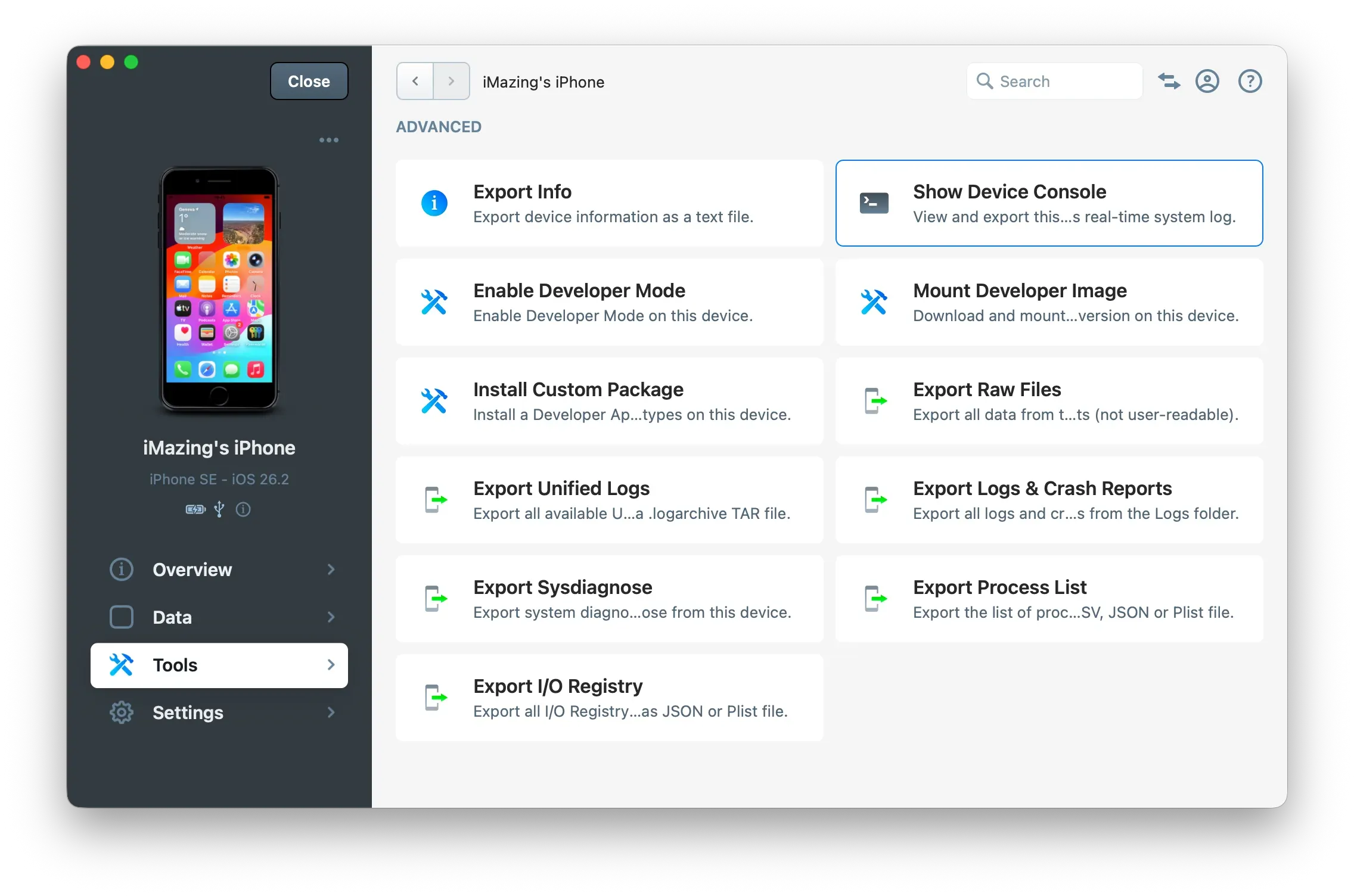
Scroll to and open the Advanced category in the Tools panel.
Click Show Device Console
Click Show Device Console. The console window opens and begins streaming live activity from the device.
Tip: Start the console before reproducing the issue. The console only captures activity from the moment it opens; entries from before that point are not available.
Review and export the log
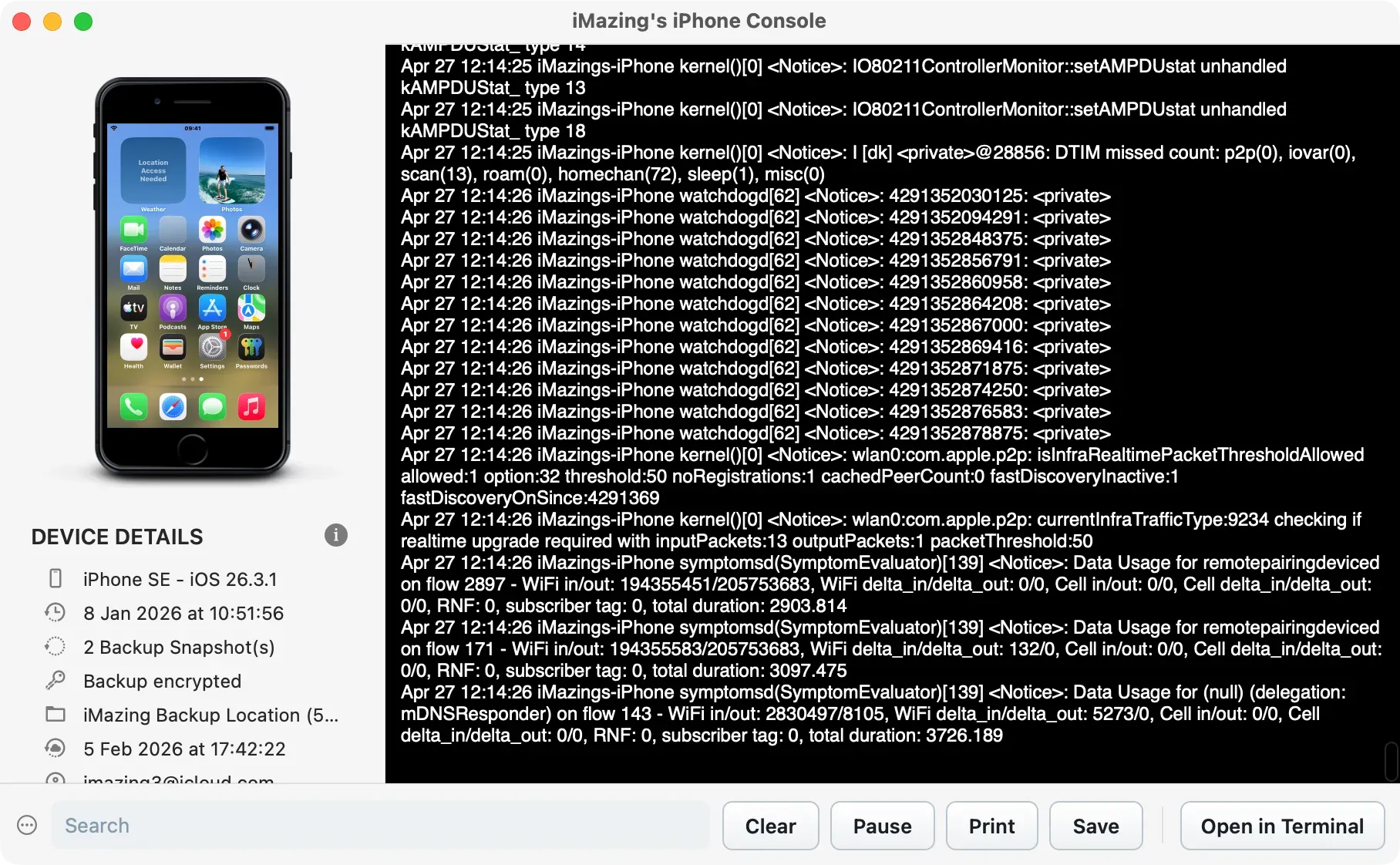
Once the console is open, you can filter, pause, print and save the log.
Filter the log with the search field
Type a keyword in the search field at the top of the console window. The log updates in real time to show only entries matching the search term.
Use process names like backupagent or symptomsd to isolate output from a specific subsystem. For backup failures, backupagent entries often identify the specific file or condition that caused the failure. For iCloud sync errors, try cloudd or bird.
Pause the live capture
Click Pause to freeze the capture at the current state.
Pausing is useful when the relevant entry has appeared in the log and you want to read it without new entries pushing it off screen.
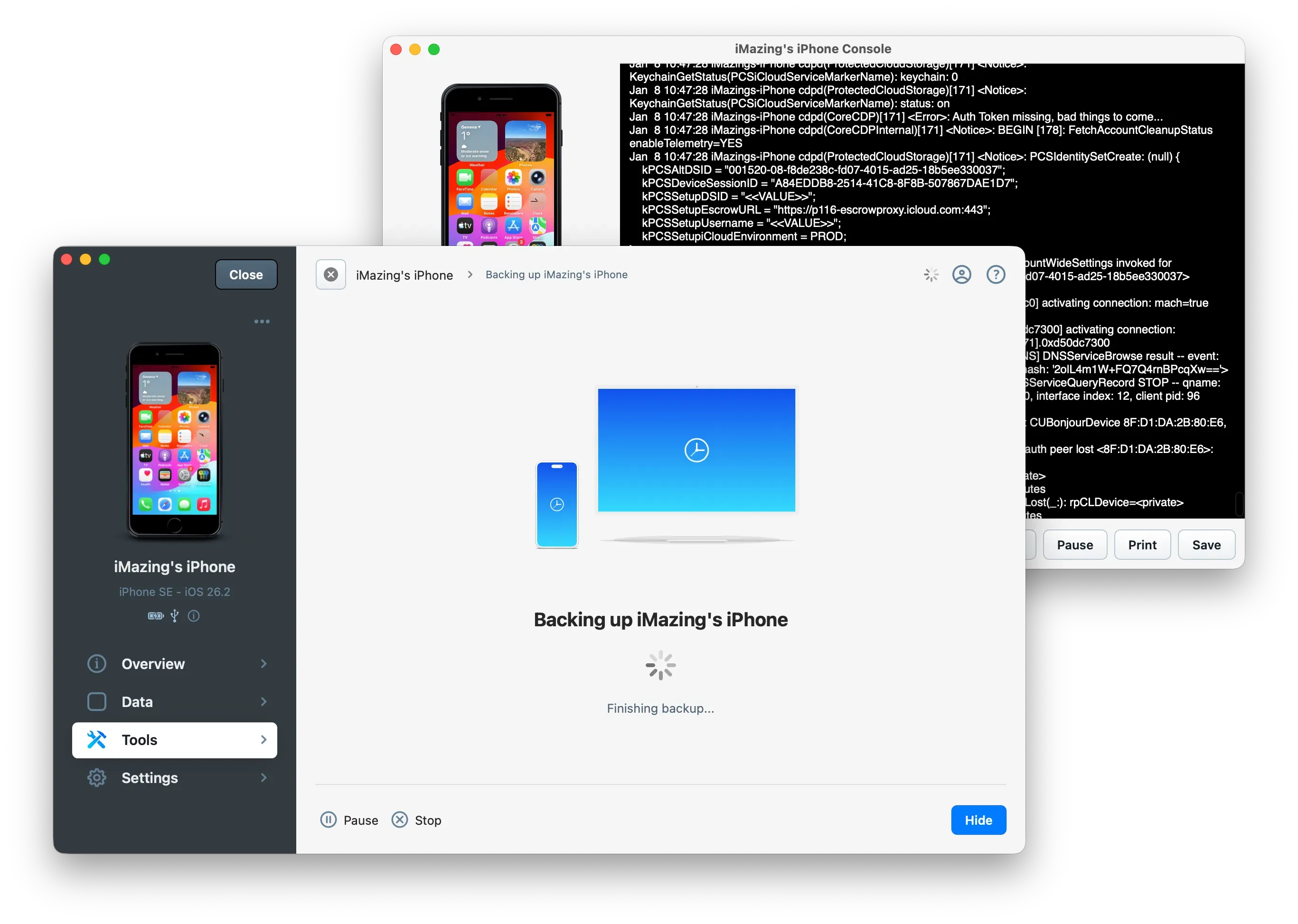
Important: Keep the console window open, even in the background, to continue capturing log data. Closing the window stops the capture.
Tip: Log files can grow large quickly on active devices. Use the search field to narrow the output before saving, or pause early to keep the file size manageable.
Save the log to a file
Click Save, choose a destination, and confirm.
iMazing exports the log as a .txt file containing all captured entries.
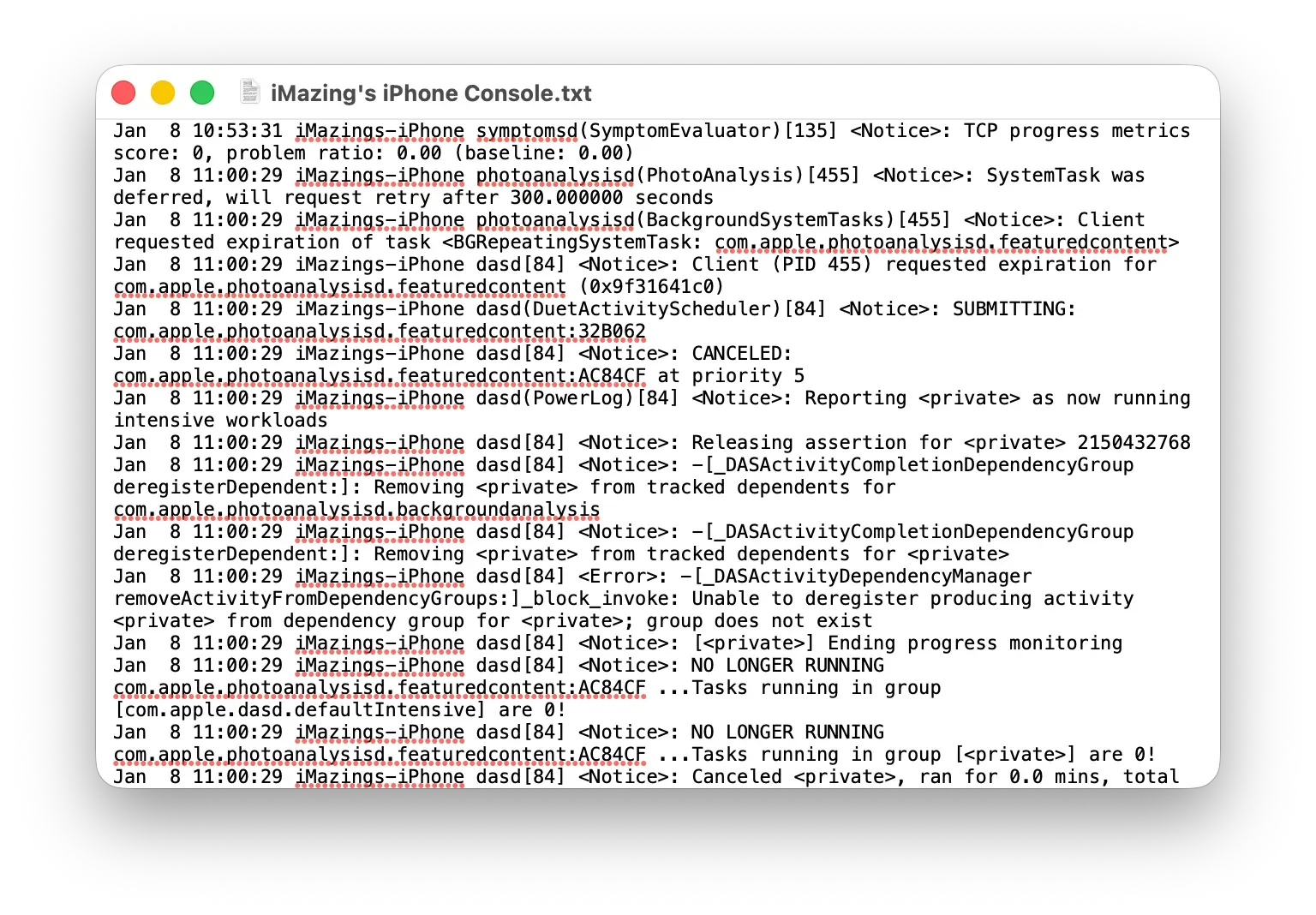
Tip: On macOS, rename the saved file's extension from
.txtto.log, then open it in the macOS Console app. Press Command + F and search for terms likebackupagentorwifidto filter by subsystem. The Console app parses.logfiles into structured columns (timestamp, process, message), which makes navigation faster than plain text. This option is not available on Windows.