


Export iPhone Safari History and Bookmarks to Mac or PC
Updated on Mar 17, 2026
Reading time ~3 minutes
Your iPhone stores several types of data on your iPhone for the Safari web browser:
- History, the websites you have visited.
- Bookmarks, the websites you have saved to visit again.
- Reading List, articles you have saved to read later.
While these items sync to your iCloud account, you may need to access them on your Mac or PC. You may want to transfer them easily to another web browser, or view them on a computer where you are not signed into iCloud. You may also want to recover these items from a backup (made by either iMazing or iTunes) if you've lost your iPhone and need to access this information. iMazing can help, allowing you to export each of these types of data in Excel, CSV (comma-separated values) or HTML format.
Here's how to export iPhone Safari history and bookmarks to Mac or PC
Before you begin
Always make sure you are running the latest iMazing version, to do so select Check for Updates from the iMazing menu, or just download the latest available version for your computer below.
Download and install iMazing
Launch iMazing on your computer
If you haven’t already, download and install iMazing. For more details please refer to our guide available for PC and for Mac.
Connect your device to your Mac or PC via USB
iMazing will prompt you to connect the device to your computer on the first time you're using it. To do so use a USB cable, and unlock the device using your passcode, Face ID or Touch ID, and follow the instructions for pairing.
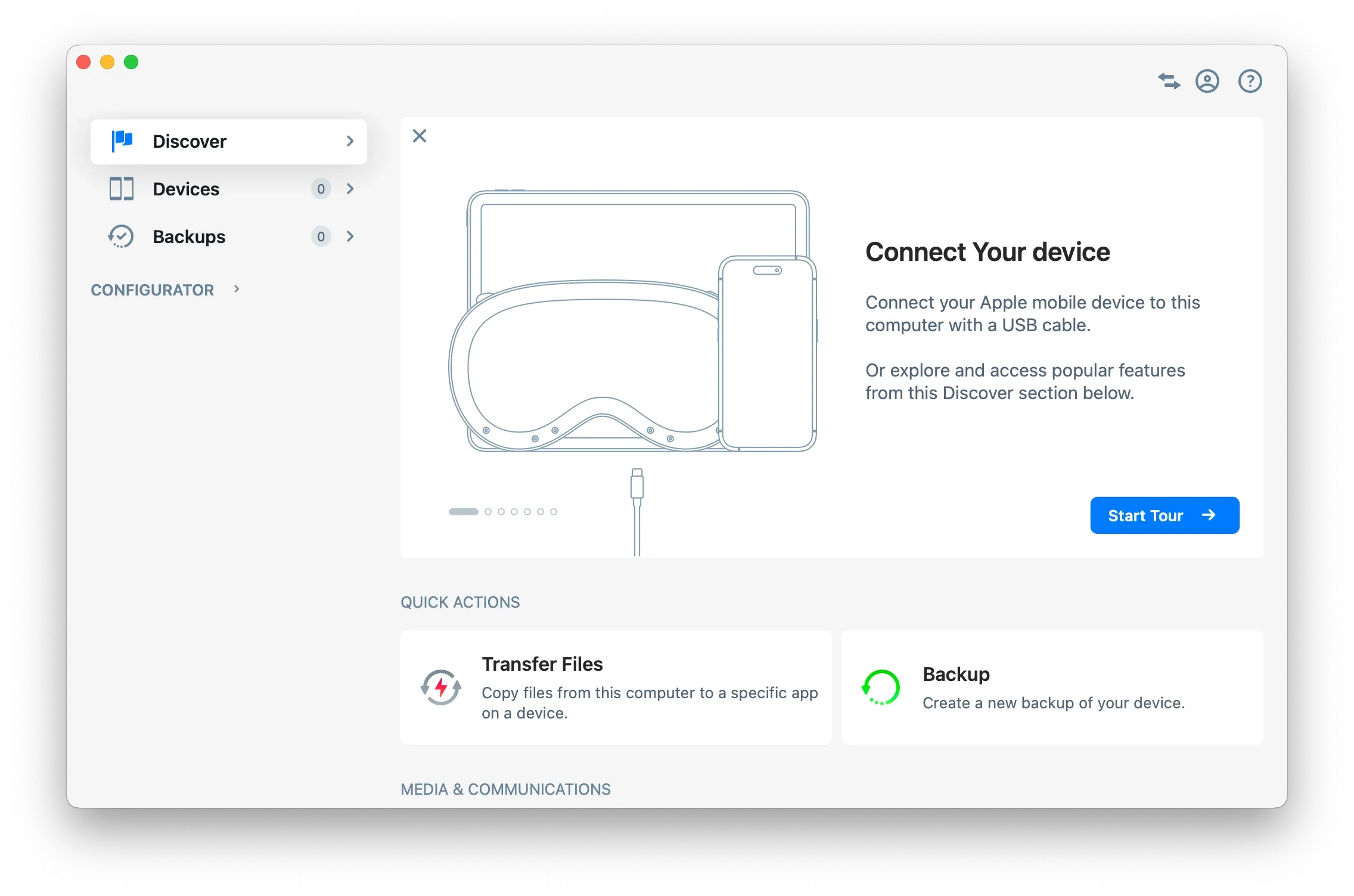
Tip: For more details on connections and pairing refer to this guide.
Click on Devices in the left pane
From the Devices view you will see all the devices previously connected and paired to your computer. Click to select a device.
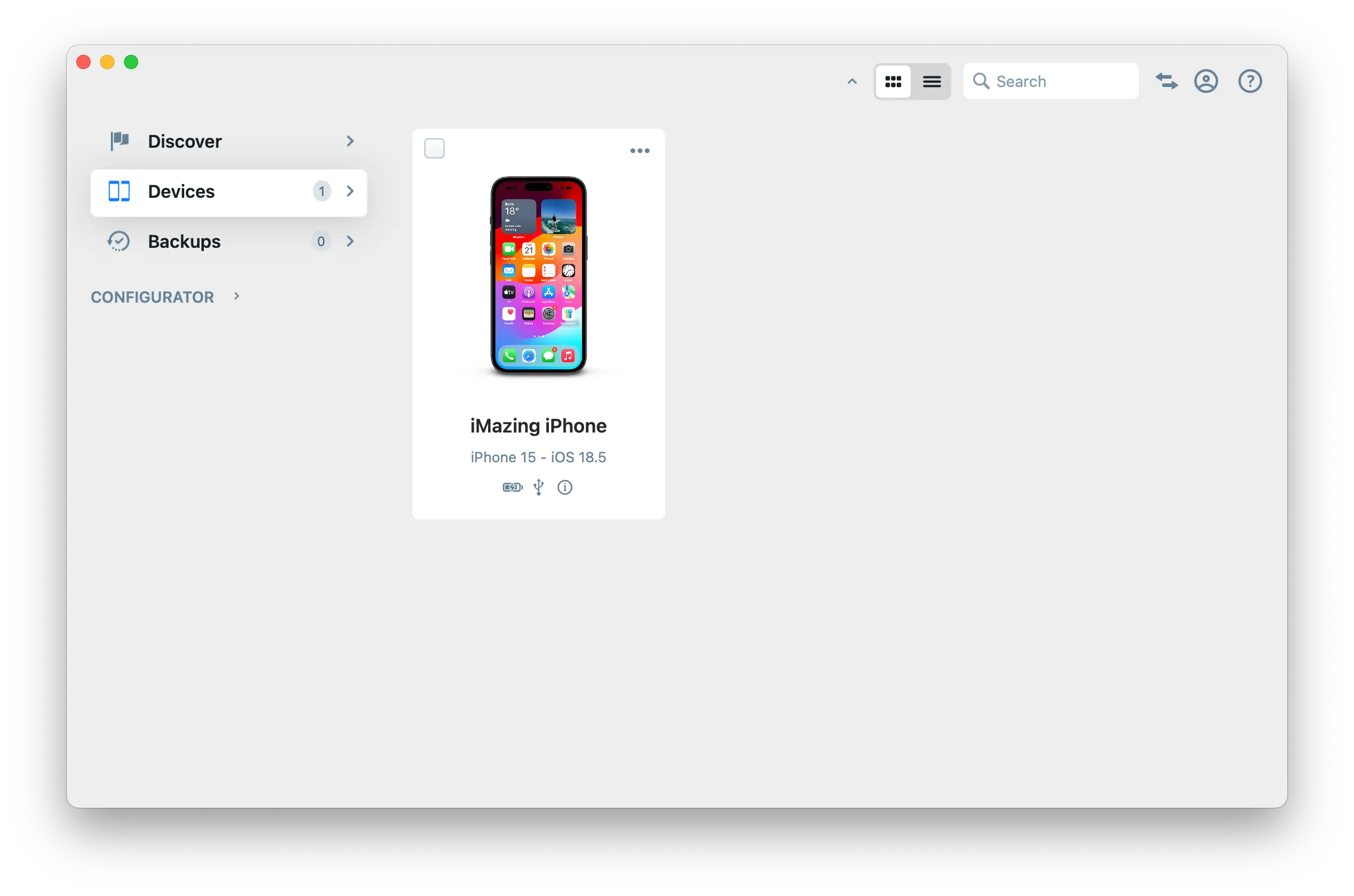
Tip
Once your device is connected and paired, you can access any dataset or tool directly in iMazing:
View the datasets you can access
iMazing will display the Overview screen for the selected device. From here you can access all available datasets for that device. The top row shows the most commonly used datasets, such as Messages, Photos, Music, and more. If you don't see the dataset you want, click the More button in the top row to see all available datasets for that device.
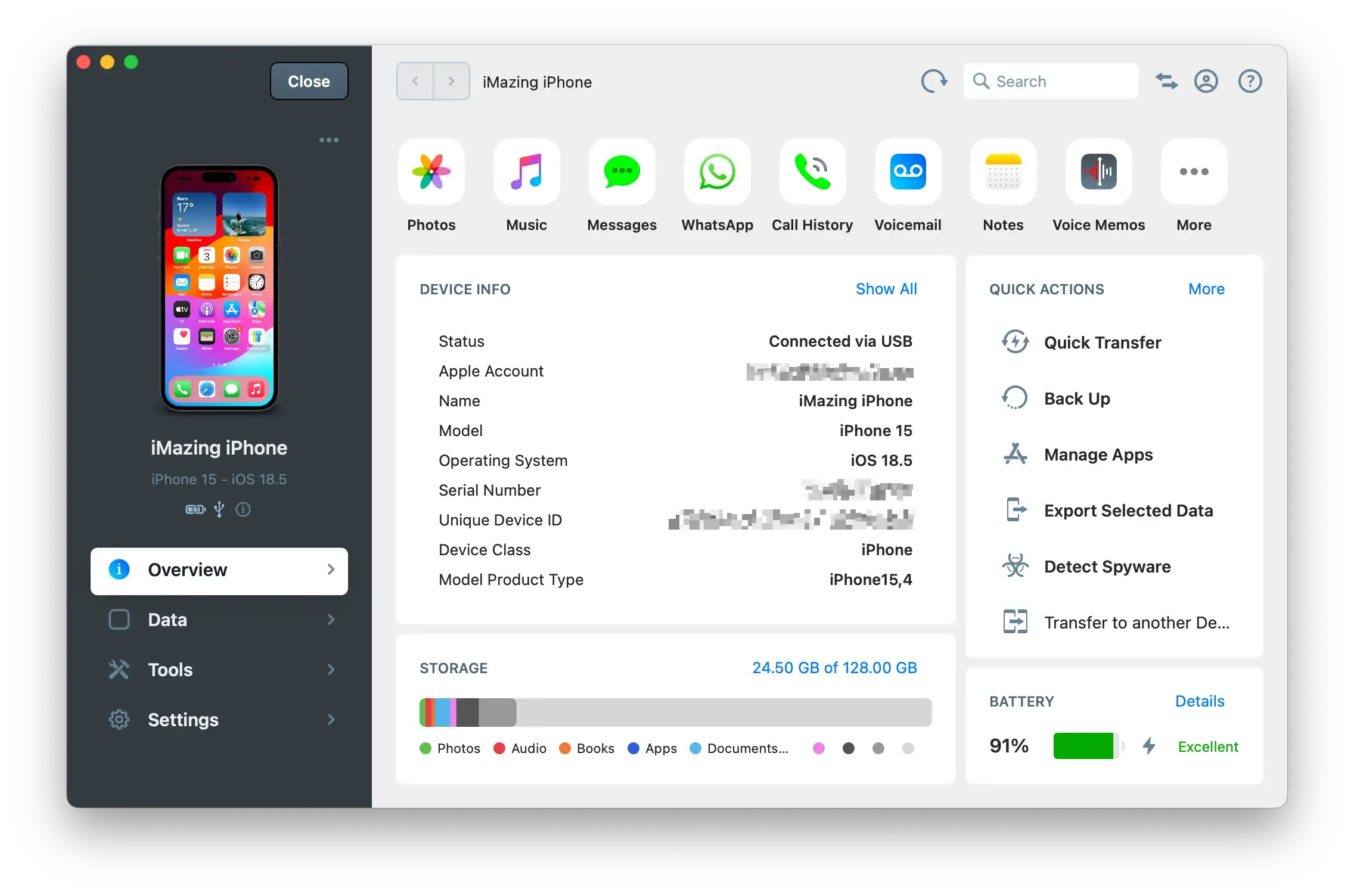
Tip: Altenatively, click on Data in the left pane to see every single dataset available for that device, including shortcuts to third party apps such as VLC and more.
Export Safari History
To export your history click on Safari History.
If this is the first time, iMazing will need to do a backup to access those data.
Make sure that encrypted backups are enabled (Safari history only)
If you wish to access Safari history, you must first enable backup encryption for your device. This is necessary because Safari history is only accessible via an encrypted backup.
Select the items you want to export
Select one or more items, then click Export and choose the file format.
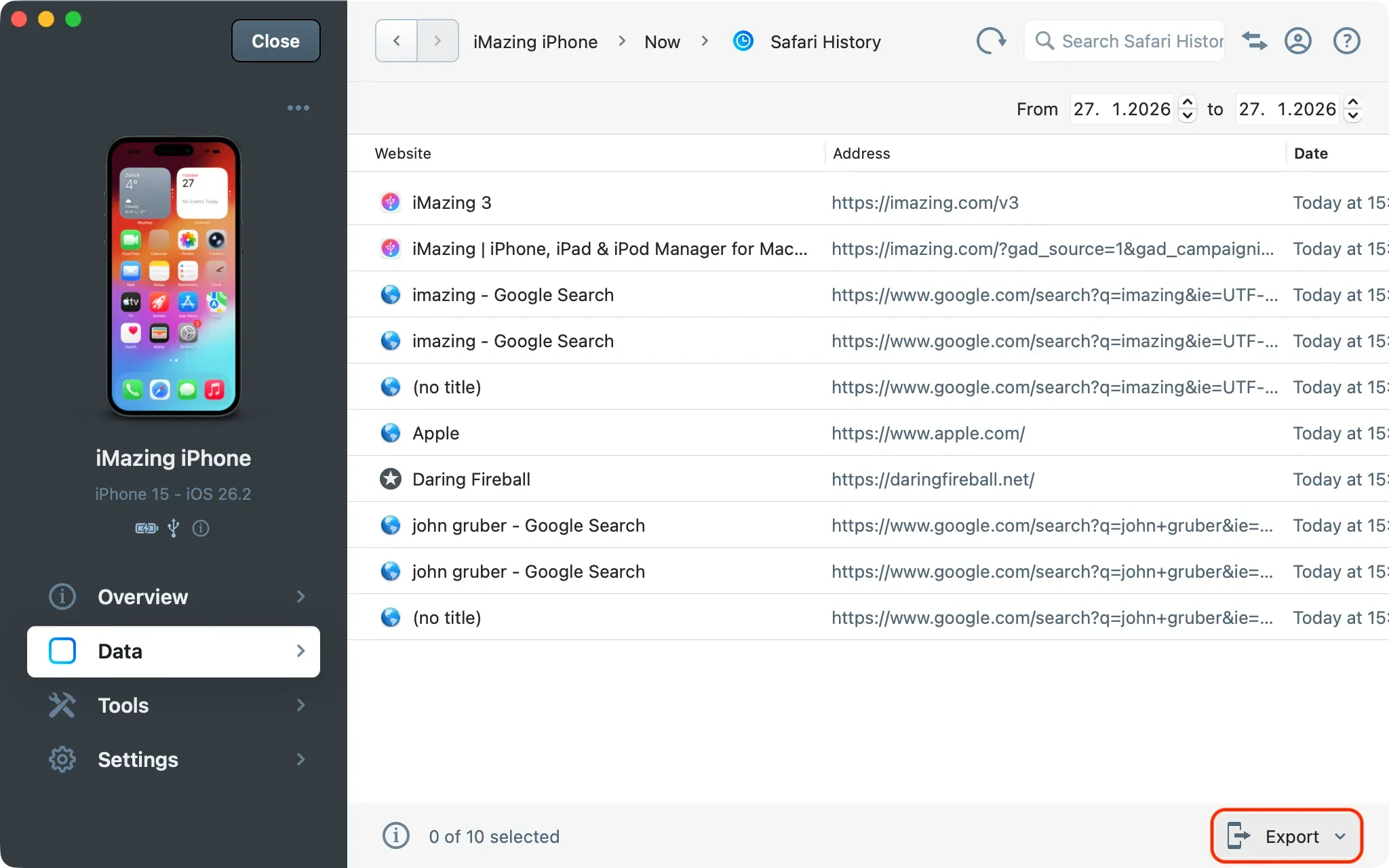
Tip: Use the CTRL/Command, or SHIFT keys to select multiple items.
If you export items to Excel or CSV format, you will be able to import them into a spreadsheet such as Excel or Apple Numbers. The spreadsheet will be laid out with one row for each history item, and will contain data such as the last date visited, the name of the website and the exact URL, the website that redirected to that page, and the number of visits made to that page.
If you export in HTML format, you'll have a file that you can open as web page in any browser. All history items will show as links, and you can click them or import them to another browser.
Export Safari Bookmarks
From the Data view, click on Safari Bookmarks. As for Safari History, you can choose to export one or multiple item's.
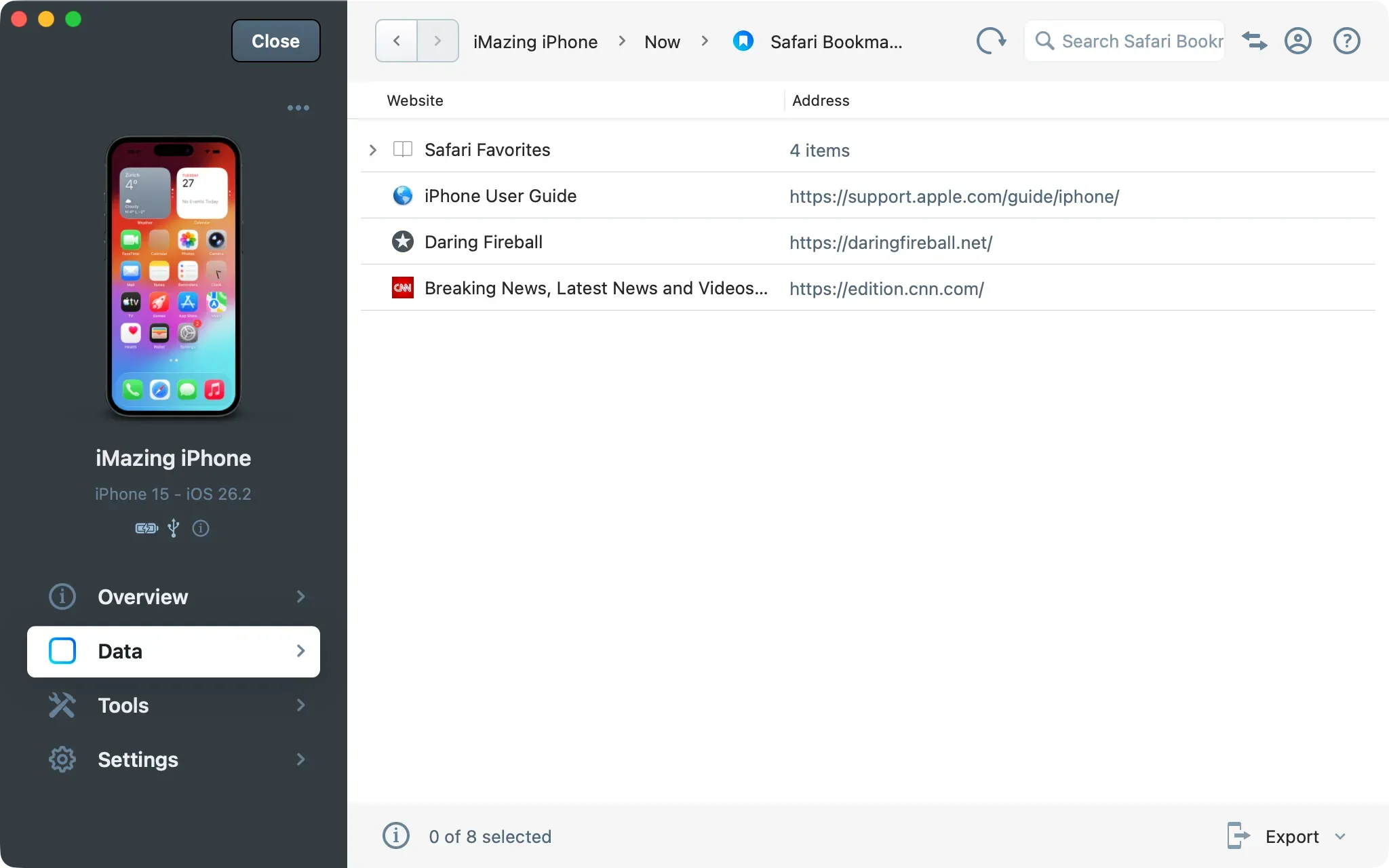
Tip: To import bookmarks to Chrome, save them as an HTML file. Then, in Chrome, go to your Bookmarks, click the ··· menu and choose Import Bookmarks. Select the file, and Chrome will add all your bookmarks.
Export your Safari Reading List
From the Data view, click on Safari Reading List and choose the items you want to export. You can select one or multiple items.
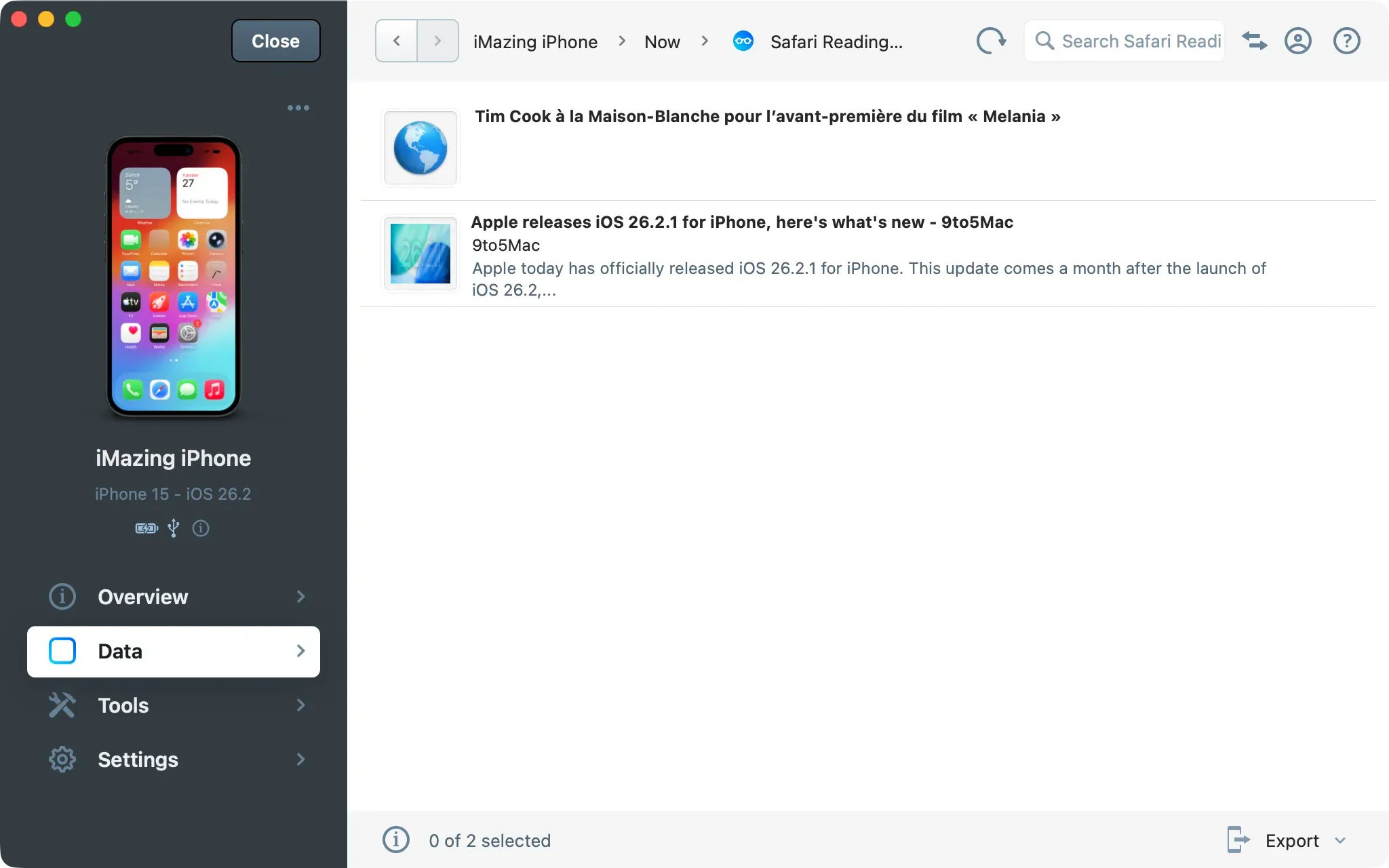
If you export items to Excel or CSV format, you will be able to import them into a spreadsheet such as Excel or Apple Numbers. The spreadsheet will be laid out with one row for each Reading List item, and will contain the name of the page, the URL, the last date you visited the URL, and whether you have read the article or not.
If you export in HTML format, you'll have a file that you can open as web page in any browser. All Reading List items will show as links, and you can click them or import them to another browser.