


Add ringtones to iPhone
Updated on Mar 9, 2026
Reading time ~4 minutes
Everyone loves ringtones. You can express your personality and musical preferences by customizing the ringtone on your iPhone. This is usually done by purchasing ringtones in the iOS Tone Store, or syncing your own tracks to your iPhone with iTunes, which can be a real pain…
On the other hand, iMazing lets you both import and export ringtones to and from your iPhone, and offers this feature in the free version too. You can use iMazing to copy audio files to your device to use as your own custom ringtones. And you can use iMazing to export your existing ringtones to your computer, allowing you to easily transfer your ringtones to Android.
Here's how to add ringtones to your iPhone:
Before you begin
Always make sure you are running the latest iMazing version, to do so select Check for Updates from the iMazing menu, or just download the latest available version for your computer below.
Download and install iMazing
In-Depth Tutorial
Launch iMazing and connect your device
Launch iMazing and connect your device to your Mac or PC.
If you have enabled Wi-Fi connection for that device, you’ll be able to use it without a wired connection.
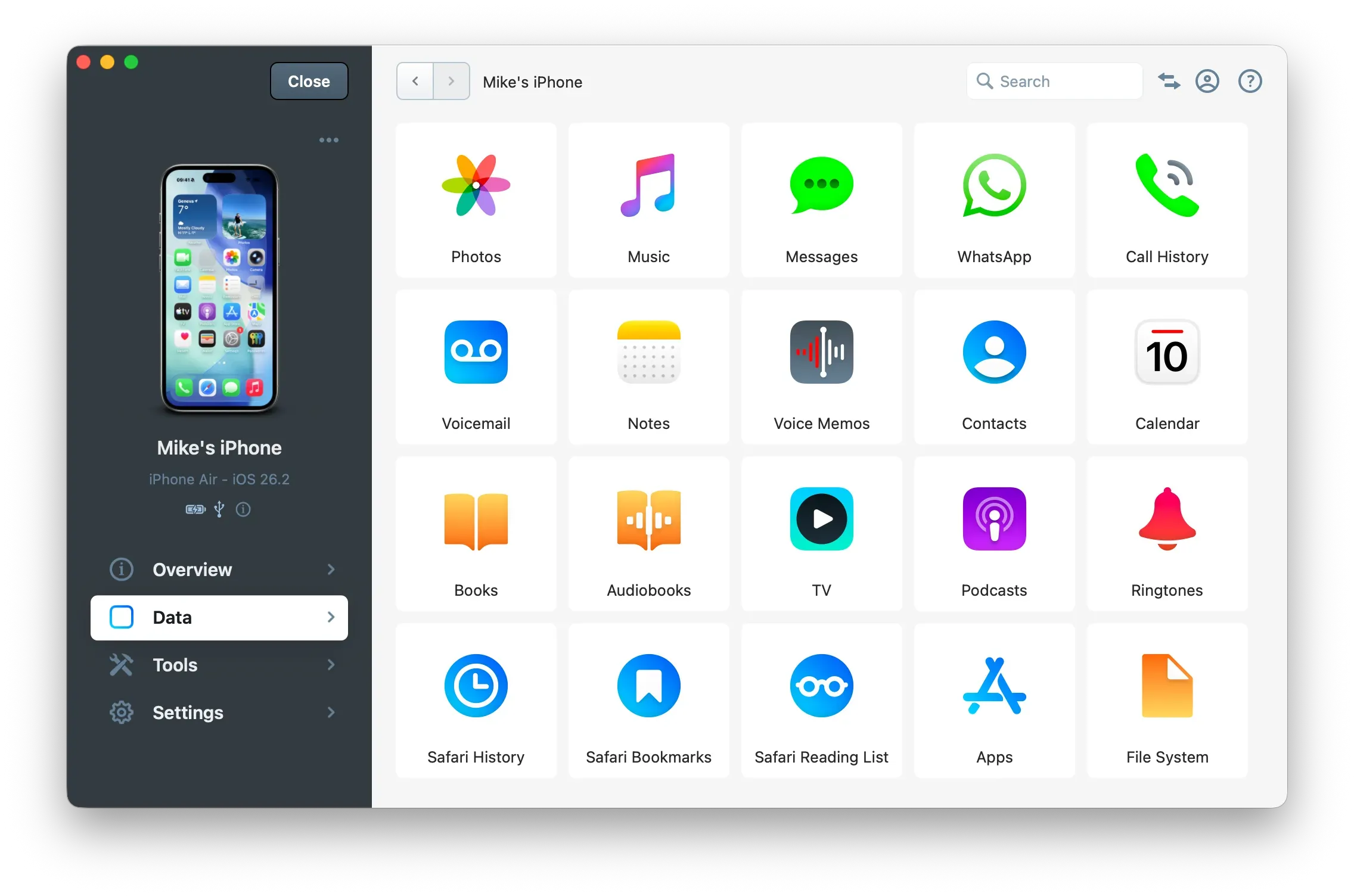
Navigate to the Ringtones view
Once you've selected your device from the Devices view, you can access iMazing's ringtones from the Data view by clicking the Ringtones icon, or in the Overview section by clicking on More ().
iMazing loads all ringtones on your device and displays them in a list. For each ringtone, iMazing shows the name and duration. If you purchased ringtones from the iTunes Store or added your own, iMazing also displays the artist and album name (if this metadata is available).
Note: iMazing only displays those tones that you have added to your device - it does not display the default tones that are included with iOS.
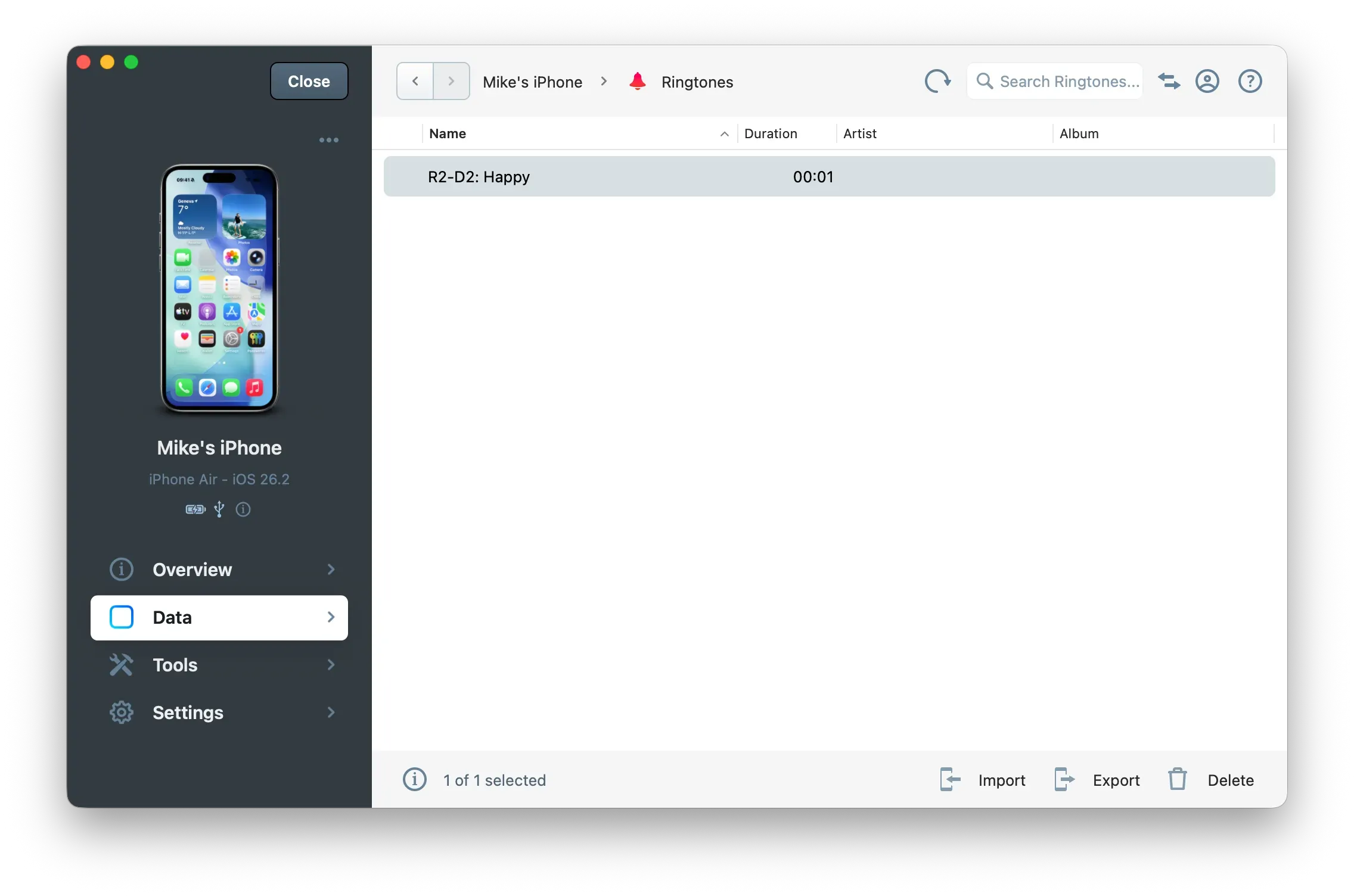
Tip: You can play any ringtone you see in iMazing. Just double-click any item in the list, or, if you're using a Mac, select an item and press the spacebar.
Adding ringtones to your iPhone
Drag a file that you want to use as a ringtone to the ringtones list in iMazing. iMazing will copy it to your device. You can use any of the following file types for ringtones:
Extension | Encoding |
|---|---|
.mp3 | MP3 |
.m4a or .m4r | AAC and Apple Lossless (ALAC) |
.flac | FLAC |
.wav | PCM |
.aiff | PCM |
You can also click the Import button, pick a compatible audio file from your computer, then click Select.
Audio files which are protected by DRM cannot be imported. This includes some older iTunes Store files and Apple Music files.
Select the Ringtone on your iPhone
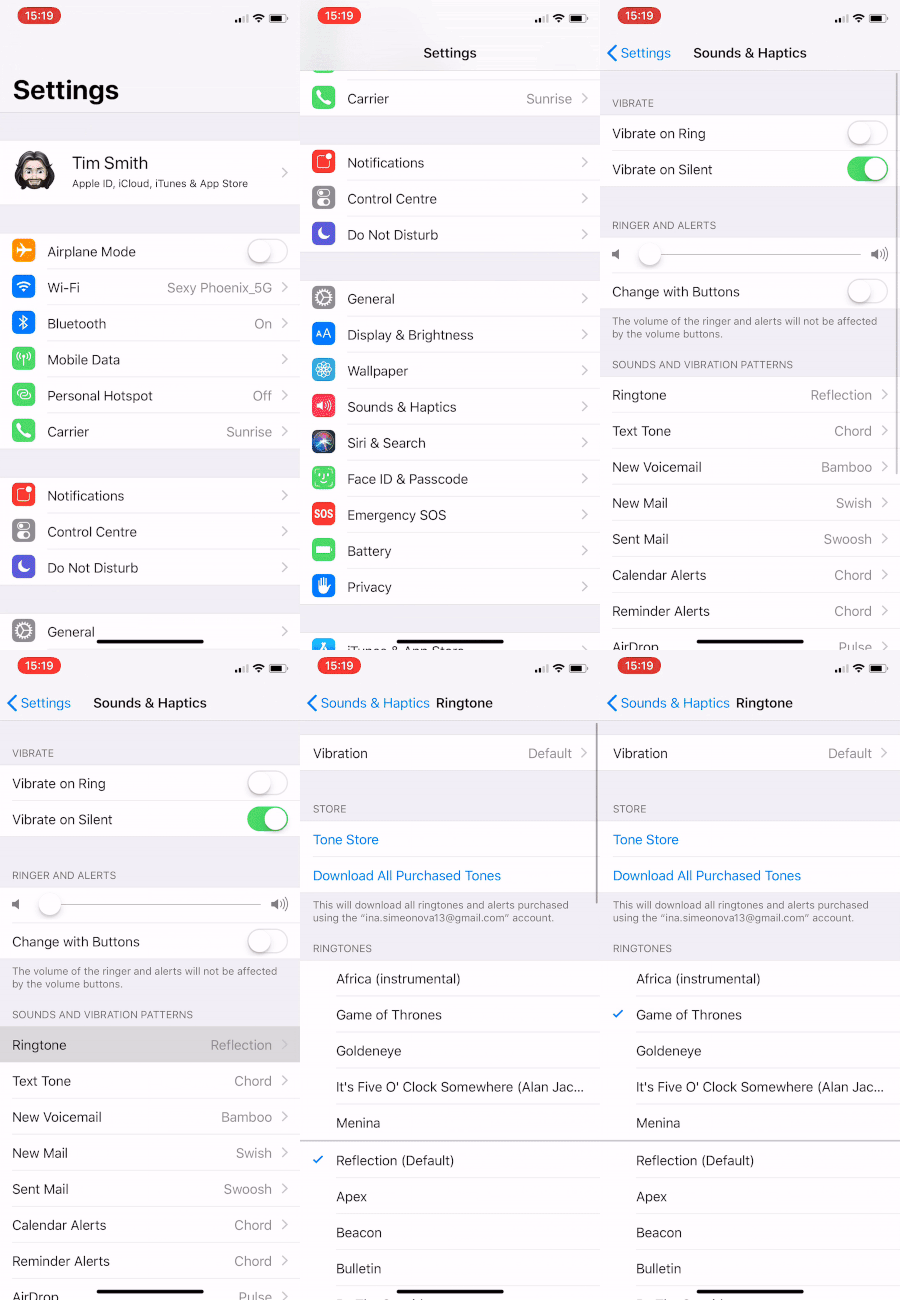
Once iMazing has finished transferring the file or files, open the Settings app on your iPhone or iPad and tap the Sounds and Haptics button. You can set the default ringtone there.
Setup contact specific ringtone
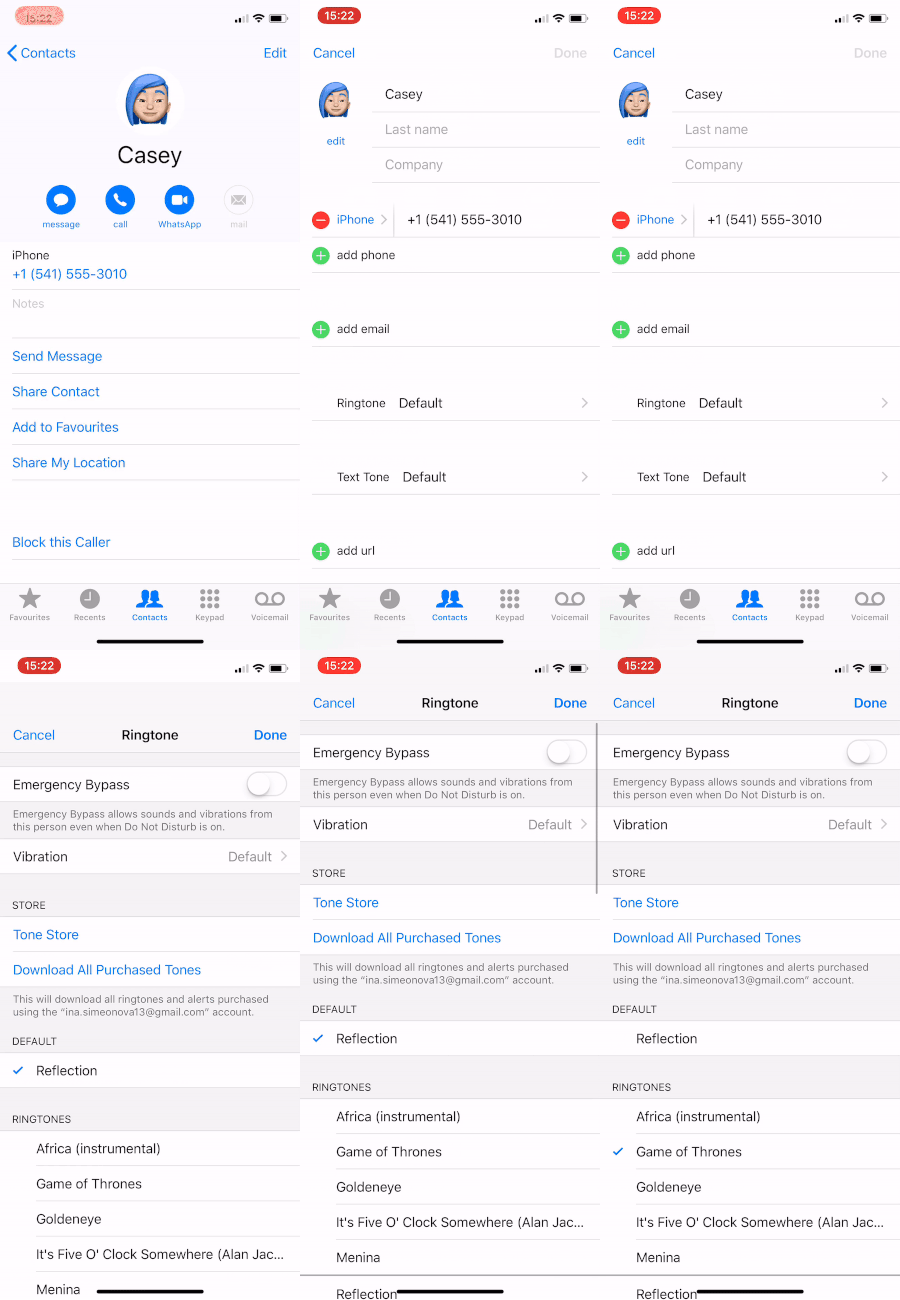
To set a contact specific ringtone, open the Contacts app, pick the contact you wish to set a custom ringtone for, and tap Edit. You can then tap the Ringtone button and pick from the tones you imported with iMazing.
Exporting ringtones
Select a ringtone, or multiple ringtones, and drag your selection to your desktop or to a folder on your computer. Alternatively, you can click the Export button to export your selection to the location of your choice.
Ringtones you've exported can then be imported to a new phone just as easily.
Some ringtones purchased from Apple's Tone Store are protected by DRM and will not play. In general, recent tones are DRM free.
Deleting ringtones
To remove ringtones from your iOS device, select one or more ringtones then click Delete. Note that you cannot delete ringtones that you have purchased from the iTunes Store.
Going Further: Customize iPhone Sounds
Audio imported as ringtones can also be used to customize your alarm tone and all sorts of alert sounds on your iPhone. Read this guide for more details about making your iPhone dance to YOUR tune!