


Customize iPhone ringtones and notification sounds
Updated on Mar 9, 2026
Reading time ~3 minutes
You probably know that you can change the ringtone on your iPhone. What you may not know, is that you can customize many sounds on your iOS device - in fact, nearly all iPhone notification sounds can be changed to your own music or fun effects:
- Alarm tones
- Received iMessage/SMS tone
- New Voicemail tone
- Email Received/Email Sent sounds
- Incoming Airdrop alert
- Calendar Event/Reminder notification sounds
iMazing makes this easy. It lets you copy almost any audio file to your device and use it as an iPhone ringtone or alert tone. You can even do this with the free version.
Here's how to customize iPhone notification sounds:
Before you begin
Always make sure you are running the latest iMazing version, to do so select Check for Updates from the iMazing menu, or just download the latest available version for your computer below.
Download and install iMazing
Launch iMazing on your computer
If you haven’t already, download and install iMazing. For more details please refer to our guide available for PC and for Mac.
Connect your device to your Mac or PC via USB
iMazing will prompt you to connect the device to your computer on the first time you're using it. To do so use a USB cable, and unlock the device using your passcode, Face ID or Touch ID, and follow the instructions for pairing.
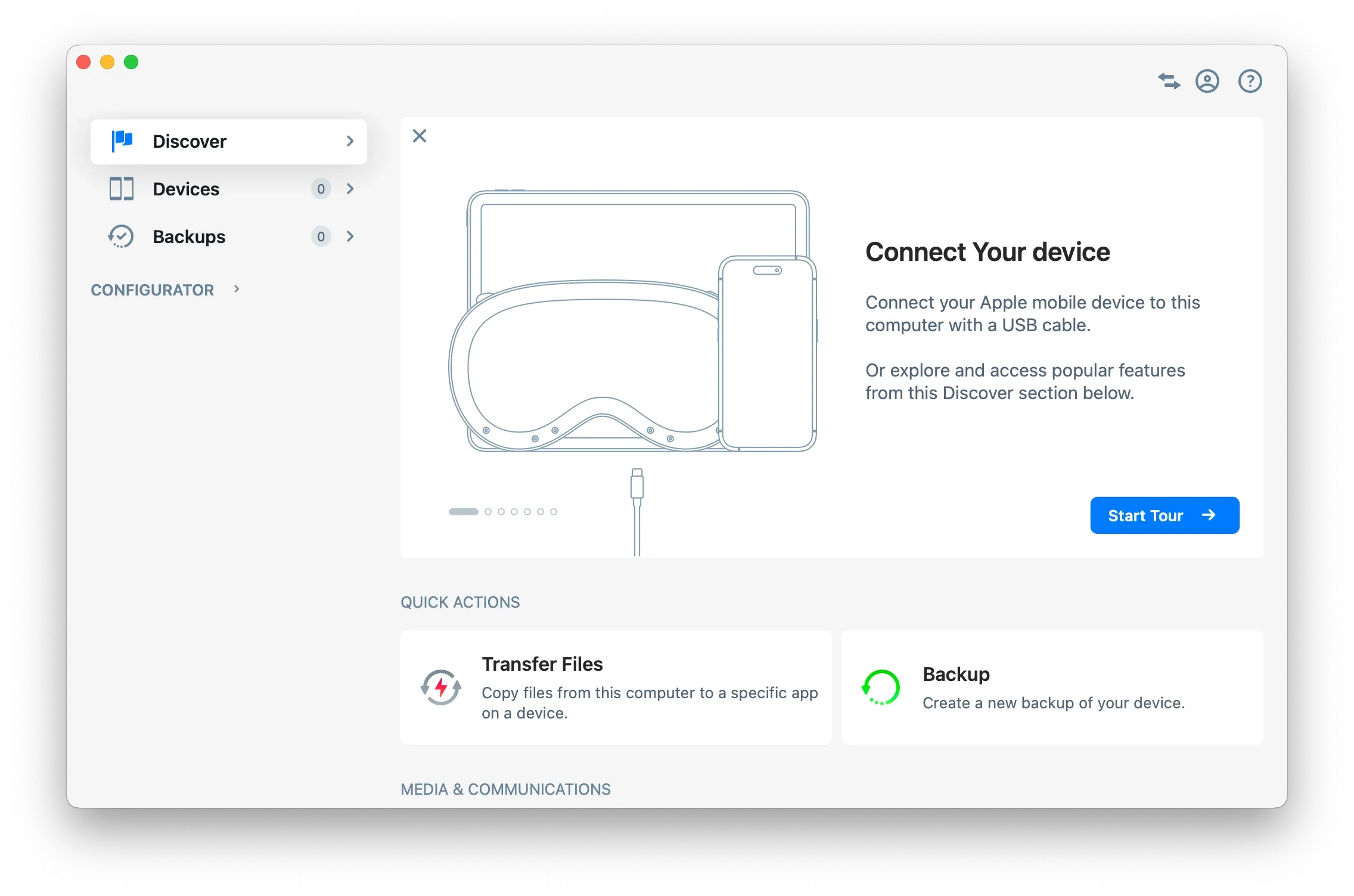
Tip: For more details on connections and pairing refer to this guide.
Click on Devices in the left pane
From the Devices view you will see all the devices previously connected and paired to your computer. Click to select a device.
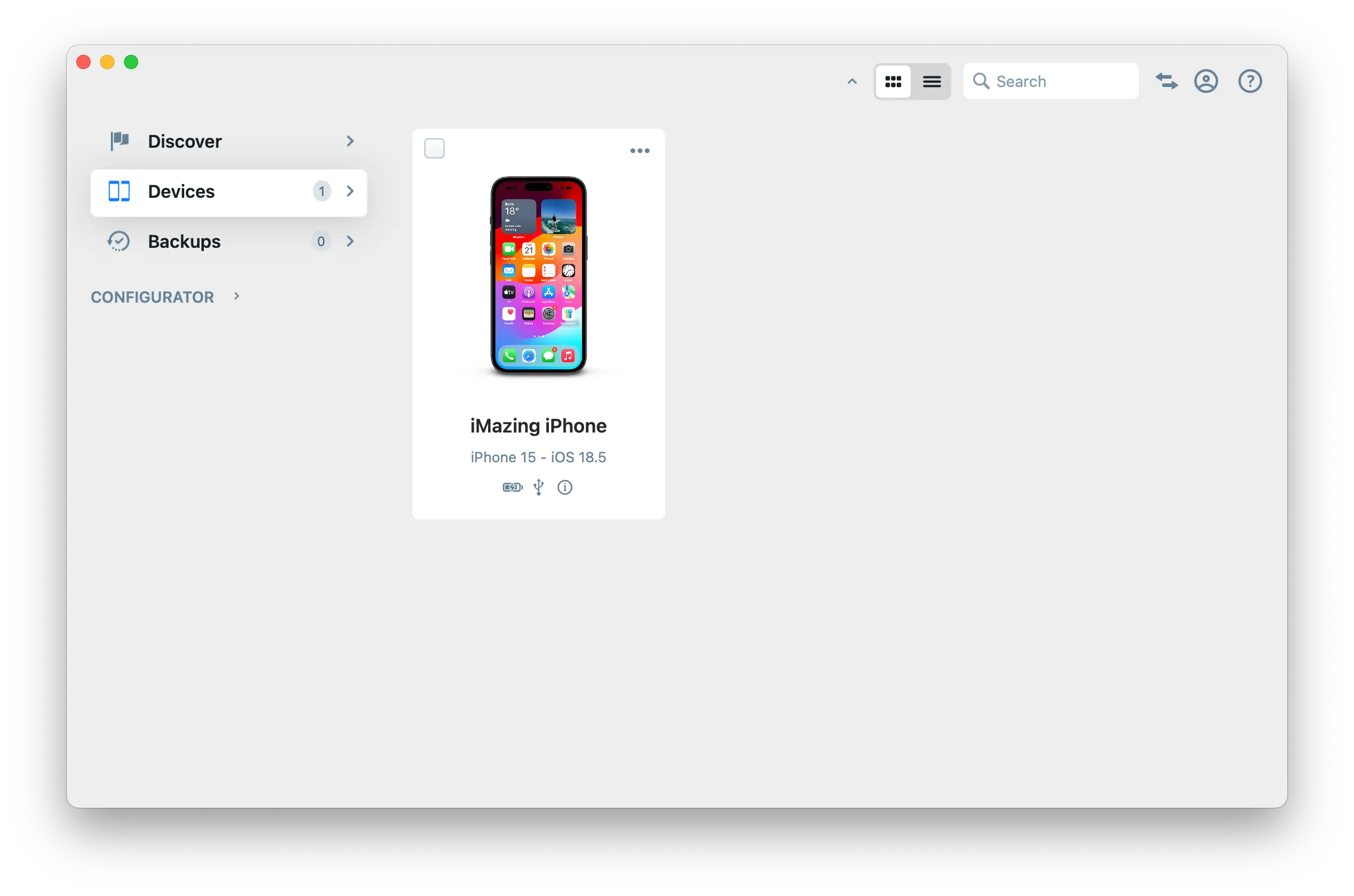
Tip
Once your device is connected and paired, you can access any dataset or tool directly in iMazing:
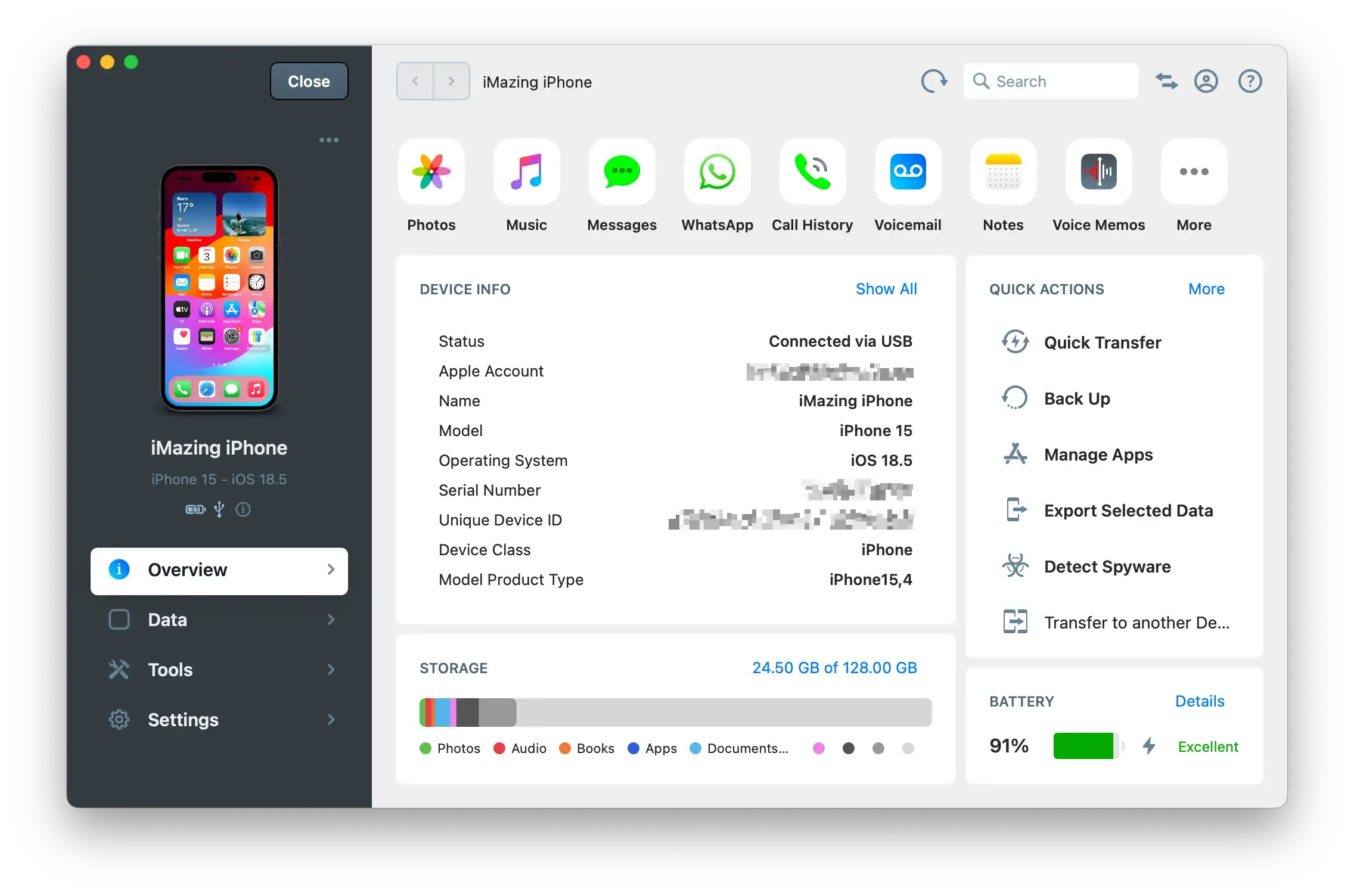
View the datasets you can access
iMazing will display the Overview screen for the selected device. From here you can access all available datasets for that device. The top row shows the most commonly used datasets, such as Messages, Photos, Music, and more. If you don't see the dataset you want, click the More button in the top row to see all available datasets for that device.
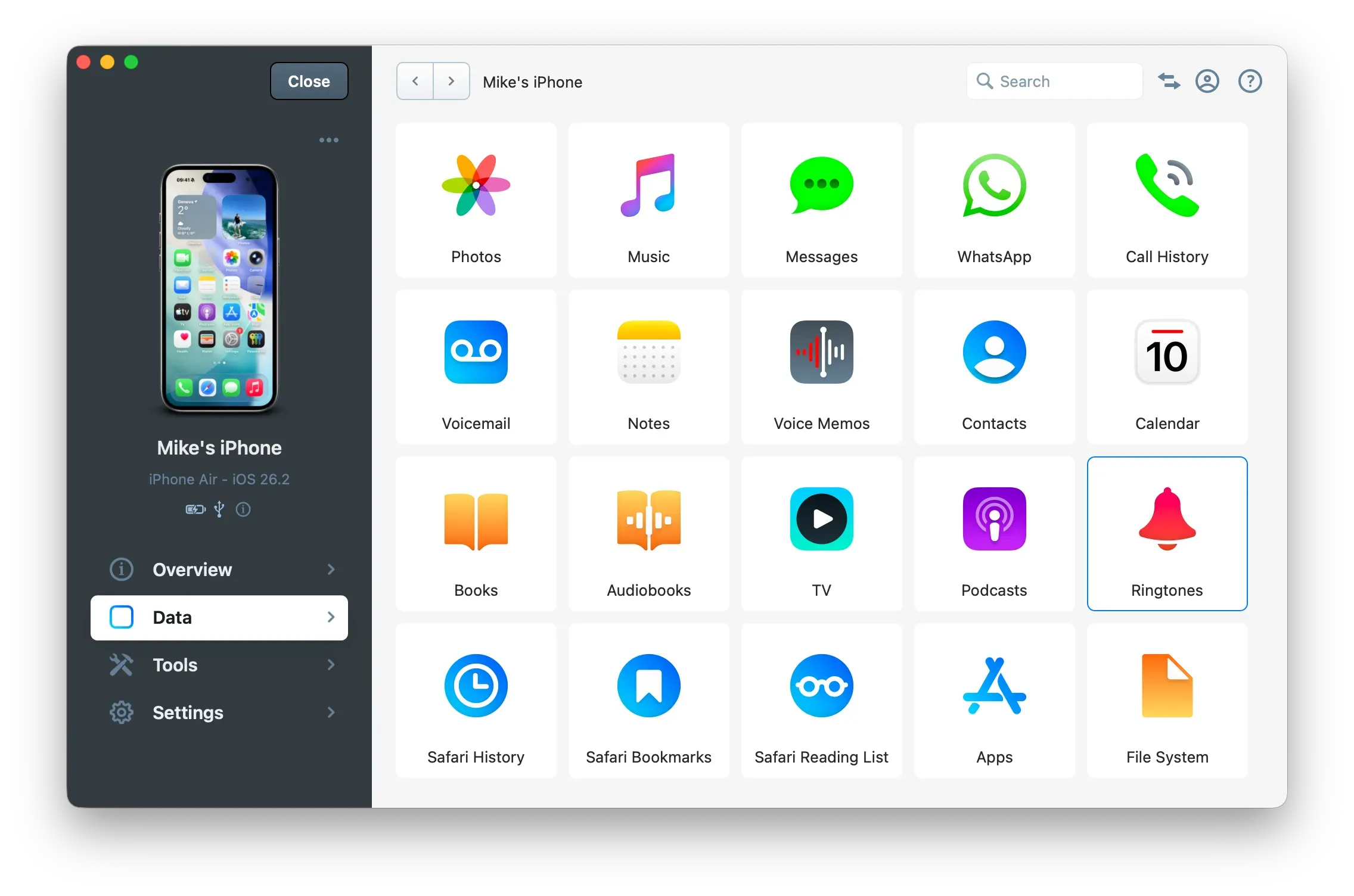
Tip: Altenatively, click on Data in the left pane to see every single dataset available for that device, including shortcuts to third party apps such as VLC and more.
Navigate to the Ringtones view
You can access iMazing’s Ringtones view by clicking on More () in the Overview screen, or by entering the Data section and clicking the Ringtones icon.
iMazing will display tones you’ve already added, and tones you’ve purchased from the iOS Tone Store; system tones are not displayed.
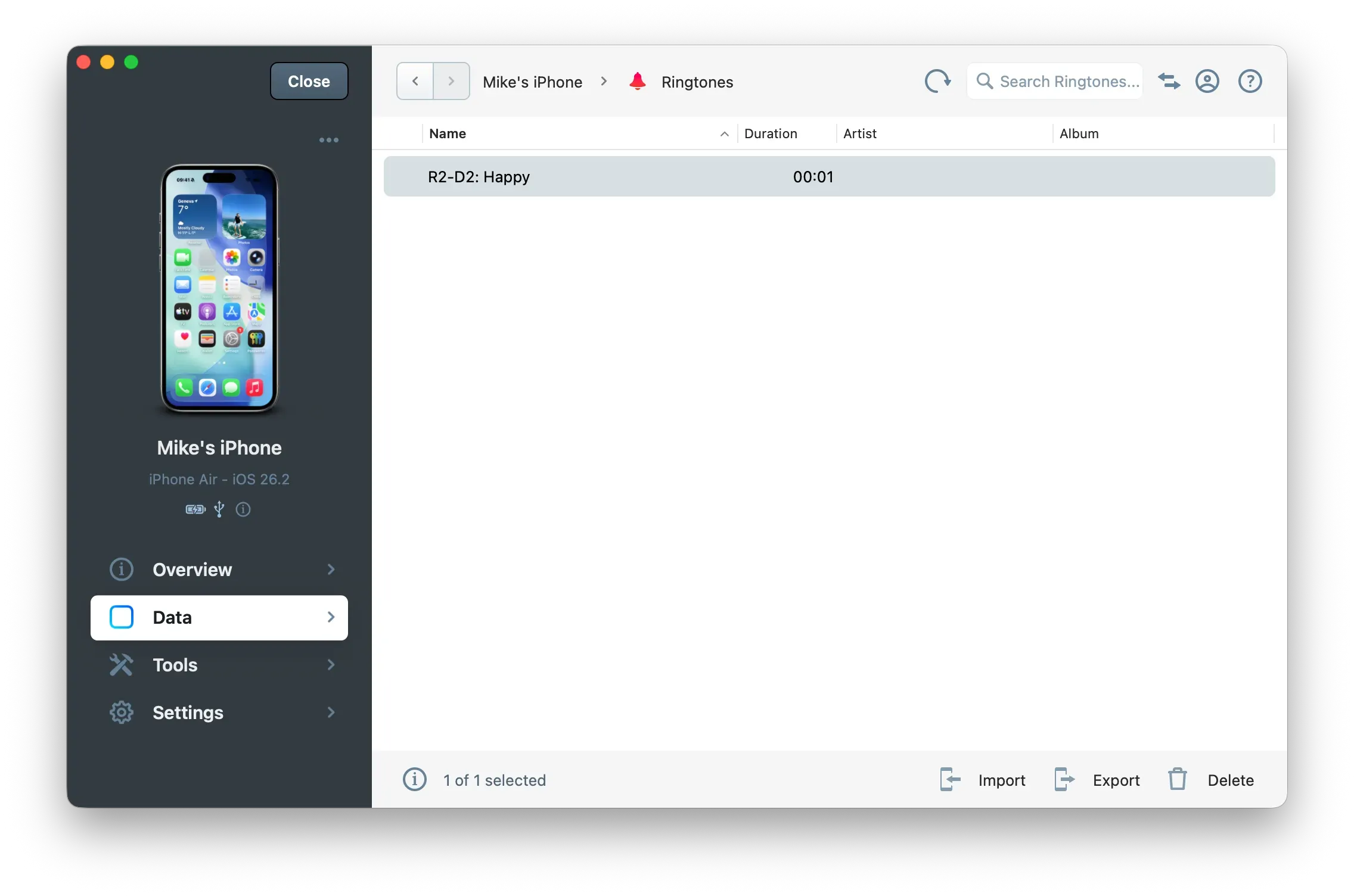
You can use these tones for ringtones, but also for notification sounds, alert tones and alarms.
Tip: You can play any tone you see listed in iMazing. Just double-click the item in the list, or, if you're on a Mac, select a ringtone and press the spacebar.
Importing new tones
Simply drag and drop an audio file from your computer to the ringtones list in iMazing’s window; iMazing will copy it to your device. You can use any of the following file types:
Extension | Encoding |
|---|---|
.mp3 | MP3 |
.m4a or .m4r | AAC and Apple Lossless (ALAC) |
.flac | FLAC |
.wav | PCM |
.aiff | PCM |
Alternatively, click the Import button and select a compatible audio file from your computer:
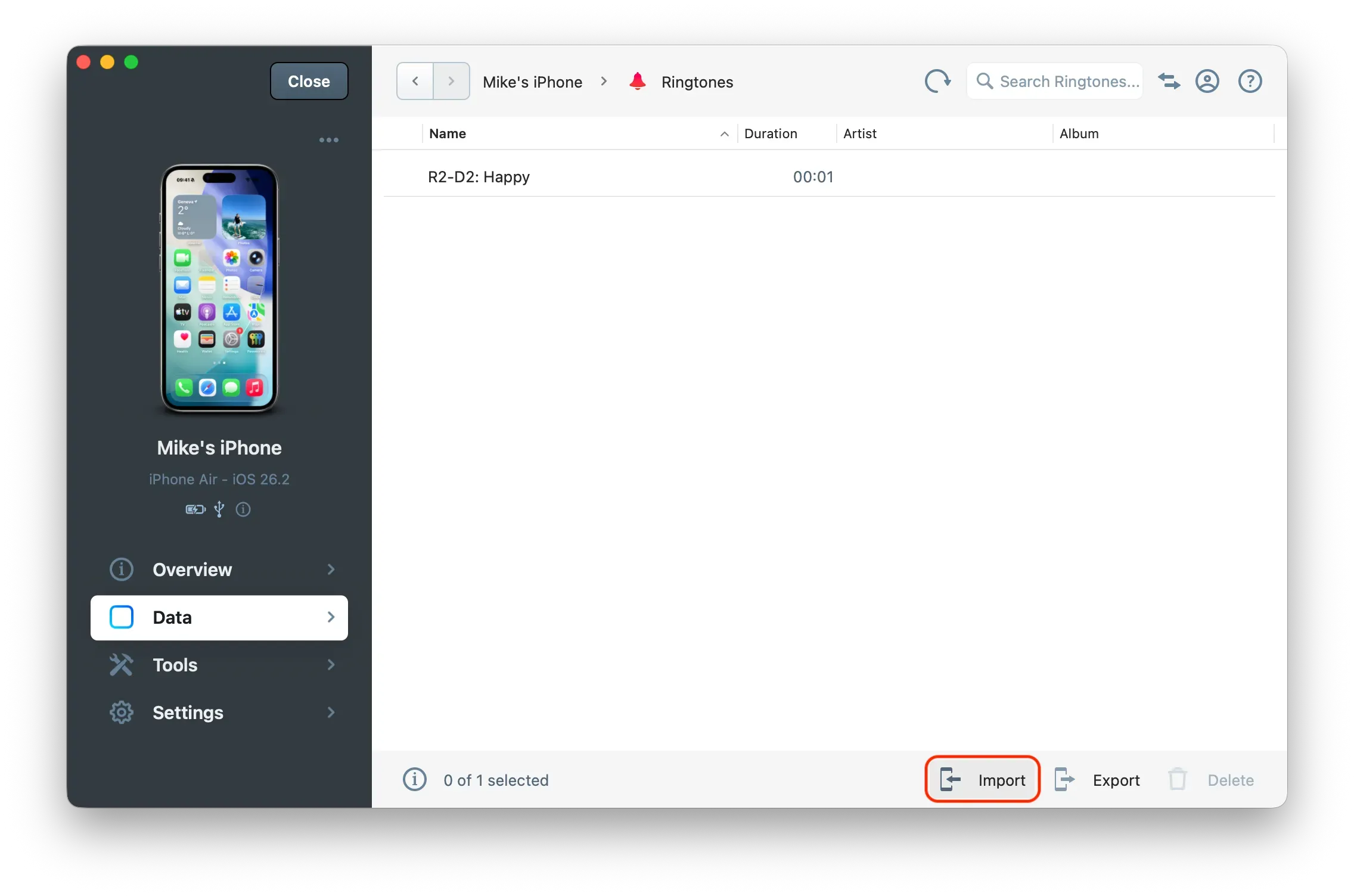
Ringtones and notification sounds can be of any duration; notification sounds must be less than 30 seconds long.
You cannot add audio files with DRM to your device to use as ringtones. This includes older iTunes Store files with DRM and Apple Music files.
Choose which tones you want to use.
Here is where on your iPhone or iPad you set the various types of sounds, and how long they can be:
Alert Type | Duration | Where on iOS? |
|---|---|---|
Ringtone | any | Settings -> Sounds & Haptics |
Alerts | < 30s | Settings -> Sounds & Haptics |
Contact Specific Ringtone | any | Contacts -> Edit Contact |
Contact Specific Text Tone | < 30s | Contacts -> Edit Contact |
Alarm | any | Clock -> Alarm -> Edit |
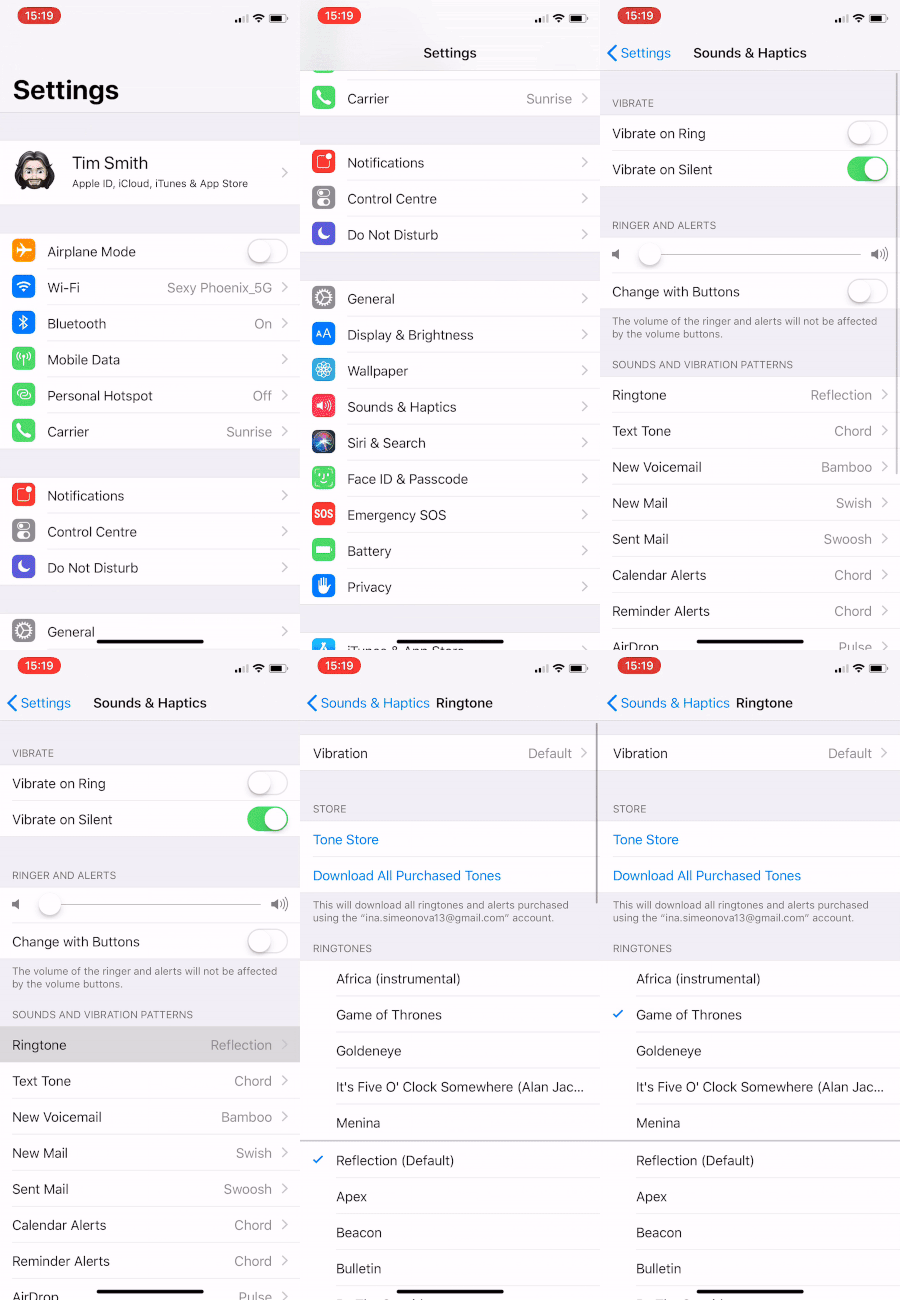
As you can see, most sounds are customized from within the Settings app’s Sounds & Haptics section:
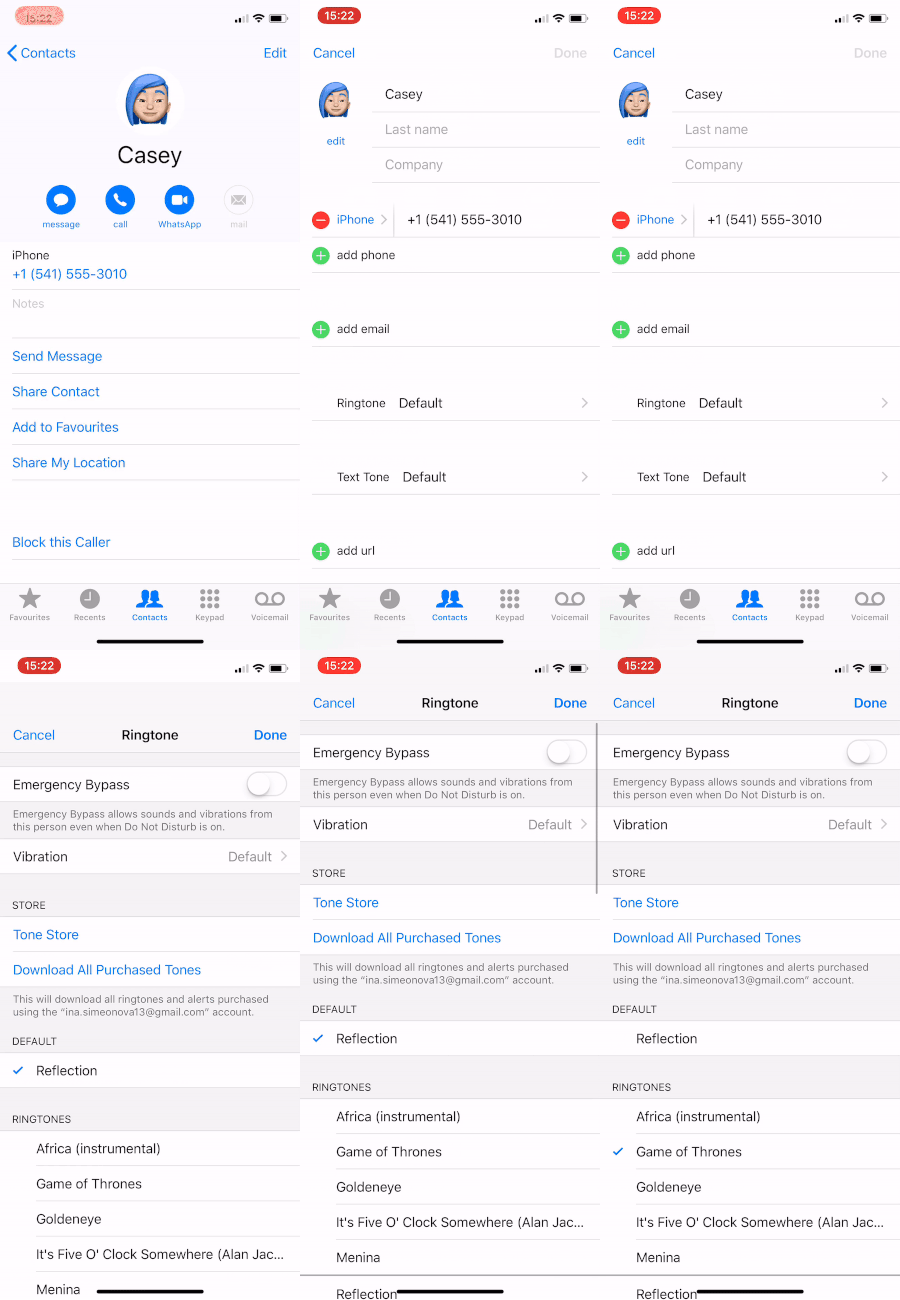
Contact specific ringtones and new iMessage/SMS notification sounds are set directly by editing the relevant contact:
Alarm tones can be defined for every alarm you’ve created in the Clock app:
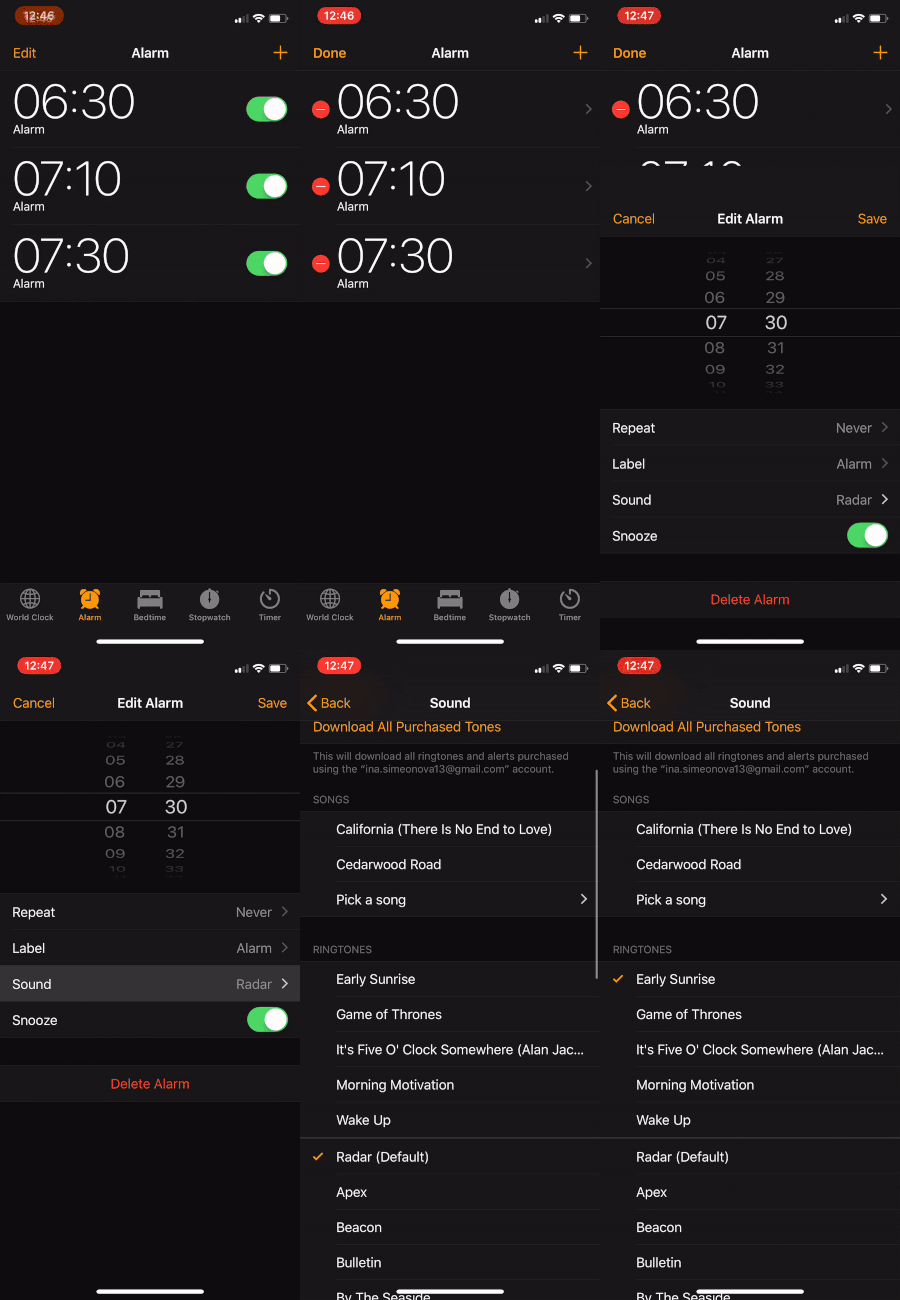
Alarms and ringtones can be of any duration, but all other sounds must be shorter than 30 seconds. Tracks which are longer than 30 seconds simply won’t appear on your iPhone or iPad when you customize notification sounds.
Important: Even for alert sounds, iOS will play the entire audio track as long as it's shorter than 30 seconds. Do you really who want to hear a 30 second long snippet of music whenever you receive a text message? Probably not, so trimming your audio before you transfer it to your iPhone is highly recommended. There are quite a few high quality free audio editors to help you do just that:
- Hya-Wave (runs in Chrome)
- Audacity (Windows and macOS)
- Garage Band (macOS only)