


Move an iPhone or iPad backup to another location
Updated on Jun 15, 2026
Reading time ~5 minutes
iMazing lets you configure multiple backup locations, and choose a specific one for each device you connect.
If you run out of space in one backup location or want to reorganize your storage, you may want to move your device’s backups elsewhere. You might also export your backups to share them with someone else.
iMazing offers several backup export options, depending on what you’re trying to achieve, each export option gives a different result:
- Export Backup as Folder is best when you need a standard iOS backup that other tools can read. It exports the latest backup snapshot to a standard iOS backup folder. The result is a valid iOS backup that you can reimport into iMazing or use with any software that supports iOS backups. By default, only the most recent snapshot is included, but you can export any earlier snapshot by selecting it first.
- Export Backup as iMazing File is ideal for sending or storing a single portable file. It packages the latest backup snapshot into a single
.imazingfile. A.imazingfile is a zip archive without compression (backup files such as media and encrypted data would not benefit from it), making it a portable, self-contained format suited for sharing. By default, only the most recent snapshot is included, but you can export any earlier snapshot by selecting it first. - Export Backup with Snapshots to Another Location is the right choice when you want to relocate the entire backup while keeping the full snapshot history intact. It copies the entire backup folder to a new location and recreates the hard links in the
iMazing.Versionsfolder that keep snapshot storage optimized, preserving all snapshots. This is the only option that retains the full snapshot history.
Here's how to move an iPhone or iPad backup to another location.
Before you begin
Export Backup as Folder
Open the device in iMazing on macOS or Windows, go to Tools, then scroll to the BACKUP section.

Click Export Backup as Folder. A dialog opens: select the destination folder, then confirm. iMazing exports the backup snapshot as a standard iOS backup folder.
Tip: You can also access backup export actions by right-clicking the device in the Devices section of the Home Screen and scrolling to the Backups group in the contextual menu.
The resulting folder is a valid iOS backup. To reimport it into iMazing, go to the Backups section of the Home Screen, click +, then select Add Backup Folder.
Note: This action exports the most recent backup snapshot by default. To export an earlier snapshot, browse that snapshot in iMazing first, then run the export. See our guide on Backup snapshot list in iMazing
Export Backup as iMazing File
Open the device in iMazing on macOS or Windows, go to Tools, then scroll to the BACKUP section.
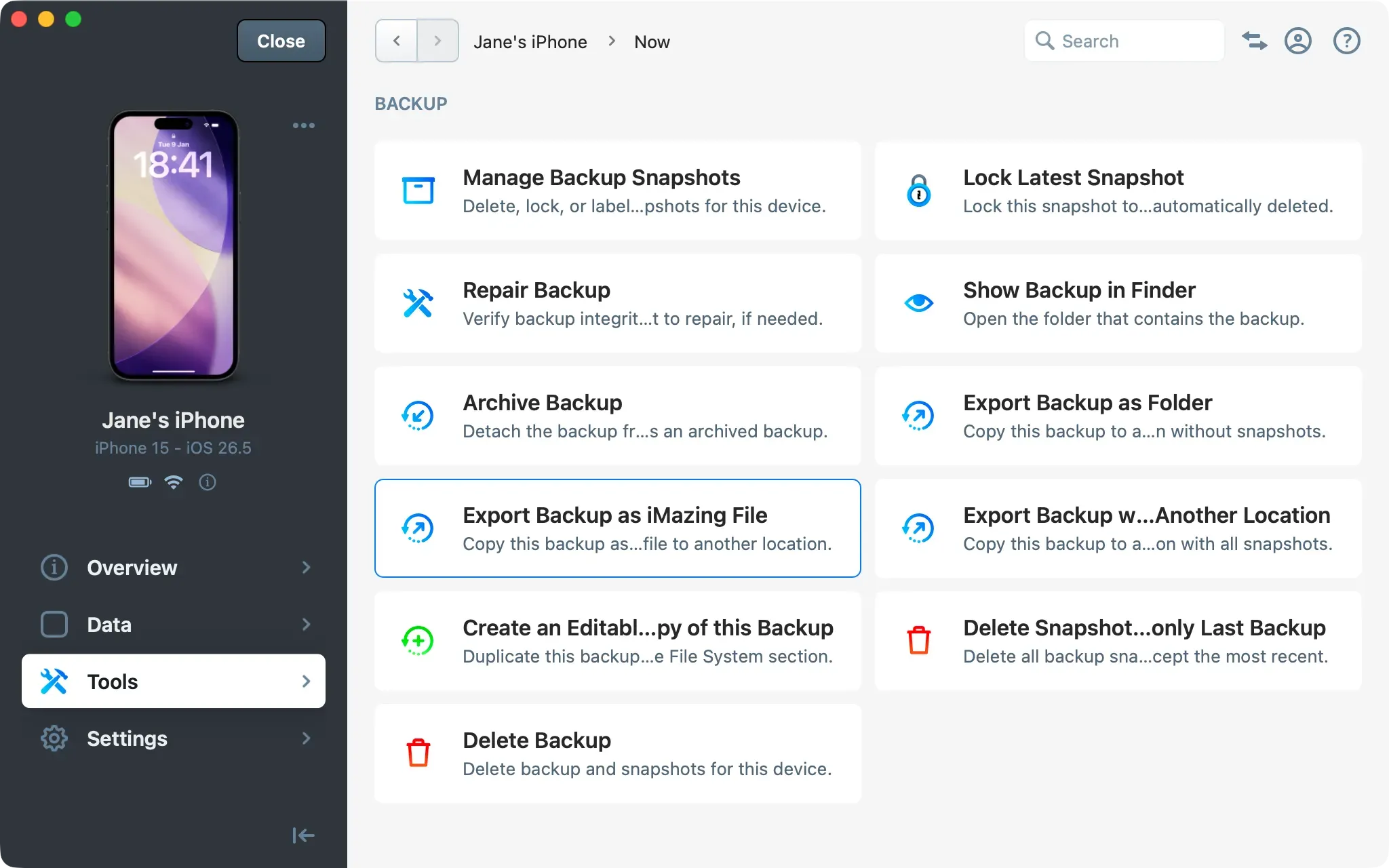
Click Export Backup as iMazing File. A dialog opens: choose where to save the file, then confirm. iMazing exports the backup snapshot as a .imazing file.
A .imazing file is a zip archive containing the backup folder. It is convenient for sharing: a single portable file that anyone with iMazing can import. The archive uses no compression, since backup files (media, encrypted data) would not benefit from it.
To reimport a .imazing file into iMazing, go to the Backups section of the Home Screen, click +, then select Add iMazing File.
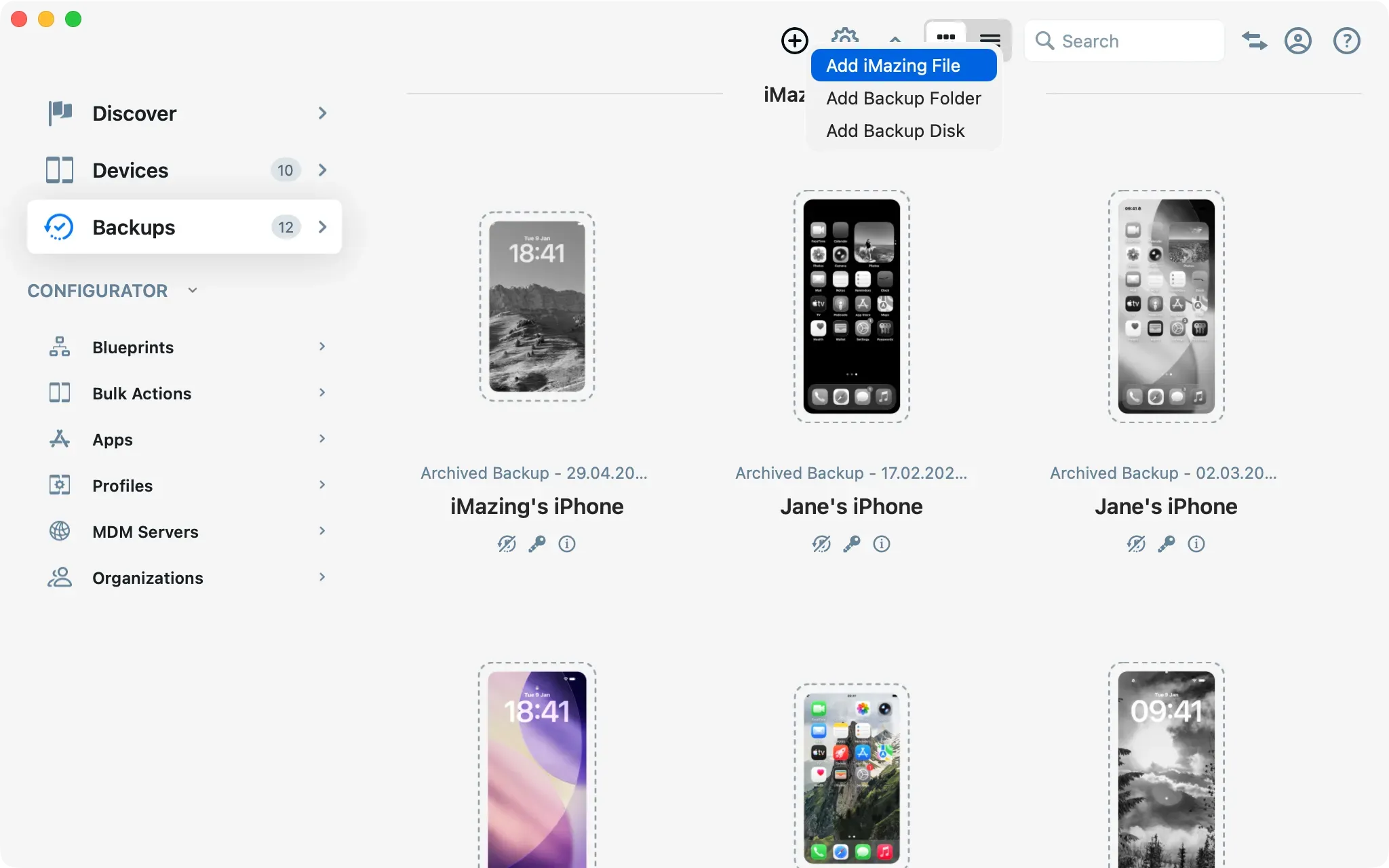
Export Backup with Snapshots to Another Location
This option copies the entire backup, including all snapshots, to a new location. It involves a few more steps than the other two options.
Select the export action and choose a destination
Open the device in iMazing on macOS or Windows, go to Tools, then scroll to the BACKUP section.
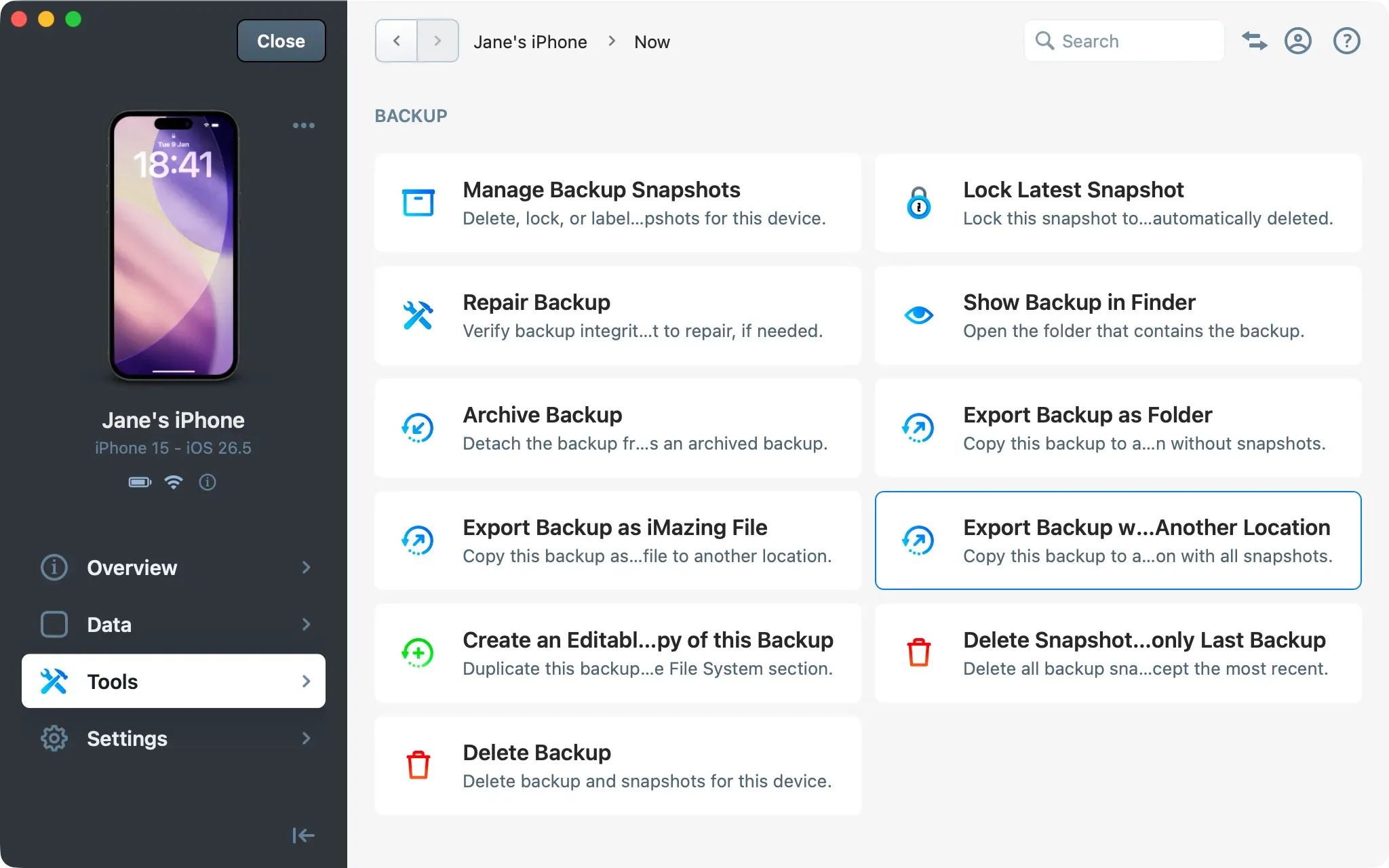
Click Export Backup with Snapshots to Another Location. A dialog opens: select the destination folder, then confirm.
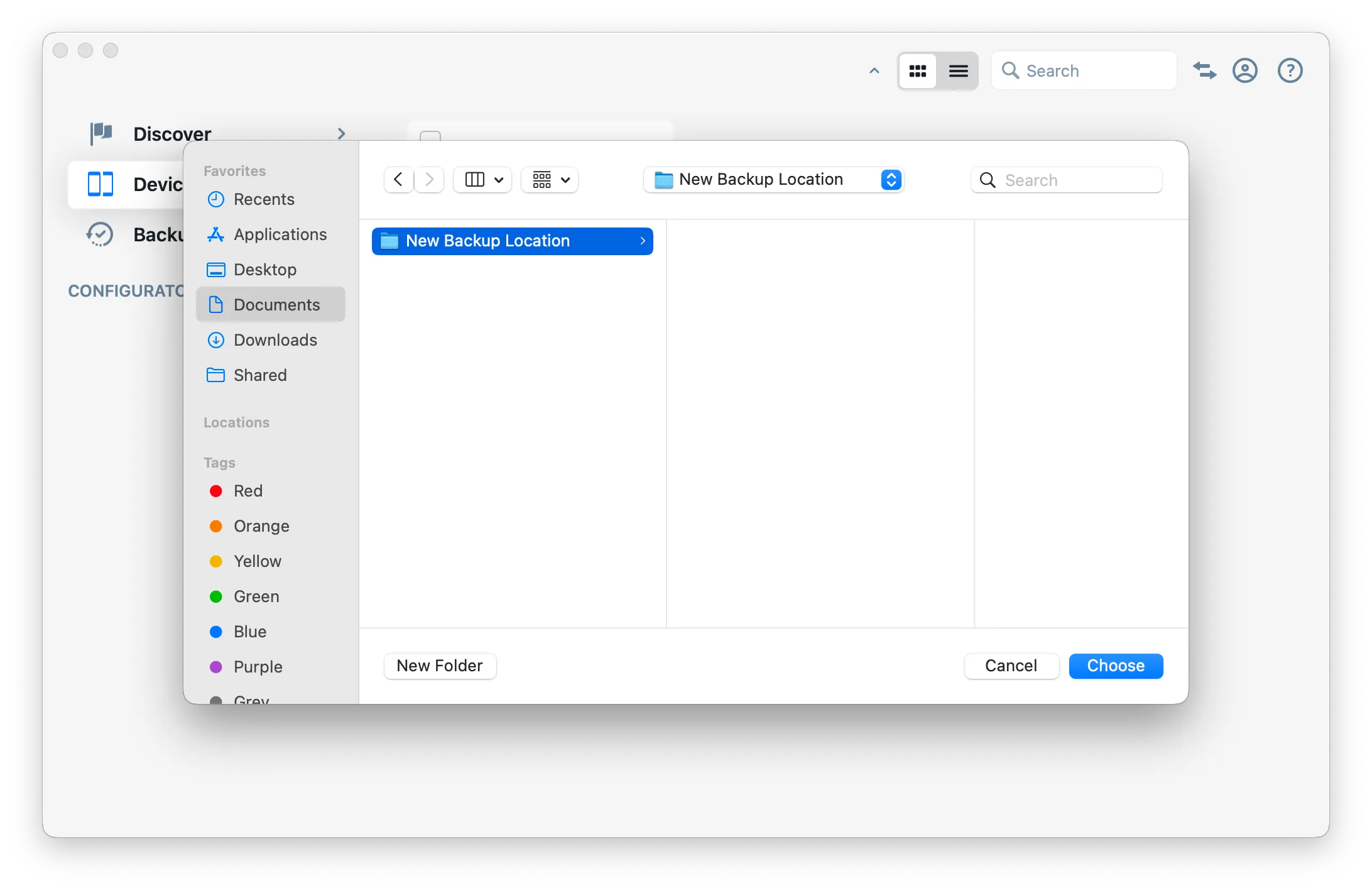
iMazing copies the entire backup, including all snapshots, to the new location. Depending on the size of your backup, this can take several minutes.
Add the new location to iMazing
When the export is complete, iMazing displays a prompt confirming success and asking whether you want to add the destination folder as a backup location.
- Select Yes to register this folder as a backup location. The exported backup becomes browsable in the Backups section.
- Select No to skip. The exported files remain on disk but are not tracked by iMazing.
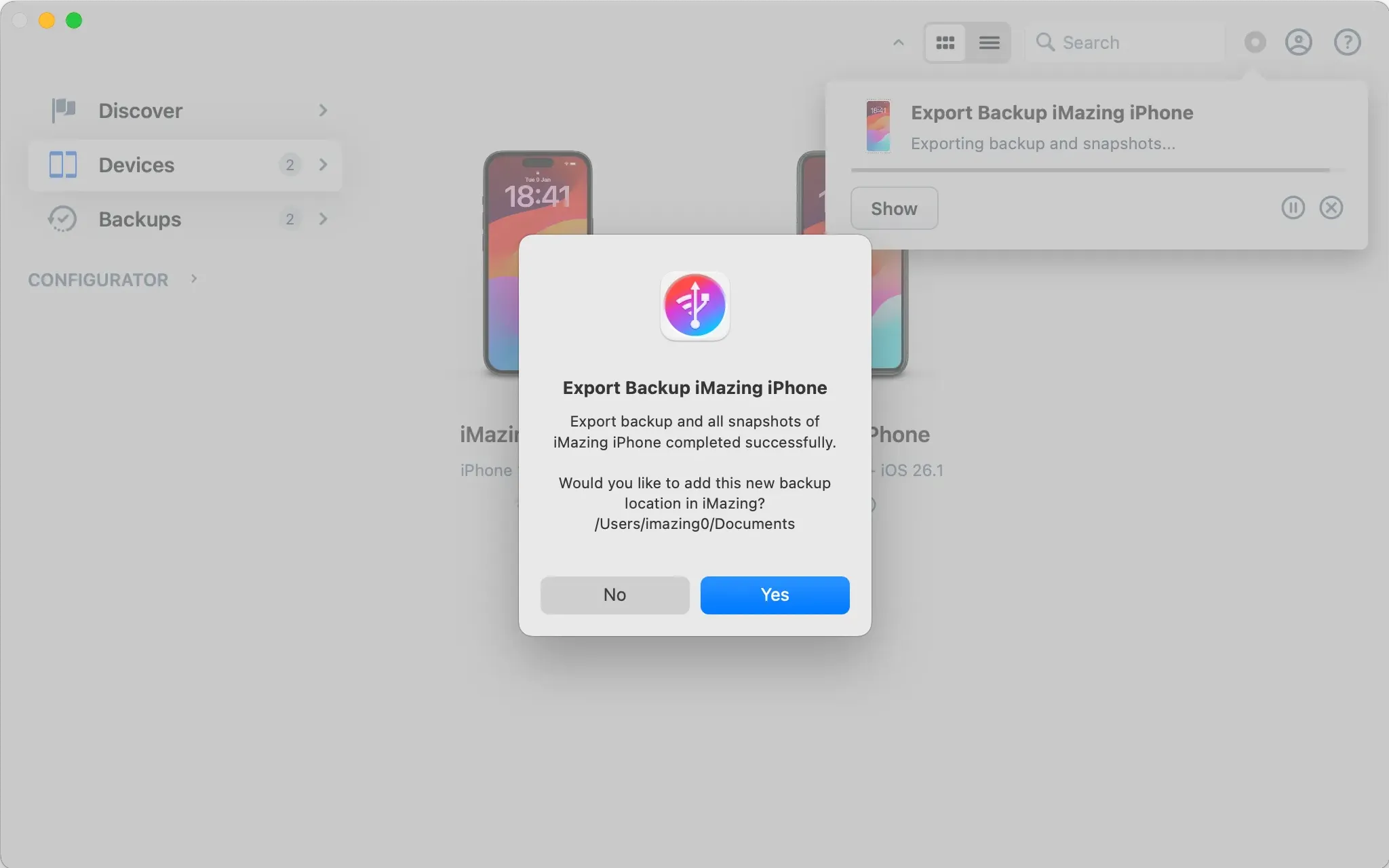
Set as default backup location
If you selected Yes in the previous step, a second prompt asks whether future backups of this device should be saved to the new location.
- Select Yes to set the new folder as the active backup location for this device going forward.
- Select No to keep the current backup location unchanged. The backup from the previous location remains accessible from the Backups section of the Home Screen.
What to keep in mind
- Snapshot coverage: Export Backup as Folder and Export Backup as iMazing File export only the latest snapshot. Export Backup with Snapshots to Another Location is the only option that preserves the full snapshot history.
- Snapshot storage: For a deeper look at how iMazing handles snapshot storage, refer to the backup snapshots section of the comprehensive backup guide.
- Hard links and reported sizes: iMazing uses hard links to store multiple snapshots without duplicating files. Because of this, Finder on macOS and File Explorer on Windows may report that the backup folder and the
iMazing.Versionsfolder are nearly the same size. This is expected: the reported sizes are inflated by how hard links are counted. The actual disk space consumed is much smaller. Deleting both folders would recover approximately the size of one of them, not the sum of both. - Managing backup locations: Backup locations can be managed at any time from Preferences > Backups, or per device from Settings > Backup Options > Backup Location. Learn more in the dedicated Backup options in iMazing guide.
- Learn more: For a comprehensive overview of how iMazing handles backups, refer to the guide on Everything you need to know about iOS/iPadOS backups and how to manage them with iMazing.