


Transfer iPhone voicemail to your Mac or PC computer
Updated on Aug 27, 2026
Reading time ~4 minutes
Voicemail messages on iPhone can contain important conversations you want to keep. However, iOS does not provide any way to export individual recordings or save them as files on your computer.
Because these recordings are not directly accessible on the device partition, iMazing uses the iOS backup mechanism to read your voicemail, then exports each recording as a standard audio file to your Mac or PC.
Here's how to transfer iPhone voicemail to your Mac or PC computer.
Before you begin
Select your device
Open the Devices section in the left sidebar to see every device connected and paired to your computer. Click a device to select it.
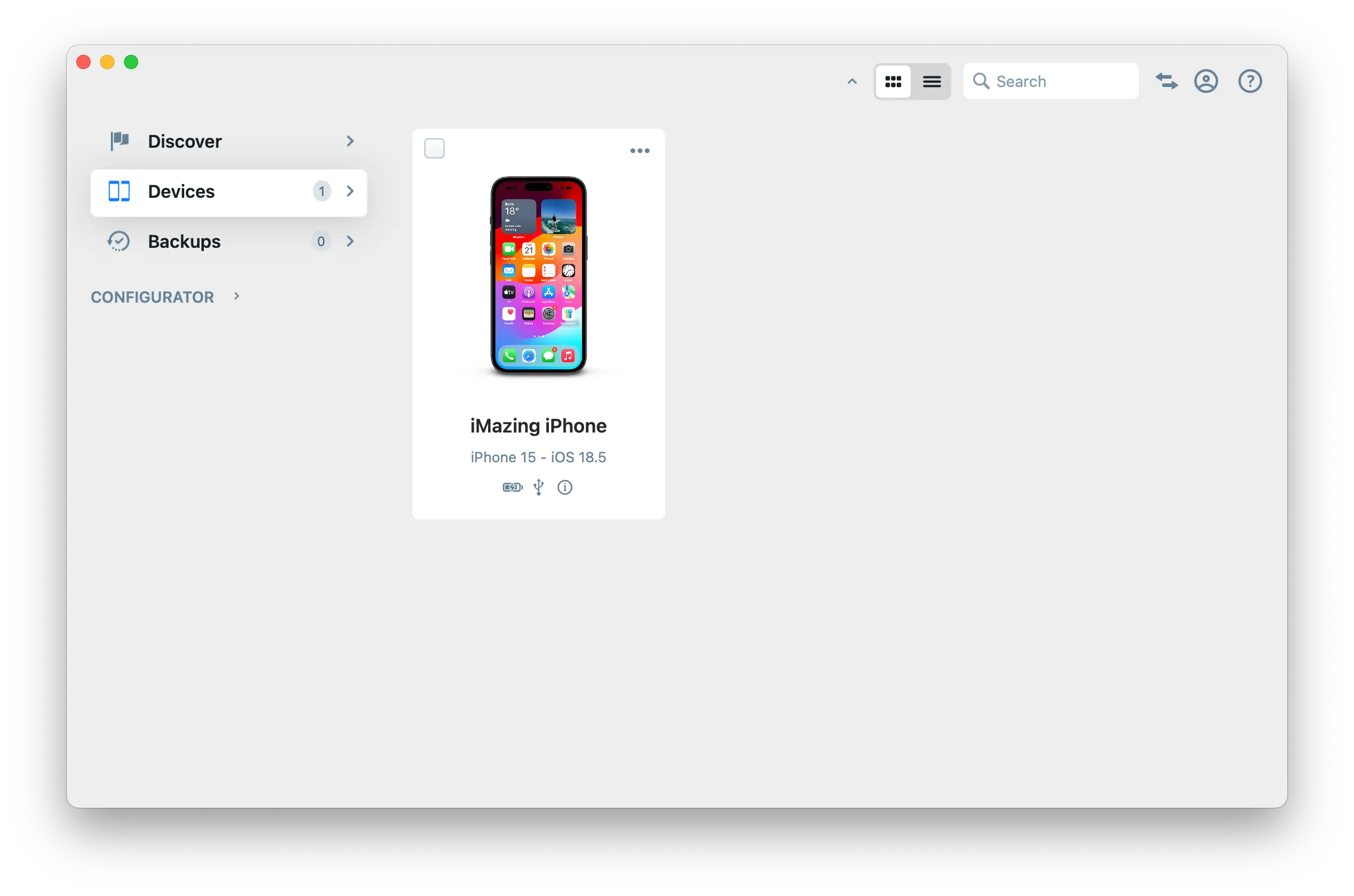
Tip: To learn how devices, datasets, and tools are organized, see the iMazing interface guide.
Select Voicemail
On the device Overview, click Voicemail in the datasets row.
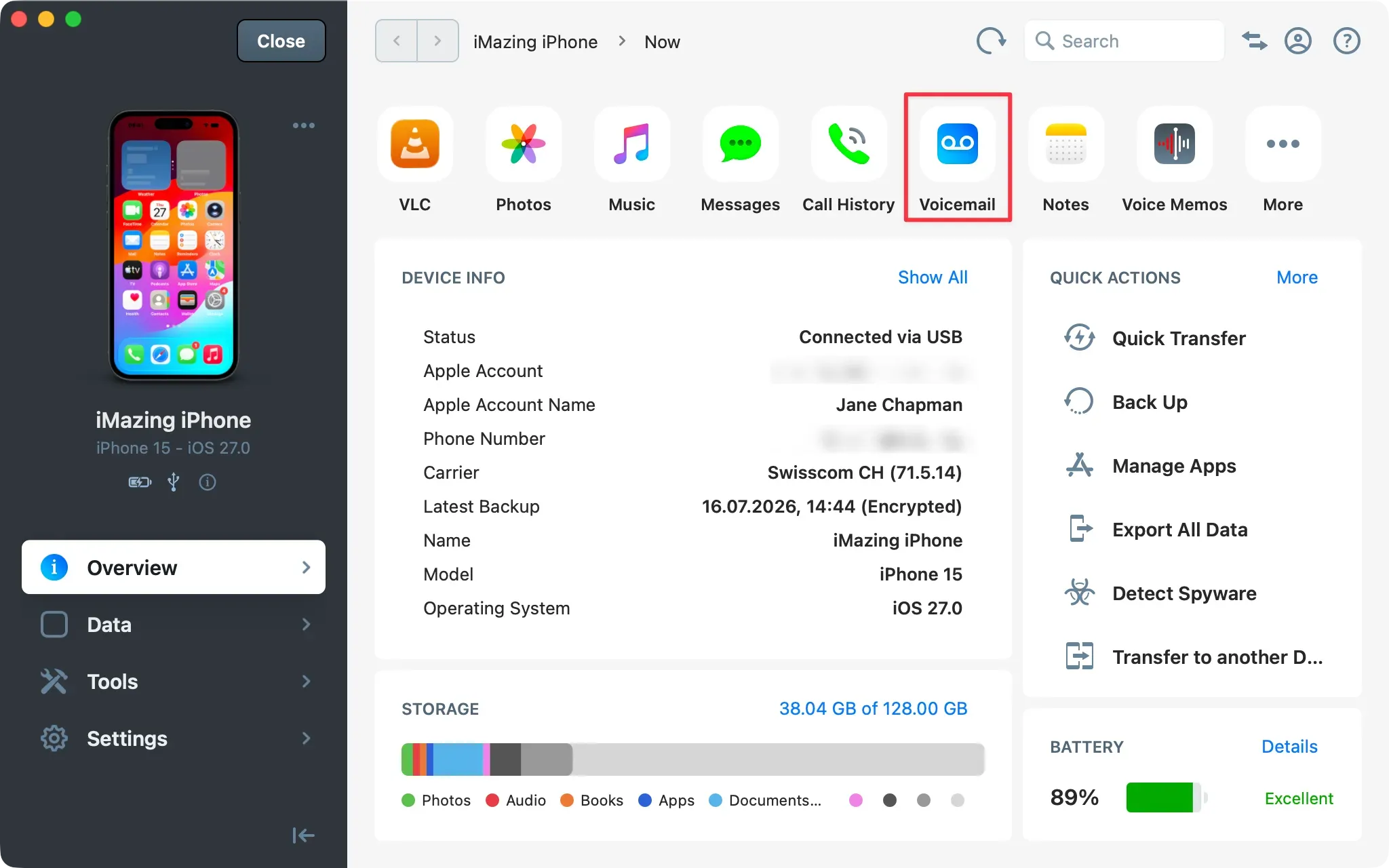
Choose how to load your data
iMazing needs to make a backup to extract data. You can now decide if you only need to access your voicemail recordings or if you want a full restorable backup of the device. The first option uses less storage, the second is restorable.
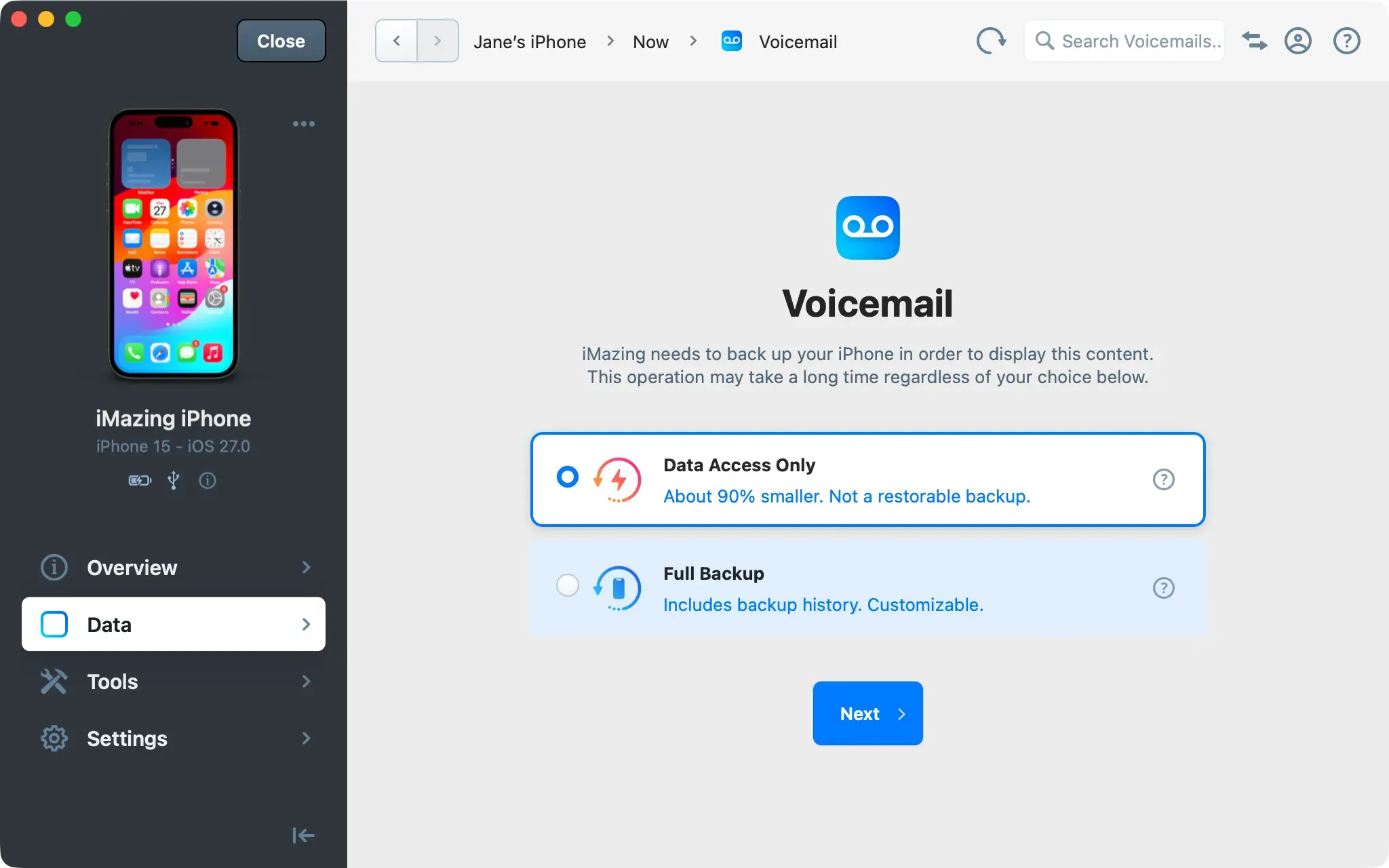
Important: The first time a device is being accessed by iMazing the process will take a while, up to one hour or more, so please be patient. Learn more about data access and full backup options.
Browse your voicemail
Once iMazing finishes loading the data, it displays the list of voicemail recordings.
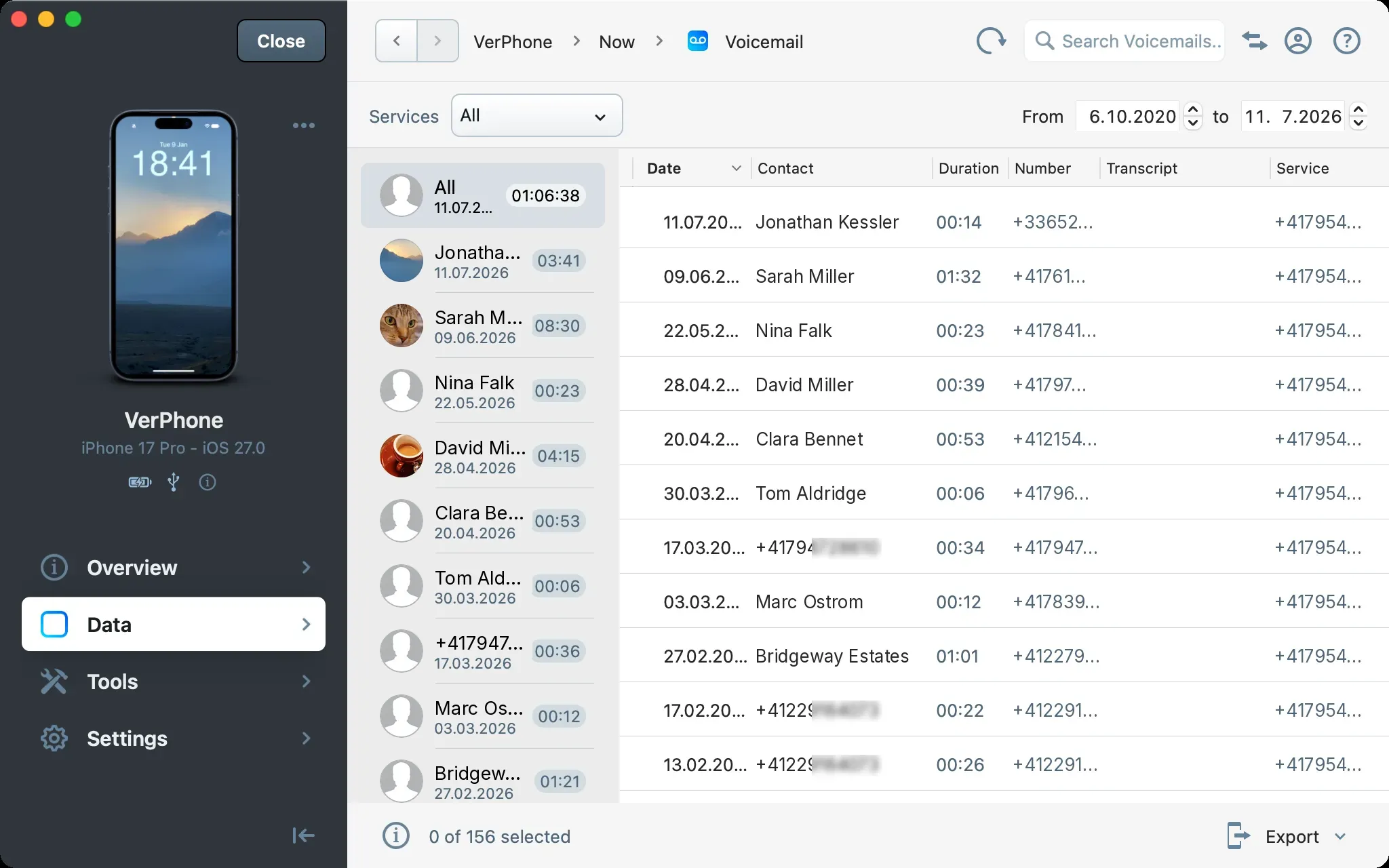
If your iPhone has multiple eSIMs, use the Services section on the left to filter voicemail by carrier. Use the date filter on the right to narrow results by date range.
Note: iMazing accesses voicemail through the iOS backup mechanism, so only recordings that iOS includes in the backup will appear. If some are missing:
- Carrier storage: Some carriers keep voicemail on their own servers instead of on the device. Those recordings are not part of the backup, so iMazing cannot access them. Check with your carrier to confirm.
- Live Voicemail: Messages received while Live Voicemail is enabled (US and Canada only) and transcribed are not included in the backup. Disabling Live Voicemail restores access to new recordings, but not to messages received while it was on. This behavior comes from iOS.
Browse from an existing backup
You can browse voicemail without connecting your iPhone, as long as iMazing already holds a backup of the device.
- On the Home Screen, open the Backups section to see every backup iMazing manages.
- Double-click the backup you want to open. iMazing opens it in backup mode, so no device connection is required.
- On the backup Overview, click Voicemail in the datasets row.
Note: In backup mode, iMazing reads from the stored backup only, so no new backup is created. For more on browsing and extracting data from backups, see the Manage your backups with iMazing guide.
Browse from a previous snapshot
Each time iMazing backs up your device, it keeps a timestamped snapshot, so you can open voicemail as it existed at an earlier date. This works like macOS Time Machine, applied to your iOS or iPadOS backups.
By default, iMazing shows the current state of your device or the latest backup. To reach an earlier state:
- Select your device or a backup from the Home Screen.
- In the upper toolbar, click the Now button to open the Snapshot List.
- Select an earlier snapshot. iMazing reloads the Voicemail view with the recordings contained in that snapshot.
A gray checkmark marks the state you are currently viewing. Select Now again to return to the current state.
Tip: For details on snapshot labels and management, see the Backup Snapshot List in iMazing guide.
Export your voicemail
- Select the contact or contacts whose voicemail you want to save. By default, iMazing exports every message from the selected contacts. To export only specific messages, select them individually.
- In the bottom toolbar, click Export.
- In the save dialog, choose the destination, then confirm.
Tip: Hold the Command key (macOS) or the Ctrl key (Windows), or the Shift key, to select multiple contacts or messages. Double-click a voicemail to preview it before exporting.
Voicemail transcripts
The Voicemail view includes a Transcript column showing the transcriptions produced by iOS. A transcript is available only when the caller's voice is clear and in the same language as the iPhone. Availability also depends on your carrier.
Tip: Long transcripts are often truncated in the Transcript column, but they export in full when you use the Export to Excel or CSV option.
What to keep in mind
- Visual Voicemail is an optional feature that lets you view voicemail directly on your device, without dialing a mailbox. Not all carriers support it. If your voicemail does not appear on your iPhone, check this Apple Support article.
- Voicemail audio files are in
.amrformat. On Windows, you need Apple's QuickTime or VLC to play.amrfiles.