


Transfer music from a computer to an iPhone, iPad, or iPod
Updated on Aug 6, 2026
Reading time ~2 minutes
You probably know that you can sync music to your iPhone, iPod, or iPad using iTunes; this is the default way to put music and other content on your iOS device. But what you may not know is that there are other ways to get music on your device: iMazing can do this for you.
You may not want to hassle with iTunes and its arcane settings. You may simply want to select some files and transfer them to your iOS device. With iMazing, you can choose music on your computer and copy it to your iPhone, iPad, or iPod. And with iMazing, transferring songs is even simpler than with iTunes. You can drag and drop your files without sync.
If you do this, you'll be able to access your music from the iOS Music app, just as if it was synced from iTunes.
Note: As of iMazing 3.6, music transfer to iPod classic, iPod nano, and iPod shuffle is now fully supported.
Here is how to transfer music from your computer to an iPhone, iPad or iPod touch:
Before you begin
Always make sure you are running the latest iMazing version, to do so select Check for Updates from the iMazing menu, or just download the latest available version for your computer below.
Download and install iMazing
Launch iMazing on your computer
If you haven’t already, download and install iMazing. For more details please refer to our guide available for PC and for Mac.
Connect your device to your Mac or PC via USB
iMazing will prompt you to connect the device to your computer on the first time you're using it. To do so use a USB cable, and unlock the device using your passcode, Face ID or Touch ID, and follow the instructions for pairing.
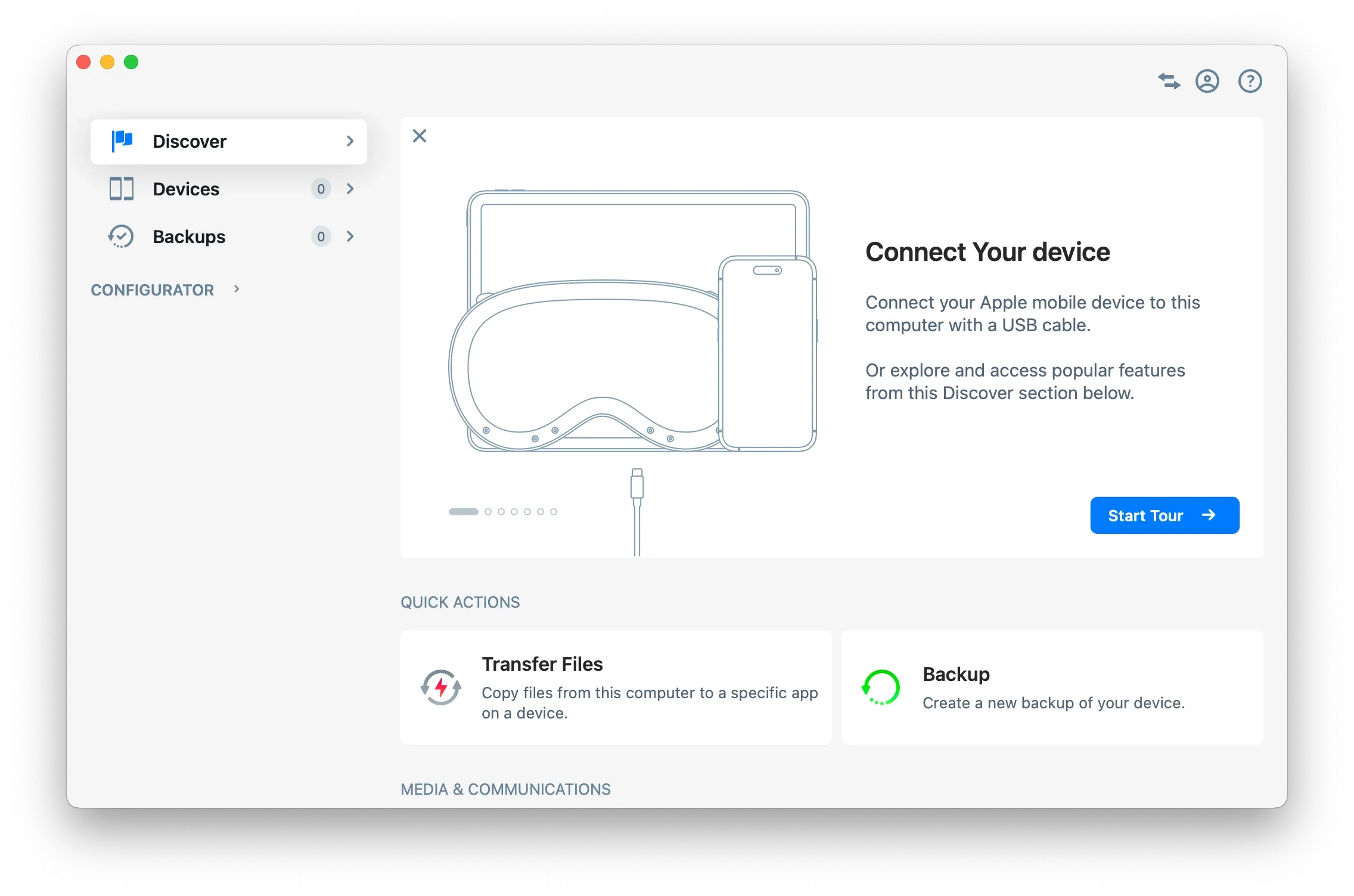
Tip: For more details on connections and pairing refer to this guide.
Click on Devices in the left pane
From the Devices view you will see all the devices previously connected and paired to your computer. Click to select a device.
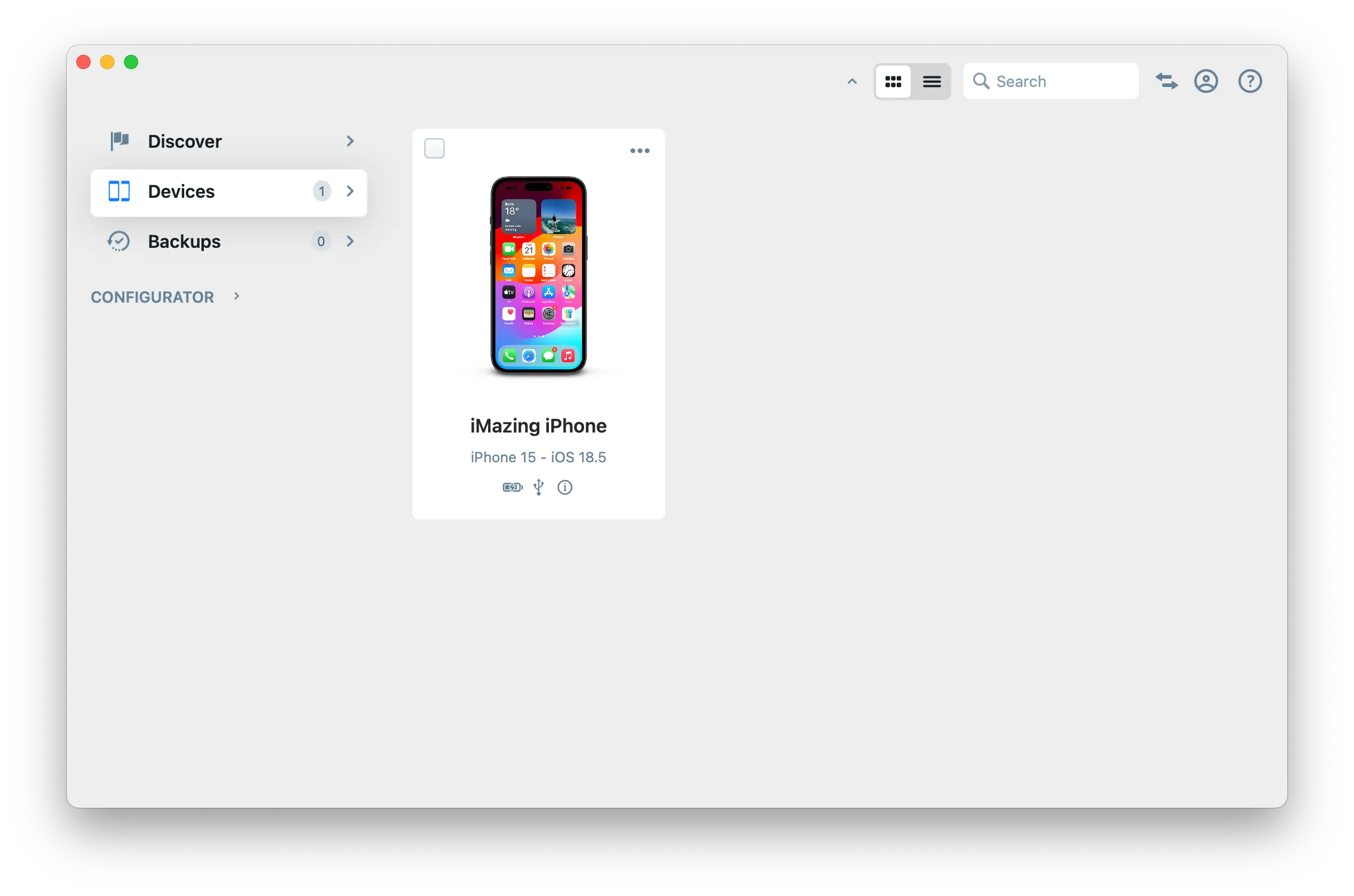
Tip
Once your device is connected and paired, you can access any dataset or tool directly in iMazing:
View the datasets you can access
iMazing will display the Overview screen for the selected device. From here you can access all available datasets for that device. The top row shows the most commonly used datasets, such as Messages, Photos, Music, and more. If you don't see the dataset you want, click the More button in the top row to see all available datasets for that device.
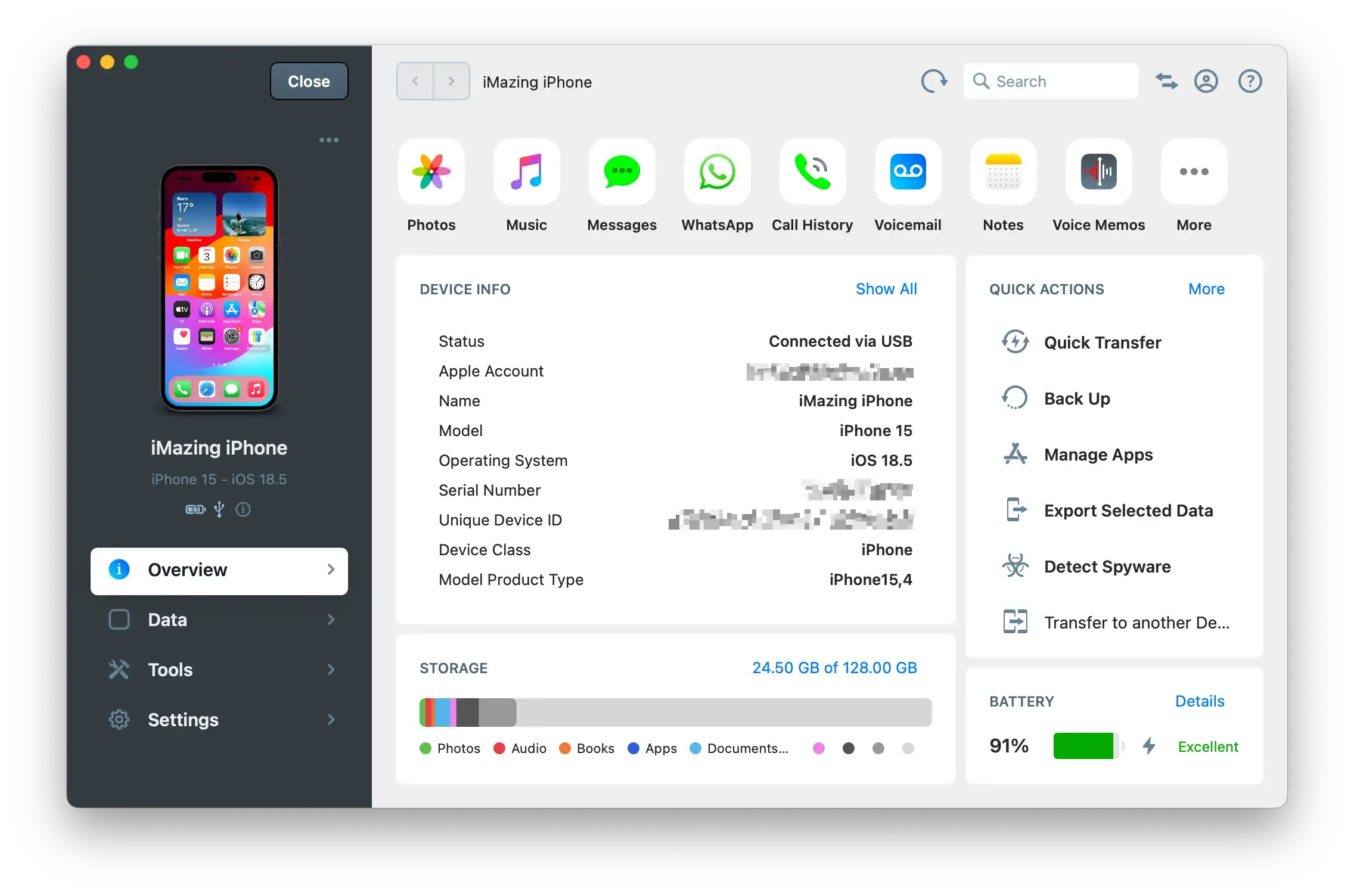
Tip: Altenatively, click on Data in the left pane to see every single dataset available for that device, including shortcuts to third party apps such as VLC and more.
Enter the Music section
iMazing loads your device's music and playlist(s).
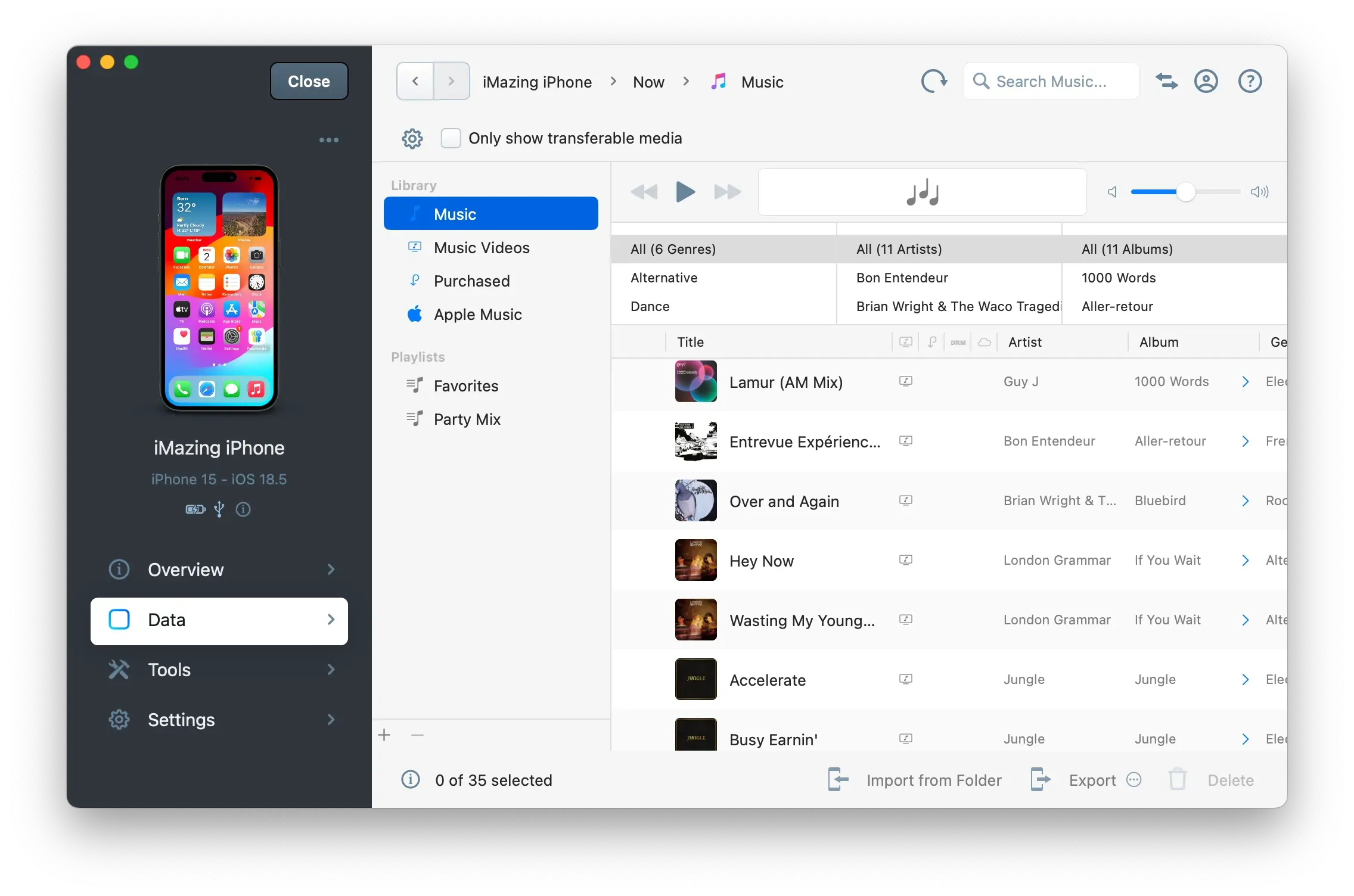
Click "Import from Folder" in the bottom toolbar
Navigate to the folder containing the music you want to import. Click Choose to tell iMazing to import the contents of that folder. iMazing can import music files in sub-folders within the selected folder.
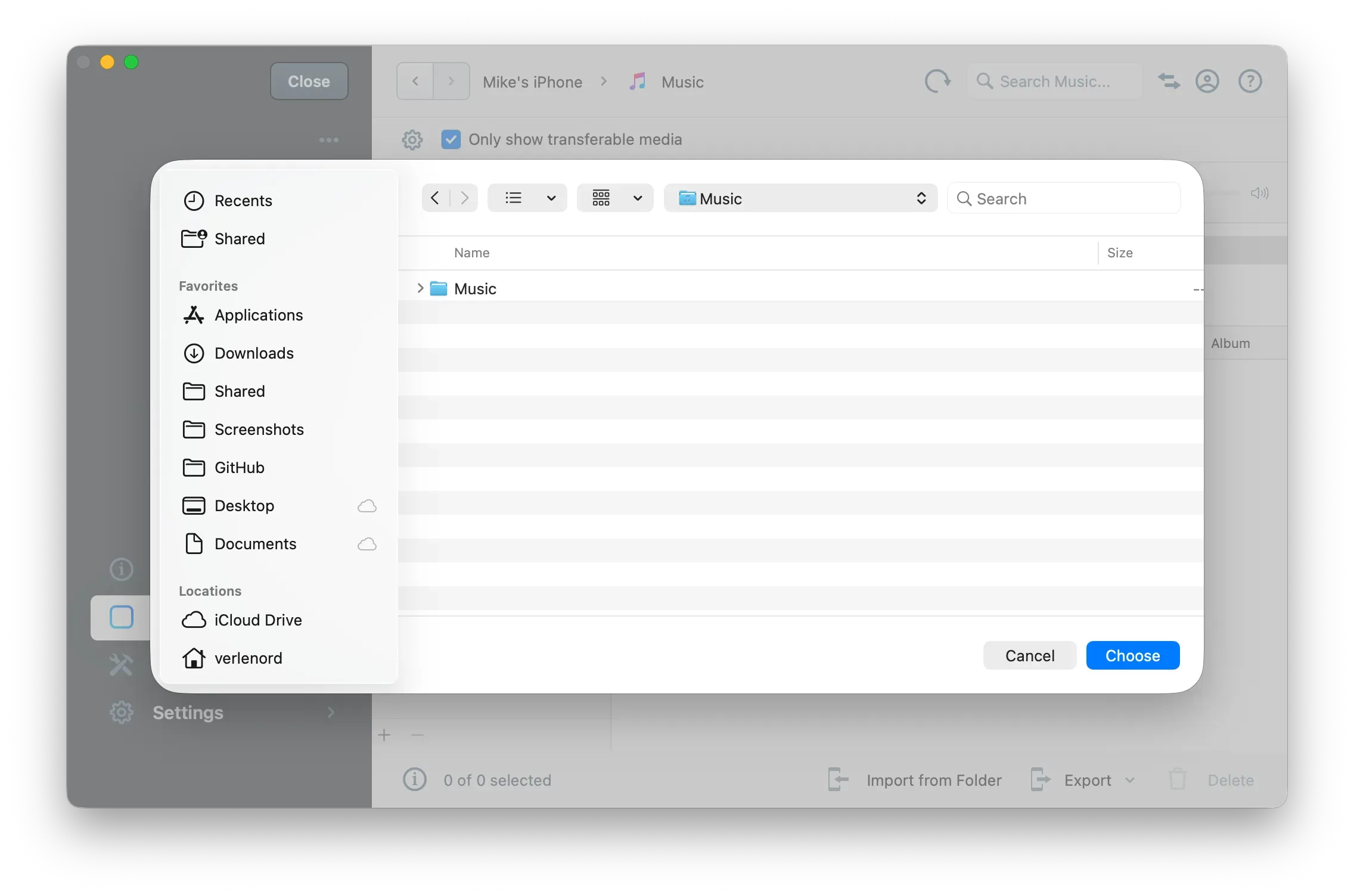
Transfer your music
iMazing now begins importing the files. If iMazing finds that you already have any of the tracks on your iOS device, it asks you if you want to cancel the import, keep both copies, or skip the duplicate tracks.
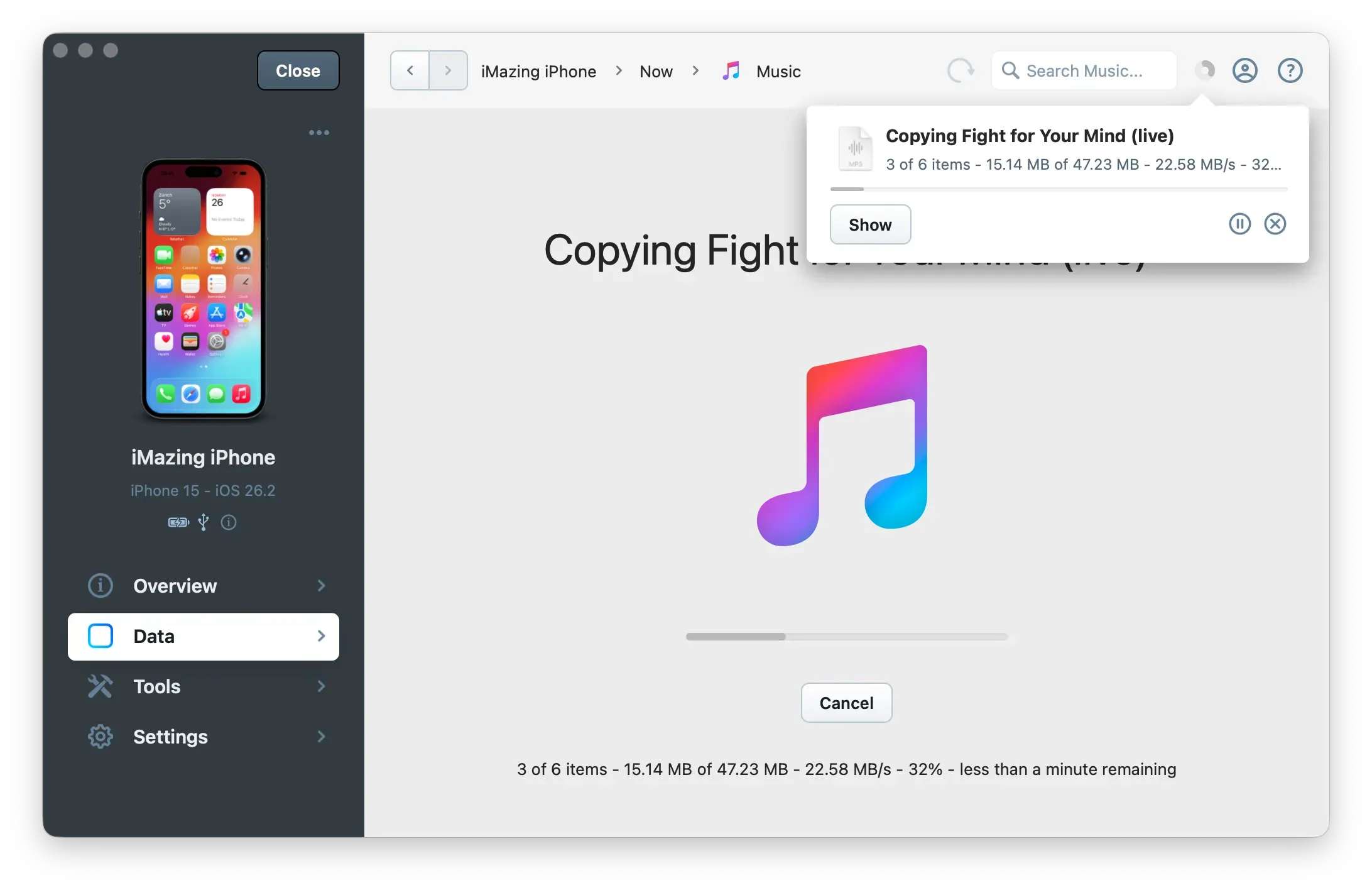
iMazing imports the files to your iOS device. Depending on how many files you're copying, this may take a while. You can follow the progress of the import in the Operations window that display.
When iMazing has completed the import, it displays a report.
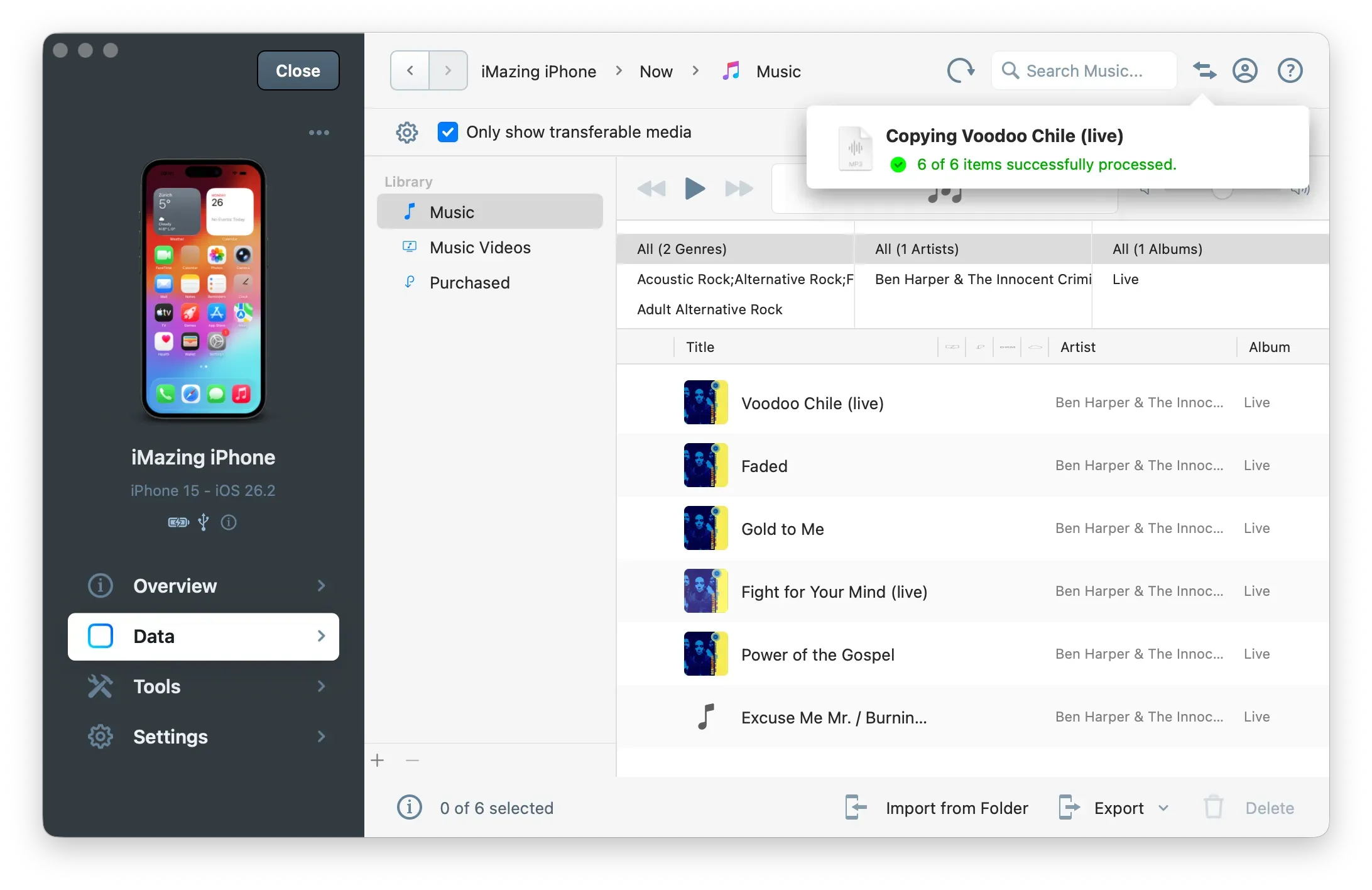
Tips: You can also drag files from your computer to your device's Music section in iMazing to import them.
Going further
iOS devices support the following audio file formats:
- MP3 (16 to 320 Kbps)
- AAC - M4A (16 to 320 Kbps)
- Apple Lossless
- AIFF
- WAV